Answer:
Getting Started for Firm Administrators
Checklist to assist Firm Administrators:
1. Does the firm have a Sherlock Starter (Access)? Refer to How to Enable Sherlock Starter
2. Has the firm been licensed for Caseware Sherlock? Refer to How to check if the firm has been licensed for Caseware Sherlock
3. Have the user licenses been allocated? Refer to How to allocate user licenses
4. Do users have access to the entity on Caseware Cloud? Refer to How to ensure that users have access to the entity on Caseware Cloud
5. Have the dashboards been shared to the user? Refer to How to share access to Sherlock Dashboards
-
How to Enable Sherlock Starter (Access)
All users need a Sherlock Starter (Access) license. This enables the extraction of data from all users' files in Caseware Cloud. To enable Sherlock Access, the firm administrator needs to ensure that they purchased the Sherlock Reader or Sherlock Builder license, and therefore it forms part of the package.
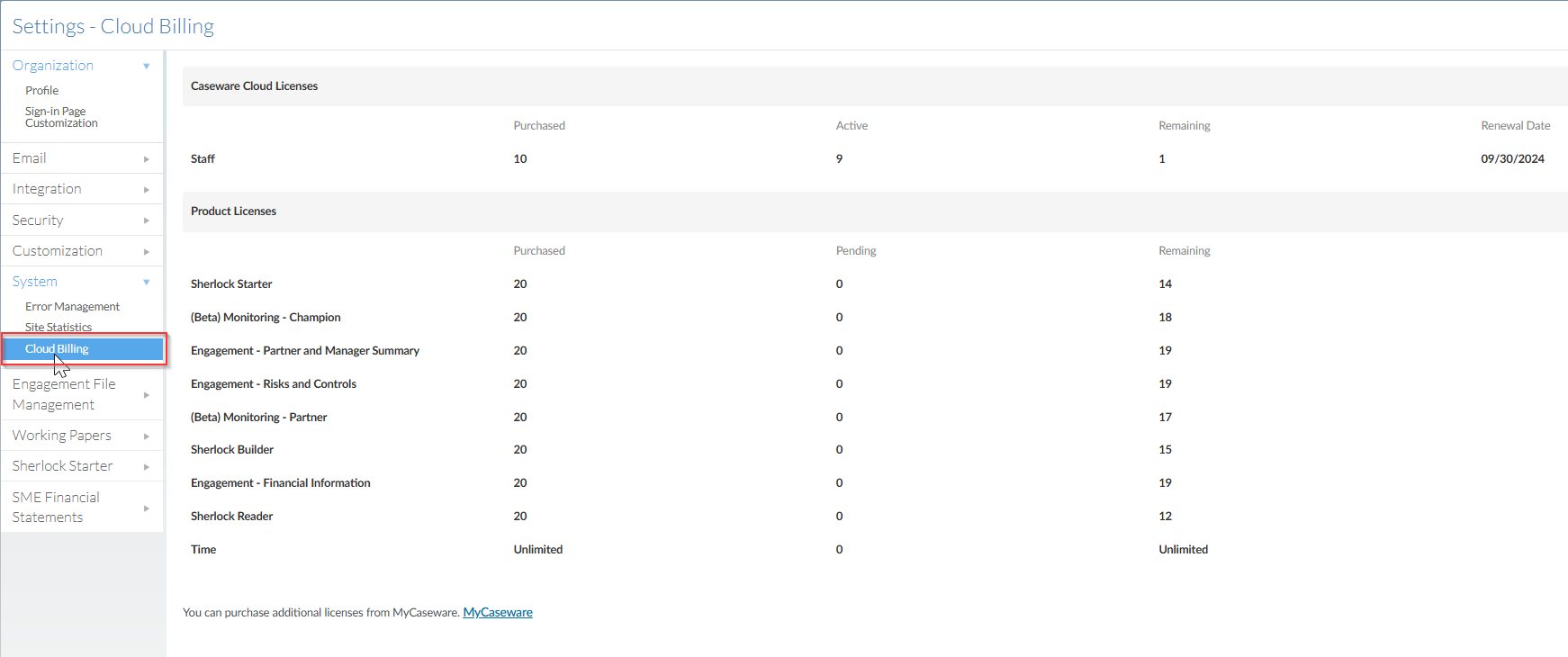
2. How to check if the firm has been licensed for Caseware Sherlock
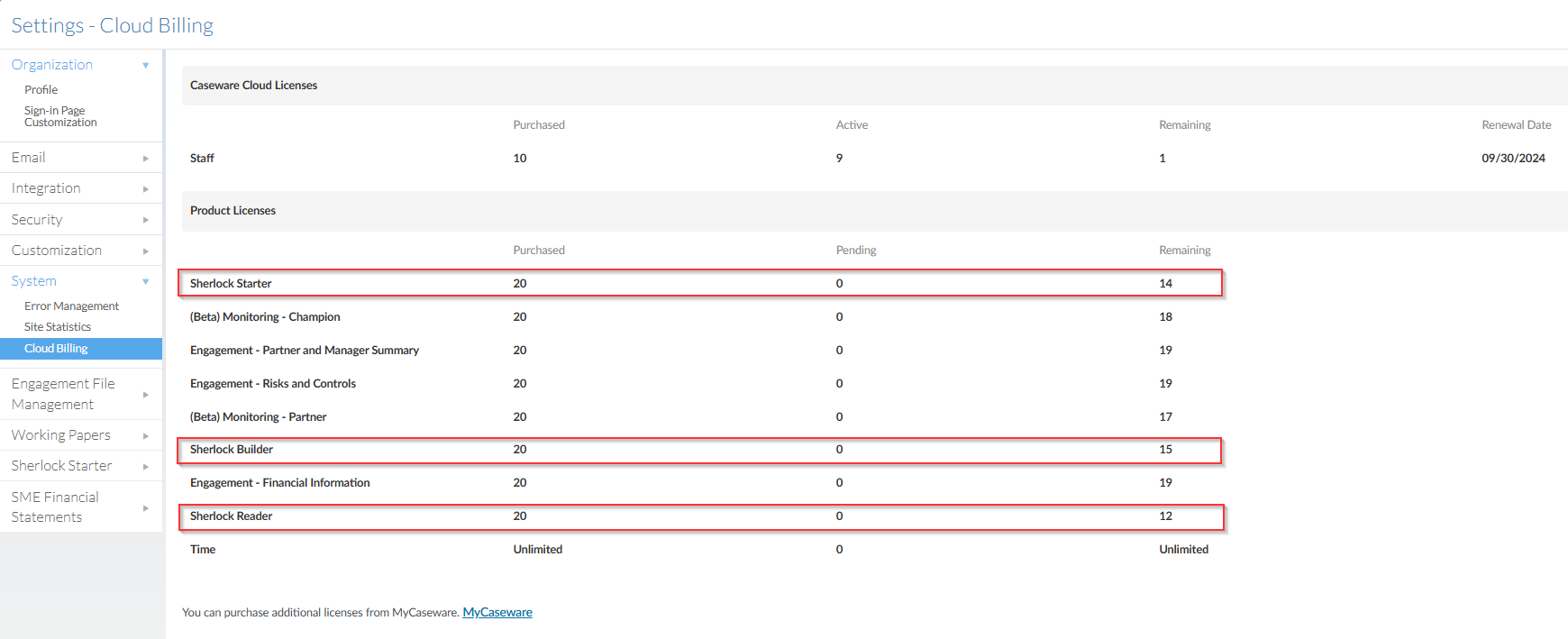
The firm administrator needs to navigate to System settings, under Cloud Billing, this will indicate how many licenses have been purchased, allocated and remaining for Sherlock products.
-
- Sherlock Builder (Design) - This license is allocated to users who will build new licenses
- Sherlock Reader (Viewer) - This license is allocated to users who need to view the dashboards
- Sherlock Starter (Access) - This license is allocated to all other users. This ensures that data is extracted from all files in Caseware Cloud.
-
How to allocate user licenses
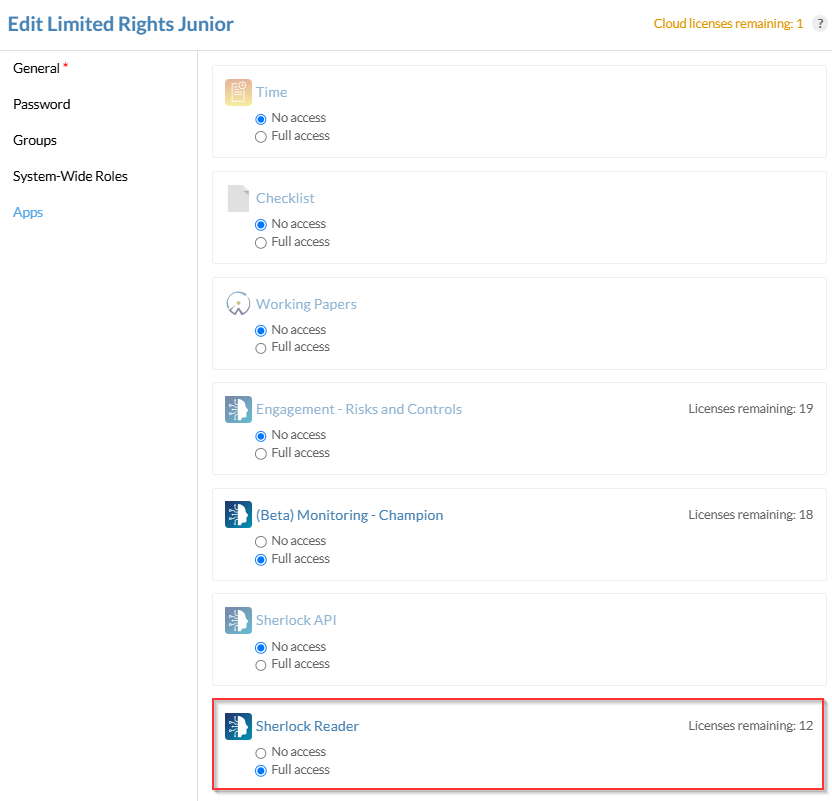
The firm administrator can allocate user licenses by navigating to the individual staff profiles, where they will be able to allocate user licenses to staff.
-
- For all Sherlock Reader (Viewer) users - the firm administrator needs to allocate a dashboard for users to view.
- For all Sherlock Builder (Design) users - users will build their own dashboards and therefore able to view the dashboard on Sherlock Builder.
-
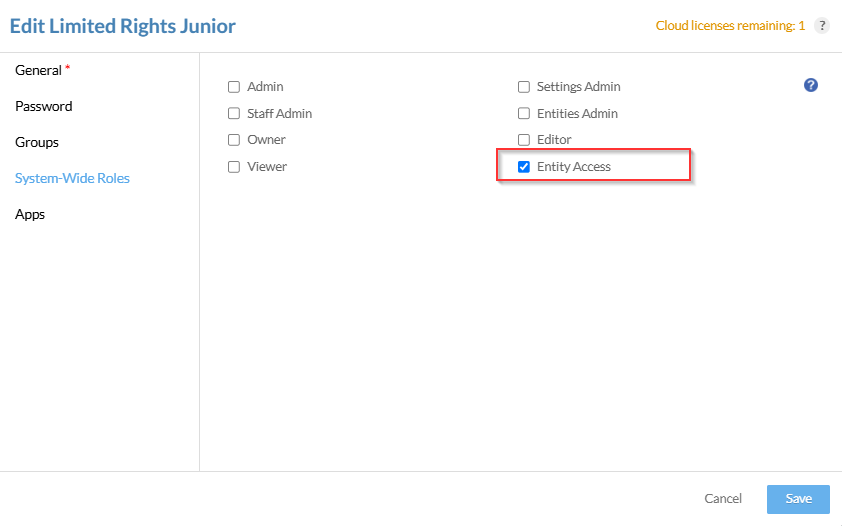
How to ensure that users have access to the entity on Caseware Cloud
To ensure users have access to entities on Caseware Cloud, the firm administrator must grant staff users entity or viewer access rights. Viewers of Sherlock dashboards and reports will only see entities they have been granted access to, ensuring users view only relevant entities. If a user is not seeing an entity on a Sherlock dashboard, the user may not have access to that entity. Sherlock respects the rights setup in Caseware Cloud.
-
How to share access to Sherlock dashboards
The firm administrator needs to first ensure that the user license and entity access has been granted to the user. When sharing access, please note that the email addresses entered are case sensitive.
Sherlock Builder
-
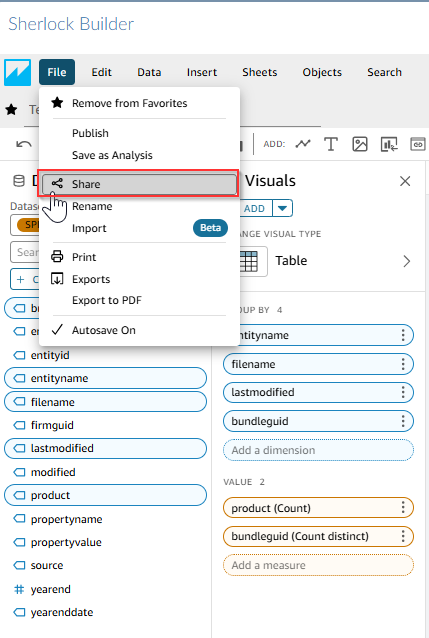
If the dashboards have been built internally using Sherlock Builder, the admin staff user can navigate to Sherlock Builder and click on File > Share, and this will allow the quick sharing of dashboards to another user. For more information on how to build dashboards, see Sherlock Builder.
Sherlock Reader
To purchase additional licenses, it is recommended to contact your account manager.
Getting Started for Users
Checklist to assist End-Users:
1.Can you access Sherlock?
2.Can you access Dashboards on Sherlock?
3.Are you able to see all the entities you have access to on dashboards in Sherlock?
1. How to access Sherlock?
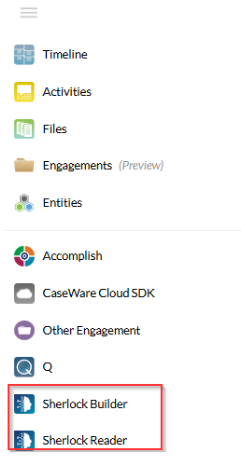
If user licenses have been granted, the user will be able to access the Sherlock Reader (Viewer) or Builder (Design) application. If the Sherlock Reader or Builder app is not visible, contact the firm administrator to allocate user licenses.
-
How to access Sherlock dashboards?
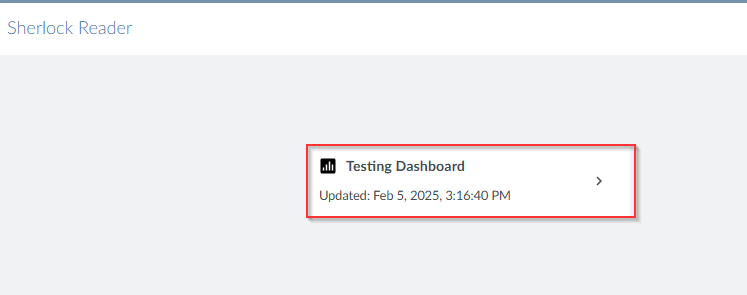
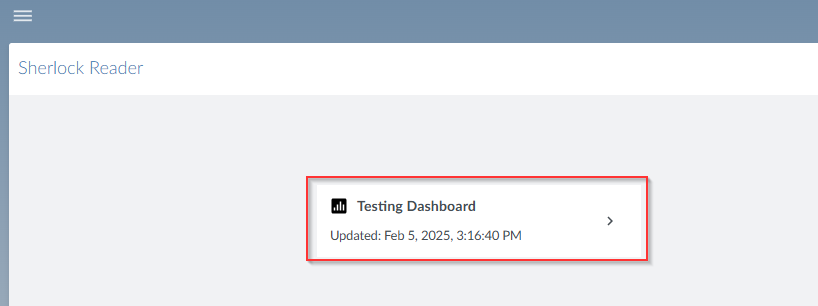
When the user has navigated to the Sherlock Reader (Viewer) or Builder (Design) app, dashboards that have been published or shared will automatically show on the landing screen. If dashboards are not visible, contact the firm administrator to share or publish dashboards.
-
How to check if you have access to entities Caseware Cloud?
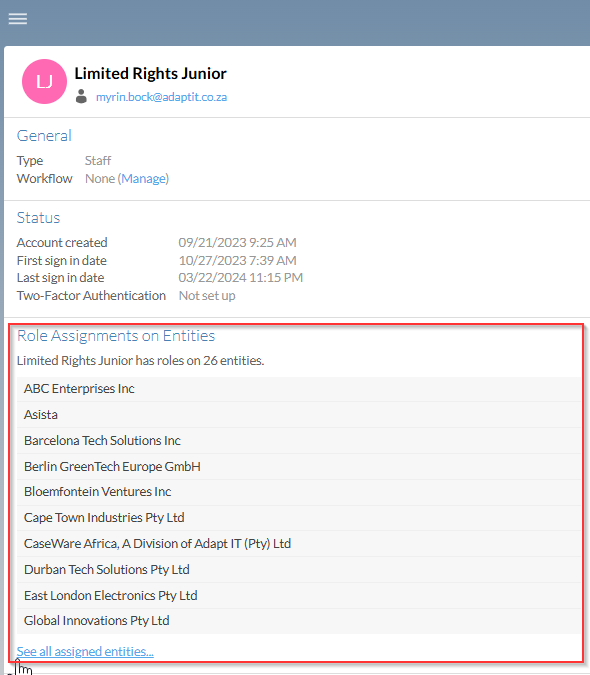
The user can check entity access by navigating to the staff profile, where there will be able to view any assigned entities, rights and permissions and staff group access to entities. If there is no entity access, contact the firm administrator user to allocate entity access or viewer access.
Rate this article:
|vote=None|
Processing...
(Popularity = 0/100, Rating = 0.0/5)
Related Articles
Caseware Working Papers Network Licenses
Probe Audit | Important information on Probe MMX licensing (Probe Audit Premium+)
XBRL Lite | How to license your file
Read-only licenses in Caseware Cloud for SE Apps
view all...
Search Results
Investec Corporate and Institutional Banking South Africa Audit Confirmation Instructions
Investec Private Bank South Africa Audit Confirmation Instructions
RMB Investment and Corporate Banking South Africa Audit Confirmation Instructions
Investec Bank - Corporate Cash Manager (CCM) Audit Confirmation Instructions
ABSA Corporate Bank South Africa Audit Confirmation Instructions
view all...