May 2026
Design assistant
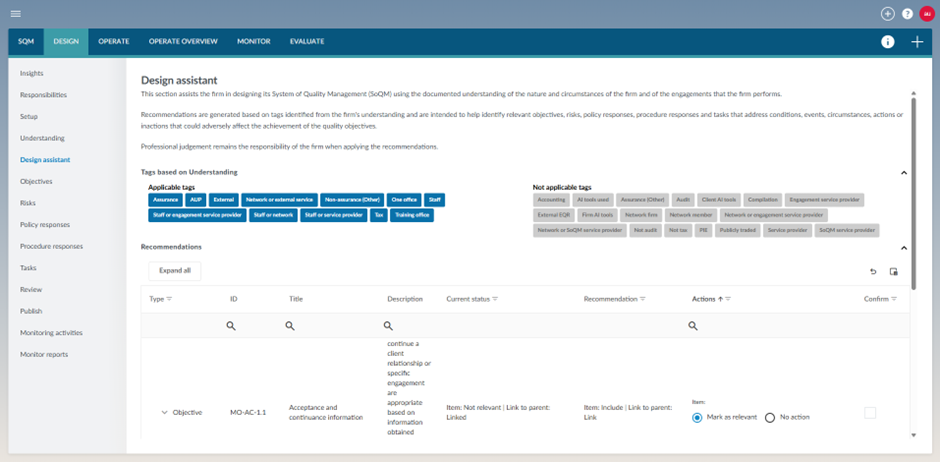
You can now use the new Design assistant to receive intelligent recommendations about which objectives, risks, policies, procedures and tasks should be included in, or excluded from, your firm’s System of Quality Management.
Based on the answers captured in DESIGN | Understanding, together with tags configured by content authors, SQM evaluates the conditions linked to those answers and determines which tags apply or do not apply. Using this information, SQM generates recommendations from the selected standards, mandatory content, and library content.
For example, where a firm indicates that it is not part of a network, the Design assistant can recommend excluding content that applies only to network firms.
From the user’s perspective, the process is:
- Complete the checklist in DESIGN | Understanding.
- Open DESIGN | Design assistant to view which tags apply and do not apply based on those answers.
- Review the recommended SoQM content.
- Compare the recommendations with the firm’s current SoQM content.
- Accept and bulk‑apply the recommendations the user wants to implement.
The Design assistant displays a Current status and Recommendation for each item.
Because the same item can appear under multiple parents, these columns clearly distinguish between the state of the item itself and the state of its link to a parent. For example, a risk may show Item: Included | Link to parent: Not linked, indicating that the risk exists in the firm but is not yet linked to the relevant objective.
Where the current status differs from the recommendation, an action is shown such as Add, Mark as relevant, Mark as not relevant, Add link or Remove link, so users can see exactly what will change before accepting.
This release also includes updated tagging and translations to support more accurate and relevant recommendations.
Monitor assistant
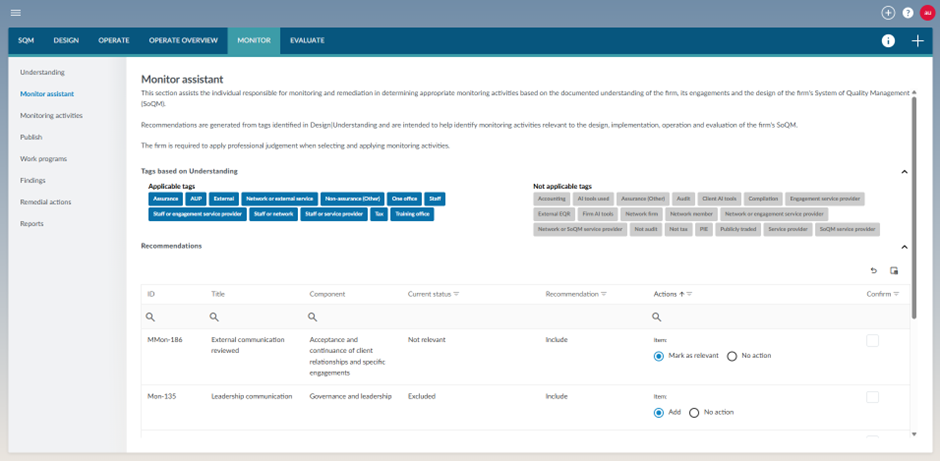
You can now use the new Monitor assistant to receive recommendations about which monitoring activities should be included in, or excluded from, your monitoring plan.
The Monitor assistant works in a similar way to the Design assistant but also considers the items that are currently included in the firm’s published SoQM. Based on this combined information, SQM recommends monitoring activities that are appropriate for the firm’s specific SoQM design.
This helps ensure that monitoring activities remain aligned to the firm’s risks, responses and controls, and continue to evolve as the SoQM changes over time.
The Monitor assistant displays a Current status and Recommendation for each monitoring activity.
The current status shows whether the activity is Included, Not relevant or Excluded in the firm. The recommendation considers both the item's tags and whether it has linked items such as objectives, risks, policies, procedures or tasks that are still relevant in the firm's SoQM. This ensures the assistant only recommends including monitoring activities that align with the firm's active design.
Where the current status differs from the recommendation, an action is shown, such as Add, Mark as relevant, Remove or Mark as not relevant so users can review exactly what will change before accepting.
Publish Monitor
You can now publish monitoring activities as part of your SoQM workflow.
Publishing monitoring activities is an important change introduced in this release. Going forward, users must publish the monitoring activities linked to their current published SoQM before they can publish a new SoQM or perform monitoring activities.
This change supports version‑based monitoring. When performing monitoring activities, users can select which version or versions of the SoQM they are monitoring. Where monitoring activities differ between versions, SQM will present both activities to users, ensuring monitoring evidence is linked to the correct version of the SoQM.
Other enhancements and fixes
The following list is a brief description of minor enhancements and bugs that have been resolved:
- You can now see a more complete view of progress in DESIGN | Insights, as the figures displayed in the centre of the donut charts include items marked as Not relevant.
- You can now update the Timing selection on DESIGN | Procedures without retaining irrelevant information, as related sub‑fields are cleared automatically when the timing changes.
- You can now complete sign‑off more efficiently in DESIGN, as dialogs close automatically once a sign‑off has been saved.
What's New Video
December 2025
We’ve added several enhancements to SQM to make it easier for you to work with your libraries and build your System of Quality Management. These updates are designed to save you time, reduce manual effort, and help you clearly see how everything in your SoQM connects.
Clearer visibility with expanded linked-item columns
When opening any library dialog, you’ll now see more of the relationships that each item has with other content in your SoQM. For example:
- Risks now show which monitoring activities relate to them.
- Policies show the procedures that depend on them, as well as any monitoring activities.
- Procedures show their linked tasks and monitors.
- Tasks now also show monitors linked to them.
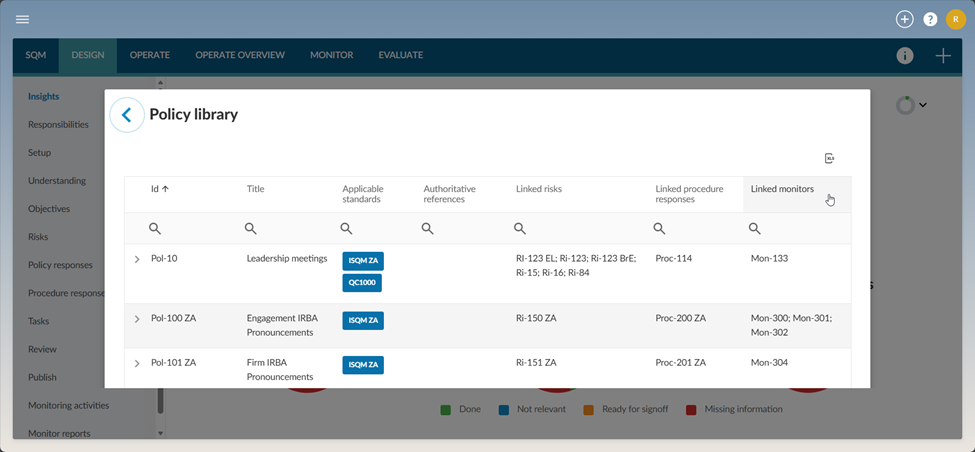
These additional columns help you quickly understand how an item fits into the bigger picture before adding it to your SoQM.
Adding items from the library now brings through all related information
When you add an item from the library, SQM now fills in far more of the details for you. This includes the text fields you’re familiar with, but also the relationships between items that already exist in your SoQM. For example:
- If a risk is linked to certain objectives or policies in the library, SQM will link the ones that already exist in your firm’s SoQM.
- The same applies across all item types—procedures link to the right policies, tasks link to the right procedures, and so on.
- Standards and authoritative references connected to the item are also applied automatically (based on the standards you’ve selected).
This means you no longer need to manually rebuild these relationships when inserting items from the library. The system takes care of it for you.
Bulk create items from the library
Adding items one at a time can slow down your setup—especially when you’re starting a new SoQM or adopting new content. To help with this, each item type now has a Bulk create option.
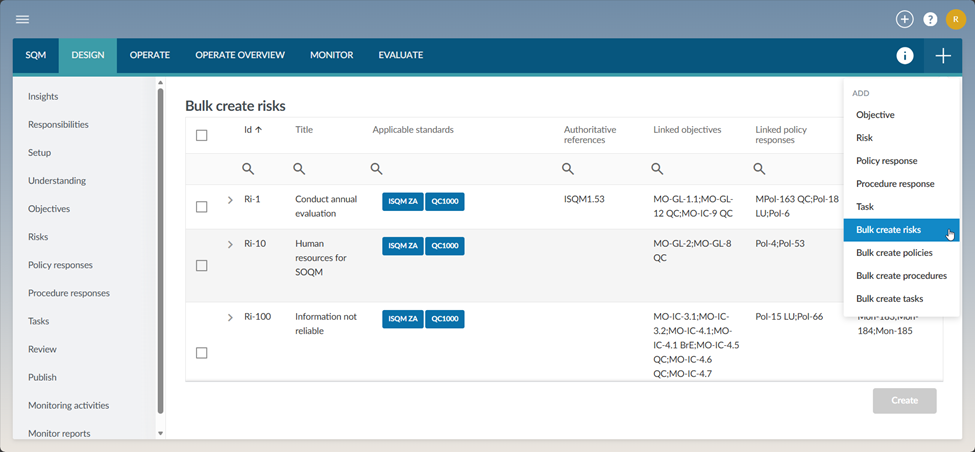
Here’s how it works:
- Open the bulk create option from the + menu.
- Select as many items as you want (or choose “Select all”).
- SQM will let you know if any items already exist or if there’s a code conflict.
- You can choose to continue with the remaining items.
- All selected items will be created with their fields and links filled in automatically.
- This makes it much quicker to bring in recommended content from the library.
July 2025
Sherlock integration
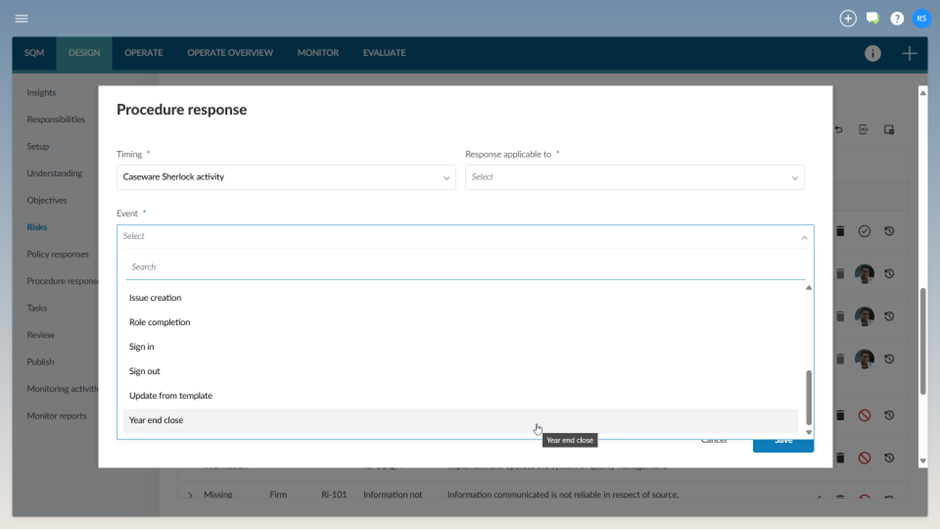
You can now automate task creation using Sherlock integration. When adding or editing a procedure, you can select from available Sherlock history events as triggers—making it easier to ensure the right tasks are sent at the right time, based on real-world activity.
Customizable table views
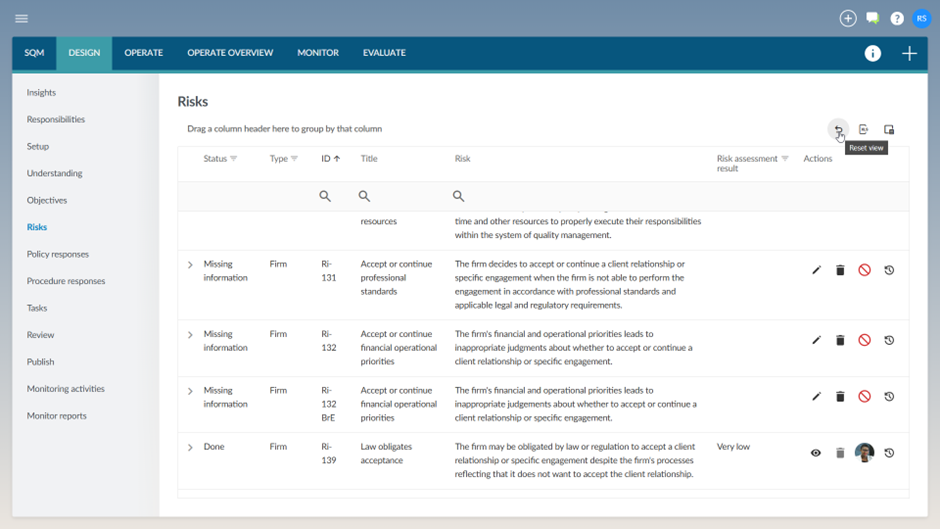
All tables now remember your preferred column order, width, and sorting—so when you come back, you can pick up right where you left off. If you want to go back to the original setup, just click the new Reset view button to restore the default view.
Refreshed look and feel
We’ve updated the overall visual design of SQM to provide a cleaner, more modern experience—especially for those working on laptop screens.
Key changes include:
- Streamlined navigation: The page menu on the left is now more compact, giving you more workspace.
- Enhanced tables: Tables now display a clearer, more focused grid with no alternate row shading and minimal borders, adapting better to various screen sizes.
- Optimized spacing: Improved use of space throughout, so you see more of your information without extra scrolling.
Other enhancements and fixes
The following list is a brief description of minor enhancements and bugs that have been resolved:
- Resolved an issue affecting the appearance of forms (such as checkboxes appearing oversized) to ensure a more consistent and polished experience when capturing information.
- Updated the design of Understanding pages for a more cohesive look and improved usability.
- Various fixes to exporting features, delivering more reliable and consistent Excel exports across the app.
March 2025
Review page
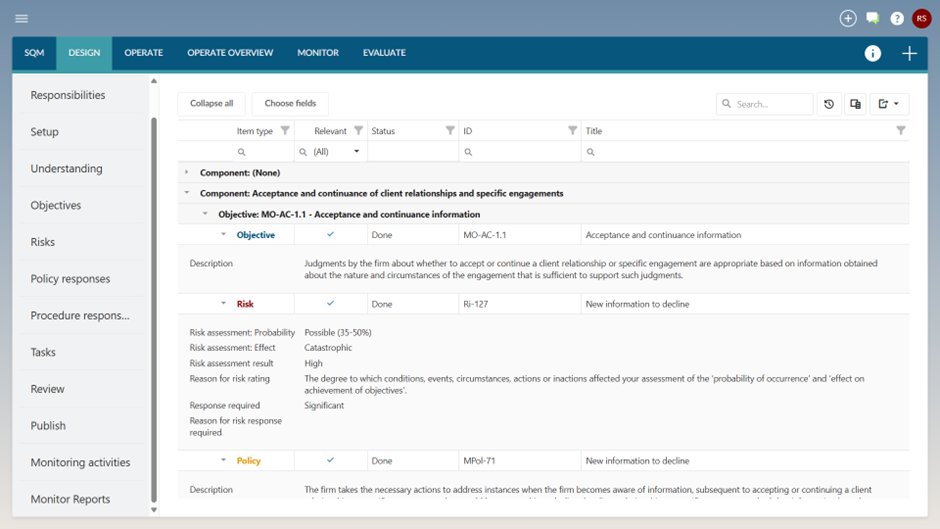
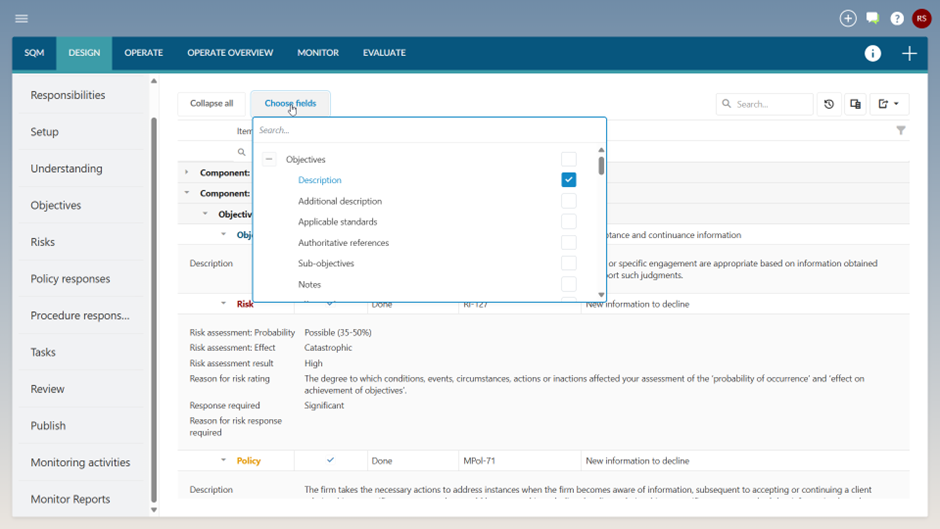
The Review page in DESIGN has been transformed into a robust, standalone feature that provides a detailed, hierarchical view of all your items grouped by Component and Objective. Unlike the Publish page, the Review page displays every item regardless of its signoff status, allowing you to thoroughly assess the progress of your quality management process.
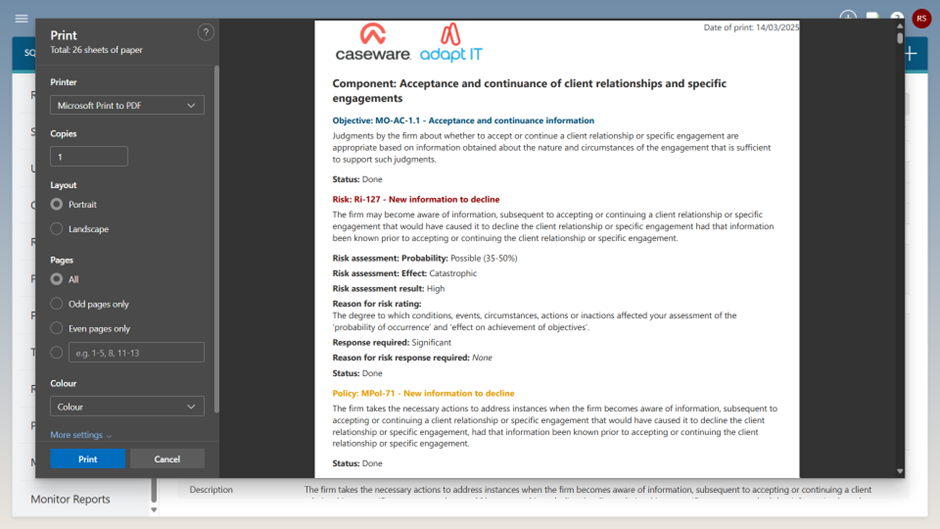
The application also offers the ability to print this view to PDF, generating a formatted review document that reflects your chosen details and applied filters.
You have control over the displayed data, with options to select specific fields and filter by status, relevance, ID, and title—empowering you to focus on the information most important to your workflow.
Sign-off audit trail
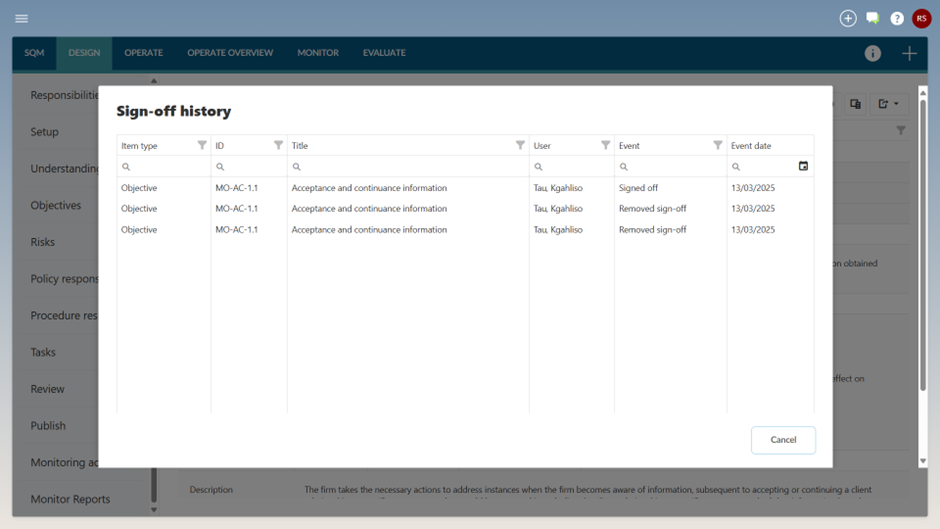
A comprehensive signoff audit trail has been introduced to provide greater transparency and accountability. The application now records who signs off on items, who removes signoffs, and when these actions occur.
This audit trail can be accessed in two ways:
- By clicking the dedicated button next to each individual item to view its specific signoff history, or
- Via a centralized table available on the Review page, where you can filter and review the signoff details for all items.
This functionality ensures you have a clear historical record of all signoff activities, which is invaluable for audits and ongoing process improvements.
Duplicate check in library
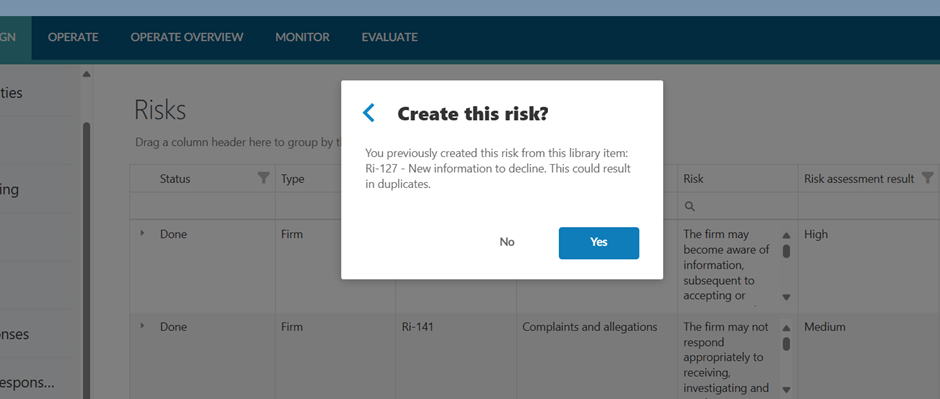
When adding an item from the library, the application now checks for any duplicates based on title and description. This ensures that your System of Quality Management remains free of redundant entries from the library content, helping you maintain clarity and accuracy within your records.
Other enhancements and fixes
The following list is a brief description of minor enhancements and bugs that have been resolved:
- Adjustments have been made to Excel exports to ensure that standards not applicable are excluded from the output.
- A bug that prevented the saving of Notes on Policy responses has been resolved.
- An issue affecting the ability of Admins to complete their tasks has been fixed.
November 2024
Feature: Draft and published SoQM
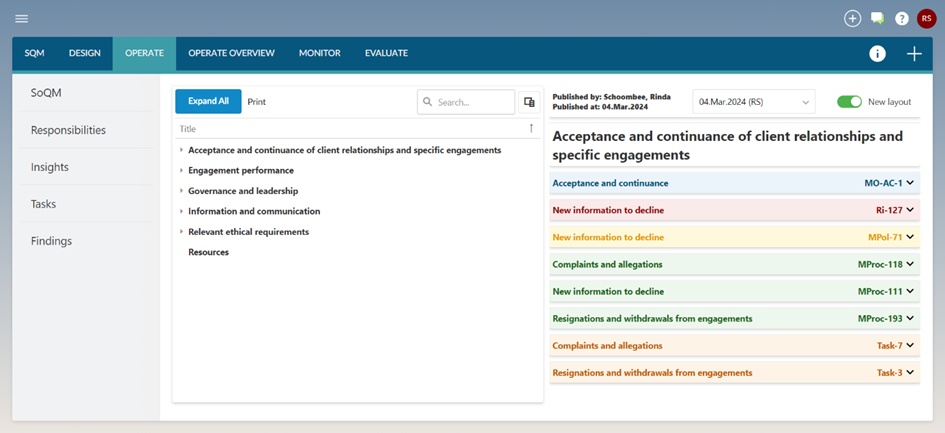
The SoQM in both DESIGN and OPERATE has been completely redesigned for a more cohesive experience. In OPERATE, the previous table view and manual view are combined into a single, unified view. However, for users who prefer the old layout, the option to switch back remains available via a toggle in the top left. This redesign simplifies navigation and ensures consistency across the platform.
Together with the redesign:
- The SoQM is now grouped by Component, providing a more intuitive structure.
- You can create a task directly from the SoQM while viewing it, streamlining task management by allowing you to create tasks for completion in OPERATE with just a few clicks.
- You can search on title, using the search bar.
- If you have access to DESIGN or MONITOR, you can view different published versions of the SoQM in OPERATE, providing better control and oversight of version histories.
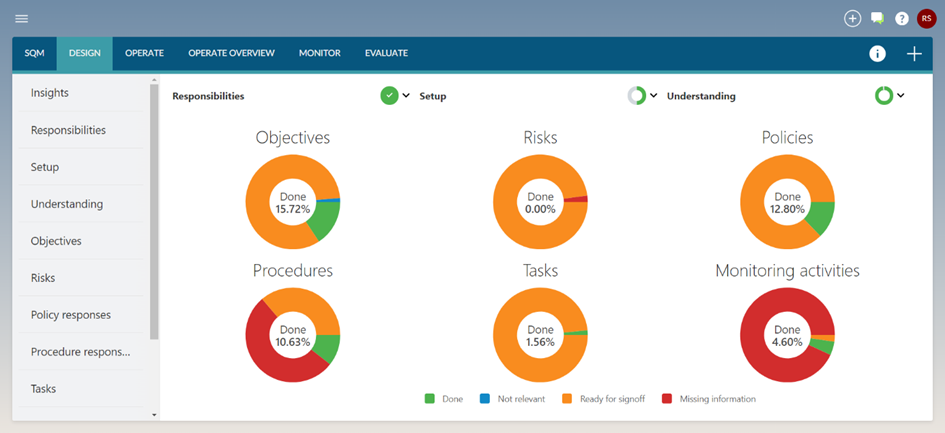
Feature: DESIGN dashboard
To provide better oversight during the design phase of your SoQM, we’ve introduced a new dashboard in DESIGN. This dashboard allows you to monitor the progress of the design of your published SoQM in real-time. With clear insights into the status of various components and tasks, you’ll be able to track your progress more effectively, ensuring that the design phase is well-managed and meets your deadlines.
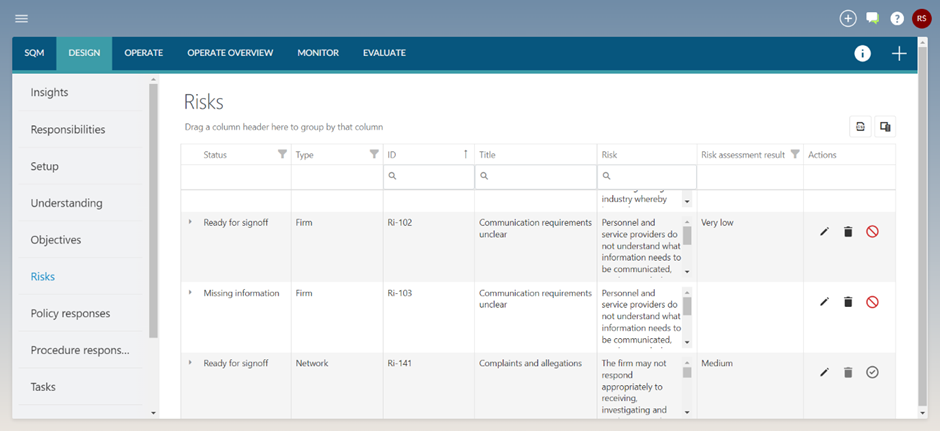
Feature: DESIGN tables
In the DESIGN item tables, you will now see a new Status column, providing a clear indication of the current state of each item. The available statuses include Not relevant, Missing information, Ready for signoff, and Done. This addition makes it easier to quickly assess which items require attention, helping you manage and finalise your SoQM more efficiently.
Feature: OPERATE dashboard
We’ve also introduced a new dashboard in OPERATE to help you manage your tasks more effectively. Similar to the OPERATE OVERVIEW dashboard, this new feature provides an at-a-glance view of the tasks assigned specifically to you. With clear task statuses and progress tracking, this dashboard ensures that you stay organised and up to date on your responsibilities.

Other enhancements and fixes
The following is a brief description of minor enhancements and bugs that have been resolved:
- Actions on Items: The edit, view, and delete actions have moved from the card to the table. The Mark as prepared action now appears in the last column with the other actions, simplifying your workflow.
- Library and Design Table Improvements: Standards and their authoritative references that are not selected will no longer appear in library dialogs and design tables.
- Linking Items: When linking items (e.g., selecting the linked risk of an objective), the description text now wraps, allowing you to view the full description.
- Library Button: The Library button is now hidden on the edit dialog.
- Library Dialog for Monitoring Activities: New columns added for Linked objectives, Linked risks, Linked policy responses, Linked procedure responses, and Linked tasks, making it easier to search for related items.
- Duplicate Findings Issue: We've fixed an issue where clicking the Send for response button twice created duplicate findings.
- OPERATE OVERVIEW Dashboard Improvements:
- The Published Task filter group has been moved to the end.
- A new filter group, Task status, has been added at the top.
- A filter row header has been added to all columns in dashboards By user and By task.
- The page menu item has been renamed from Dashboard to Insights.
August 2024
Feature: Operate overview dashboards
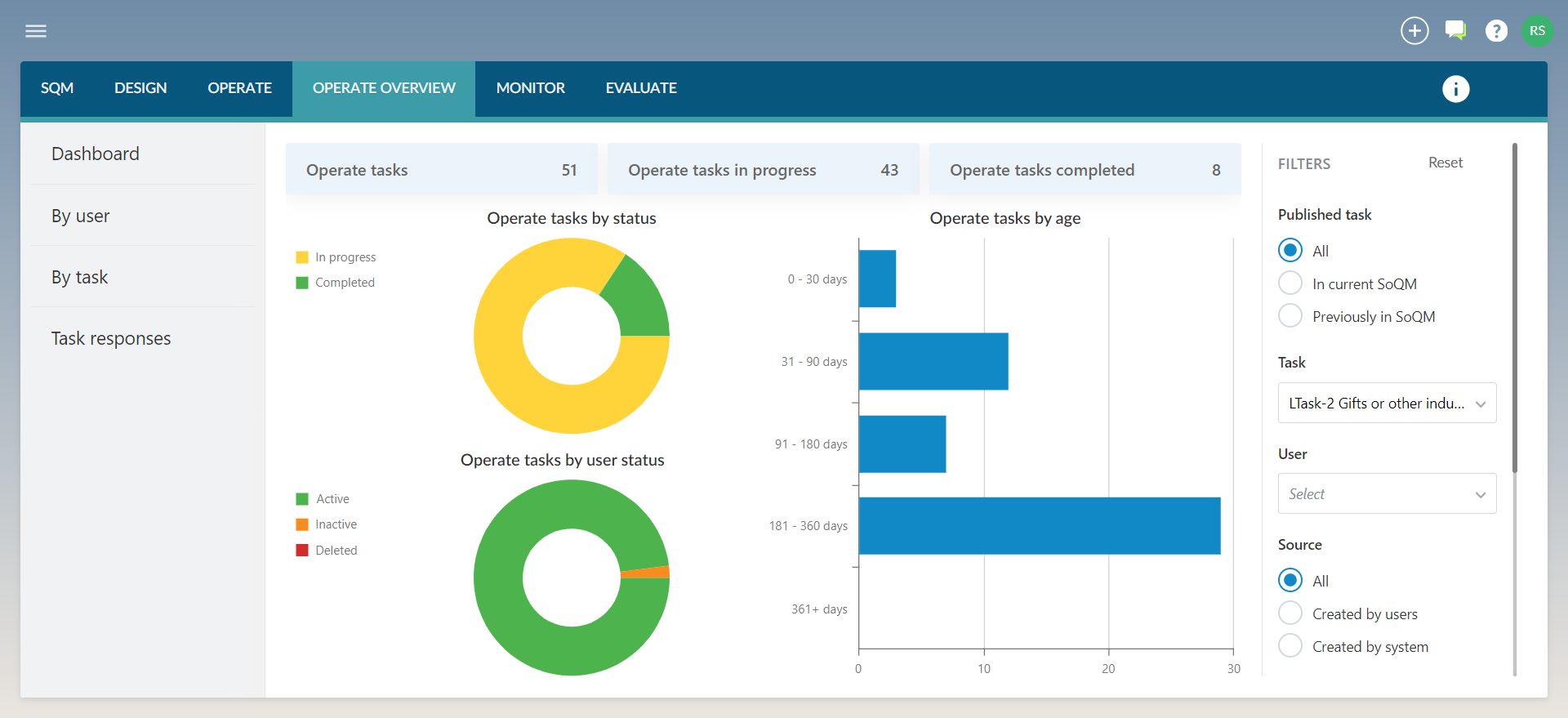
We are excited to introduce new dashboards in our latest release! These dashboards are designed to help you track the tasks your firm's personnel have completed or are yet to complete, providing valuable insights and enhancing productivity. Here’s what you can expect:
- Overview Dashboard:
Get a high-level view of the status of all tasks and their ages. Quickly identify long-outstanding tasks and those that need attention.
- By user Dashboard:
View a table displaying the number of tasks per status for each user.
Rows represent users, and columns show the task statuses, allowing you to see how many tasks each user has in different statuses.
- By task Dashboard:
View a table displaying the number of tasks per status for each task.
Rows represent published tasks, and columns show the statuses, providing a detailed view of each task's progress.
All three dashboards include a filter pane with various filters, enabling you to customize your view and focus on the most relevant information. These enhancements are designed to provide you with comprehensive tracking and management capabilities, ensuring your team stays on top of their tasks efficiently.
Feature: Operate tasks email
We've enhanced the system-generated emails sent to task assignees. These emails now include a description of where the task originated:
- For manual tasks, the email will display the description you provided when creating the task.
- For scheduled tasks, the email will include the procedure's ID and Title that triggered the task.
- For tasks triggered by a Caseware Cloud activity, the email will specify the activity that caused the task.
This improvement provides clearer context, helping assignees understand the origin of their tasks.
Other enhancements and fixes
The following is a brief description of minor enhancements and bugs that have been resolved:
- In OPERATE OVERVIEW | Task responses, by default, the following columns will show: Assigned to, Status, Date created, Date modified. The rest of the fields of your task can still be accessed through the Column chooser.
June 2024
Feature: Contacts access
You can give Contacts access to SQM. Similar to how you would give Staff access to SQM, you can enable SQM for Contacts.
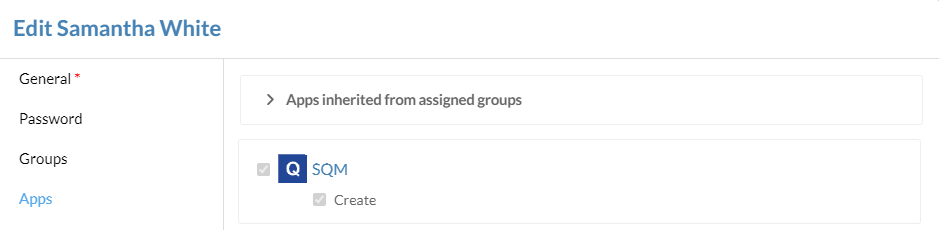
Where Contacts differ from Staff is how to manage the permissions of what the Contact can access in SQM. Where Staff is done from the Staff dialog, for Contacts you go to Settings > SQM > Manage SQM. In this table is a list of Contacts that have access to SQM. Using the Edit button, you can change which modules in SQM they can access.
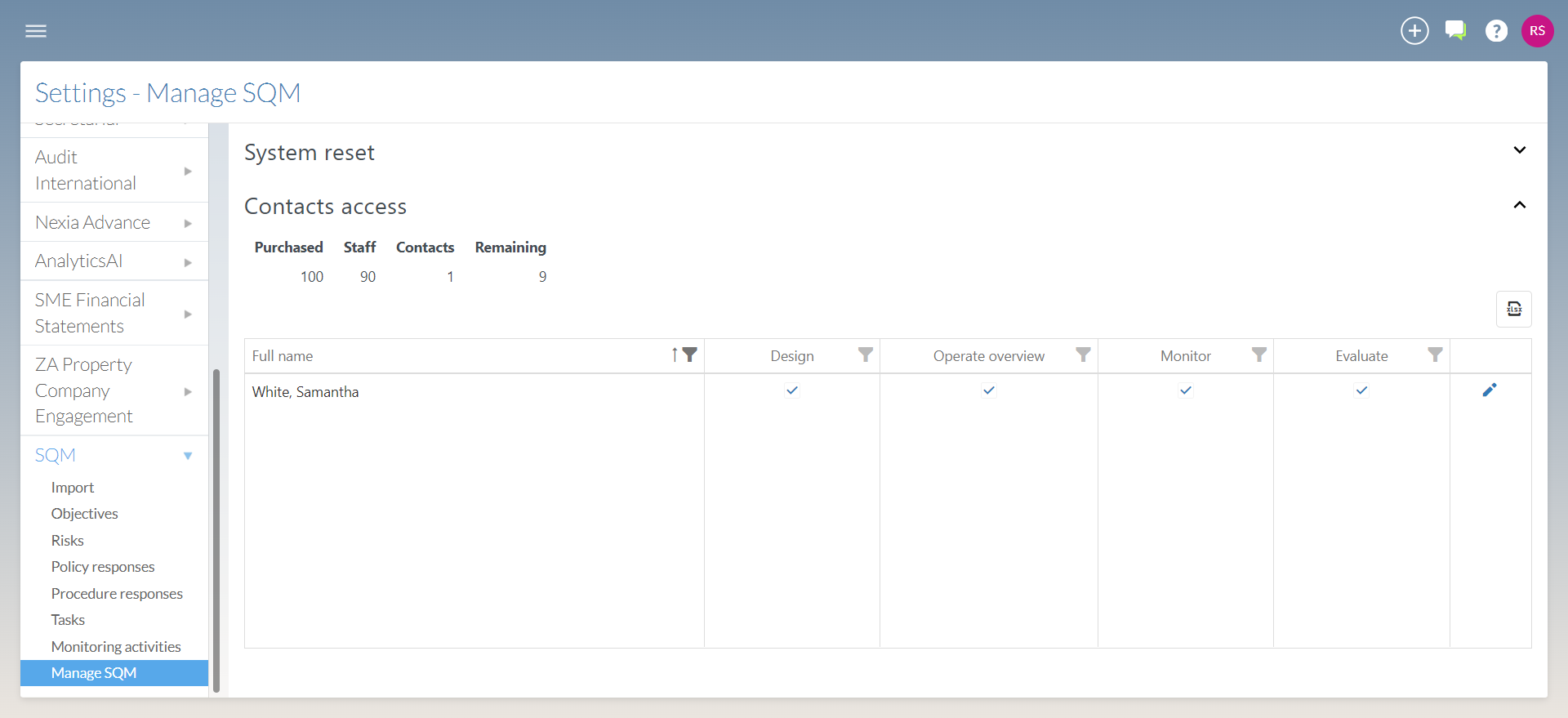
You will need to buy SQM licenses for Contacts that have access to SQM. From this same screen, above the table, we provide you with a license reconciliation.
Given Contacts have the correct permissions, they can do what a Staff can do – from creating objectives to evaluating the SoQM.
Feature: Accepting and reviewing responsibilities
In DESIGN | Responsibilities, you can review your own responsibilities. The same still applies that the responsibilities first need to be accepted. When you click on review of yourself, we’ll ask if you are sure and then continue the review process.
You are also able to remove the reviewed and accepted signoffs, when the user on the signoff is inactive or deleted.
Feature: Print SoQM to PDF
In OPERATE | SoQM – Manual, a Print button is available. On clicking this button, all the sections will expand and a PDF will be generated. Included in this PDF is the logo of your firm set in Settings > Organization > Sign-in Page Customization.
Other enhancements and fixes
The following list is a brief description of minor enhancements and bugs that have been resolved in SQM 2024.2:
- In both DESIGN | Understanding and MONITOR | Understanding, text inputs are improved. The inputs will automatically expand as you type, and once they’ve been signed off, they will remain the size of the input.
- From OPERATE OVERVIEW, you can view any of the tasks as seen by the assignee.
- When designing a procedure, you need to specify who the assignees are. An assignee can be a staff / contact, or a group. To make this clearer, we updated the layout of these fields on the dialog.
- You will no longer be able to save a procedure that has a deleted user or group selected as assignees.
- Fixes were made to keep findings raised and their assignees synced with the finding on Caseware Cloud.
February 2024
Feature: Collaborate integration
You can now trigger tasks to be sent based on activities in Caseware Cloud. The Caseware Cloud activities we support are:
- Add Staff
- Remove Staff
- Mark Staff as inactive
- Assign Staff or Staff group to Entity
- Add Contact
- Remove Contact
- Assign Contact or Contact group to Entity
- Add Entity
- Remove Entity
- Mark Entity as inactive
- Add Engagement
- Remove Engagement
To enable this, when designing your procedure responses, you can choose Caseware Cloud Activity in timing. Next, you select the type of activity the procedure response applies to. And as always, you can set assignees and link tasks to the procedure response to be sent.
Feature: Table view of published SoQM
There is a new landing page for SQM, a table view of the published SoQM. This table is similar to the one in Review & Publish under Design. Using this table, you can easily search your published SoQM.
Feature: Annotations in Monitor work programs
Similar to Understanding, you can now add links to your working paper, making it easier to access the work done for the work program.
Other enhancements and fixes
The following list is a brief description of minor enhancements and bugs that have been resolved in SQM 2024.1:
- Fixed layout issues in DESIGN | Responsibilities
- Added the ability to type more than 255 characters in text areas in DESIGN | Understanding
- Fixed layout issues in the dialogs in DESIGN
- In DESIGN, you can no longer sign off a risk without completing field "Response required - Judgement"
- When no SoQM is published, it was not clear on OPERATE | Responsibilities and OPERATE | Tasks that no SoQM has been published
- Fixed an issue where Tasks were only sent to the first 50 Staff
- In OPERATE OVERVIEW | Tasks, you can now search and scroll in the dropdown to select a task
- In all tables, disabled icon-buttons are grey to show they are disabled