The following describes the functionality and features included in SQM.
Objective
The objective of this page in SQM is to ensure that the firm allocates the SoQM responsibilities to individuals in the firm.
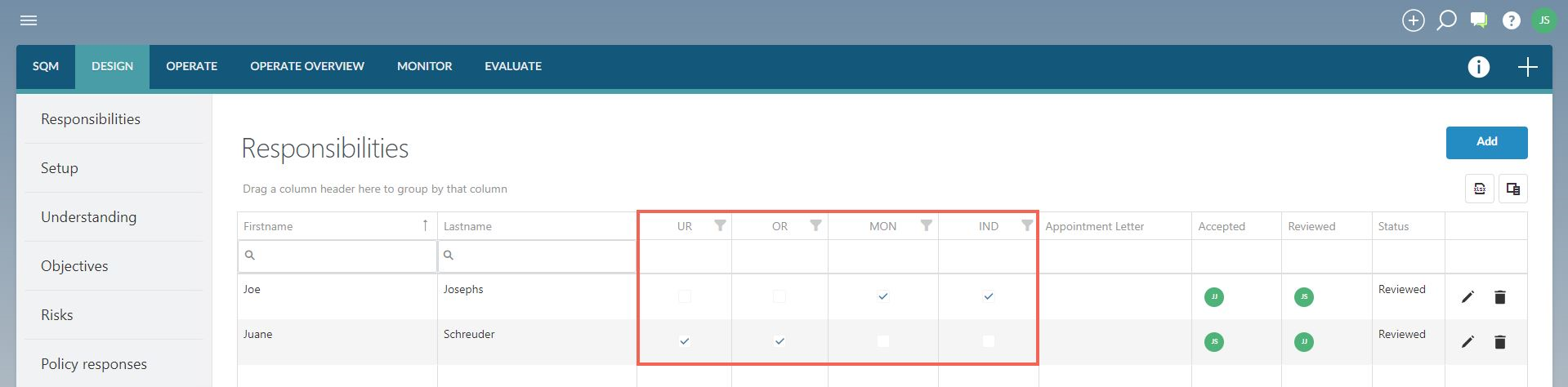
The following key responsibilities are allocated in this page:
- Individual(s) ultimately responsible and accountable for the firm’s system of quality management (UR).
- Individual(s) operationally responsible for the firm’s system of quality management (OR).
- Individual(s) with operational responsibility for independence in the firm’s system of quality management (IND).
- Individual(s) with operational responsibility for the firm’s monitoring and remediation process (MON).
Page position
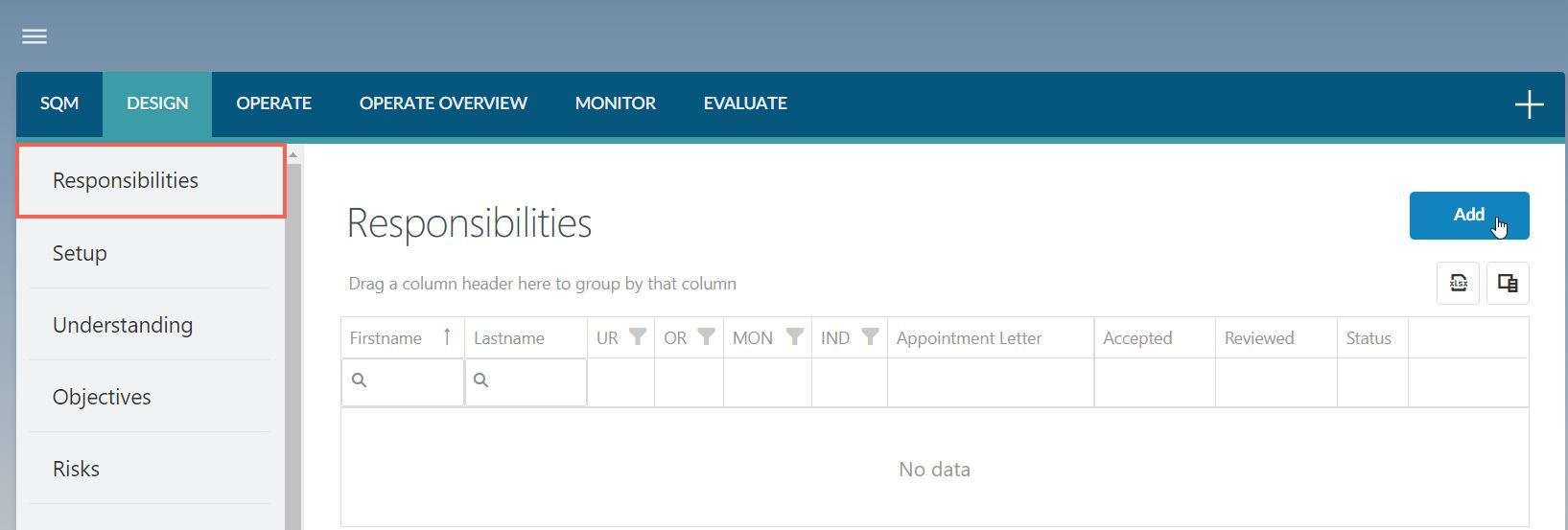
RESPONSIBILITIES can be found in the DESIGN module.
Page content
This page includes a table that must be completed to indicate the allocation of each of the responsibilities to at least one individual.
1. Add responsibility
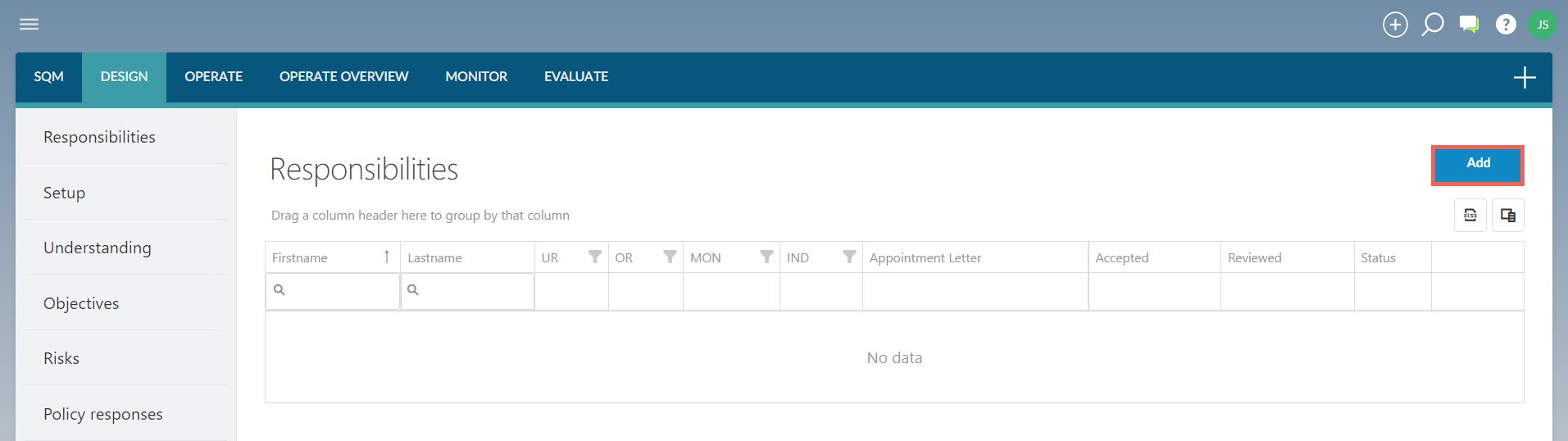
Select ‘Add’ to allocate a responsibility to a new individual.
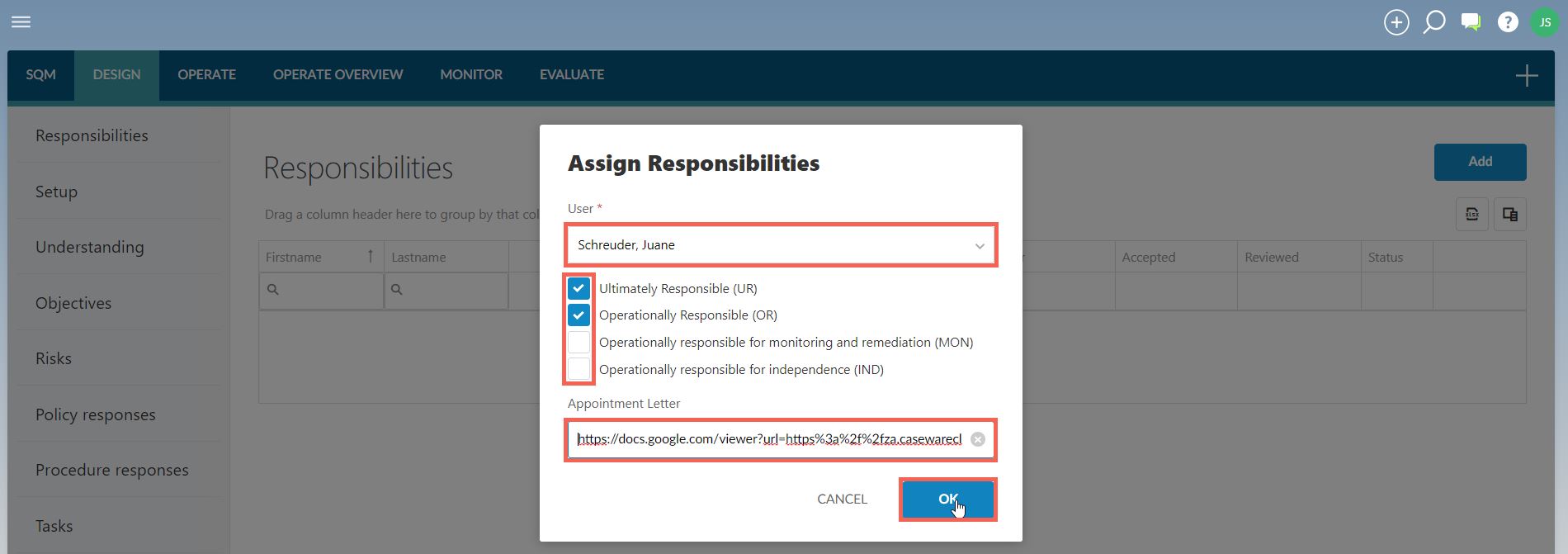
In the dialog for assigning responsibilities, complete the following:
- Select the individual from the list of users on Caseware Cloud;
- Select the responsibilities that the person will be allocated (more than one can be selected);
- Include a link to any additional appointment letter (if used); and
- Select ‘OK’
2. Edit responsibility
The responsibilities added can be edited when selecting the ‘edit’ button.
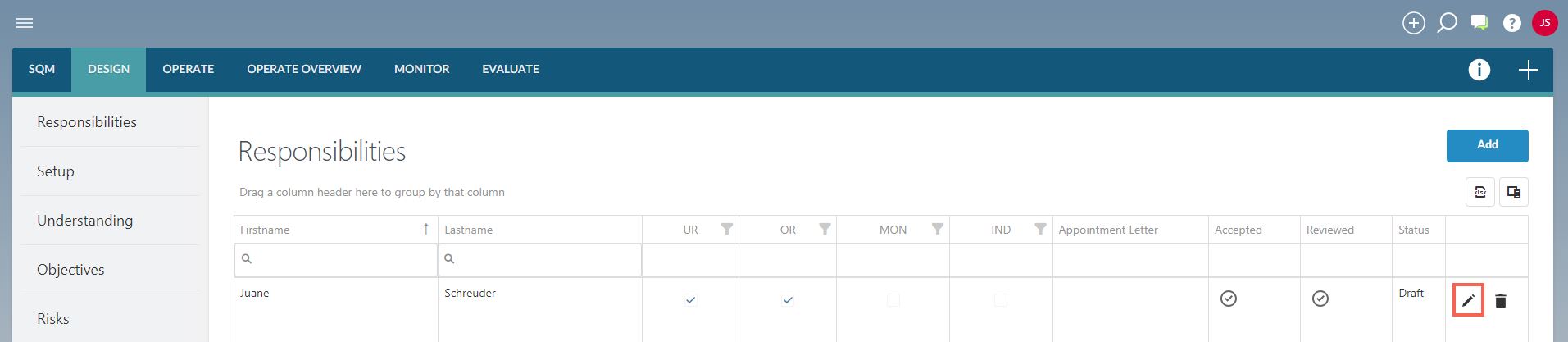
Responsibilities can only be edited in ‘draft’ status.
If responsibilities have been accepted or reviewed, the sign-off must be removed before the responsibilities can be edited.
3. Delete responsibility
Allocated responsibilities can be deleted by selecting the ‘delete’ button.
If responsibilities have been accepted or reviewed, the sign-off must be removed before the responsibilities can be deleted.
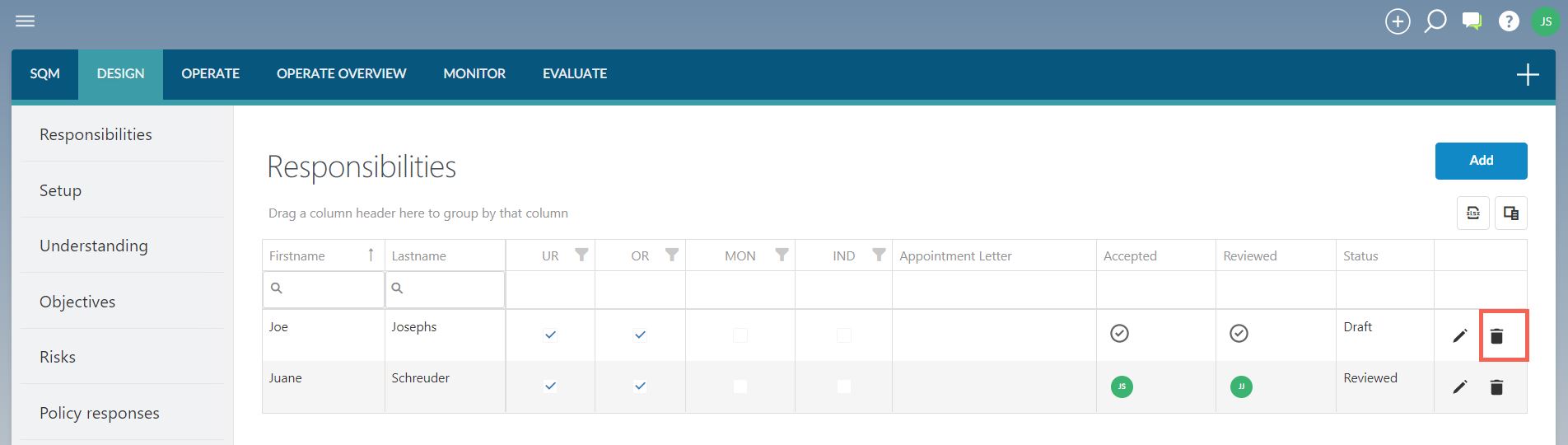
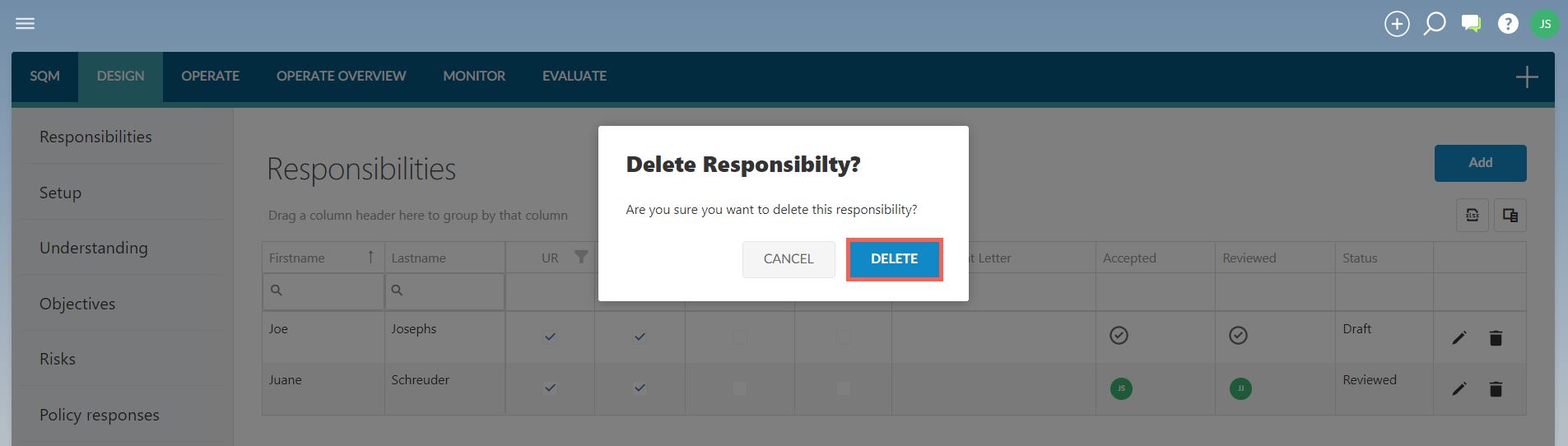
After selecting the ‘delete’ button, a new dialog will appear to confirm whether the responsibility can be deleted.
Select ‘DELETE’ to confirm and delete the responsibility.
4. Approval of responsibility
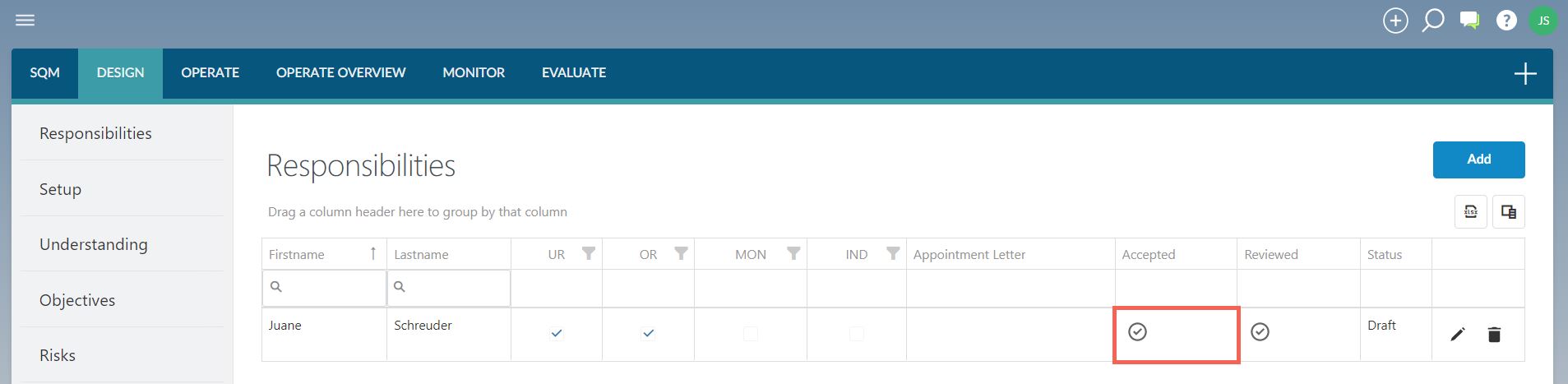
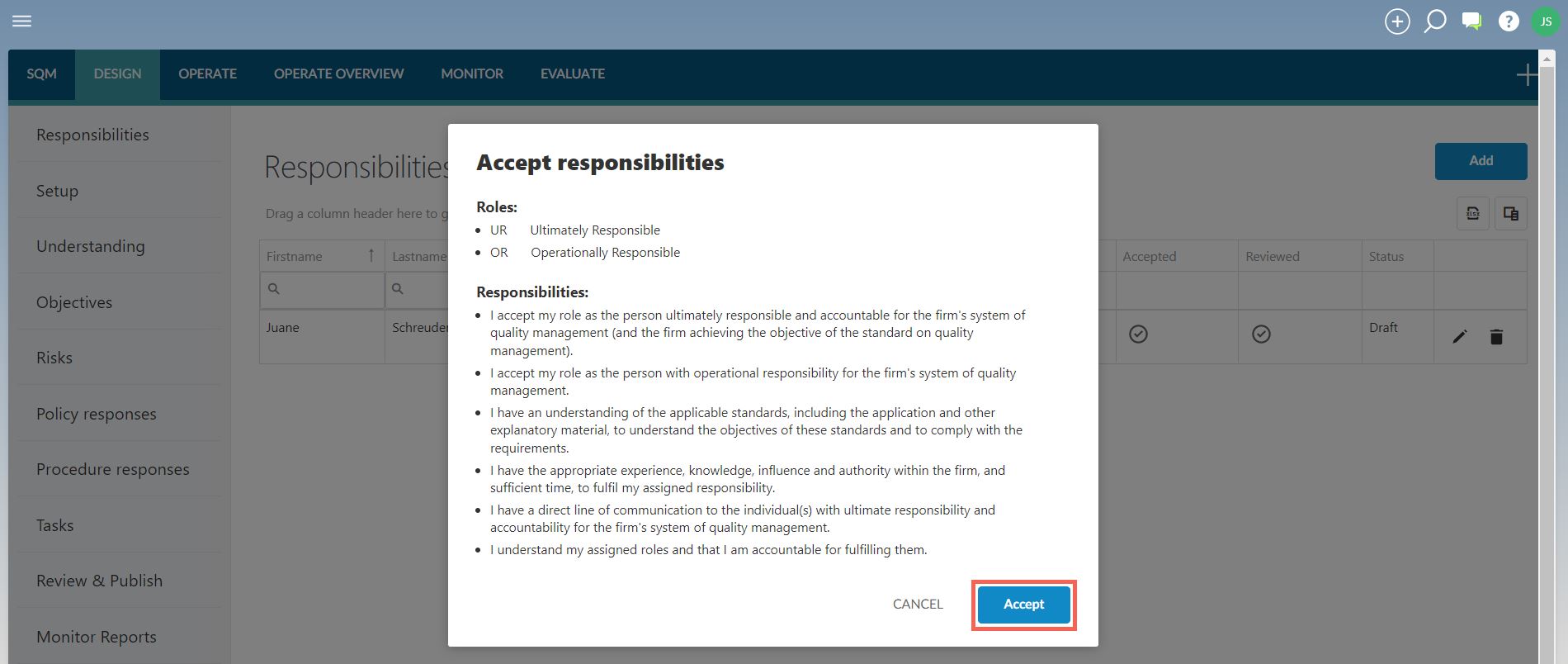
Each individual must accept the obligations linked to the responsibilities allocated to them.
This is achieved by clicking on the ‘sign-off button in the table.
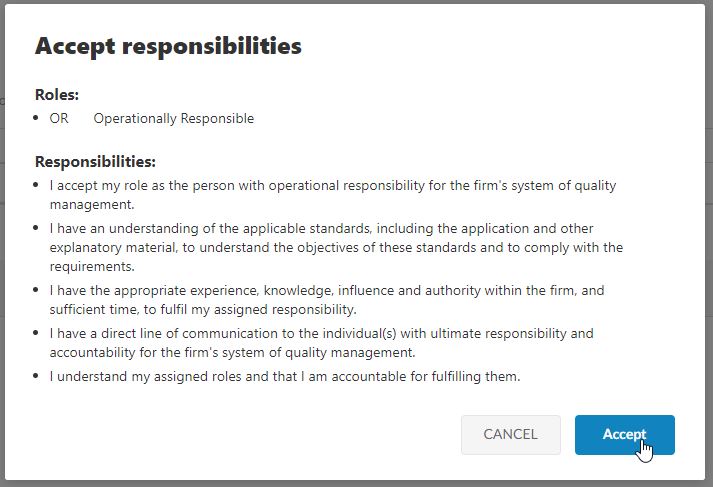
The responsibilities are then reflected in a new dialog, where the individual must click on ‘Accept’ to sign off the ‘acceptance’.
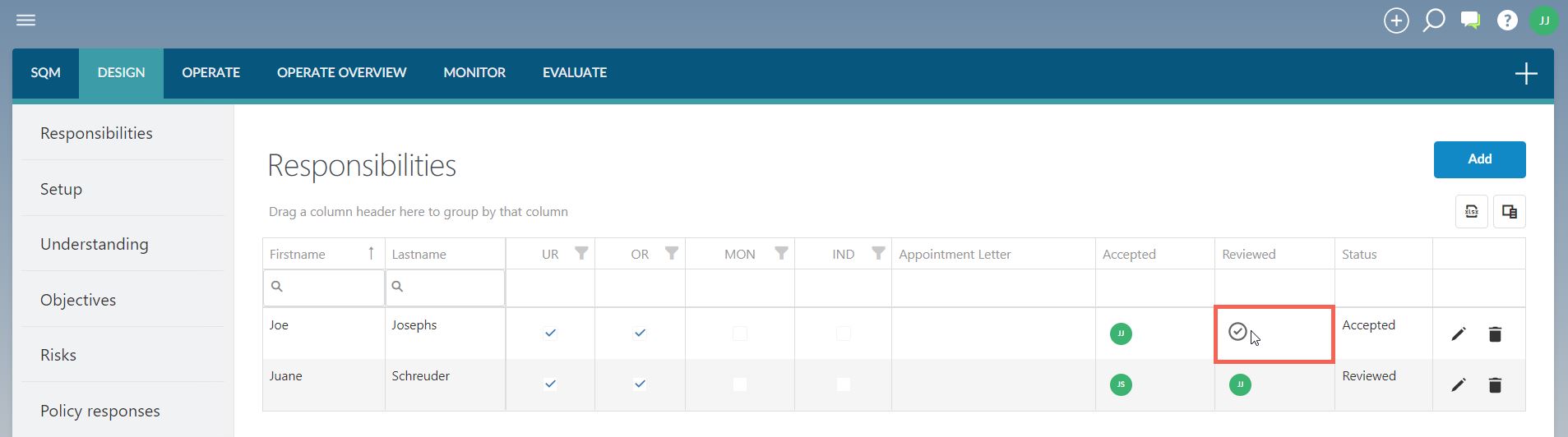
The responsibilities table will then show the individual’s avatar in the button and reflect the status as ‘Accepted’.

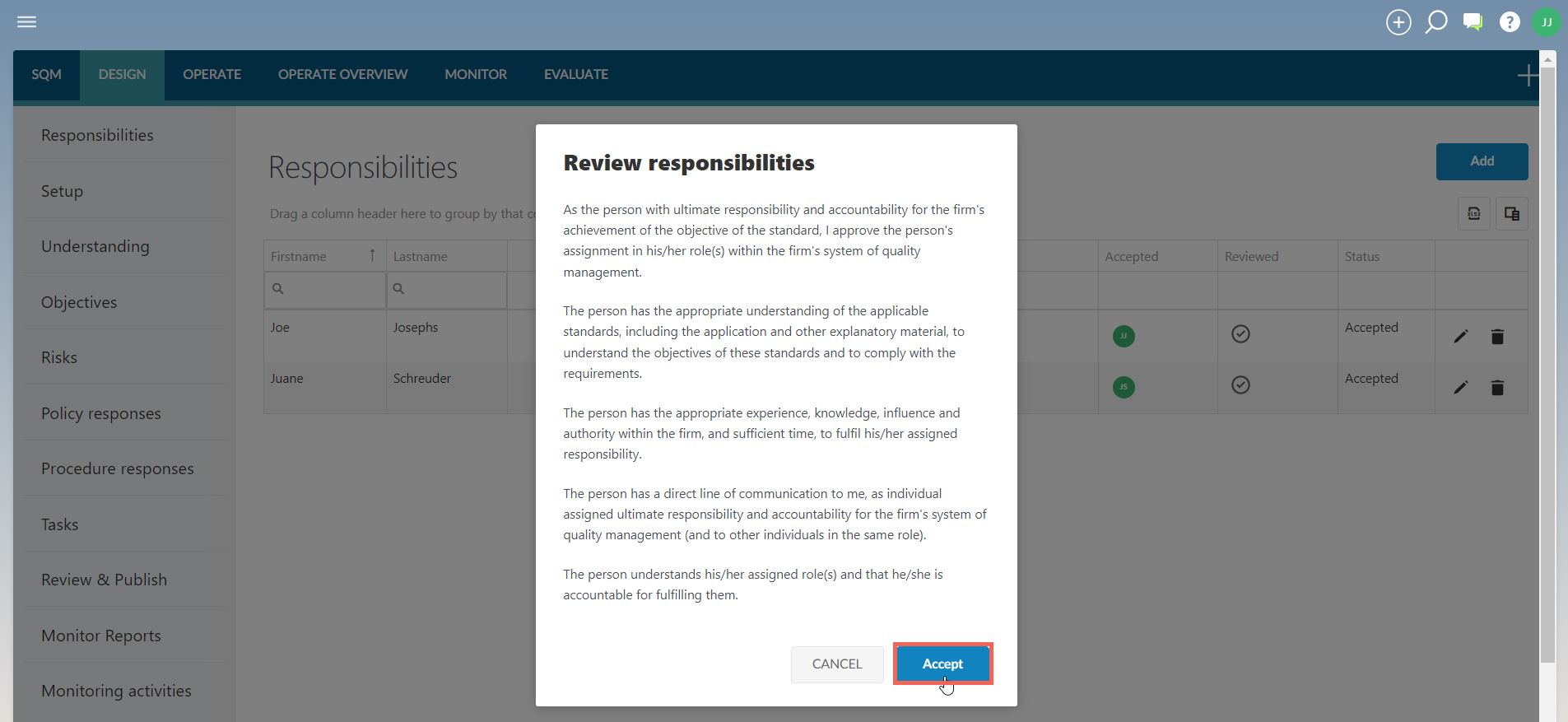
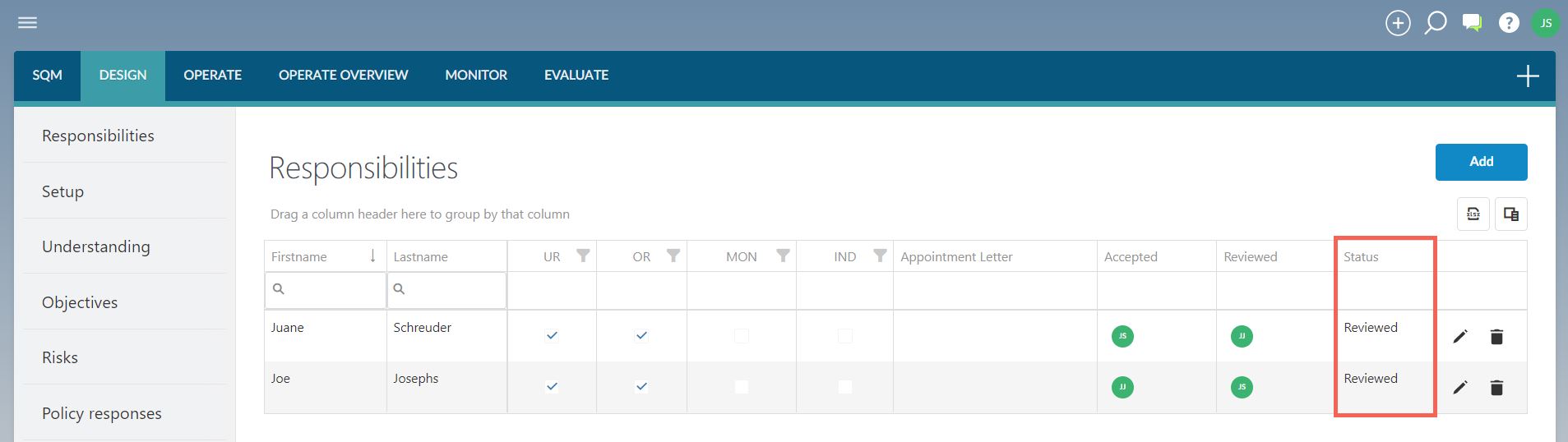
A similar process is followed to review the allocation of responsibilities until the table reflects all users as ‘reviewed’.
Page outcomes
Before continuing the rest of the design of the firm’s system of quality management, at least one individual must be allocated to each of the 4 responsibilities.
Each of these allocations must also be accepted and reviewed.
Features
The following features are available on the page:
Instructions:
.
Rate this article:
|vote=None|
Processing...
(Popularity = 5/100, Rating = 0.0/5)
Related Articles
SQM How to | Operate - Responsibilities
SQM How to | Design - Tasks
SQM How to | Design - Procedure Responses
SQM How to | Design - Policy responses
view all...
Search Results
Sending a Future Dated Request
Can I request for a future "As of Date"?
What does the Future Dated Confirmation Report provide? (New Version of Confirmation)
Caseware Time | How can I find the client contacts that are missing after sending a client batch email?
What if the Account ID requested was closed for the As of Date (New Version of Confirmation)
view all...