The following describes the functionality and features included in SQM.
Instructions:
Objective
The objective of this page in SQM is to help the firm identify relevant content for its system of quality management (SoQM), based on the firm’s own DESIGN | Understanding.
There are two assistants, working the same way at two different stages: the Design Assistant, which recommends which objectives, risks, policy responses, procedure responses and tasks are relevant to the firm’s SoQM design; and the Monitor Assistant, which recommends which monitoring activities are relevant, based on the firm’s Understanding and on how its SoQM has been designed.
Both assistants compare what the firm currently has in place against a set of recommendations, and highlight only the items that do not yet match. Professional judgement in applying the recommendations remains the responsibility of the firm — neither assistant makes the decision on the firm’s behalf.
Page position
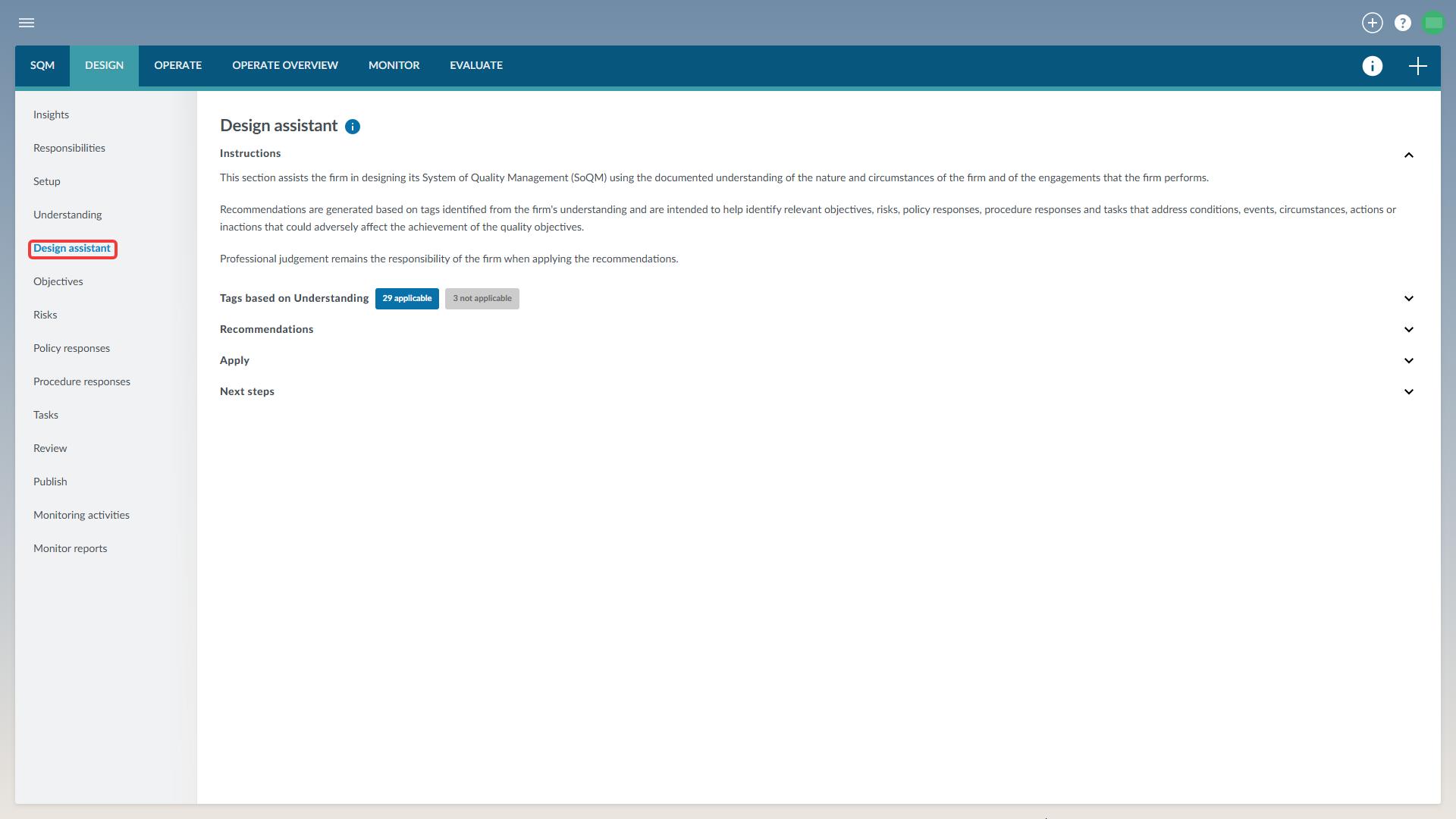
Design Assistant can be found in the DESIGN module, as the first item in the page list.
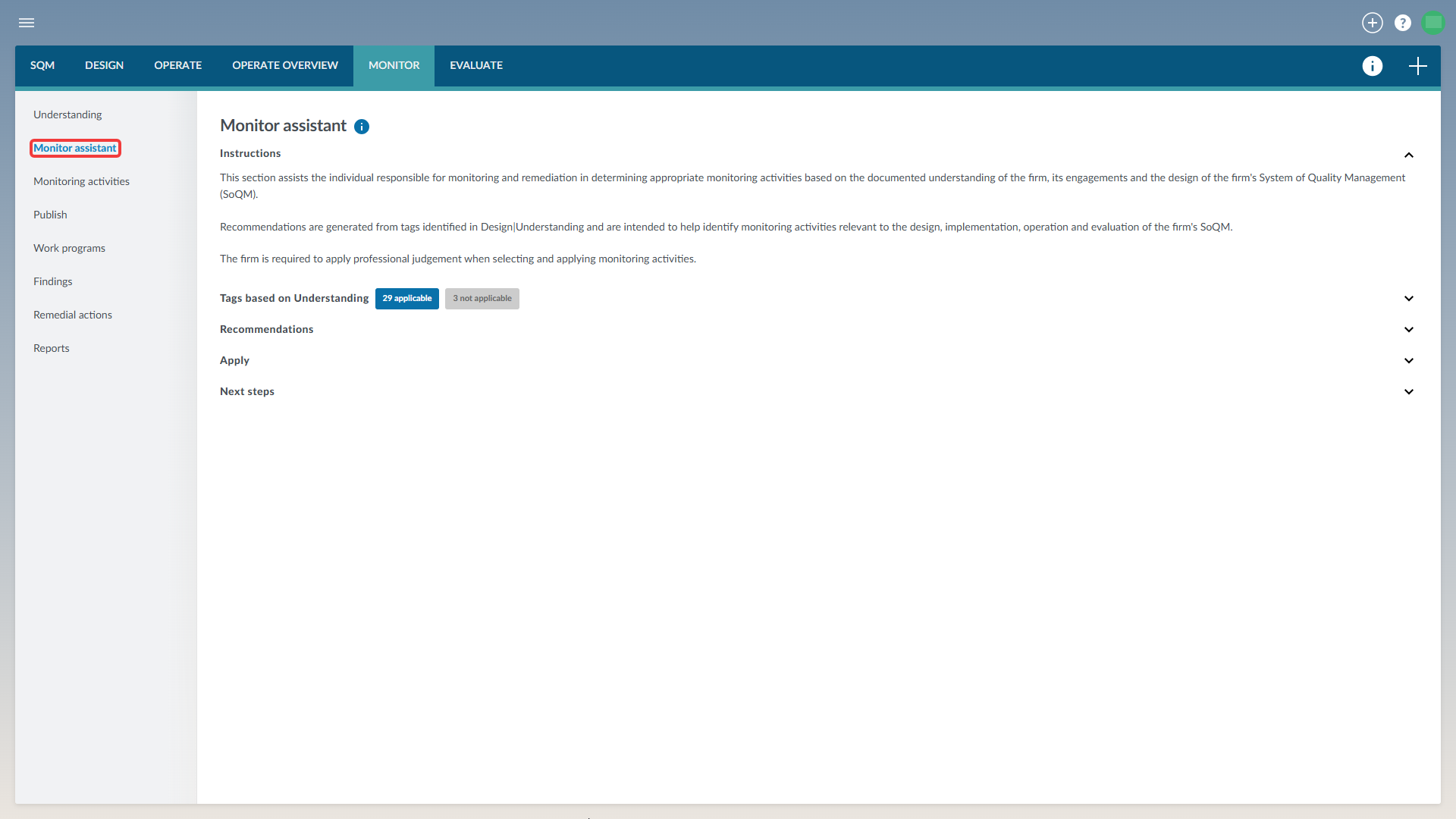
Monitor Assistant can be found in the MONITOR module, in the page list alongside Understanding and Monitoring activities.
Page content
Both assistants use the same four sections:
- Instructions — explains what the assistant does and its limitations.
- Tags based on Understanding — shows which conditions currently apply to the firm’s SoQM, based on answers already given on the DESIGN | Understanding page. This list is read-only here; to change it, update the answers on DESIGN | Understanding.
- Recommendations — a table listing only the items where the firm’s current content does not match the recommendation. Once an item matches its recommendation, it is removed from the table.
- Apply — a preview of the changes that have been confirmed, and a button to apply them all in one go.
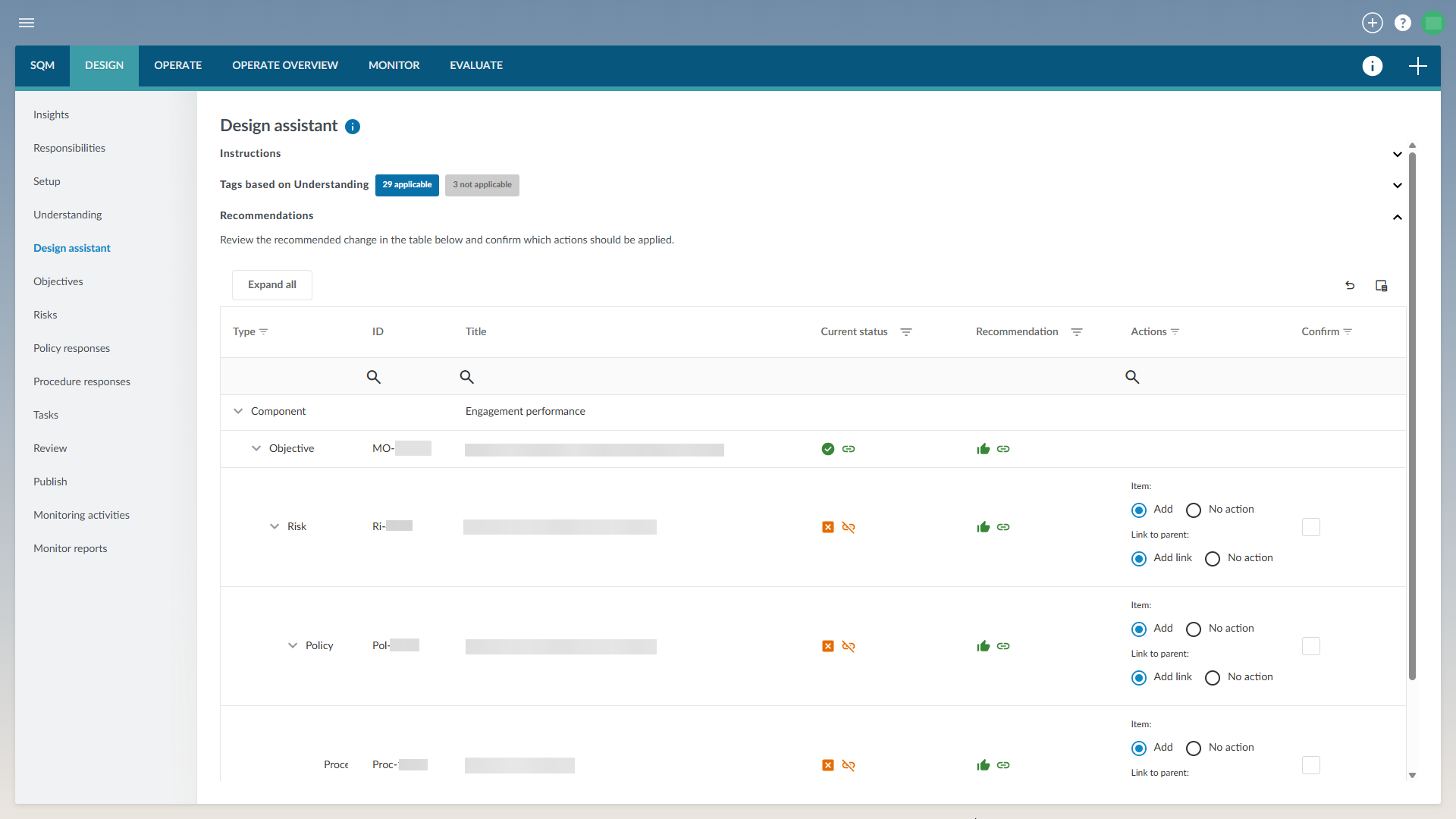
The Recommendations table differs slightly between the two assistants. On the Design Assistant, items are shown in a tree structure: objective → risk → policy response → procedure response → task. Each row can show both an item status/recommendation and a link status/recommendation, since design items are linked to a parent.
On the Monitor Assistant, monitoring activities are shown as a flat list, with only an item status/recommendation — monitoring activities do not have a parent to link to.
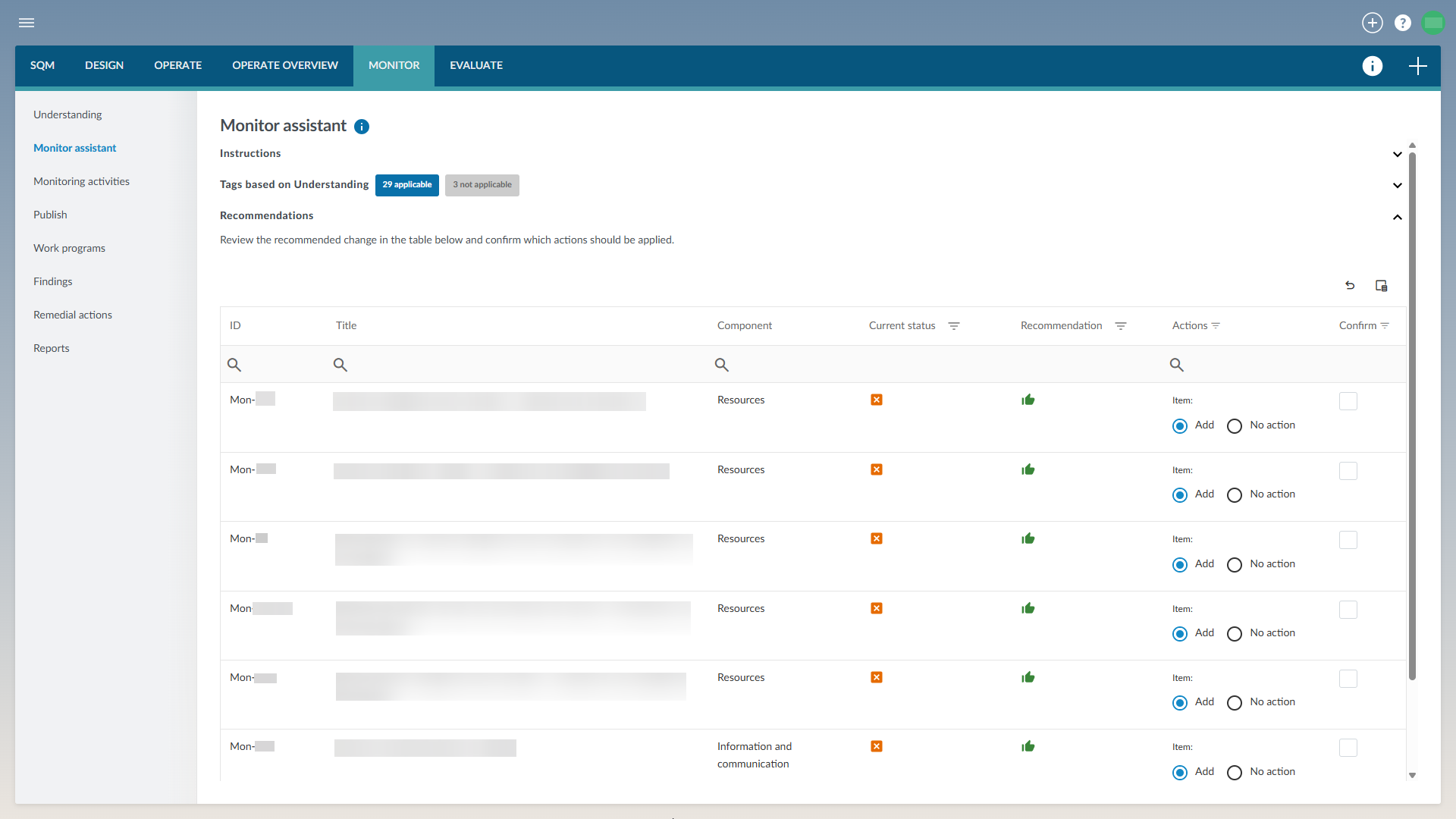
Note: A monitoring activity is only recommended if the design item it monitors is itself currently relevant to the firm. For this reason, it is best to complete the Design Assistant — and keep the firm’s design content up to date — before relying on the Monitor Assistant’s recommendations.
1. Review a recommendation
Each row in the Recommendations table shows the item’s current status, the recommended status, and, on the Design Assistant only, a link status and link recommendation.
2. Understanding the icons
Hover over any icon in the table to see a description of what it means.
Current status — shows where the item stands today:
|
Icon
|
Meaning
|
|

|
Included — currently part of the firm’s SoQM.
|
|

|
Included (manual) — the firm added this item itself; it is not linked to the matching library item.
|
|

|
Excluded — not currently part of the firm’s SoQM.
|
|

|
Not relevant — marked as not applicable to the firm.
|
|

|
Linked — correctly linked to its parent item. Design Assistant only.
|
|

|
Not linked — not currently linked to its parent item. Design Assistant only.
|
Recommendation — shows what SQM suggests, based on the firm’s Understanding:
|
Icon
|
Meaning
|
|

|
Recommended: Include.
|
|

|
Recommended: Exclude.
|
|

|
Recommended: Link to library — a matching item already exists in the firm’s SoQM and should be linked rather than added again.
|
|

|
Recommended: Link to parent. Design Assistant only.
|
|

|
Recommended: Do not link. Design Assistant only.
|
A grey or blue funnel icon appears in each column header. Blue means a filter is currently applied to that column; select it to change or clear the filter.
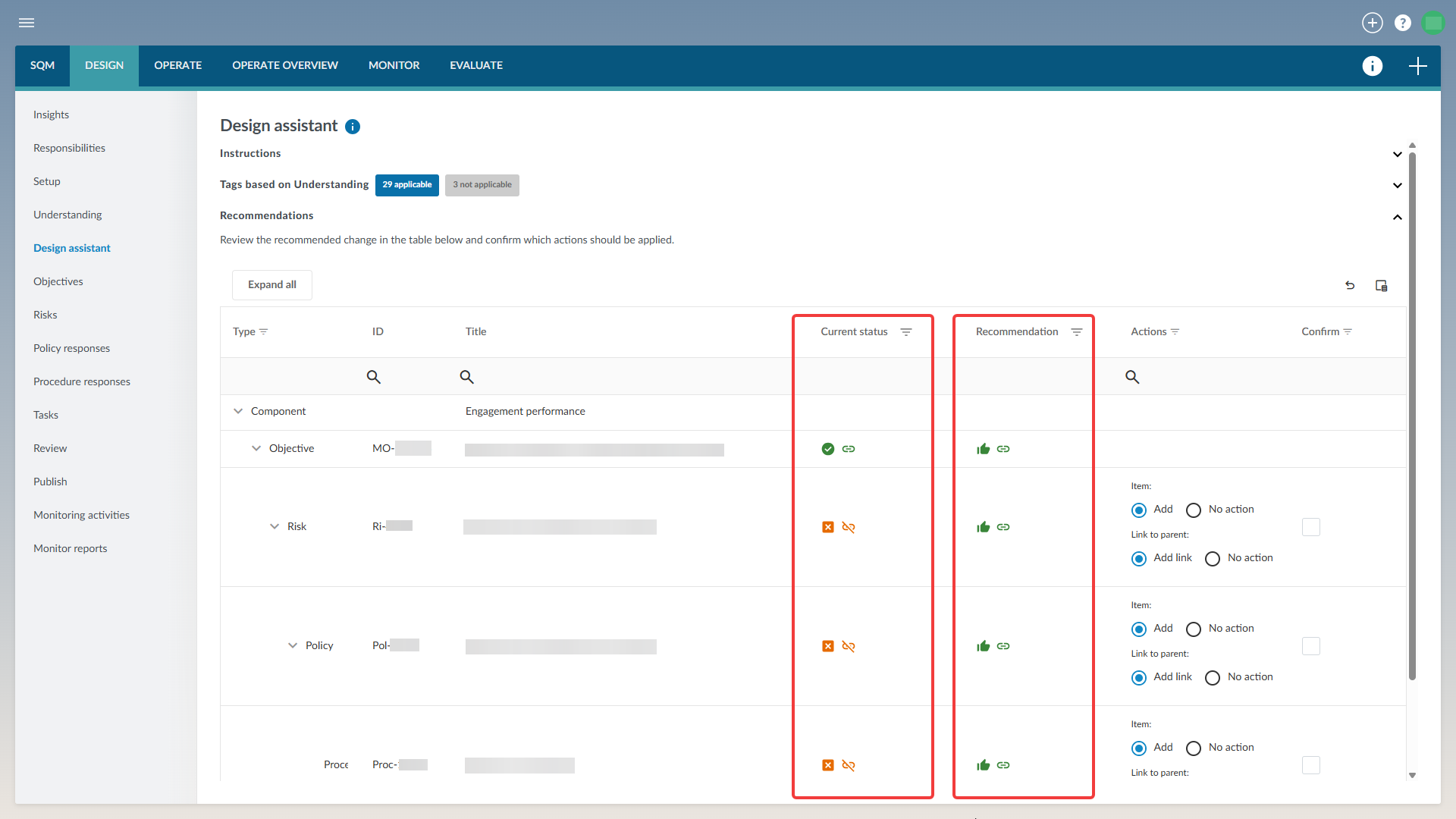
3. Accept or change the suggested action
Each actionable row also shows a suggested action, for example Add, Mark as not relevant, or Add link. The firm can accept the suggested action or choose a different one from the options provided for that row.
4. Confirm a recommendation
A recommendation only becomes eligible to apply once it has been confirmed. Confirming happens one row at a time.
5. Apply changes
Use Apply to preview all confirmed changes before applying them. Once confirmed, each change appears with a blue tag showing the action that will be applied, for example “Add item”, “Add link”, “Remove”, or “Mark as not relevant”. A yellow Pending tag shows the change is awaiting Apply.
Applying updates the firm’s data in one action — Objectives, Risks, Policy responses, Procedure responses and Tasks for the Design Assistant, or Monitoring activities for the Monitor Assistant.
Next steps
After applying recommendations from the Design Assistant, complete any remaining fields and sign-offs on Objectives, Risks, Policy responses, Procedure responses and Tasks, then move on to Review and Publish.
After applying recommendations from the Monitor Assistant, complete any remaining fields for each monitoring activity, then move on to Publish.
Rate this article: