- Click on the “download confirmations” button in the Download block located in the client profile.
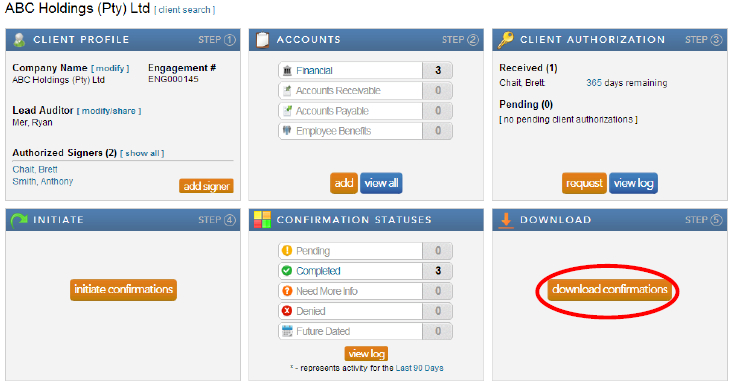
Note: When the confirmations have been completed and returned by the bank, a large orange button will appear in the Download block. This button provides a link to the Completed Confirmations report with default report parameters selected for the client.
- Complete the required information for each field and click “export” for the confirmation report and “download attachments” for any accompanying schedules the bank may have attached with the report.
Instructions:
Users have the option to either export one consolidated pdf report for all the completed confirmation forms for a client or to export each completed confirmation form individually.
Rate this article:
|vote=None|
Processing...
(Popularity = 5/100, Rating = 0.0/5)
Related Articles
How to download install and register Caseware Working Papers software
View and Download Confirmations
What does the Completed Confirmation Report provide?
Reconfirming/Querying a Completed Confirmation
view all...
Search Results
Where are the User Agreement and Privacy Policy located?
ISAE Attestation | How to create a new engagement
Investec Private Bank South Africa Audit Confirmation Instructions
ABSA Private, Wealth and Retail Banking South Africa Audit Confirmation Instructions
How to Register a New User on Confirmation.com
view all...