- Click on the “download confirmations” button in the Download block located in the client profile.
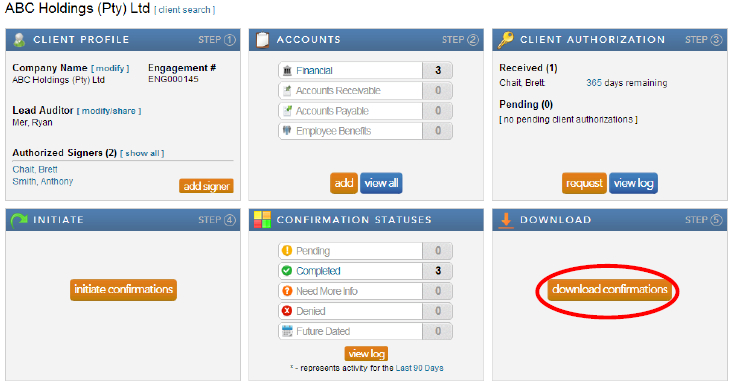
Note: When the confirmations have been completed and returned by the bank, a large orange button will appear in the Download block. This button provides a link to the Completed Confirmations report with default report parameters selected for the client.
- Complete the required information for each field and click “export” for the confirmation report and “download attachments” for any accompanying schedules the bank may have attached with the report.
Instructions:
Users have the option to either export one consolidated pdf report for all the completed confirmation forms for a client or to export each completed confirmation form individually.
Rate this article:
|vote=None|
Processing...
(Popularity = 5/100, Rating = 0.0/5)
Related Articles
How to download install and register Caseware Working Papers software
View and Download Confirmations
What does the Completed Confirmation Report provide?
Reconfirming/Querying a Completed Confirmation
view all...
Search Results
What if the Account ID requested was closed for the As of Date (New Version of Confirmation)
Closed Account Confirmation for Bank Users
What do I do if I can't locate the Account ID or Client Name requested? (New Version of Confirmation)
Close a Caseware Cloud account
How do I add / modify / remove flip account settings?
view all...