- Select the "Completed" link located under the Confirmation Statuses block in the client profile.
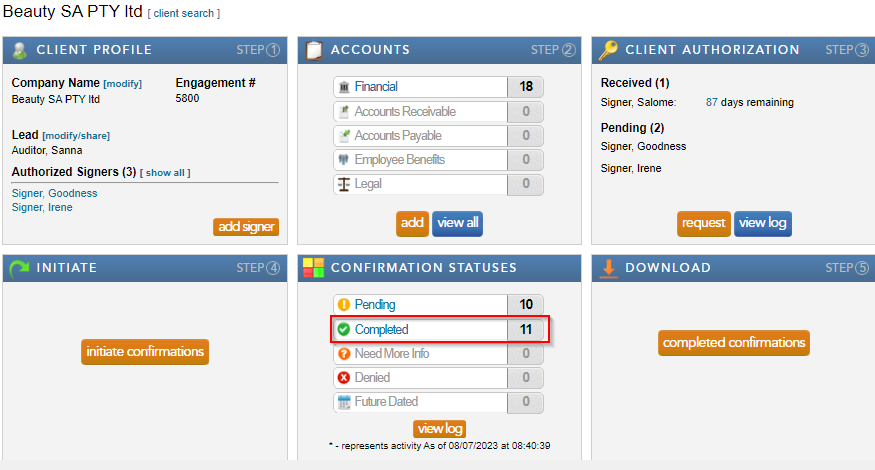
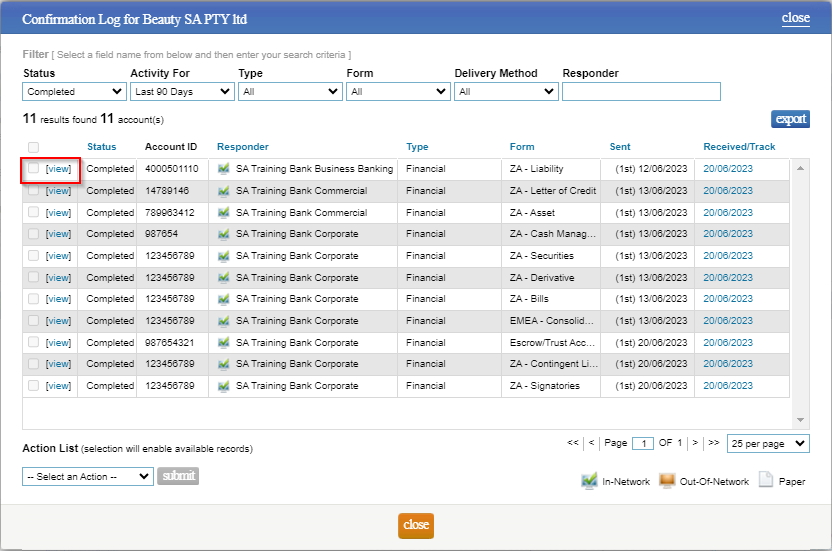
- Select “view” next to the completed confirmation in query, to open and view the completed confirmation.
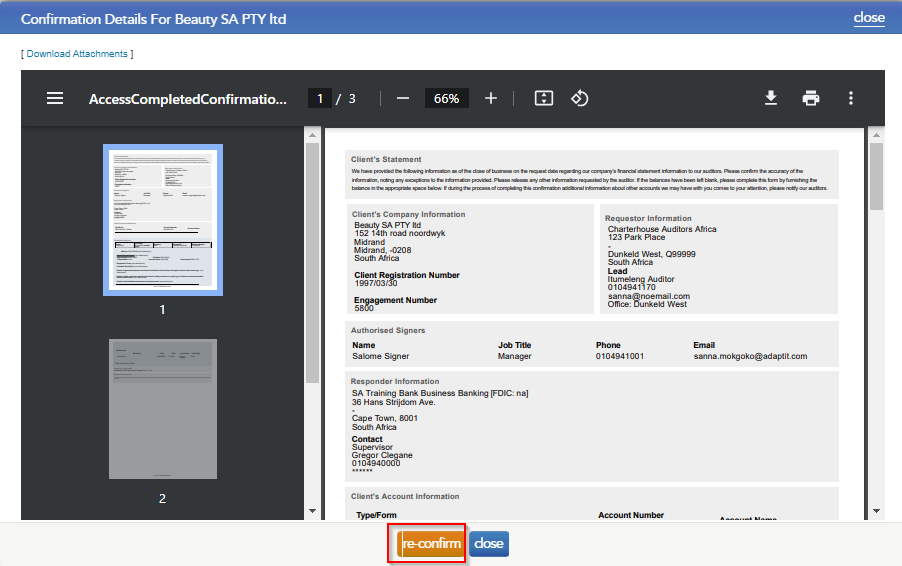
- Click “re-confirm” to query / re-confirm a request.
- A dialog box will appear to enter the relevant query for the bank. Click “send” and the confirmation will be resent to the bank as priority and will appear as pending in the confirmation statuses section.
Instructions:
Completed confirmations can be queried / reconfirmed if the auditor has tested the information provided in the certificate and would like to query the content provided. There is no charge for a query/re-confirmation as it forms part of the original request and will be sent to the bank as a priority. The bank will then address the query and respond with the necessary changes or comments.
Rate this article:
|vote=None|
Processing...
(Popularity = 15/100, Rating = 0.0/5)
Related Articles
What does the Completed Confirmation Report provide?
Retrieving Completed Confirmations
Reconfirming a Confirmation
Can I request more information from the Responder (Bank)?
view all...
Search Results
Can I access Confirmation.com from my mobile device?
What mobile operating systems are supported?
Can I request for a future "As of Date"?
XBRL | How to change security settings for Caseware and when iXBRL "hangs" on CIPC validation
XBRL Lite | How to create a new file when using XBRL Lite
view all...