What are the features included in Probe Audit Premium+?
Instructions:
Watch the video for detailed guidance on the feature above, then read the summary below for a concise overview.
The following describes the feature included in Probe Audit Premium+.
This document has a purple header which means that it is an unlocked document, and you can make any changes by entering design mode.
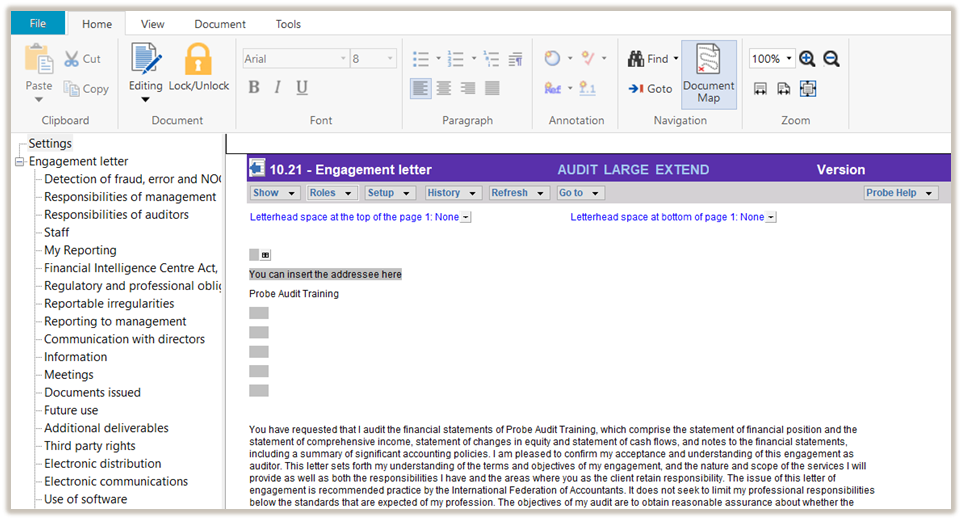
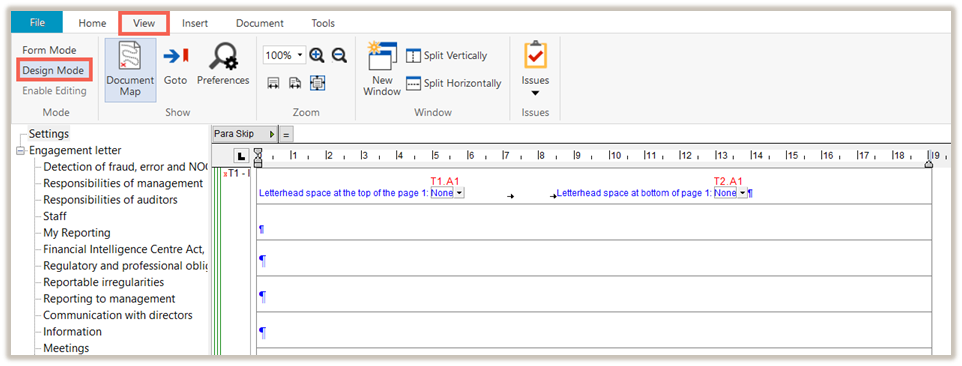
To enter design mode, select the VIEW ribbon and then DESIGN MODE.
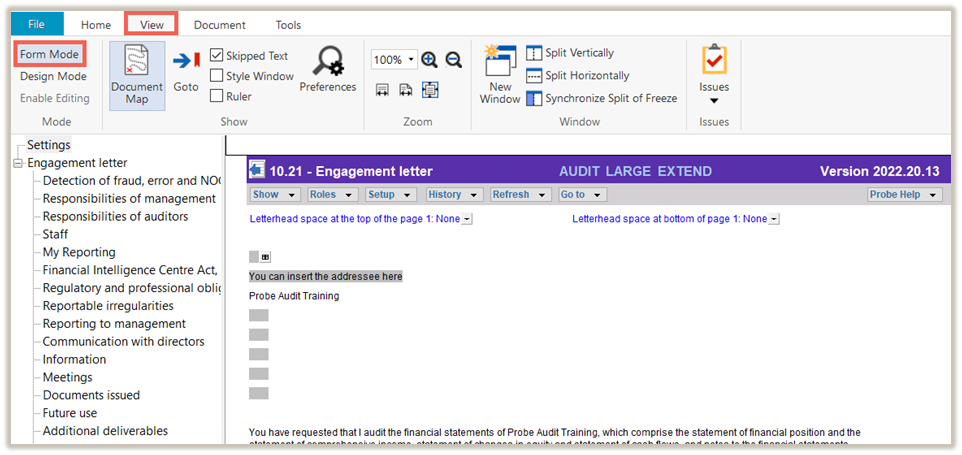
To exit design mode, select the VIEW ribbon and then FORM MODE.
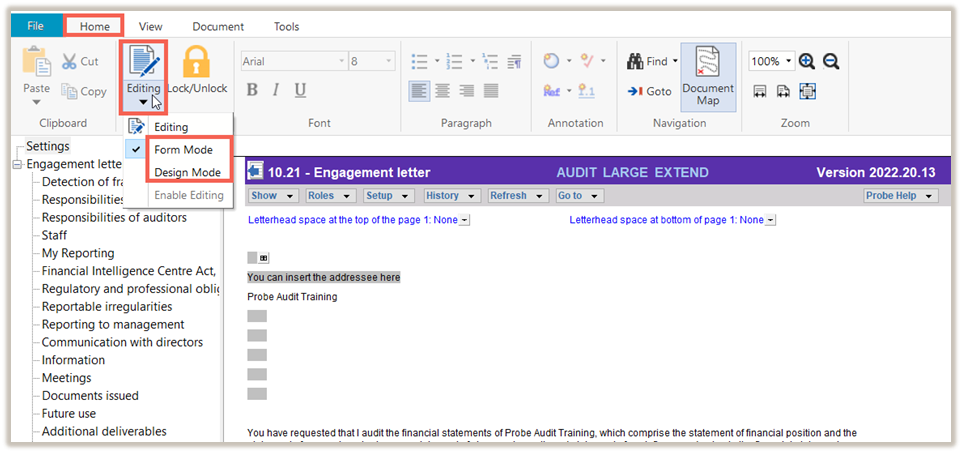
Another option is also available in the HOME ribbon.
Select EDITING and then the required MODE.
Another option is to press F6 to enter or exit design mode.
Rate this article:
|vote=None|
Processing...
(Popularity = 16/100, Rating = 0.0/5)
Related Articles
How to access Design Mode
How to change the default Design mode password?
How do I add a note reference manually in design mode?
Probe | Where do I find the Design Mode Password to make changes?
view all...
Search Results
How do I add a new user to my institution (New Version of Confirmation)
What's New | Responders: New version of Confirmation 2025/26
How do I update the Responder Instructions for my institution? (New Version of Confirmation)
How do I remove an inactive clerk or supervisor (New Version of Confirmation)
How do I search for a past confirmation? (New Version of Confirmation)
view all...