The following describes the feature included in Probe Audit Premium+.
Instructions:
For your convenience we have built in a FREEZE at the top of every document to easily and quickly access tasks that may need to be completed.
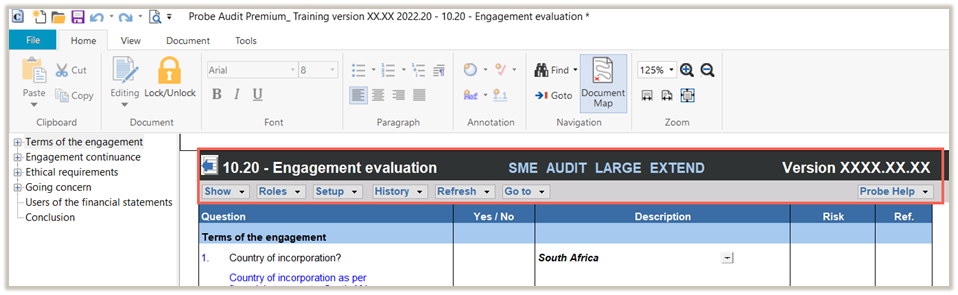
1. The first line
The first line of the freeze can be either dark grey or purple in colour.
The purple line indicates that it is an unlocked document and you can make changes to it by entering design mode.

The dark grey line indicates that it is a locked document and you do not have access to design mode in this document.

This first line includes the following:
- A BACK BUTTON, to go back to the previous document;
- The DOCUMENT NUMBER and NAME
- Information about the engagement, namely whether the engagement is set to
- IFRS or IFRS for SME;
- Audit or Review;
- Large or Small; and
- Core or Extended.
- The VERSION NUMBER OF THE TEMPLATE, which includes the year of release, the product and the version of the template. Probe will be indicated by the number 20. The version of the template will be 12 for a Beta template and 13 for a final template.
2. Show
In the SHOW tab, you can access various views. To access the views, click on SHOW and then click on the relevant item you want to view:
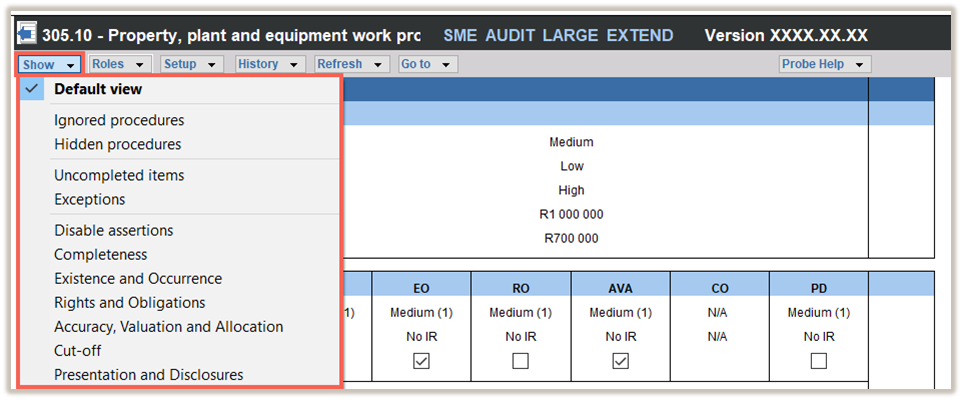
Available views include:
- DEFAULT VIEW will show all the completed and uncompleted items that wre not hidden or ignored.
- IGNORED PROCEDURES will show all the procedures that were ignored or hidden.
- HIDDEN PROCEDURES will show all procedures which exist in the document, but which are currently turned off due to responses recorded in the planning documents.
- UNCOMPLETED ITEMS will show all the procedures that are not completed and will hide procedures as they are completed.
- EXCEPTIONS will show all the procedures in the document where exceptions were recorded.
- DISABLE ASSERTIONS will open the Probe Firm settings document where you have the option to enable or disable the assertions column in work programs.
- The ASSERTIONS SECTION (where relevant) will show you the procedures that relate to that specific assertion only.
3. Roles
In the ROLES tab, you can also jump directly to the ROLE OPTIONS and change the ROLE PROPERTIES.
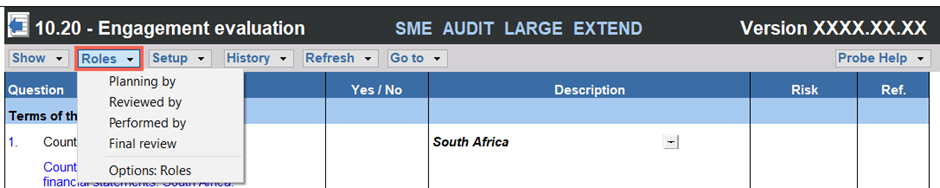
To access the ROLE OPTIONS, click on ROLES then select the relevant role that you want to sign off. The CaseView document properties will open and you can sign off the role for this document.
To access the ROLE PROPERTIES, click on ROLES and then click on OPTIONS: ROLES to change the role properties.
4. Setup
This tab allows you to setup particular items in the document. To access these items, click on SETUP and then click on the relevant item:
- Hide Important Notice will hide or show the important notice at the top of the CaseView document.
- Firm Settings will open the Probe Firm Settings document so that you can make changes to the settings.
- Import data will open the Import Data tab in Firm Settings from where you can import content for the planning documents from another file.

5. History
This tab allows you to record milestones and to access the recorded milestones in the HISTORY tab of the CaseView document properties.
To access these options, click on HISTORY and then the relevant item:
- SAVE MILESTONE allows you to record a milestone of this document. This milestone can be viewed in the CaseView Document Properties in the HISTORY tab.
- DOCUMENT PROPERTIES: HISTORY allows you to view all milestones that were saved for this document. Select this item to open the HISTORY tab in CaseView document properties.

6. Refresh
This tab allows you to refresh different items:
- Q allows you to refresh the Q document to obtain the latest information from the document.
- Risk tables will refresh content recorded in risk tables, so that your recorded risks reflect correctly in this document.
- Client Rows will refresh content added by other users while working simultaneously in the document.
- Laws and regulations (Specific to 11.20)

7. Go to
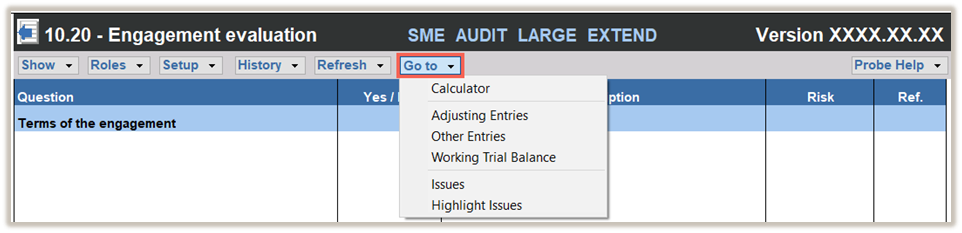
This tab allows quick access to tools and information:
- Calculator: Opens the calculator app
- Adjusting entries: Open Adjusting Journal Entries so that you can record a new entry.
- Other entries: Opens Other Journal Entries so you can record a new entry.
- Working trial balance: Opens the Working Trial Balance
- Issues: Open Issues to record a new issue
- Highlight issues in the document to identify them easily
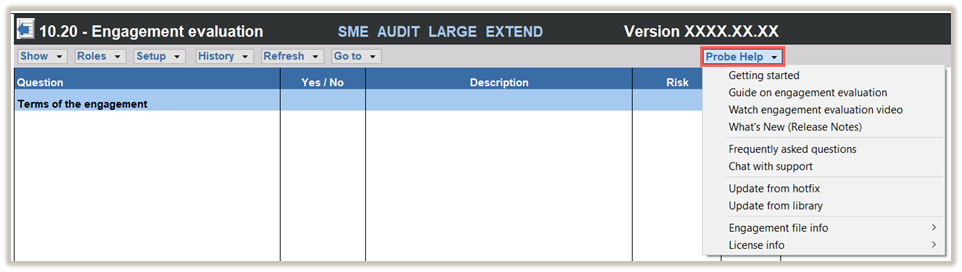
8. Probe Help
This menu allows you to find the following:
- Getting started directs you to the Caseware Success community to access the Getting Started guidance and documentation.
- Guide on the specific document directs you to a page on the Caseware Success community with specific guidance about the document where you clicked on the link.
- Watch video directs you to a video on the Caseware Success community with specific guidance about the document where you clicked on the link.
- What’s New (Release Notes) directs you to the latest version of the What’s New page on the Caseware Success community.
- Frequently asked questions directs you to the FAQ page on the Caseware Success community page where you will be able to search the FAQ’s.
- Chat with support directs you to a link where you can chat with our support team.
- Update from hotfix directs you to the Probe Hotfix page on the Caseware Success community where you will be able to download the latest hotfix.
- Update from library allows you to update the document with the library document to get the latest changes.
- Engagement file info provides a snapshot view of the engagement, such as the type of engagement (audit, review or compilation) and other helpful information that may be useful to our support team or your Caseware champion when troubleshooting on a support case.
- License info provides a snapshot of the licenses that are active on your software. This will be useful to our support team or your Caseware champion when troubleshooting on a support case.
Rate this article:
|vote=None|
Processing...
(Popularity = 0/100, Rating = 0.0/5)
Related Articles
Probe Audit | What is Probe Audit Premium+ ?
Probe Audit | 10.40 - Time Budget
Probe | F2 - Design Mode
Why is there more than one form type available on Responder profiles?
view all...
Search Results
How do I update the Responder Instructions for my institution? (New Version of Confirmation)
How to set up a form for responders in South Africa?
Can I request more information from the Responder (Bank)?
ABSA Corporate Bank South Africa Audit Confirmation Instructions
HSBC Bank Mauritius Limited Audit Confirmation Instructions
view all...