The following describes the feature included in Probe Audit Premium+
Instructions:
Watch the video for detailed guidance on the feature above, then read the summary below for a concise overview.
The following describes the feature included in Probe Audit Premium+
1. Edit a risk
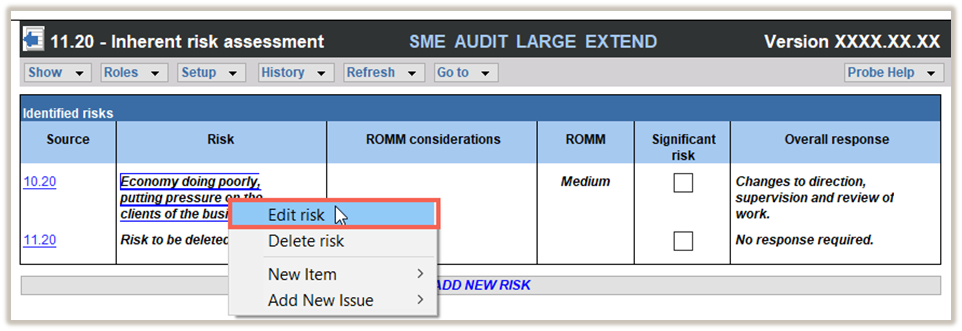
To edit a risk that has already been recorded, right-click on the risk in the table of identified risks and select EDIT RISK.
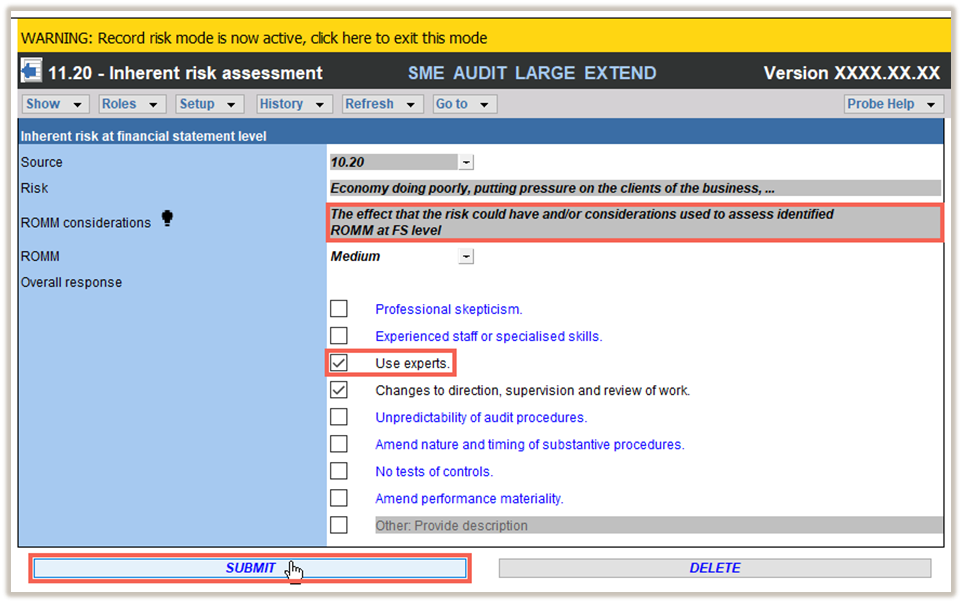
The risk dialog will be displayed.
Make the necessary changes to the risk dialog and click submit to submit your changes.
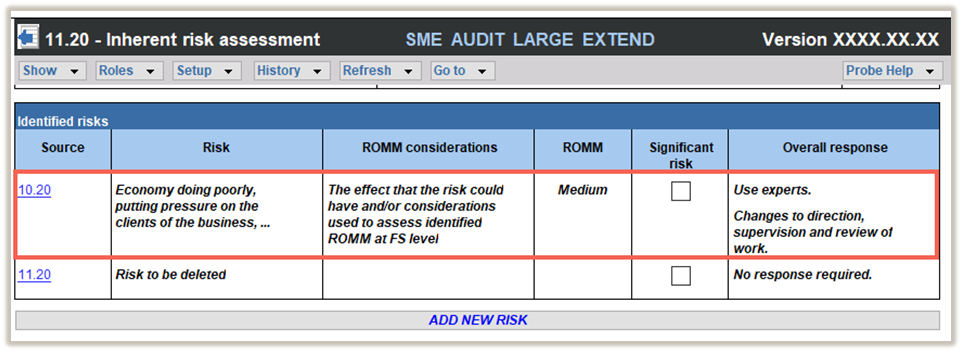
The edited risk will then be included in the table of identified risks.
2. Delete a risk
To delete a recorded risk, right-click on the risk in the table of identified risks and select DELETE RISK.
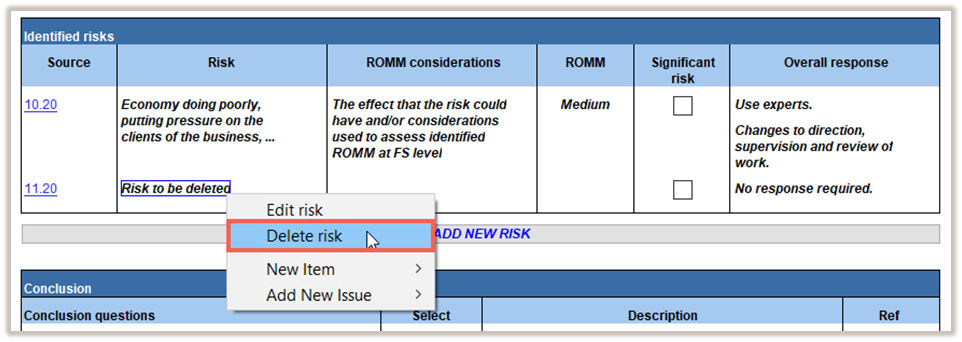
A new dialog will confirm that you want to delete the risk. Select YES to delete the risk.
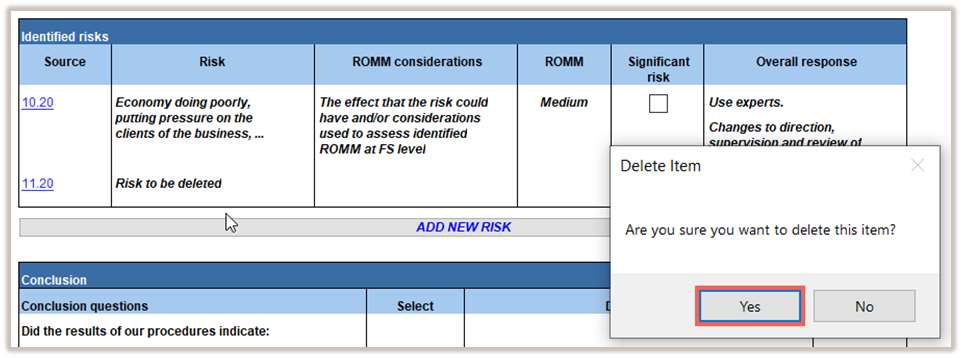
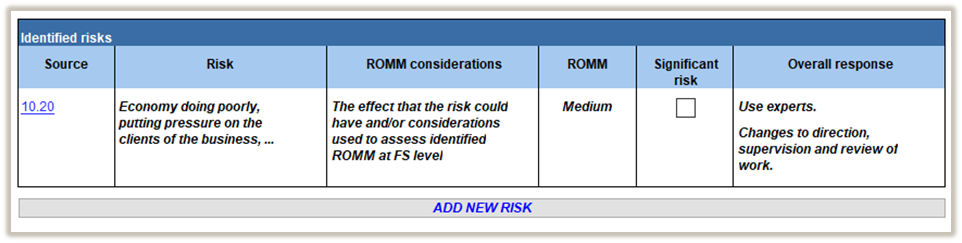
The risk will be deleted from the table of identified risks.
| COLUMN | INPUT REQUIRED | OUTCOME |
| Source | You can double-click on the source input cell to insert the previous document you worked on or type in the source document. | By inserting references to source documentation of information obtained from other working papers you ensure that your file is logical. |
| Events identified | You must insert a description of the event identified. | Your detailed description of the event here will assist in future evaluation of the event or condition. |
| Financial statement treatment | Here you should provide information about the treatment of the event in the financial statements. | Your documentation of additional observations here will assist in later evaluation of the event. |
| Conclusion | Evaluate if the financial statement treatment of the events is acceptable and conclude thereon. | You will be able to consider the conclusions reached in determining the final auditor’s report. |
| Ref. | Insert a reference, if necessary, to supporting documentation, you can click on the dropdown box to reference to a document already in your Caseware file. | By inserting references to work performed on other working papers you ensure that your file is logical. |
Rate this article:
|vote=None|
Processing...
(Popularity = 1/100, Rating = 0.0/5)
Related Articles
Probe Audit | Planning Risk Assessment | 11.50 Information system and control activities
view all...
Search Results
Guide ZA-Signatories Form
Data Store | Getting Started User Guide
Guide ZA-Liability Form
Easy Add-ons User Guide
Caseware Time | How to Add a VAT amount on an Invoice?
view all...