The following describes the functionality and features included in Probe Audit Premium+
Instructions:
11.20G – IDENTIFICATION OF COMPONENTS
The following describes the functionality and features included in Probe Audit Premium+.
THIS DOCUMENT IS ONLY APPLICABLE TO GROUP AUDIT ENGAGEMENTS, BEING THE SEPARATE GROUP AUDIT ENGAGEMENT FILE.
Objective
The objective of this document is to record entities and business units within the group, and to identify and record components for planning and performing group audit procedures.
Document placement
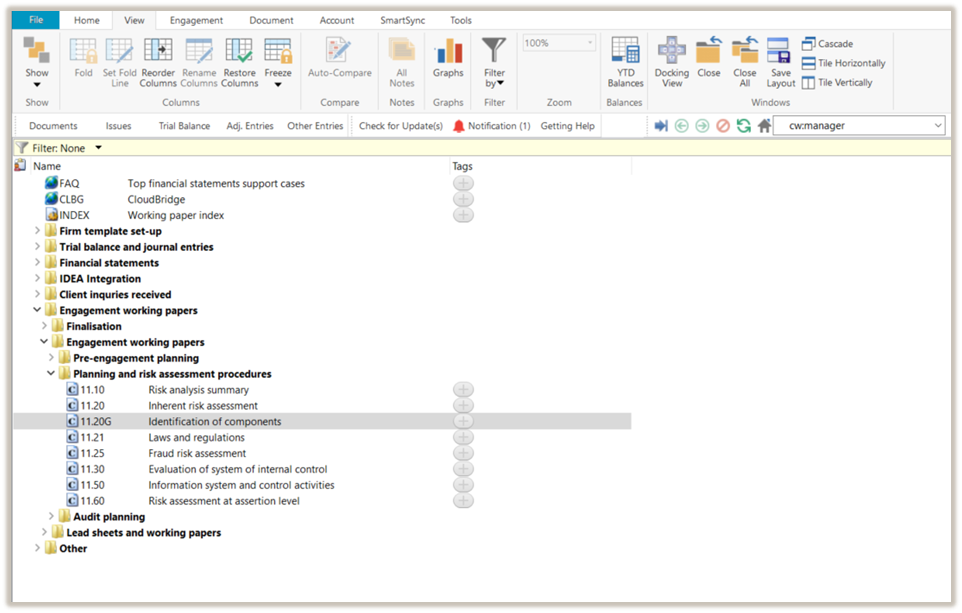
Document 11.20G – Identification of components can be found in the Planning and risk assessment procedures folder in the Caseware document manager.
Document content
This document is designed to be a worksheet.
Users can add entities or business units, record their details, add components, and assign entities and business units to components.
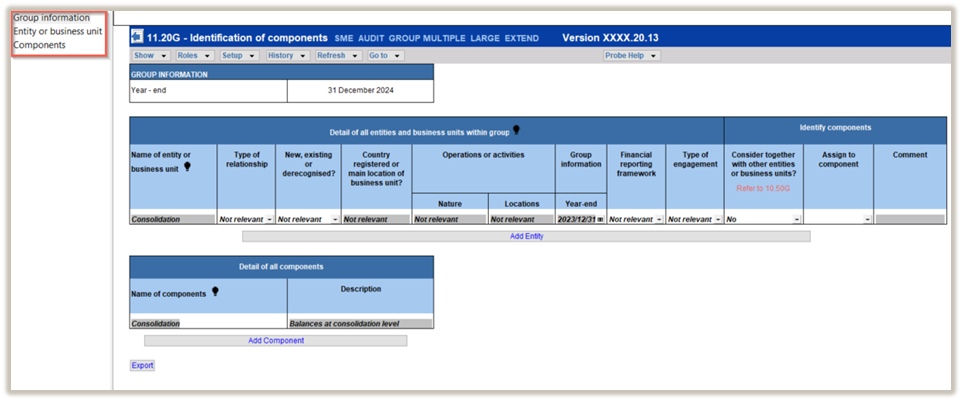
This document is divided into different bookmarks in the document map to assist you in recording the group’s entities and business units, and the identified components:
- Group information
- Entity or business unit
- Components
Layout
|
COLUMN
|
INPUT REQUIRED
|
OUTCOME
|
|
Group information
|
|
Year-end
|
No input required.
The date is populated from the reporting dates in engagement properties.
|
No impact on the engagement file.
|
|
COLUMN
|
INPUT REQUIRED
|
OUTCOME
|
|
Detail of all entities and business units within group
|
|
Name of entity or business unit
|
Insert the name of the entity or business unit.
A default entity called “Consolidation” is added to include sections that do not belong to a single entity or business unit. It is initiated through the consolidation process, for example, non-controlling interest.
You can edit the descriptions of the entity or business unit, but it cannot be deleted.
|
You can select the entities and business units in the following columns on 10.50G - Plan extent of risk assessment procedures
- Entities or business units similar activities and business lines relate to,
- Entities or business units centralised activities relate to, and
- Entities or business units common controls relate to.
You can link a risk in Risk mode to the entity or business unit it relates to.
|
|
Type of relationship
|
Select the nature of the entity’s or business unit’s relationship within the group from the drop-down list of available options.
If the relationship type is not listed, select ‘Other’ and enter the description in the text field provided.
|
No impact on the engagement file.
|
|
New, existing or derecognised?
|
This column will only reflect if “Extended procedures” were selected in 10.20 – Engagement evaluation.
Select whether the entity or business unit is:
- New
- Existing
- Derecognised/Disposed.
|
No impact on the engagement file.
|
|
Country registered or main location of business unit?
|
Insert the country where the entity is registered or the business unit is located.
|
No impact on the engagement file.
|
|
Operations – Nature
|
Insert a description of the entity’s or business unit’s operations or activities.
|
No impact on the engagement file.
|
|
Operations – Location
|
Insert the locations of the entity’s or business unit’s operations or activities.
|
No impact on the engagement file.
|
|
Group information – Year end
|
This column will only reflect if “Extended procedures” were selected in 10.20 – Engagement evaluation.
Select the period-end of the entity or business unit from a date cell.
|
No impact on the engagement file.
|
|
Financial reporting framework
|
Select the financial reporting framework (FRF) used by the entity or business unit to compile its financial information from the drop-down list of available options.
|
No impact on the engagement file.
|
|
Type of engagement
|
This column will only reflect if “Extended procedures” were selected in 10.20 – Engagement evaluation.
Select the highest level of assurance report to be issued for the entity or business unit from the list of engagement types.
|
No impact on the engagement file.
|
|
Consider together with other entities or business units?
|
Select “Yes” or “No”.
Use the information in 10.50G – Plan extent of risk assessment procedures on group centralised activities and common controls to determine whether entities or business units can be combined when planning and performing group audit procedures.
|
Use to determine which entities or business units can be grouped together in components.
|
|
Assign to component
|
Select a component from the list generated by the ‘Add components’ feature.
|
No impact on the engagement file.
|
|
Comment
|
Include a short description, if necessary, to substantiate or expand on any of the selections made.
|
No impact on the engagement file.
|
|
COLUMN
|
INPUT REQUIRED
|
OUTCOME
|
|
Detail of all components
|
|
Name of components
|
Insert a description for the identified components.
A default entity called “Consolidation” is added, so you have one component to assign to recorded entities or business units. You can edit the description of the component by typing over the existing text, but it cannot be deleted.
|
This information is used to assign entities and business units to components.
The description of the component pulls through to
- Column “Name of component” in each section in 12.20G – Further audit work at component level.
- Sub-section “Components” in 12.22G – Use of component auditors.
- Column “Name of component further audit work will be performed” in table “Performance materiality” in 12.23G – Component performance materiality.
|
|
Description
|
Insert the names of the entities and/or business units that are included in the component.
|
No impact on the engagement file.
|
Document outcomes
You must determine the following in this document:
- All the entities and business units within the group.
- The entities or business units, or a combination thereof, that are included in each component for purposes of planning and performing group audit procedures.
Features
The following features, which are unique to this document, are available:
Add additional entities or business units by selecting “Add Entity”. Always use this feature - do not use the “Insert row at the end of the table” feature. Using “Add Entity” ensures the entity or business unit is automatically populated in related documents, such as 10.50G - Plan extent of risk assessment procedures.
Add a component by selecting “Add Component”. Always use this feature - do not use the “Insert row at the end of the table” feature. Using “Add Component” ensures that the component is automatically populated in related documents, such as 12.20G - Further audit work at component level.
- Delete entity or component
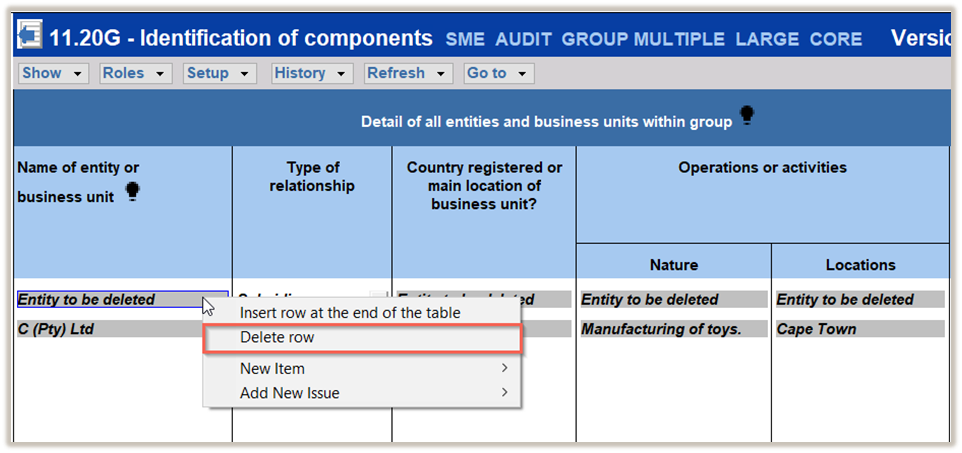
To delete an entity or component, right-click on the name of the entity or component recorded in the “Name of entity or business unit” or “Name of components” columns, respectively.
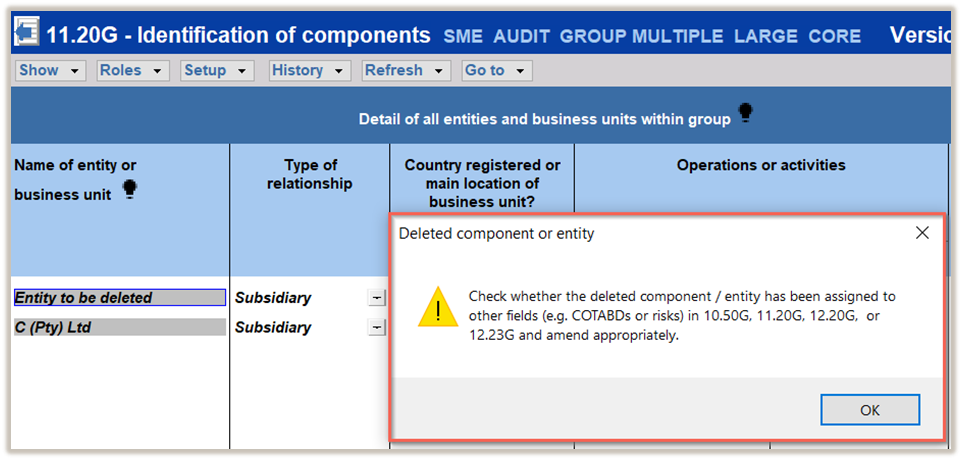
When deleting an entity or component, a notification will appear reminding you to check that the item has been correctly removed from documents 10.50G – Plan extent of risk assessment procedures, 12.20G – Further audit work at component level and 12.23G – Component performance materiality.
You can export both tables to Excel using the “Export” button at the bottom of the document.
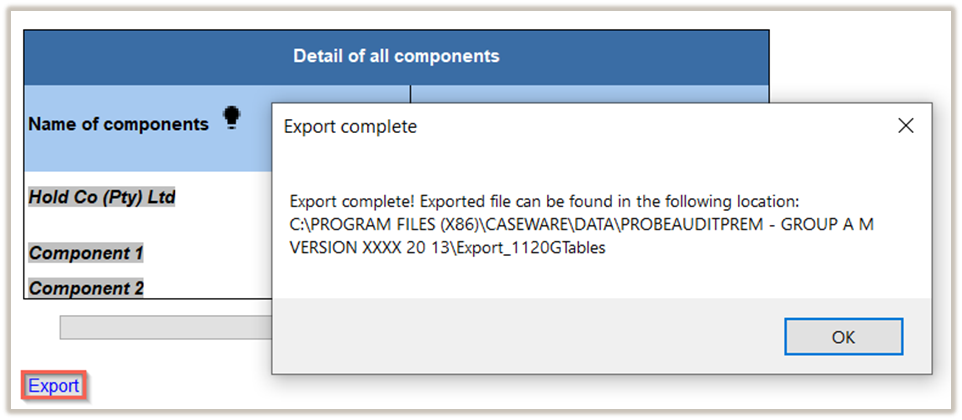
A notification will inform you where you can find the exported document.
The following other features are available in this document:
- Core vs Extended, see page F15
- Guidance, see page F16
Rate this article:
|vote=None|
Processing...
(Popularity = 0/100, Rating = 0.0/5)
Related Articles
How to resolve a utilities script error on Integration of Financial Statement Components
How to copy components from another file or template
Caseware Working Papers | Introduction to Copy Components in Caseware Working Papers
Probe | How do I perform a copy components from a template or a file for Probe document?
view all...