How to include text areas for firm sign-off in engagement letter
Answer:
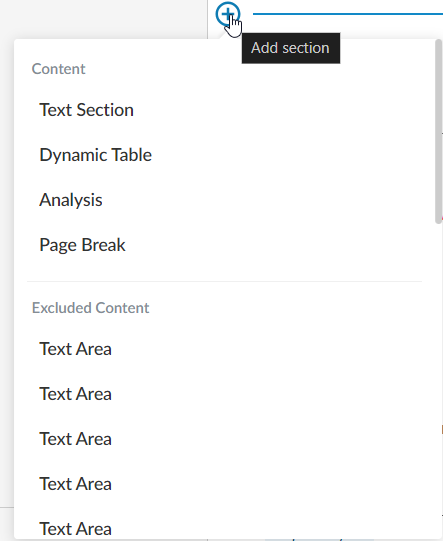
You can add additional text areas to in order to add content for the firm.
To add a text area:
- Click on the Add section (+) at the end of the last paragraph and select “Text section”.
- Add content per screenshot below into each text area (Text Area 1):

To add “Select Staff” dropdown click on the “Insert Staff Placeholder” in the edit ribbon.

- Add a new text area, and add the following content for engagement partner (Text Area 2):

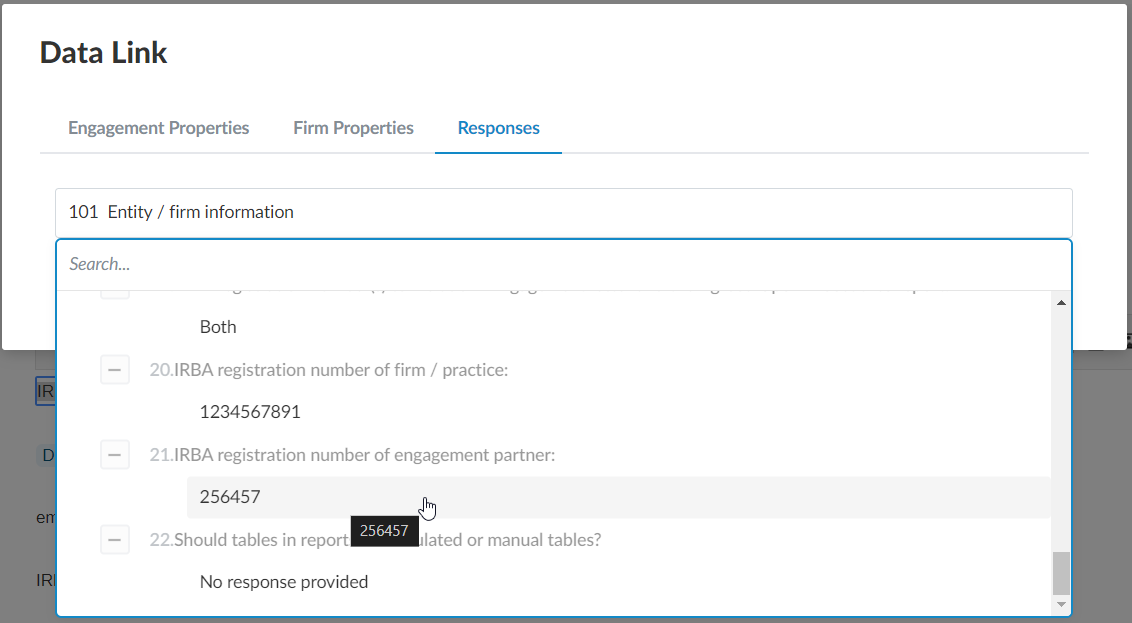
To automate the registration number, click on the “Insert Formula” in edit ribbon and insert response from document 101 – Entity / firm information
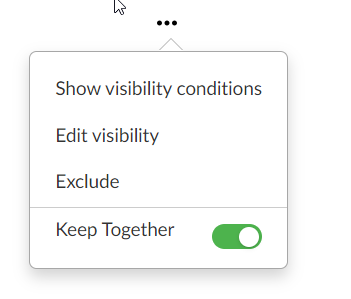
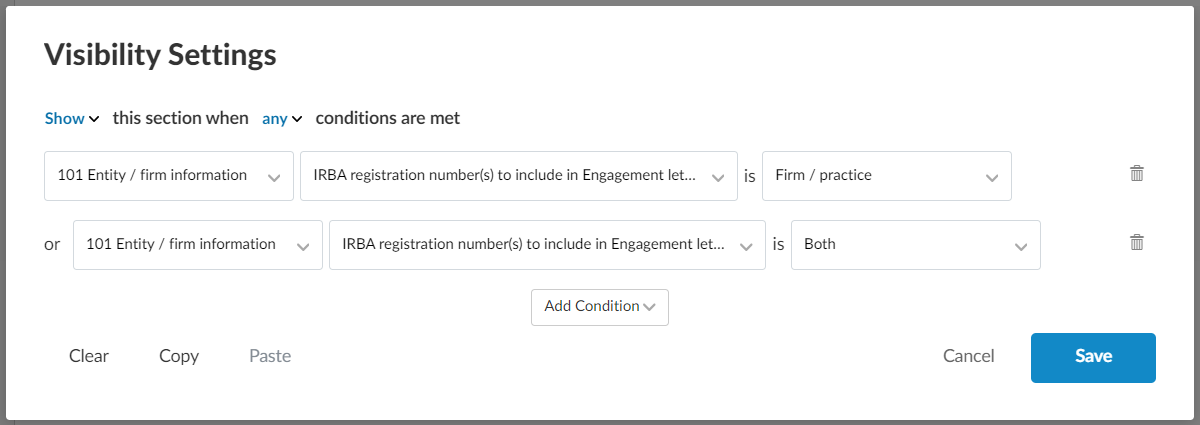
Add the following visibility conditions for this procedure by clicking on (…) and then “Edit visibility”
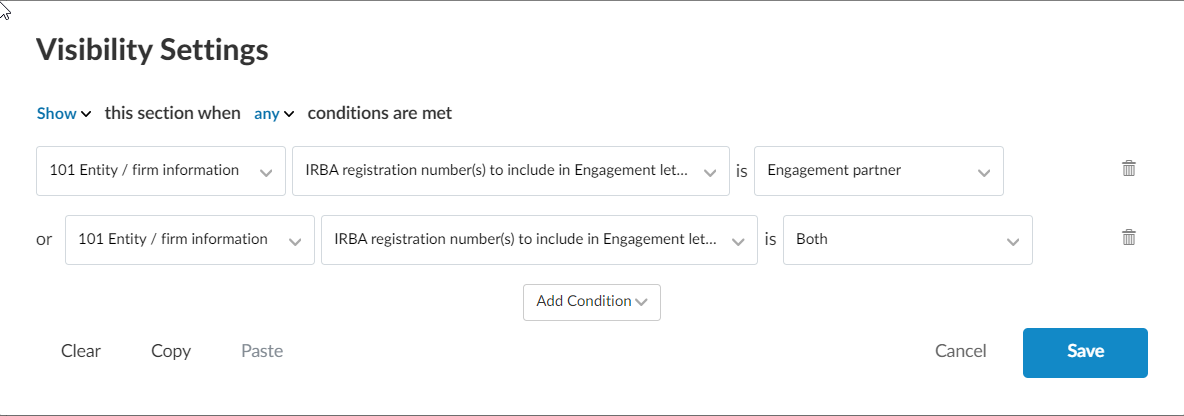
- Add a new text area and add the following content (Text Area 3):

To add the date placeholder click on “Insert Date Placeholder” on the edit ribbon

- Add a new text area and add the following content (Text Area 4):

To automate the firm name, click on “Insert formula” on the edit ribbon and then “Firm Properties”, click on Firm name.
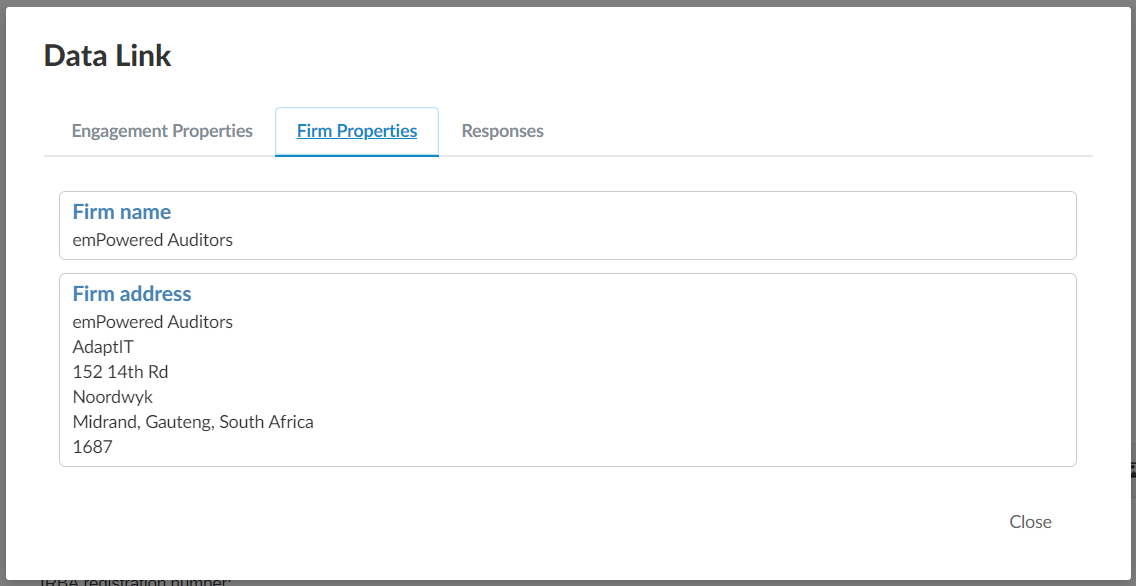
- Add a new text area, and add the following content, please note this is different to step 3 as this relates to firm/ practice (Text Area 5):

To automate the registration number, click on the “Insert Formula” in edit ribbon and insert response from document 101 – Entity / firm information
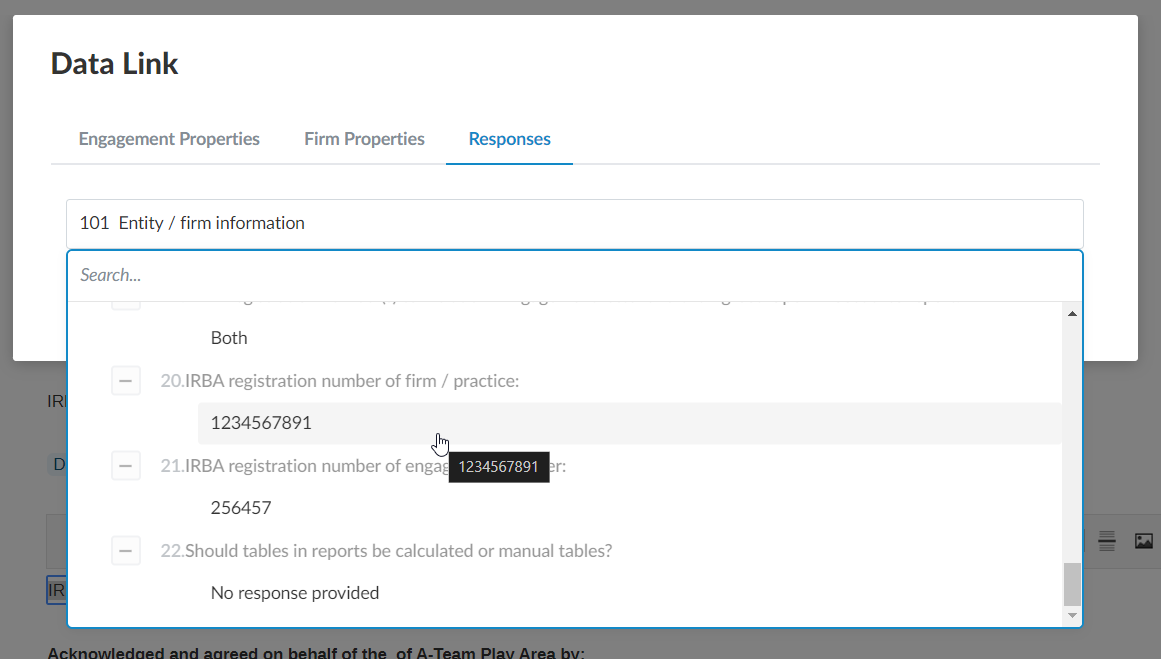
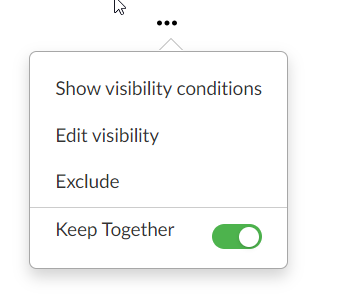
Add the following visibility conditions for this procedure by clicking on (…) and then “Edit visibility”
Rate this article:
|vote=None|
Processing...
(Popularity = 8/100, Rating = 0.0/5)
Related Articles
ISAE Attestation | How to create a new engagement
ISAE Attestation | Latest release
ISAE Attestation | Latest release
Cloud App | Inserting a logo / letterhead in the Firm Template
view all...
Search Results
How do I know the client signer has authorized the auditor to send requests? (New Version of Confirmation)
I can’t request authorisation from a client signer as the name is greyed out (cannot be selected)?
Can my client signer give authorisation to multiple companies at the same time?
Editing Authorised Signer Details
Who is an authorised signer?
view all...