How to show a hidden document regardless of the visibility settings
Answer:
You can make an item show or hide despite the defined visibility settings. To show a document:
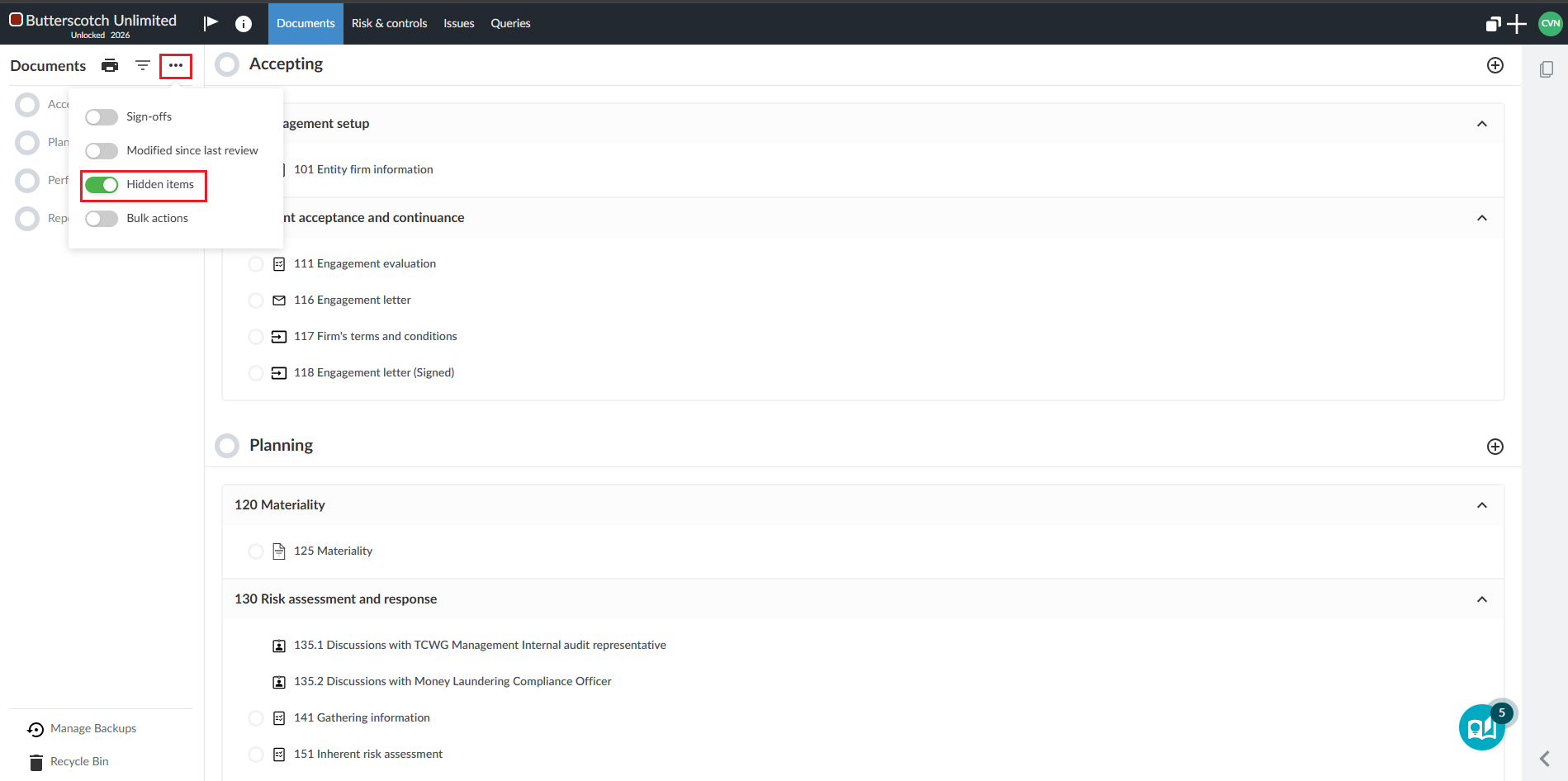
1. Select the ellipse in the top left corner and select the toggle next to Hidden Items.
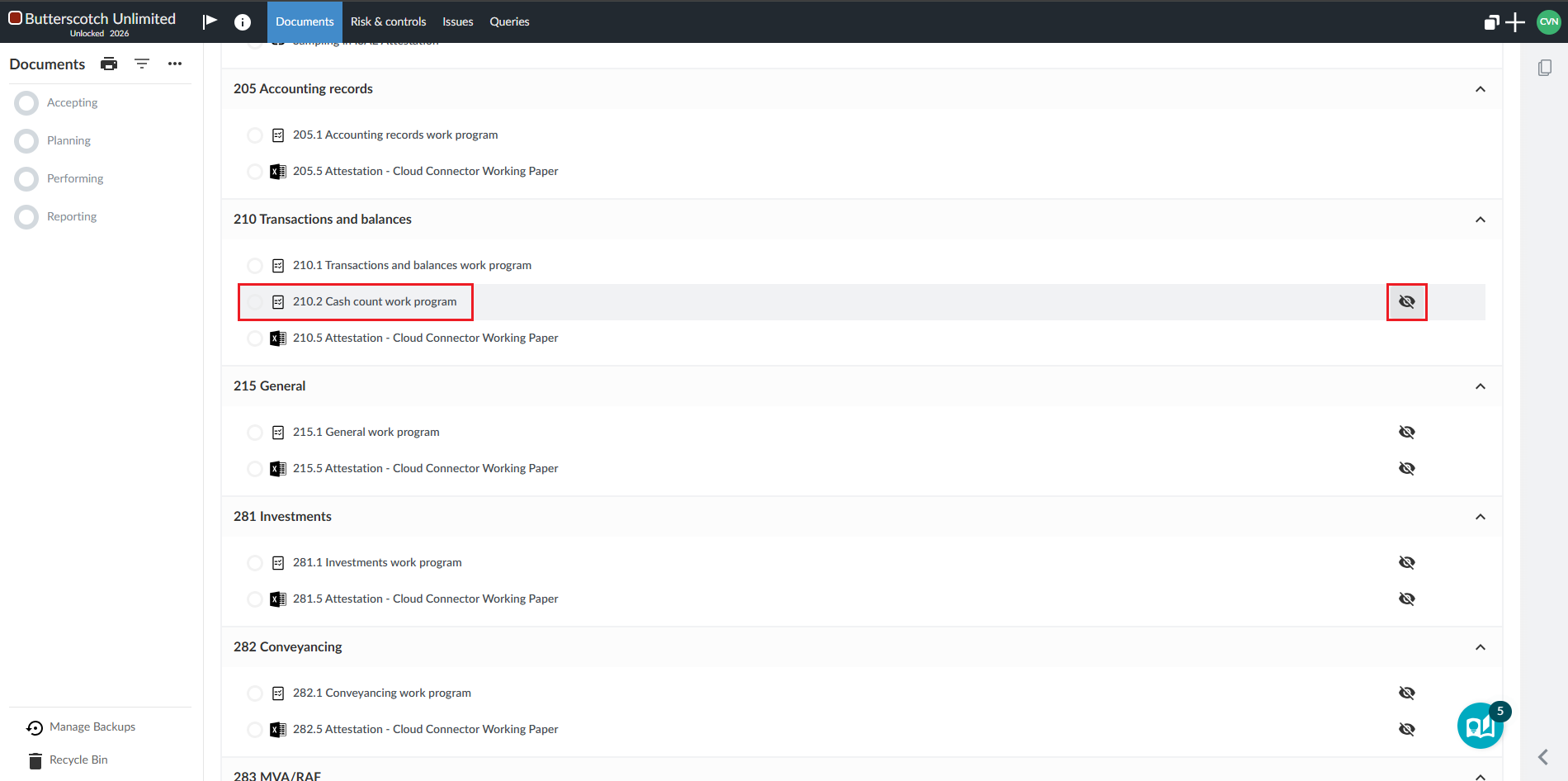
2. Once hidden items are shown, select the eye icon next to the document you want to force to show.
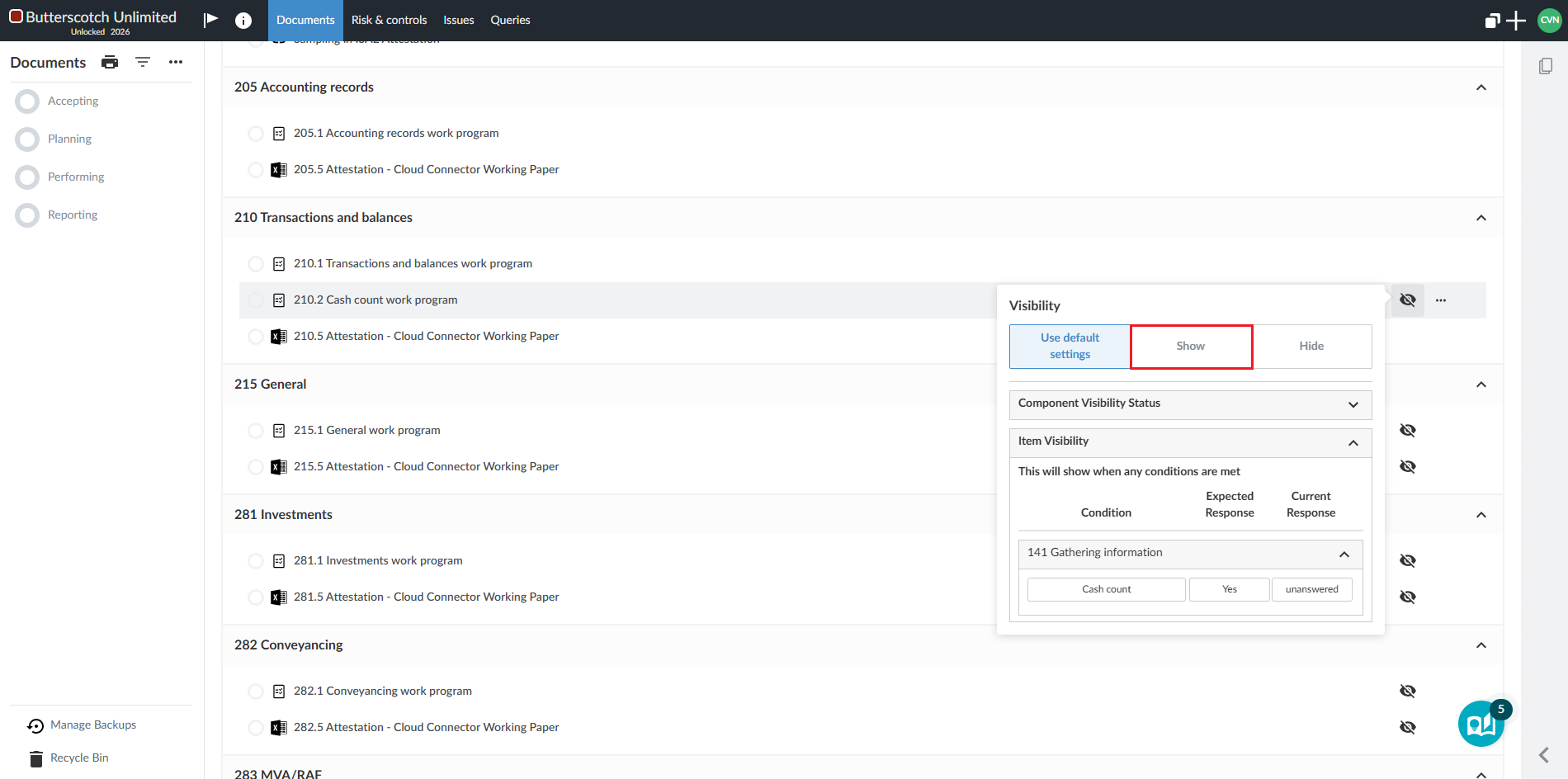
3. Select Show to show the document.
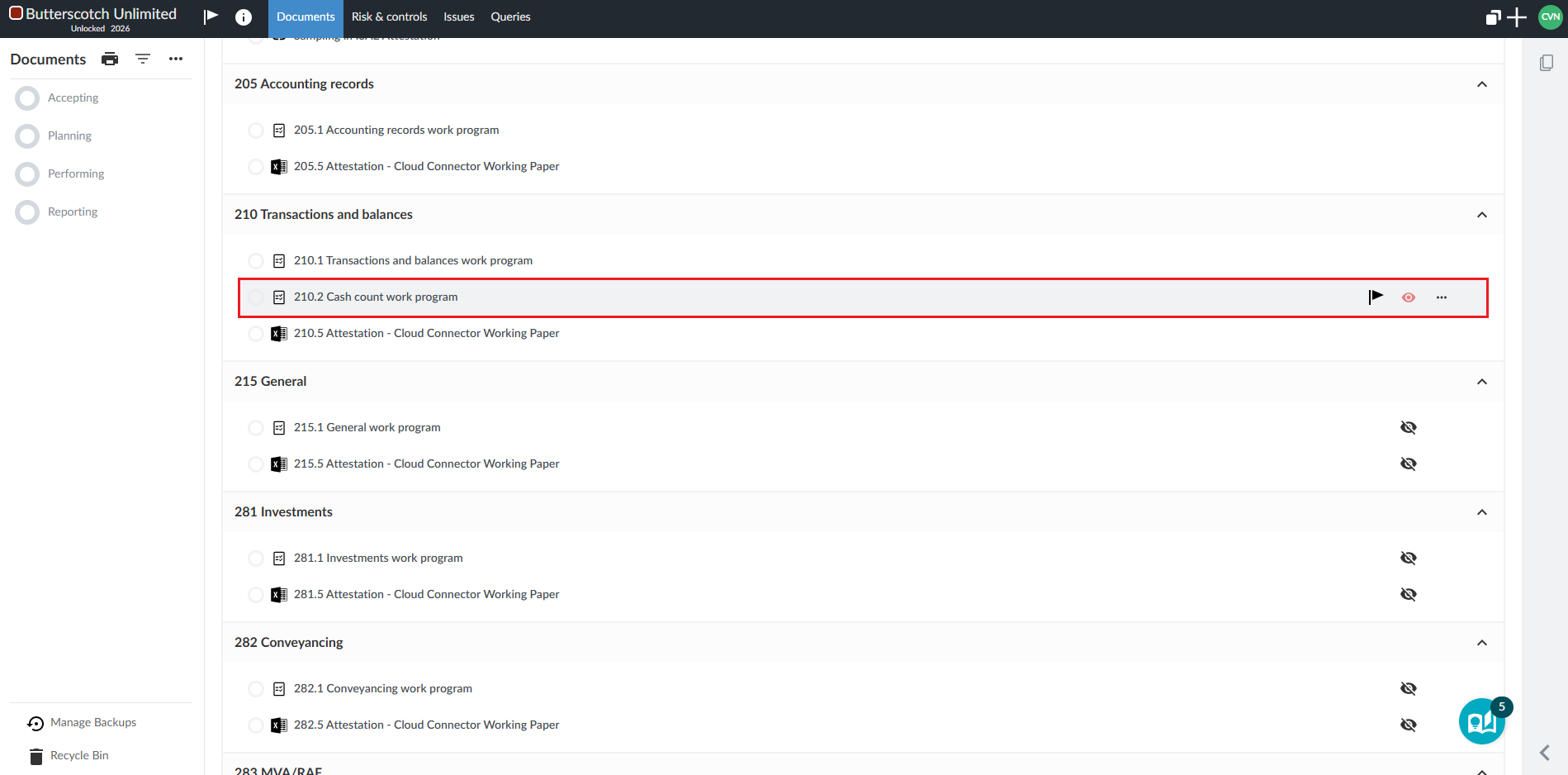
Note that the eye will change to red to indicate that the visibility settings have been overridden.
4. Select the ellipse again to toggle off the Hidden Items.
Rate this article:
|vote=None|
Processing...
(Popularity = 21/100, Rating = 0.0/5)
Related Articles
Cloud App | How to view your assigned work
Cloud App | How to manage the firm template
ISRS Agreed Upon | Product Information
ISRS Agreed-Upon | Latest release
view all...
Search Results
Retrieving Completed Confirmations
Financial Statements | iXBRL | How do I complete the submission to CIPC, after exporting to the document manager?
Probe | Completing a work program
Reconfirming/Querying a Completed Confirmation
Probe | How do I fix the error “knowledge library not found” when inserting a step in the work program?
view all...