How to show a hidden document regardless of the visibility settings
Answer:
You can make an item show or hide despite the defined visibility settings. To show a document:
1. Select the ellipse in the top left corner and select the toggle next to Hidden Items.
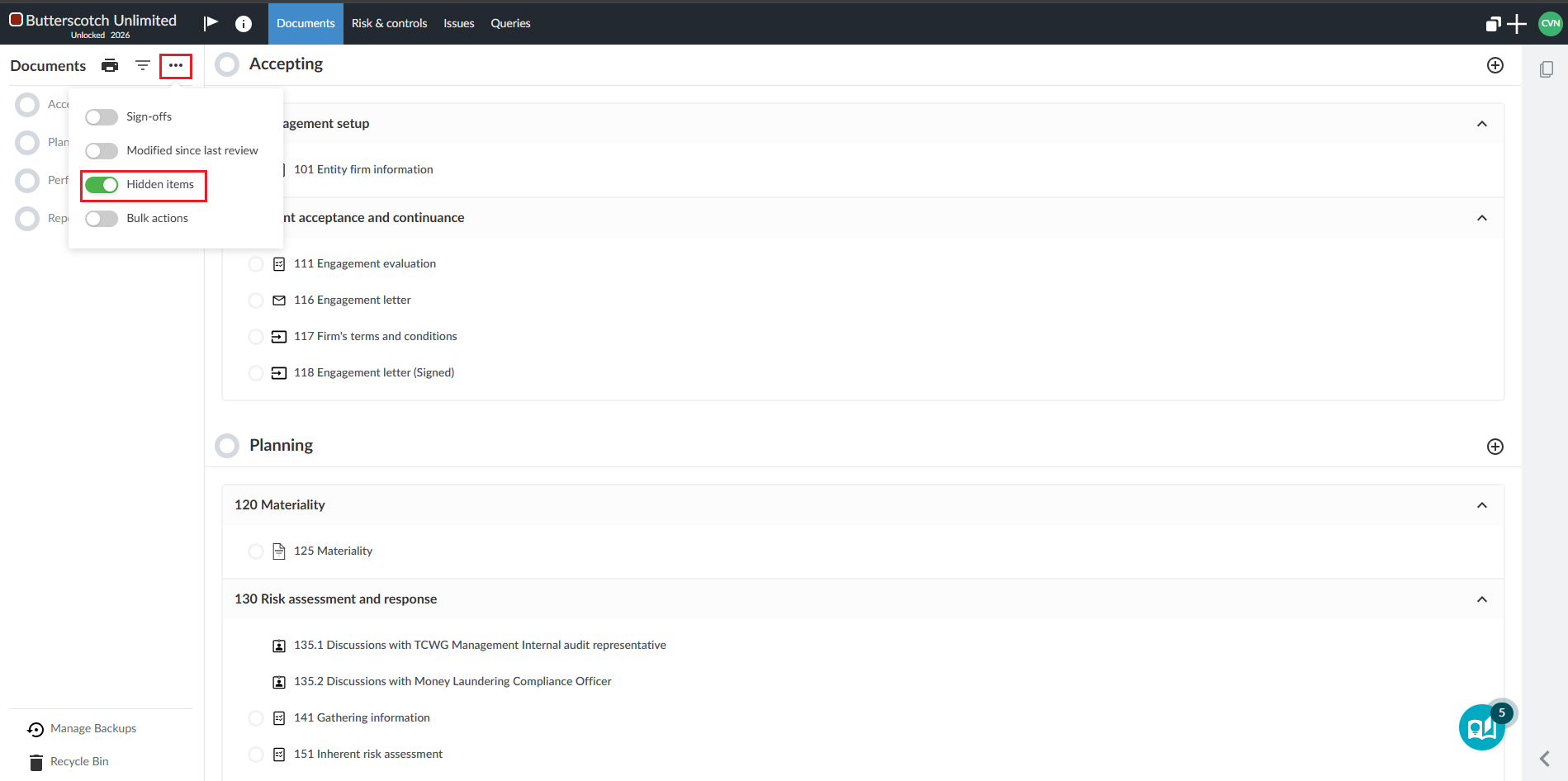
2. Once hidden items are shown, select the eye icon next to the document you want to force to show.
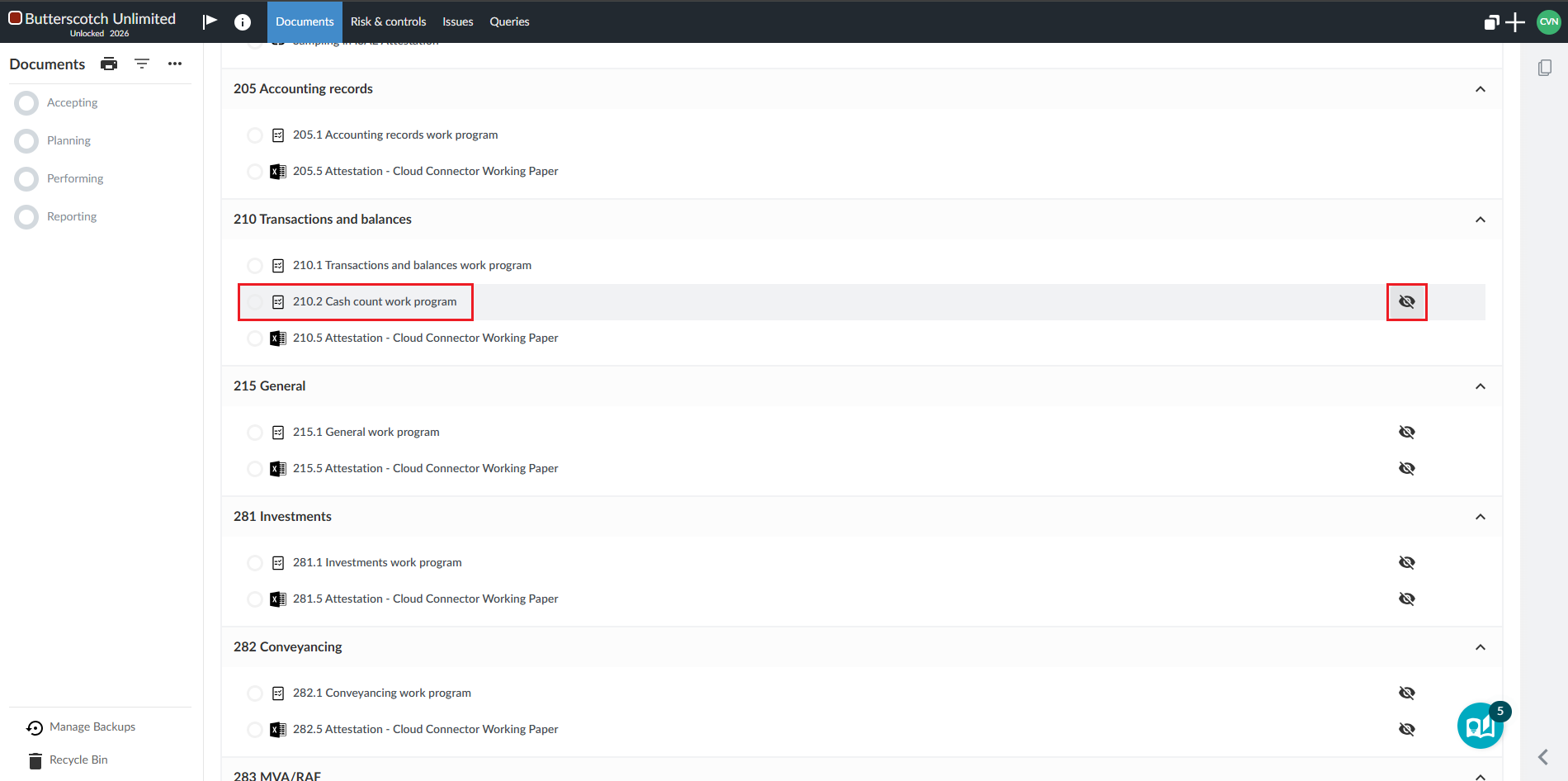
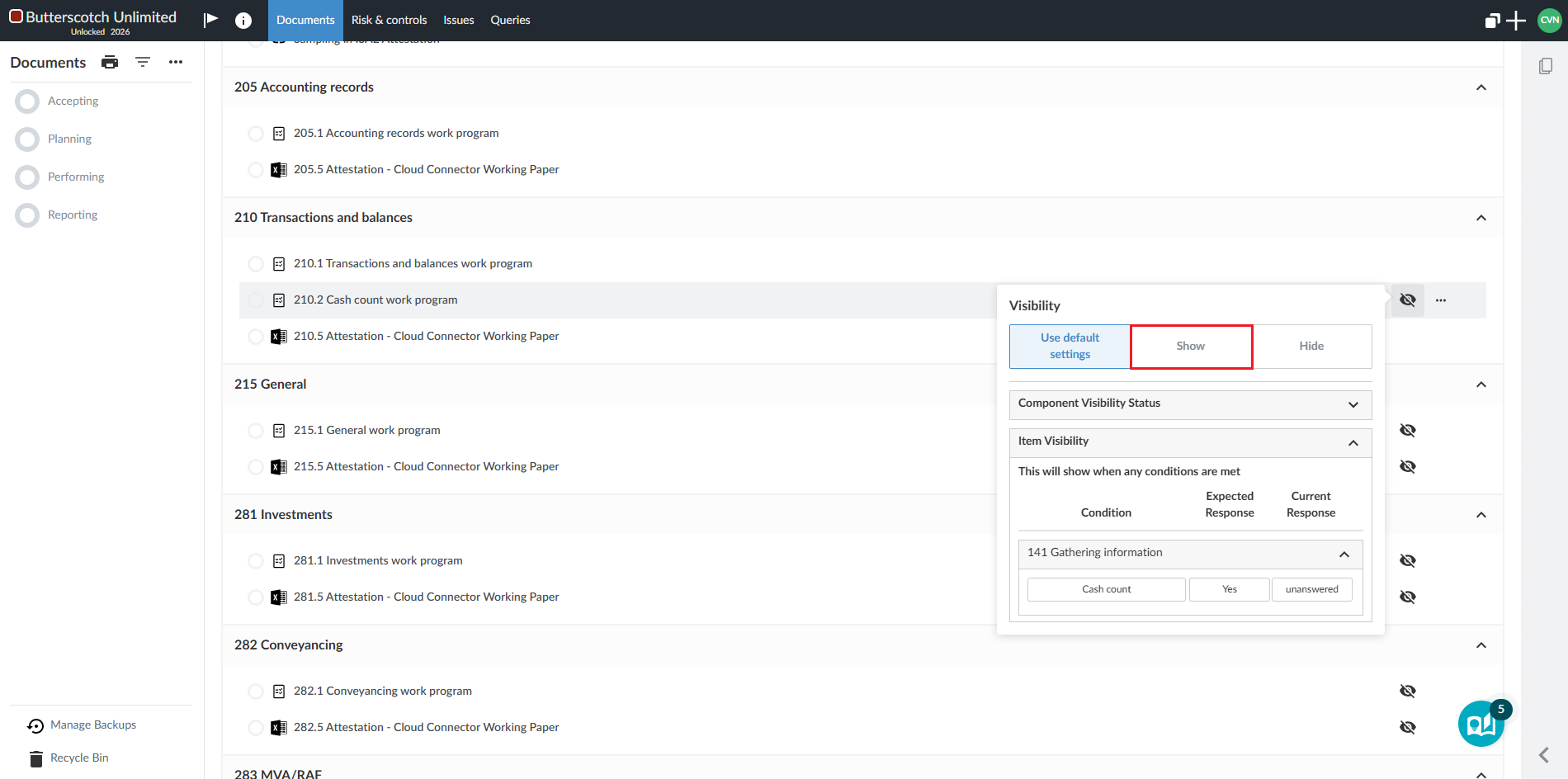
3. Select Show to show the document.
Note that the eye will change to red to indicate that the visibility settings have been overridden.
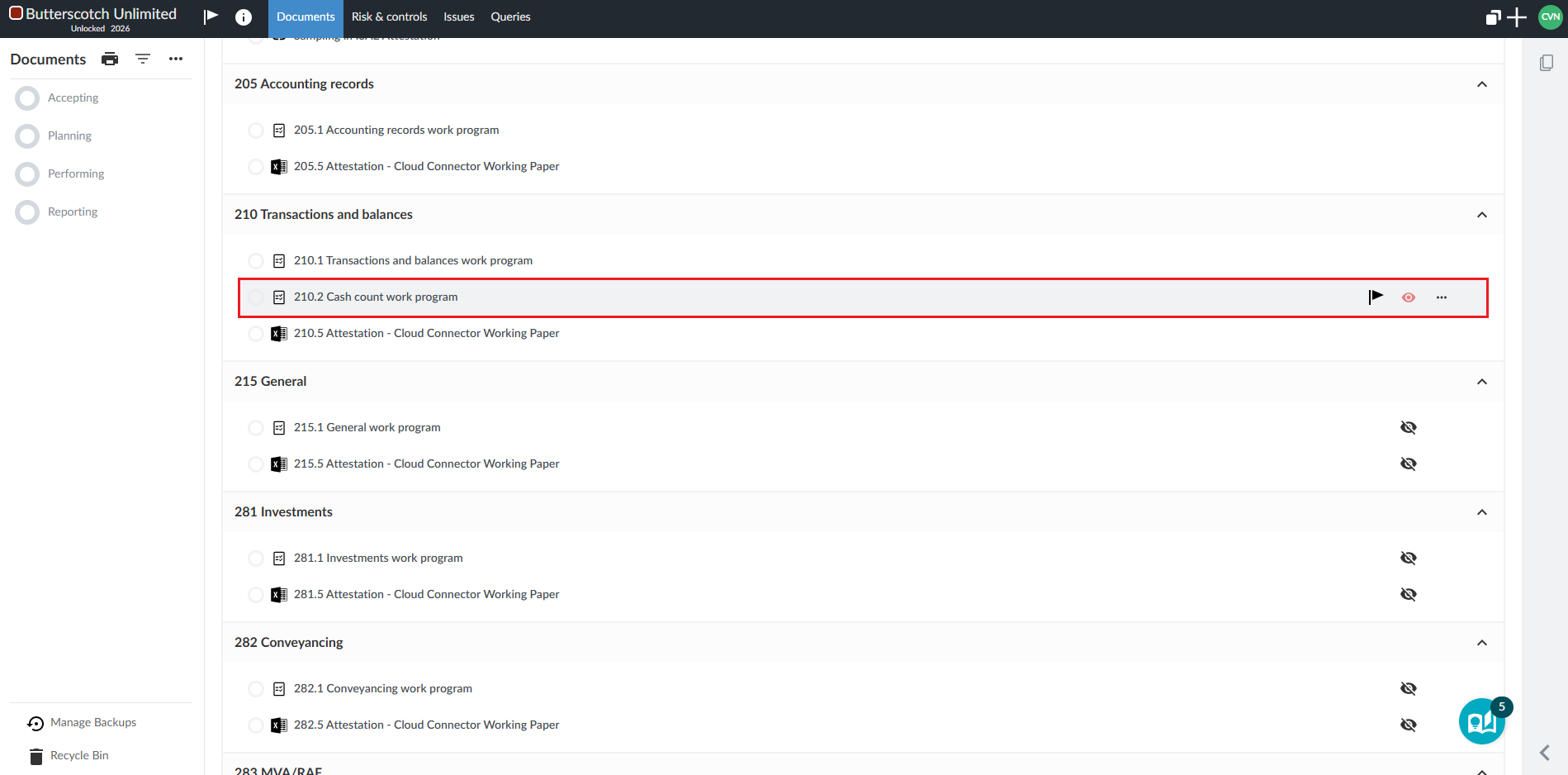
4. Select the ellipse again to toggle off the Hidden Items.
Rate this article:
|vote=None|
Processing...
(Popularity = 15/100, Rating = 0.0/5)
Related Articles
Cloud App | How to manage the engagement documents
Cloud App | How to manage the firm template
Cloud App | How to customise display options, formatting and settings for your firm template
ISRS Agreed-Upon | How to create an engagement file
view all...
Search Results
Why is the confirmation locked to another clerk (New Version of Confirmation)
ABSA Corporate Bank South Africa Audit Confirmation Instructions
Reassigning Client Profiles to Different Audit Users
Citibank South Africa Audit Confirmation Instructions
Nedbank Corporate Banking - Loans and Other Liabilities Audit Confirmation Instructions
view all...