During the course of an engagement, the simplest way to see work assigned to you is by applying filters to the Activities page. In Cloud, work is represented by tasks assigned to you. You may also want to view any current file requests you’ve made to clients.
Answer:
You can use the activities page to review tasks assigned to you.
1. From the Cloud menu, select Activities.
2. From the Activities drop-down, choose Tasks.
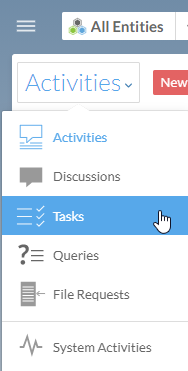
3. Select Filter | Assigned To | Me.
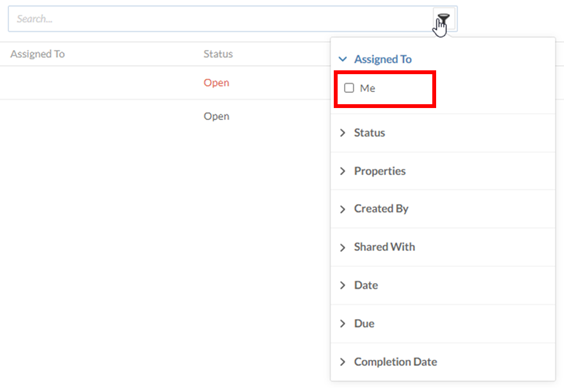
4. To view only the open requests, select Filter | Status | Open. A list of the file requests you've created is displayed on the Activities page.
Whether or not you have a role on a specific activity, you can get notification emails about updates or changes made to the activity by subscribing to it. To control which actions will trigger notifications, you’ll need to configure your personal settings. For more information, refer to the Change notification settings article on the community.
1. Ensure you have the Viewer role or equivalent.
2. From the Cloud menu, select Activities.
3. Select the Subscribe icon.
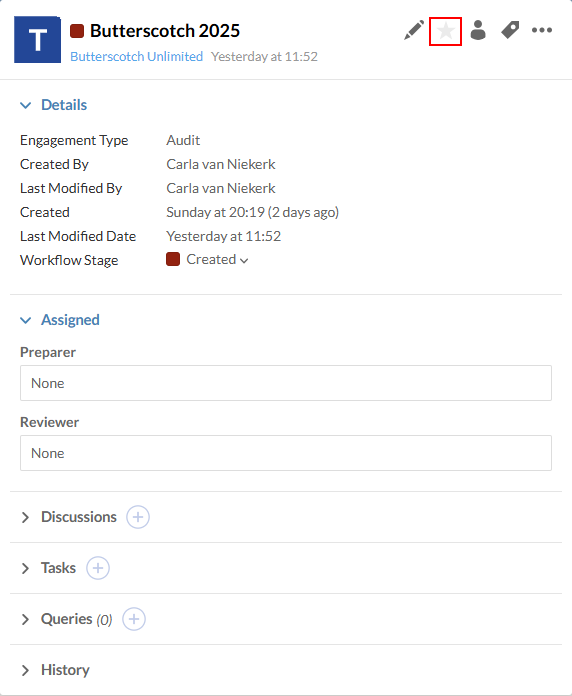
The subscribe icon will turn yellow to indicate you’ve been subscribed to the activity. Select the icon again to unsubscribe.
Rate this article:
|vote=None|
Processing...
(Popularity = 14/100, Rating = 0.0/5)
Related Articles
Cloud App | How to manage the firm template
ISRS Agreed-Upon | How to create an engagement file
ISRS Agreed-Upon | Latest release
ISRS Agreed-Upon | Latest release
view all...
Search Results
What is the cause of Error "Automation server cannot create object"?
What to do when Working Papers fails to install on a Citrix/Terminal Server
How to create dump files on a SmartSync Server
Data Store | How to Export and Import users in Data Store when moving servers
Cloud App | Inserting a logo / letterhead in the Firm Template
view all...