You can email activities and discussion to inform reviewers or managers on any task status change or an important discussion. You can also email activities to a recipient or group of recipients.
Answer:
You can add an annotation in procedures and sub-procedures in a checklist document.
1. Ensure you have the Viewer role or equivalent.
2. From the Cloud menu, select Activities.
3. Select the activity you want to send a notification. Ensure the email recipient has the viewer role or equivalent.
4. In the details pane, select More Actions (  ) | Email.
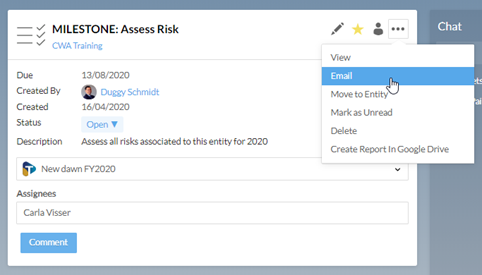
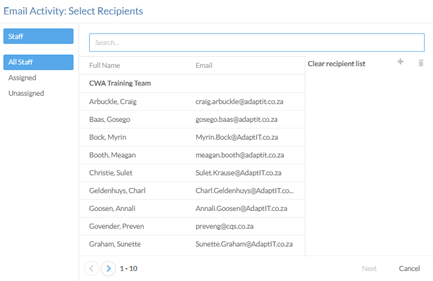
5. Select a recipient or recipient group and select Next.
6. Enter a subject and optional email body message.
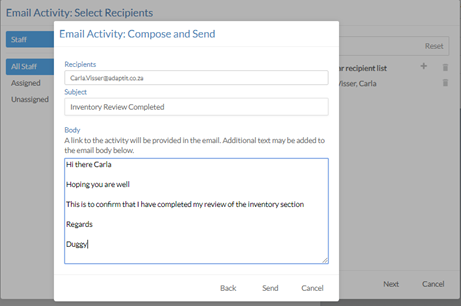
7. Click on Send.
An email notification with the activity link is sent to recipients. If you would like to include a link to an existing drafted email, you can obtain a direct link to any discussion, tasks, and file requests in the form of a URL.
· Ensure you have the Viewer role or equivalent.
· From the Cloud menu, select Activities.
· Select the activity you want to send a notification and select Share ( ).
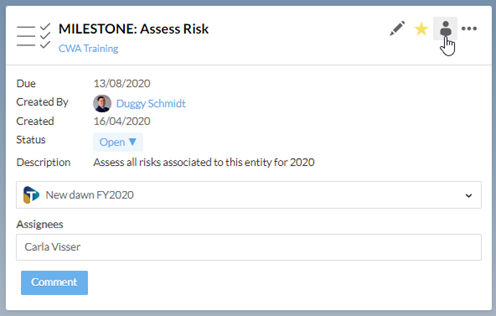
· In the Share dialog, select URL link (  )to copy the URL link.
Workflows help you organise your content in Cloud. With a workflow applied, your staff, contacts, entities, and files are assigned a stage to create "flows".
Once a stage has passed in the engagement, you will need to update the workflow stage to ensure all staff are aware of the status of the engagement. You can also add workflow stages to uploaded files, Google files, entities, and staff. For example, when you upload a file, you might want to add a retention stage so that you can keep track of documents that will be deleted.
1. Ensure you have the Viewer role or equivalent.
2. Select the applicable file where you want to update the workflow stage.
3. In the details pane, select the Workflow Stage drop-down and select the new stage.
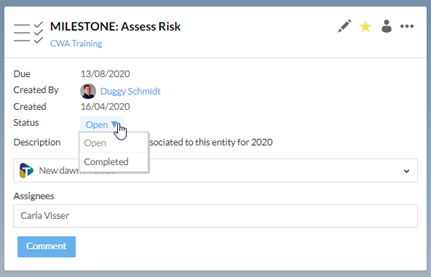
Once you have completed open tasks, it is best practice to update the status of the task.
1. Ensure you have the Viewer role or equivalent.
2. From the Cloud menu, select Activities.
3. From the Activities menu, select Tasks.
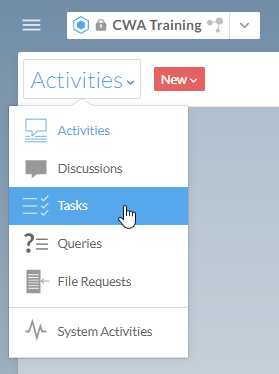
4. Select the appropriate entity from the Entity Selector.
5. Select the applicable tasks to update and select the Status drop-down to change the status.
Rate this article: