An engagement file is where you collect, organise and review all your client's financial information. When you're ready to begin a client engagement, there are several ways you can create an engagement file from Cloud:
- Create an engagement file from the Engagements application and selecting ISAE Attestation.
- Creating an engagement from within the ISAE Attestation application.
- Create an engagement file using Caseware Working Papers
Answer:
Create an engagement file options
You can enter budget information for engagement files on Caseware Cloud. Simply enter the data on the engagement itself, time entries from the Time app so that it can be counted against the budgeted total.
Option 1 - To create an engagement file from the Engagements application and selecting ISAE Attestation:
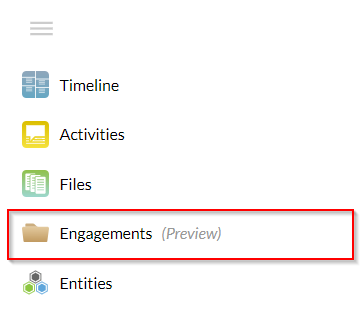
1. From the Cloud menu, select Engagements.
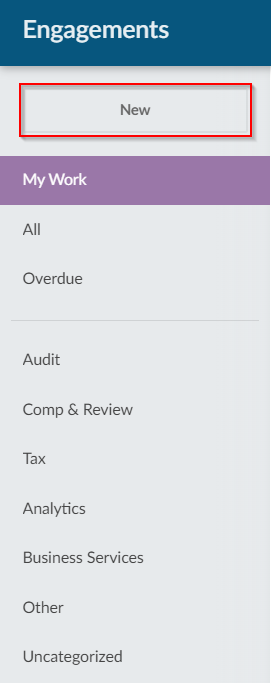
2. From the Engagements menu, select the New button.
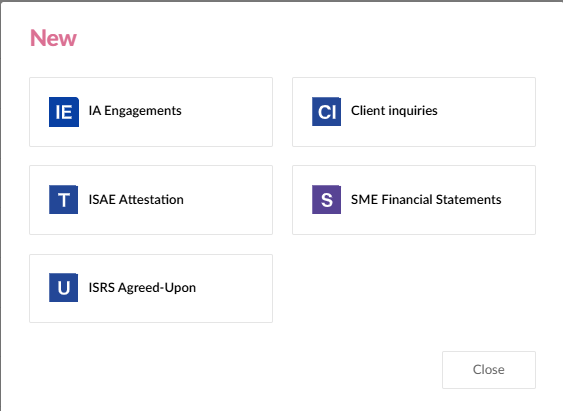
3. In the New Engagement dialog, select the ISAE Attestation option.
4. In the next dialog, choose your client entity and enter the name for the engagement file. You can also select the start date and end date for your engagement and enter budget information.
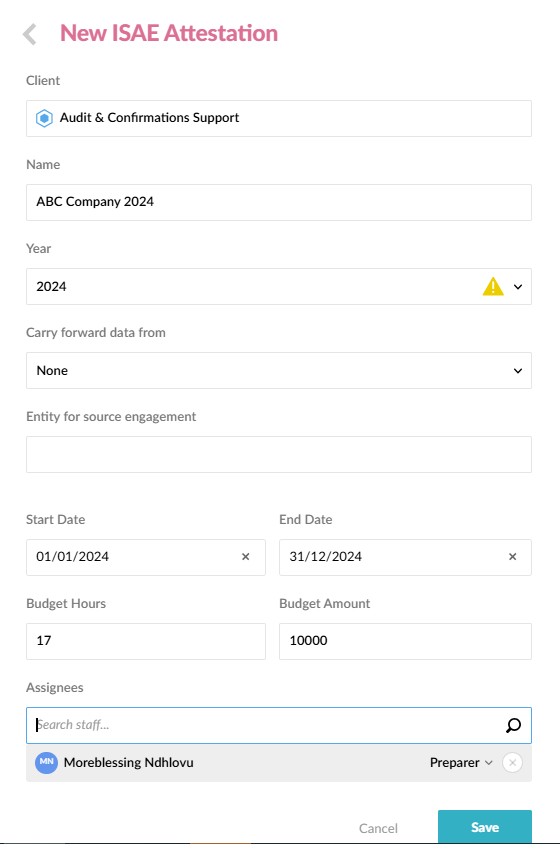
5. Click on Save.
You have created the new engagement file for your client. Once the file is created, it is automatically opened in a new tab in your browser.
Option 2 - To create an engagement file from the ISAE Attestation application:
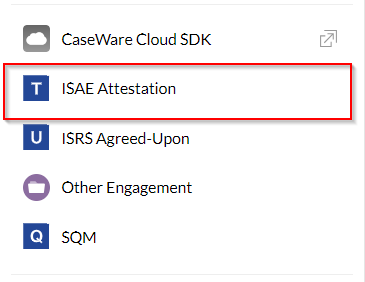
1. From the Cloud menu, click on the ISAE Attestation icon.
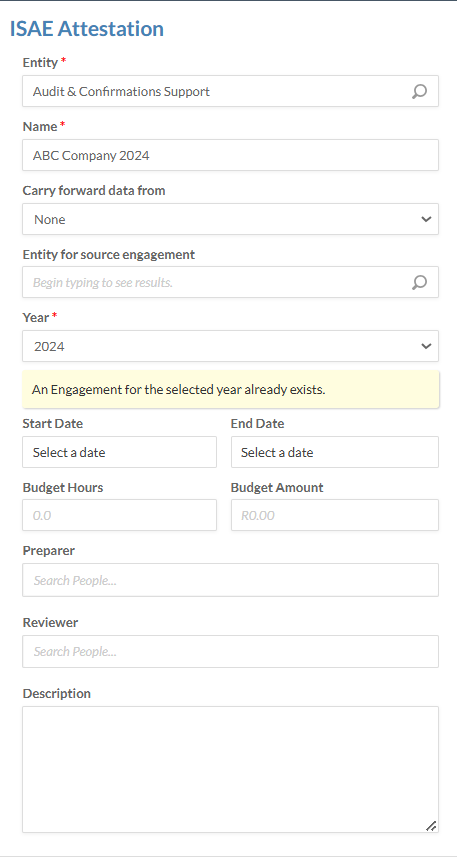
2. From the Home Screen click on the New button located top left. Proceed to complete form accordingly.

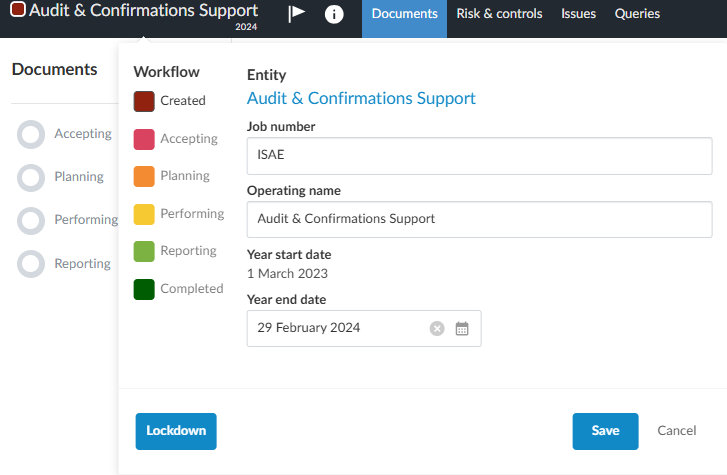
3. As with any engagement, complete the Engagement Properties. The data used in this screen is used throughout the engagement. This saves time as there is one source of truth. Once you have verified the information, change the workflow to “Accepting”.
Set the engagement properties
When you first open a new Smart Engagement, the engagement properties pop-up is displayed automatically. You can set some high-level properties for your engagement before you begin to work on it.
To set engagement properties:
You can open the Engagement Properties dialog by selecting the entity name. In this popup, you can set the following properties:
- Workflow stage - select a stage for the status of the overall engagement work.
- Job Number - enter your firm’s job number for this engagement.
- Operating Name - this field shows the Cloud entity name by default. You can change the default and enter a different name.
- Year End Date - choose a year end date for this engagement.
- Currency - select the currency for this engagement.
The Engagement Properties dialog also features the following:
- Lockdown - select to lock the engagement file, once all the work is complete. To learn more, see Lockdown the engagement.
Once you have finished updating the properties for your engagement, select the Save button.
Rate this article:
|vote=None|
Processing...
(Popularity = 1/100, Rating = 0.0/5)
Related Articles
Cloud App | How to create an engagement team
Cloud App | How to attach documents to an engagement file
Cloud App | Creating a client request (Query) from an engagement
Cloud App | How to track the engagement file status
view all...
Search Results
Guide ZA-Letter of Credit Form
Guide ZA-Signatories Form
Firm Wide Credit Card
Guide ZA-Bills Form
Guide ZA-Asset form
view all...