How do I access and navigate the Internal Audit Manual within the IA Governance app to view the established methodologies, requirements, responsibilities, and tasks that guide internal audit activities?
Instructions:
The MY WORK | Manual page provides direct access to the Internal Audit Manual for the entity within the IA Governance app. This page displays all established and currently effective methodologies, organised by topic, allowing users to easily locate the procedures, responsibilities, and tasks that guide the Internal Audit Function’s activities.
Objective
The objective of MY WORK | Manual is to provide users with centralised and easily accessible view of the Internal Audit Manual, enabling them to reference the established methodologies and their associated requirements, responsibilities, and tasks when performing the internal audit activities.
Page position
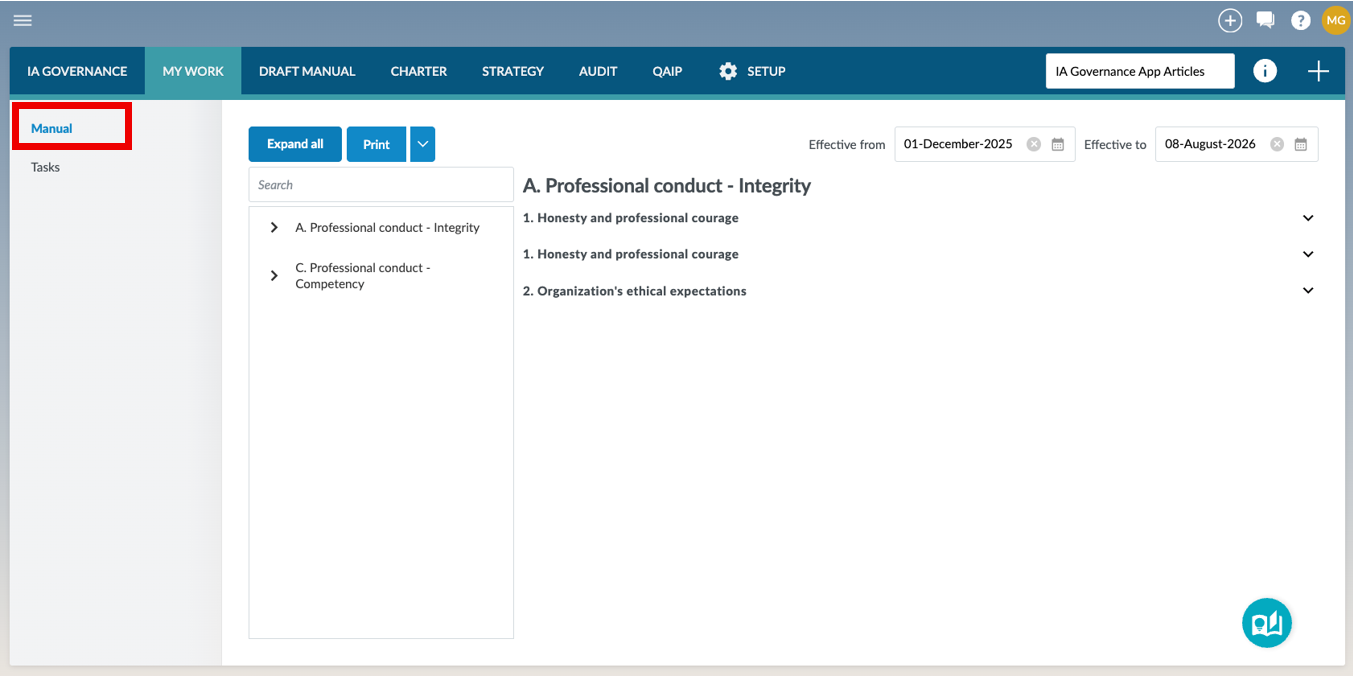
MY WORK | Manual can be found on the sidebar within the MY WORK module of the IA Governance app.
Page content
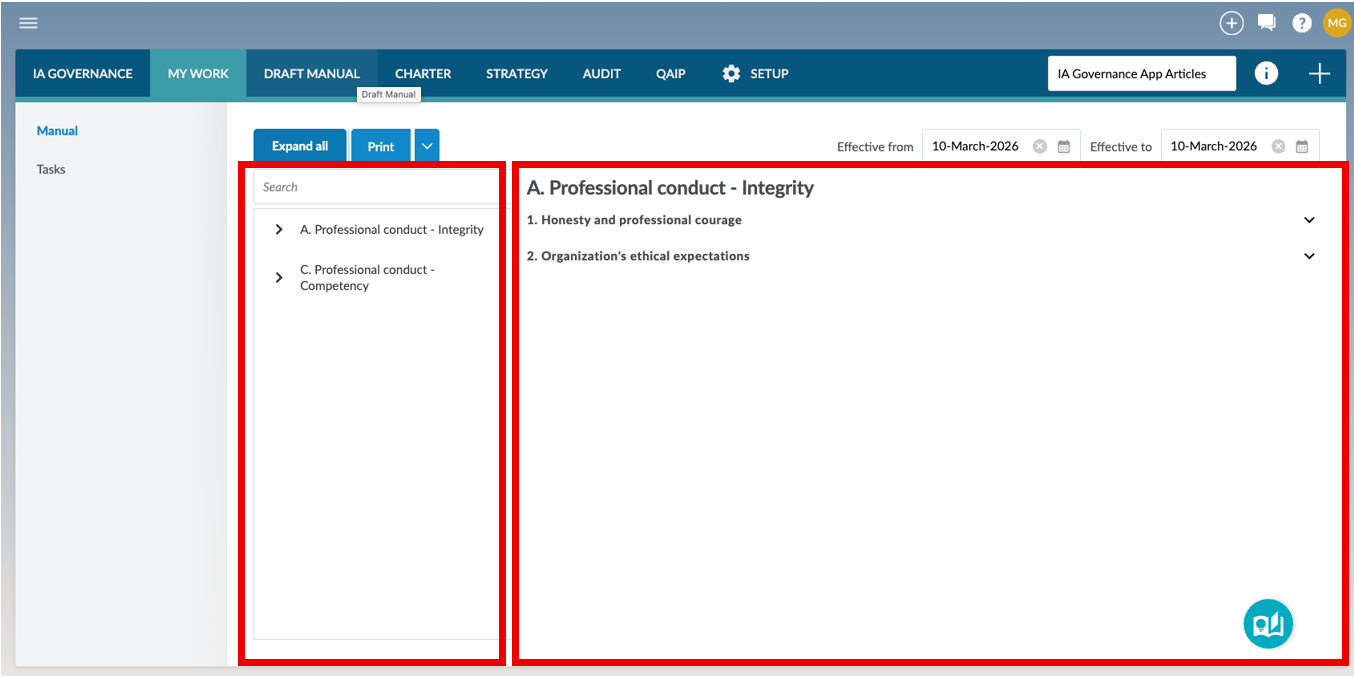
The page is divided into two main areas: the Navigation tree, which allows users to browse topics and methodologies, and the Detail view, which displays the full content of the selected topic or methodology.
Navigation tree
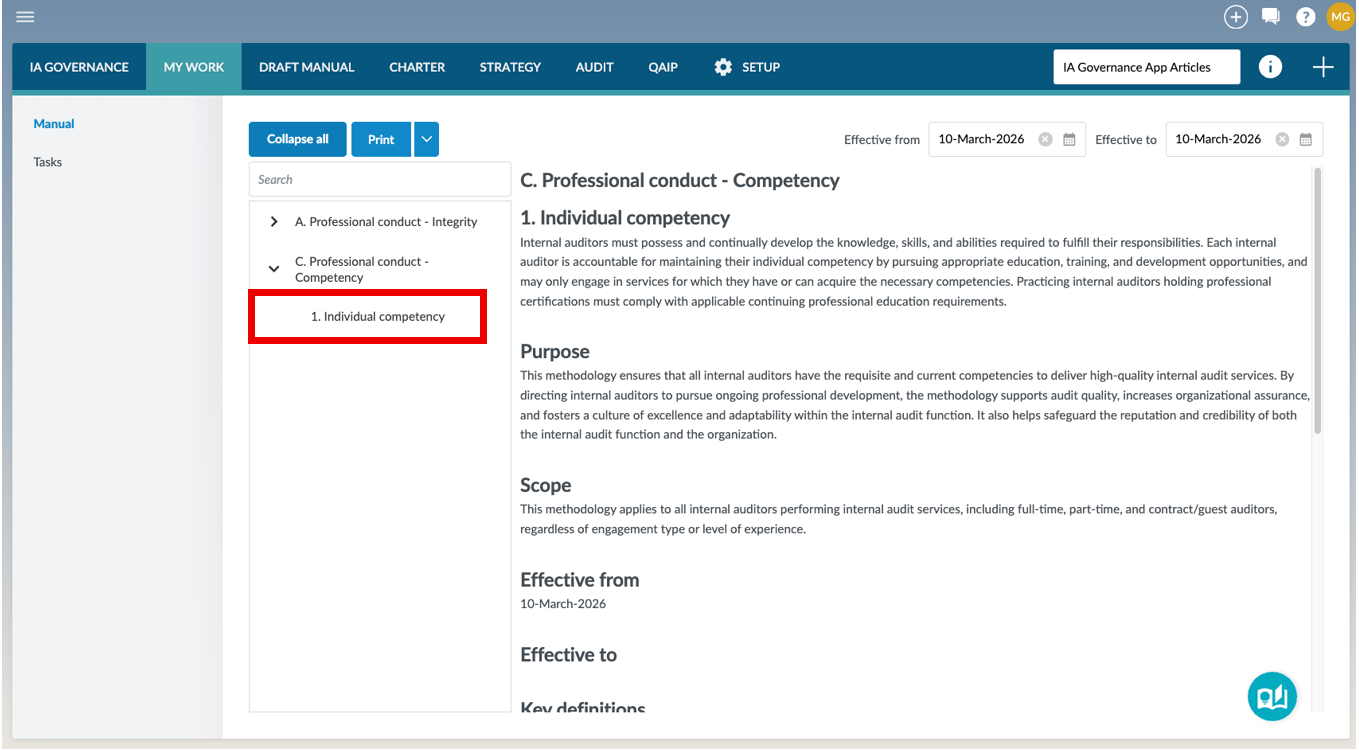
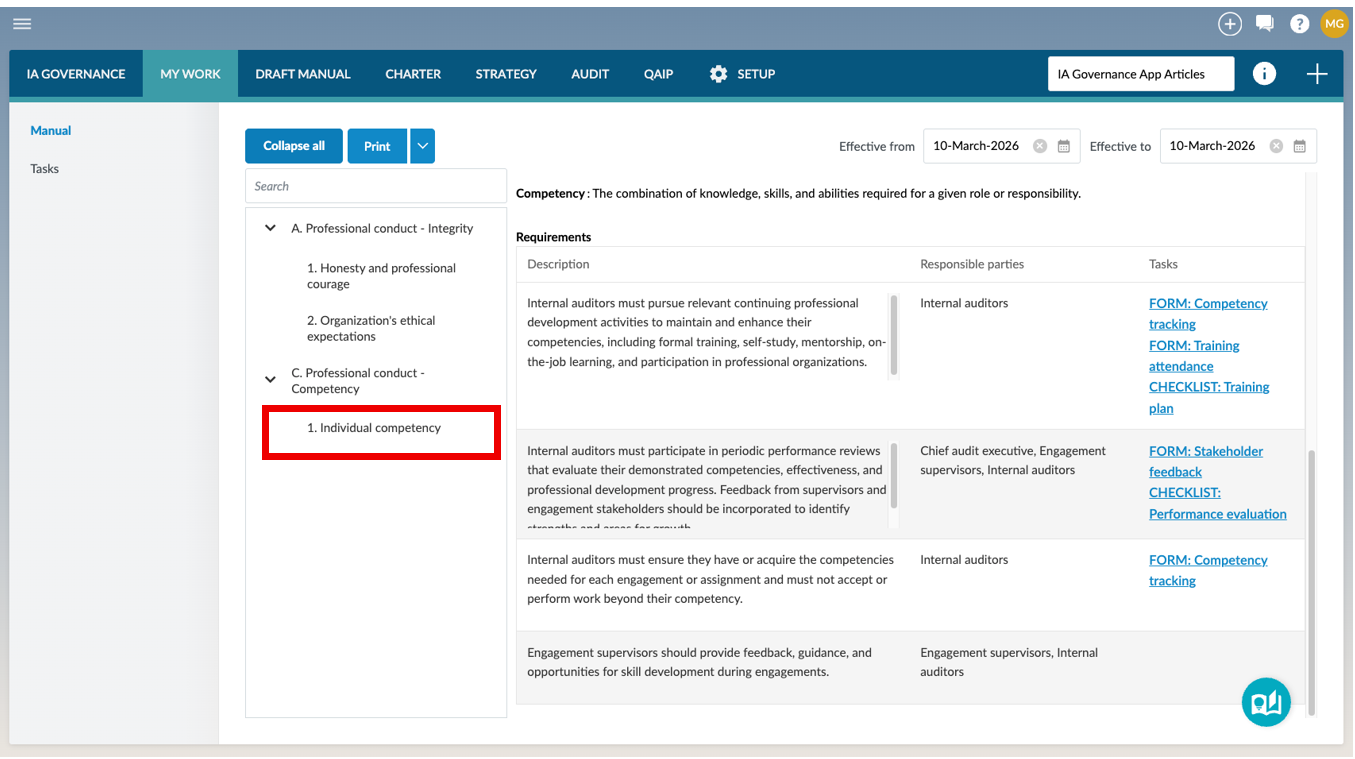
The Navigation tree lists all topics and the methodologies belonging to each topic in a hierarchical tree structure. Topics and methodologies are displayed in alphabetical order, making it easier to locate the relevant governance content. By default, all topics are collapsed. Users can expand or collapse topics as required to display the methodologies associated with each topic. The Expand All option will expand all topics and the details about the currently selected topic’s methodologies. Selected topics and details can be expanded or collapsed through the expand or collapse options.
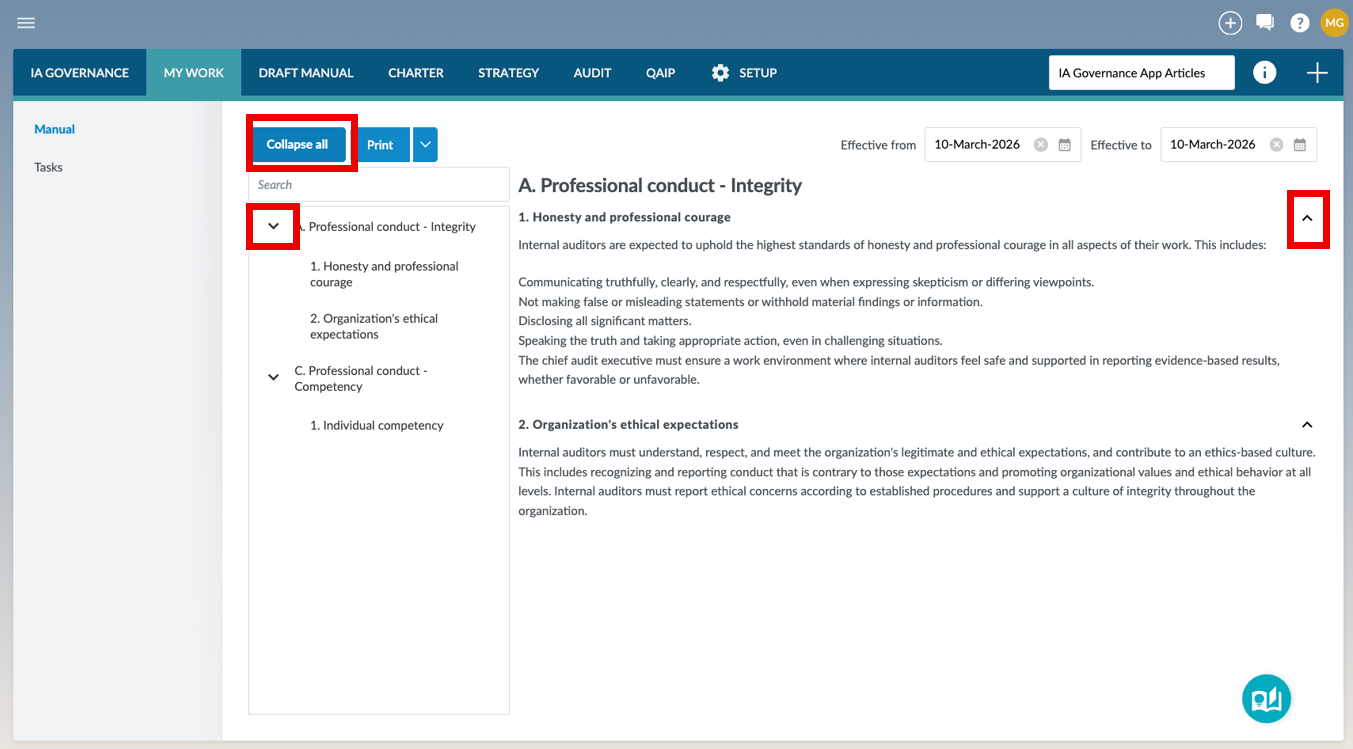
Selecting a topic will display more information about the methodologies that belong to that topic in the Detail view.
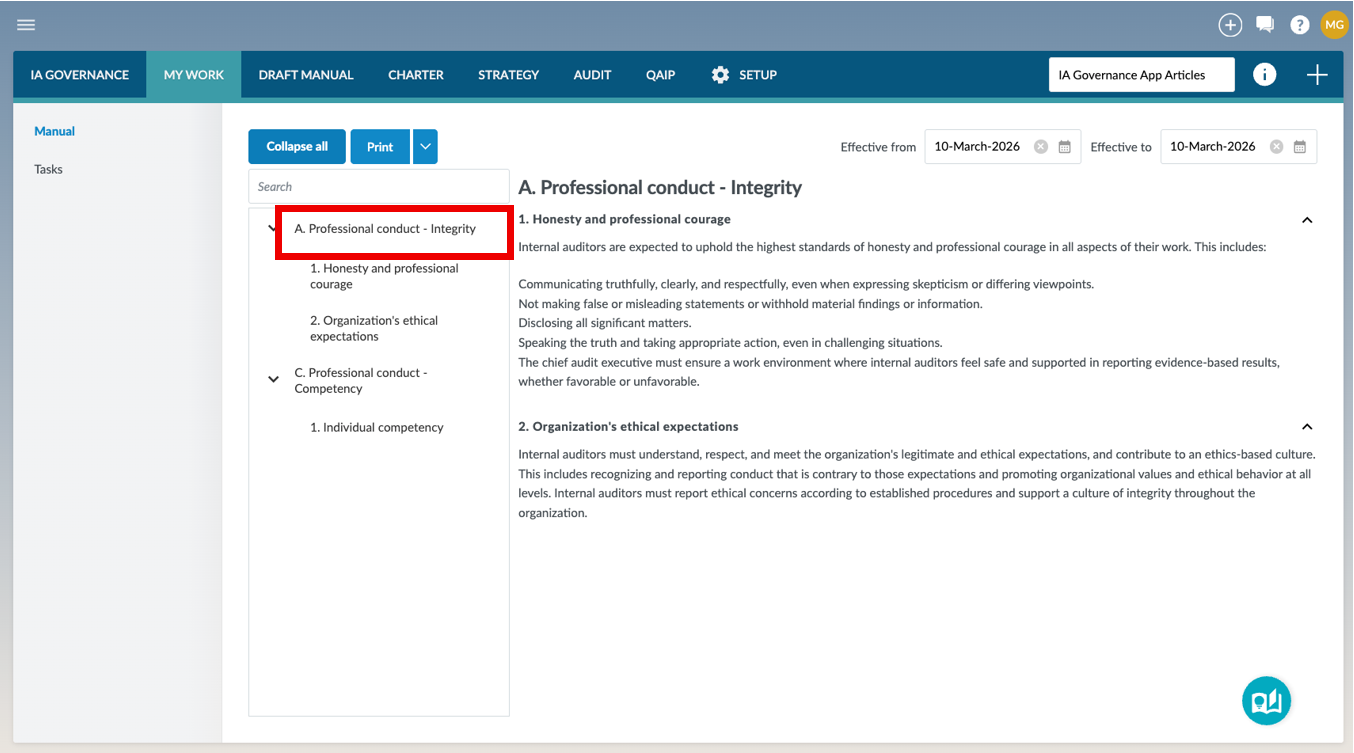
Selecting a methodology will display the full details of that methodology in the Detail view.
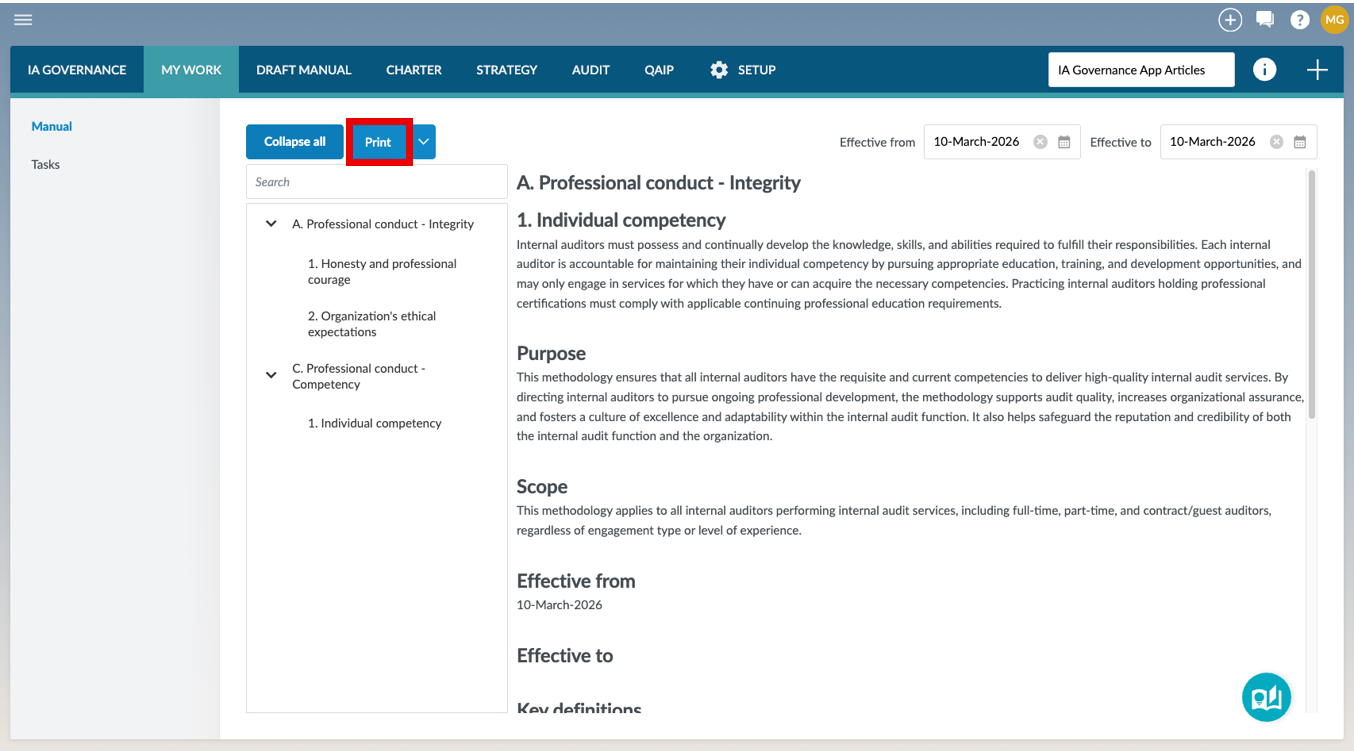
Users can also access the Print option located at the top of the page, which allows the Internal Audit Manual to be exported in PDF format.
Detail view
The Detail view displays the content of the item selected in the Navigation tree. If a topic is selected, the page displays the topic title along with expandable sections for each methodology belonging to that topic.
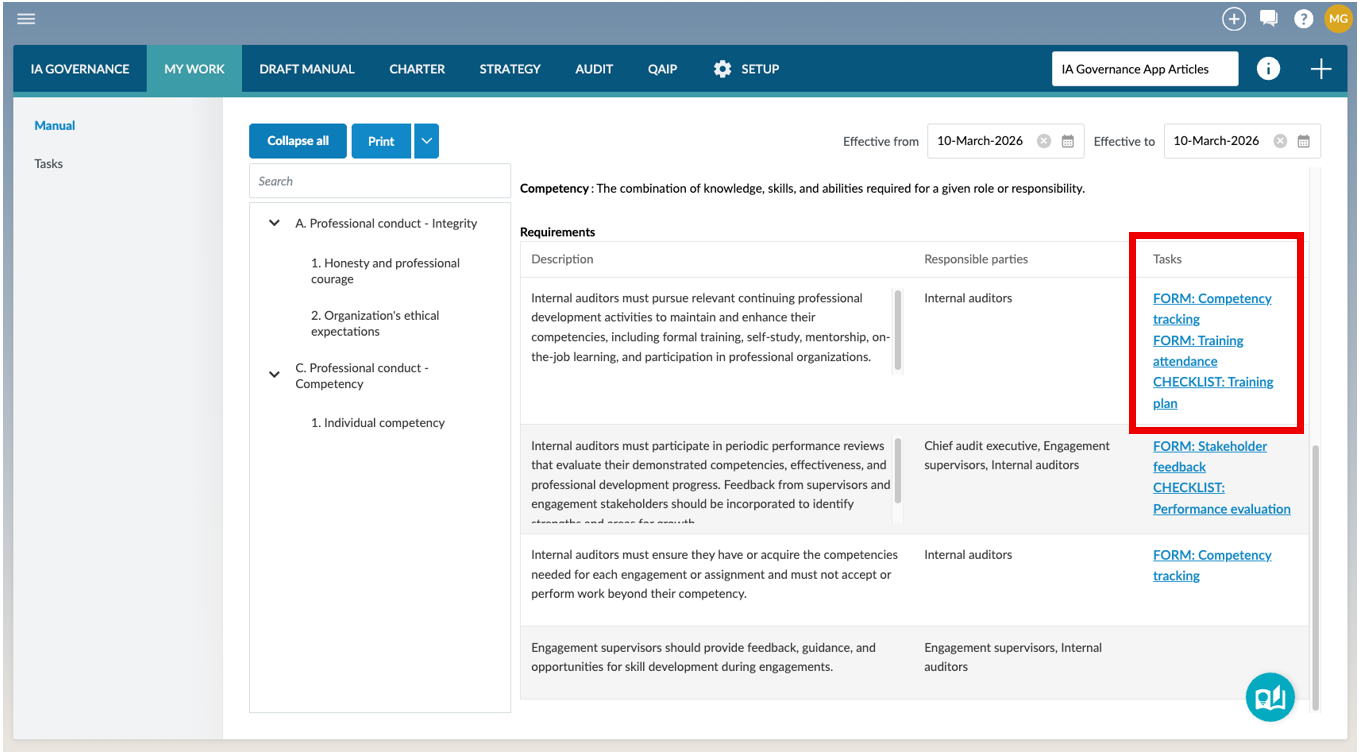
If a methodology is selected, the full details of that methodology are displayed, including its description, requirements, responsible parties, and any tasks associated with those requirements.
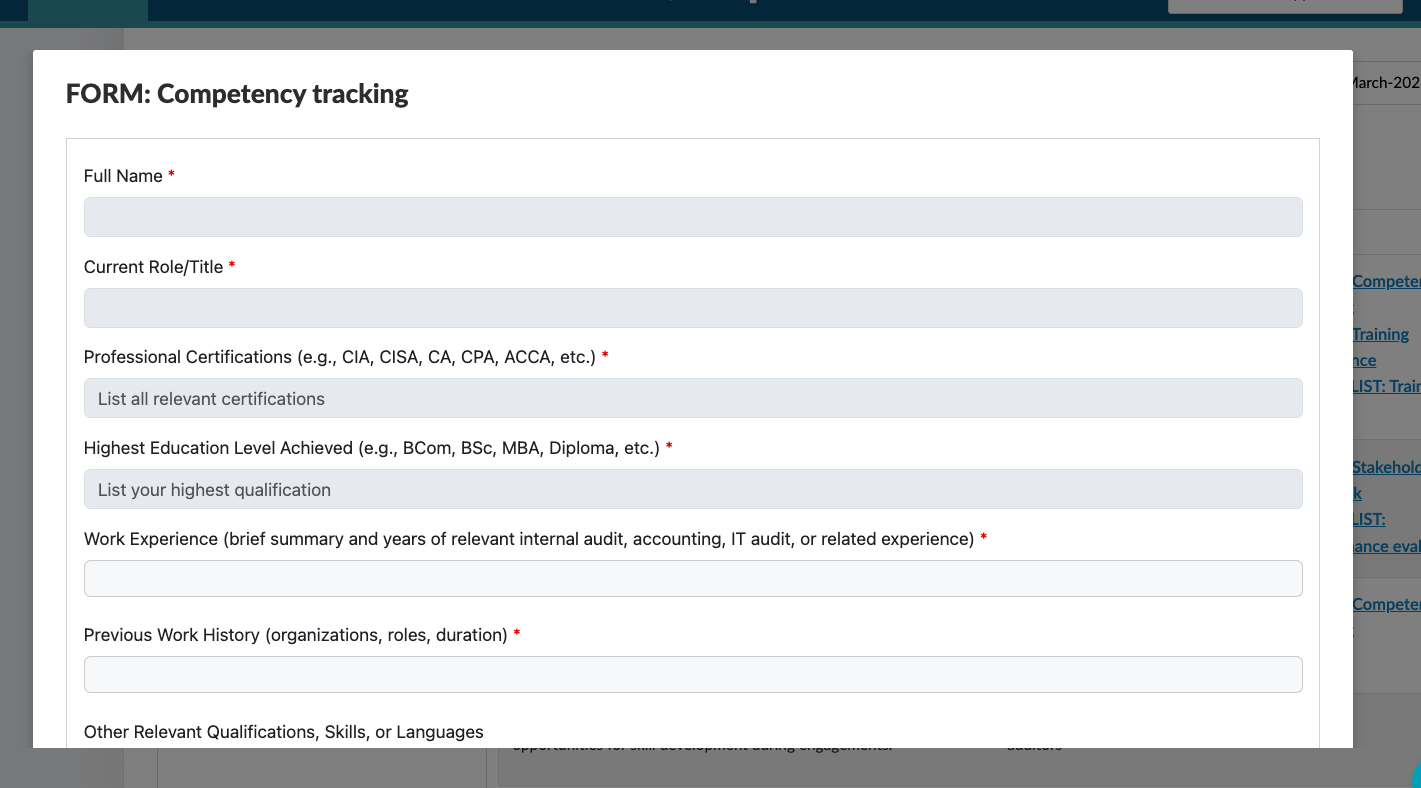
Scrolling down on the Detail view of a methodology will display the requirements for the selected methodology consisting of the Description, Responsible Parties, and Tasks as defined in the DRAFT MANUAL Module. Selecting a task will open a dialog that displays a preview of the task, allowing users to view the task content directly from within the Internal Audit Manual.
Page outcomes
Accessing the MY WORK | Manual page enables users to view the approved/established Internal Audit Manual for the IAF, providing a single reference point for the methodologies, requirements, responsibilities, and tasks that guide the work of the IAF. By displaying only methodologies that have been established and are currently effective, the page ensures that users rely on the most up-to-date governance guidance when performing their work, while also allowing the manual to be easily reviewed or exported when required.
Features
The following features are available on this page:
Rate this article:
|vote=None|
Processing...
(Popularity = 0/100, Rating = 0.0/5)
Related Articles
IA Governance | DRAFT MANUAL - Methodologies
IA Governance | SETUP - Methodologies
IA Governance | DRAFT MANUAL - Tasks
What is Caseware Internal Audit?
view all...
Search Results
Where are the User Agreement and Privacy Policy located?
ISAE Attestation | How to create a new engagement
ABSA Private, Wealth and Retail Banking South Africa Audit Confirmation Instructions
Investec Private Bank South Africa Audit Confirmation Instructions
How to Register a New User on Confirmation.com
view all...