How do I create and manage methodologies within the IA Governance app so that internal audit processes, responsibilities, and procedures are documented consistently and aligned with the organisation’s internal audit methodology?
Instructions:
The DRAFT MANUAL | Methodologies section allows users to create, edit, and manage the methodologies that form part of the Internal Audit Manual. A methodology captures the principles, procedures, responsibilities, and supporting guidance that define how the Internal Audit Function performs its activities. Methodologies provide a structured and standardised approach to internal audit processes, ensuring that audit activities are performed consistently and aligned with the organisation’s governance framework, internal audit methodology, and applicable professional standards.
Objective
The objective of DRAFT MANUAL | Methodologies is to establish and maintain documented internal audit methodologies that guide how internal audit activities are performed within the organisation. This supports consistency in execution, clarity of responsibilities, and alignment with the organisation’s internal audit framework and applicable Standards.
Page position
DRAFT MANUAL | Methodologies can be found on the sidebar within the DRAFT MANUAL module of the IA Governance app.
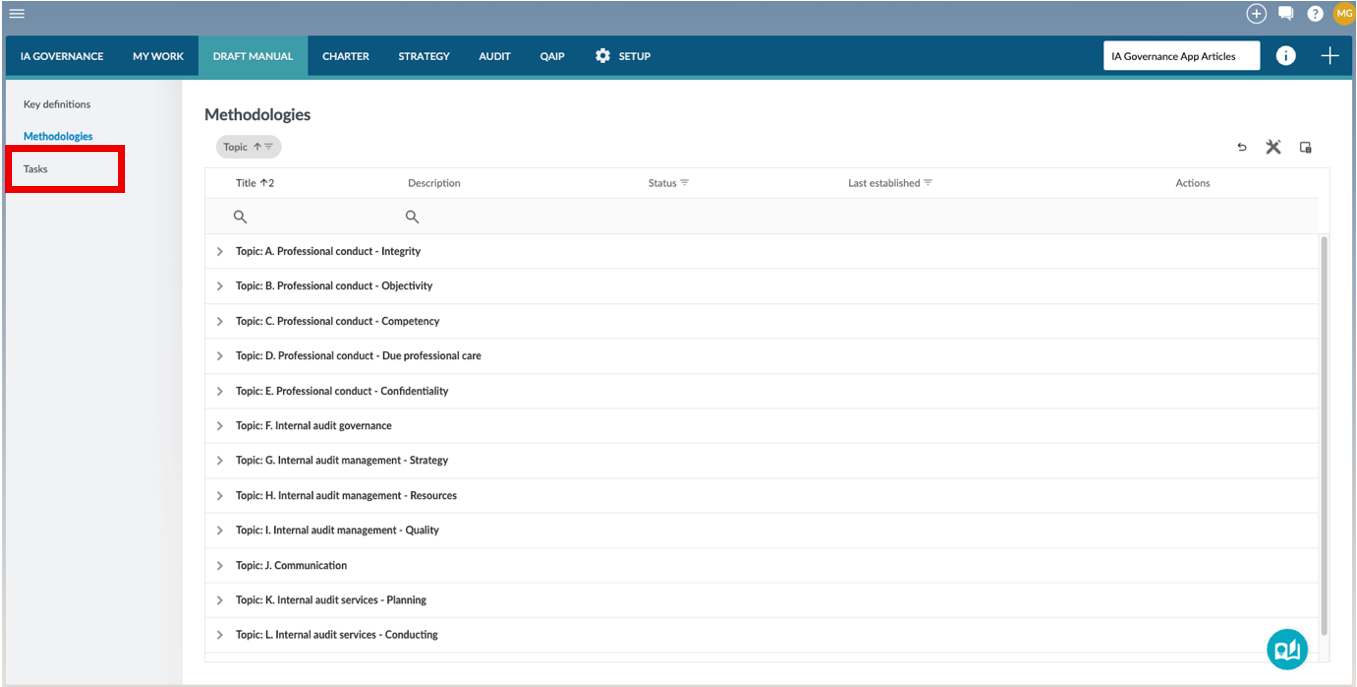
Page content
The Methodologies section within the DRAFT MANUAL module provides a structured environment for creating, maintaining, and managing the methodologies that form part of the Internal Audit Manual. This page enables the Internal Audit Function (IAF) to document the policies, procedures and guidance that govern how the IAF’s governance documents are created and how internal audit activities are performed, ensuring a consistent and standardised approach aligned with the organisation’s internal audit processes, governance frameworks, and applicable professional standards.
Methodologies are displayed with their associated topics, description, status, last established dates, and available actions, allowing users to manage updates through controlled versioning while preserving established methodologies.
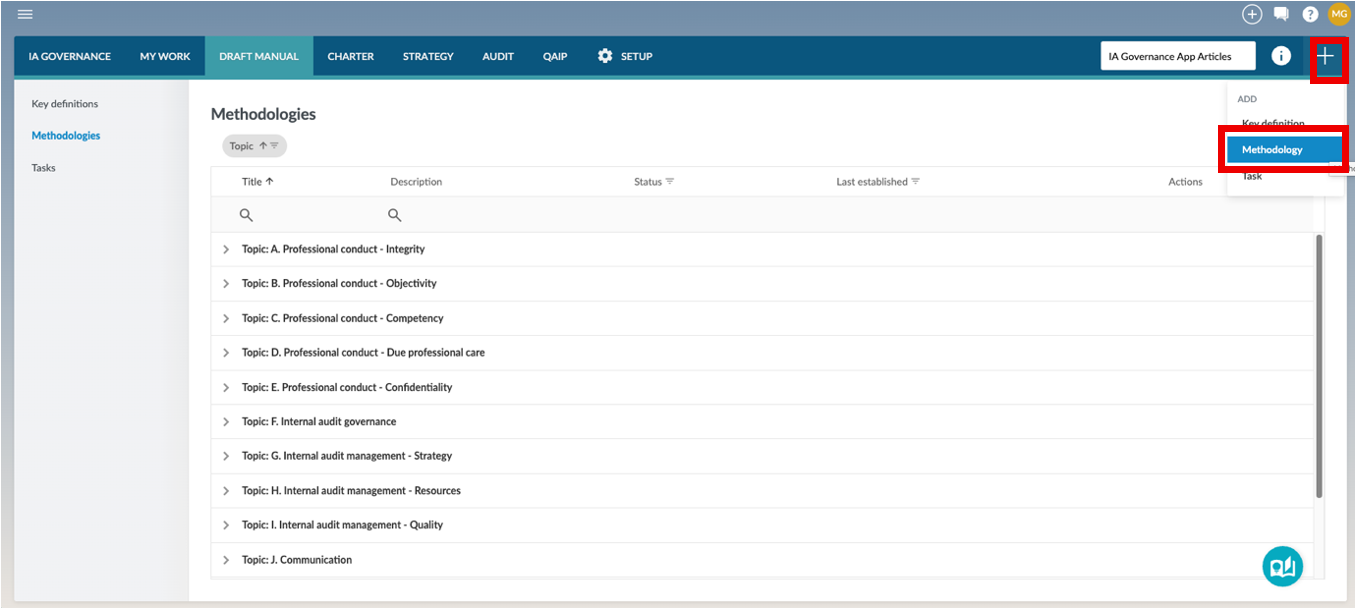
Methodologies are grouped by Topic, the category the methodology belongs to as was created in SETUP | Methodologies.
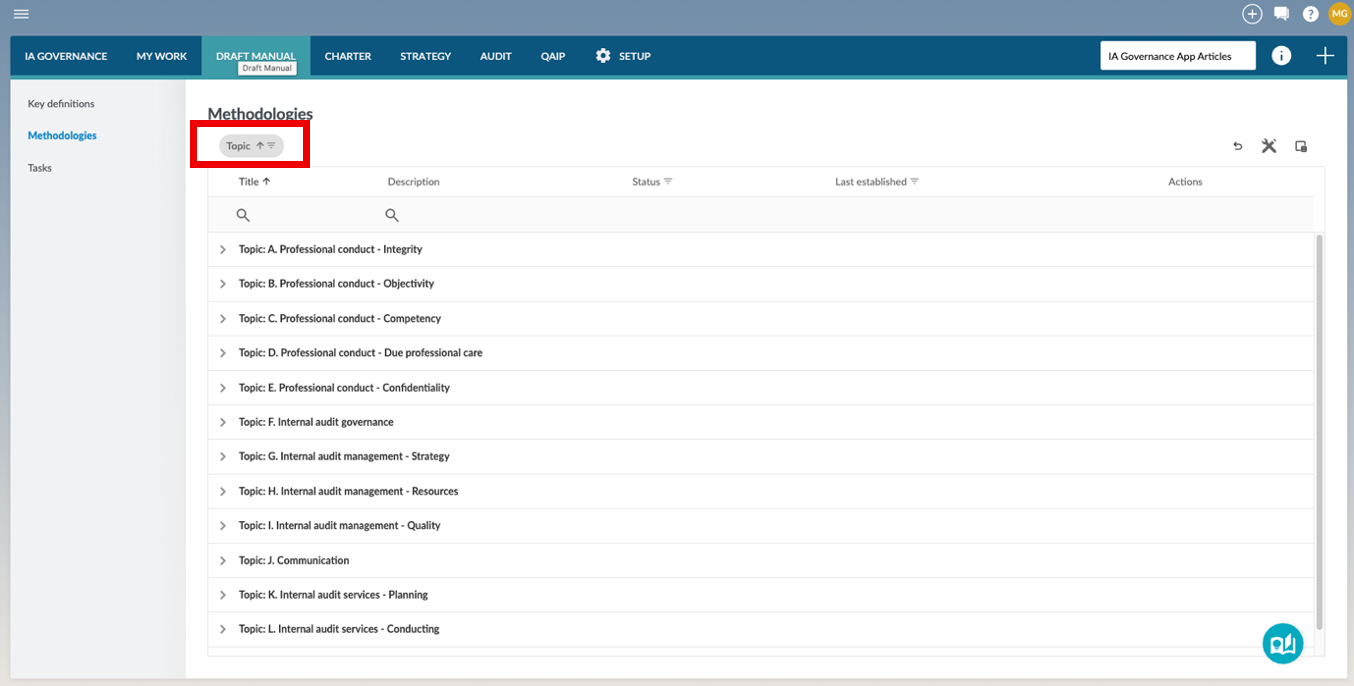
Note: Topics can be sorted or filtered by selecting the respective sort  or filter
  button next to Topic at the top of the page.
Details of the methodology can be viewed by selecting the arrow  button next to each topic.
Fields within a methodology
By default, only certain fields are visible for each methodology (Title, Description, Status, Last established and Actions.
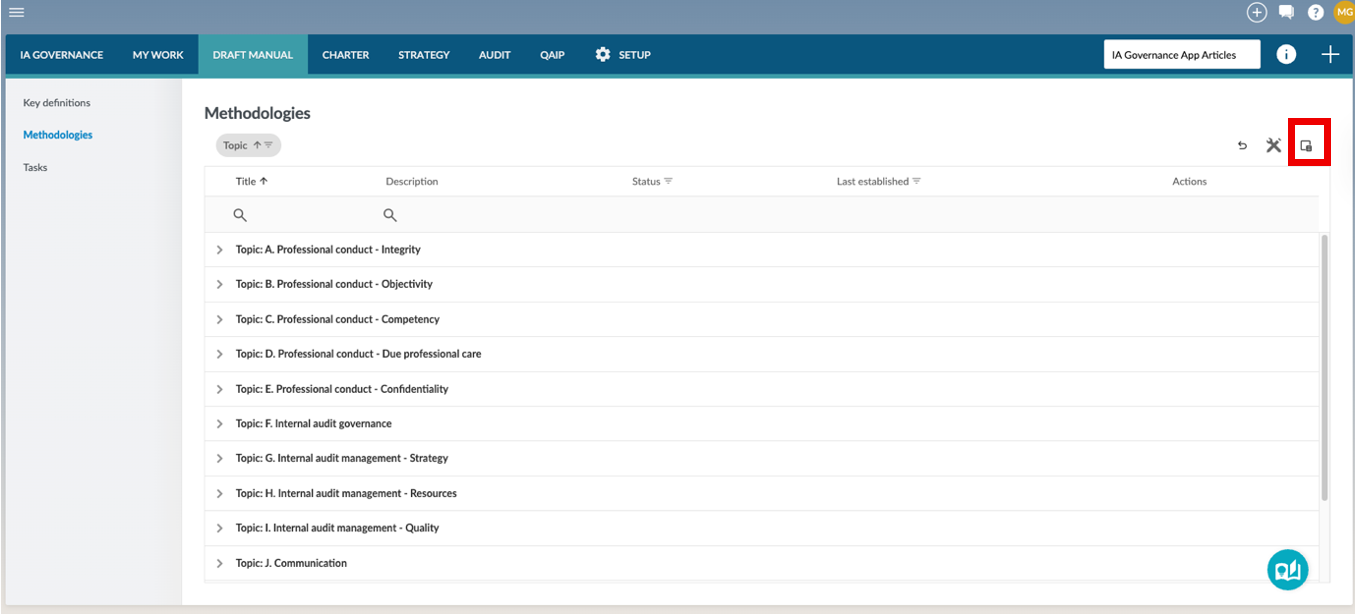
Additional Fields can be added through selecting the column chooser  button, which will open a selection window allowing users to select and deselect columns depending on their preferences.
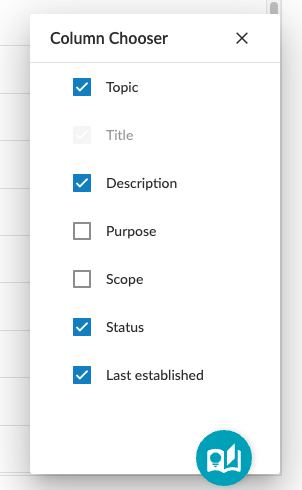
The following guide provides information on the requirements of each of the available fields for a methodology:
|
Field
|
Input required
|
|
Topic
|
The category the methodology belongs to. To manage the options available go to SETUP | Methodologies.
|
|
Title
|
A short, descriptive name for the methodology.
|
|
Description
|
A detailed explanation of what the methodology is.
|
|
Purpose
|
Why the methodology is needed and how it supports the internal audit function and entity.
|
|
Scope
|
The boundaries of the methodology (what is included and excluded).
|
|
Status
|
A calculated field showing whether the methodology is Draft, Ready for approval, or Established.
|
|
Last established
|
The last date when the methodology was approved.
|
Adding a methodology
To add a methodology, select the + button in the top right-hand corner of the screen and then Methodology from the drop-down menu that appears.
A page will open up where the necessary details related to the fields as described above can be completed. The following additional fields are also available for completion:
|
Field
|
Input required
|
|
Key definitions
|
Important terms used in the methodology. To manage the options available go to DRAFT MANUAL | Key definitions
|
|
Requirements
|
The procedures or steps that must be followed. Each requirement includes:
- Description – What needs to be done
- Responsible parties – The roles responsible for the requirement. To manage the options available go to SETUP | Methodologies
- Tasks – Optional tasks that may be attached, such as checklists or forms. To manage the options available go to DRAFT MANUAL | Tasks.
|
|
Authoritative references
|
Optional references to external standards or guidance.
|
|
Effective from / to
|
The date range when the methodology is valid.
|
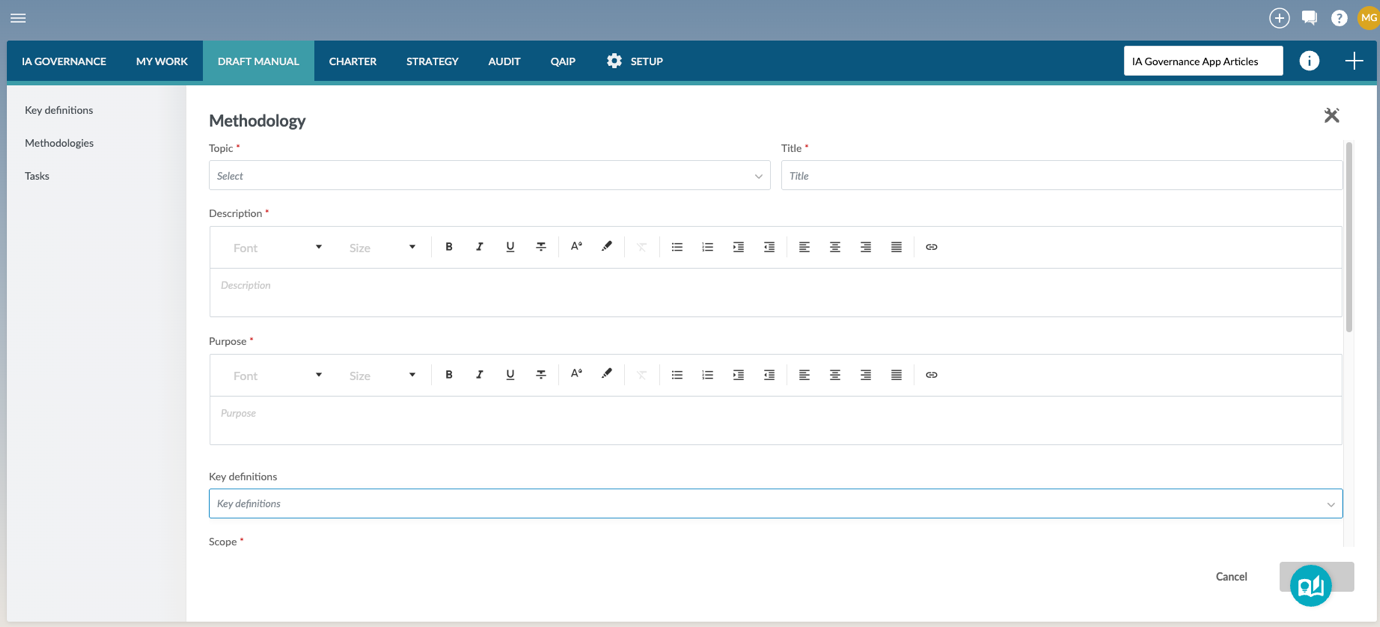
Note: Fields marked with a red star, *, is compulsory and the user will be unable to save the methodology unless all of the compulsory fields have been completed.
One of the compulsory fields within the methodology is the Requirements field. The user must add specific requirements related to the methodology. Requirements are added by selecting the + sign to the right-hand side of the field.
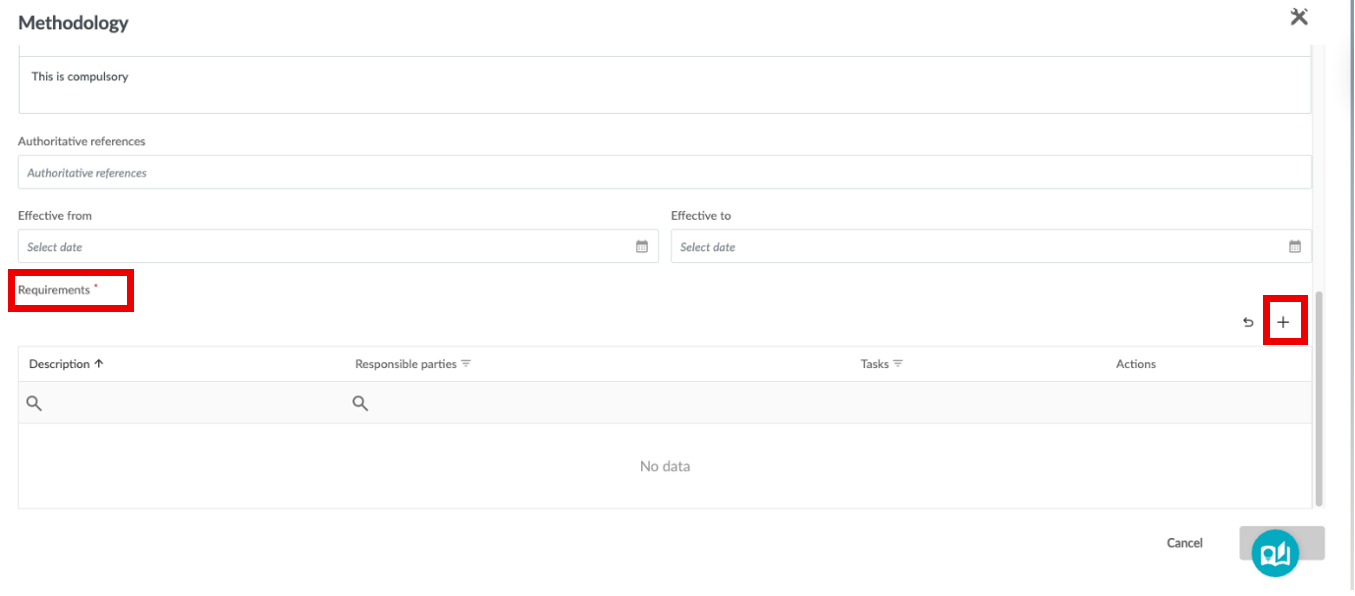
Each methodology is made up of one or more requirements. Requirements are the practical steps or procedures that must be followed to achieve the methodology. They are linked to responsible parties (roles defined in SETUP| Methodologies) and may also include tasks (as defined in DRAFT MANUAL | Tasks), ensuring the procedures as per the methodology is carried out and documented.
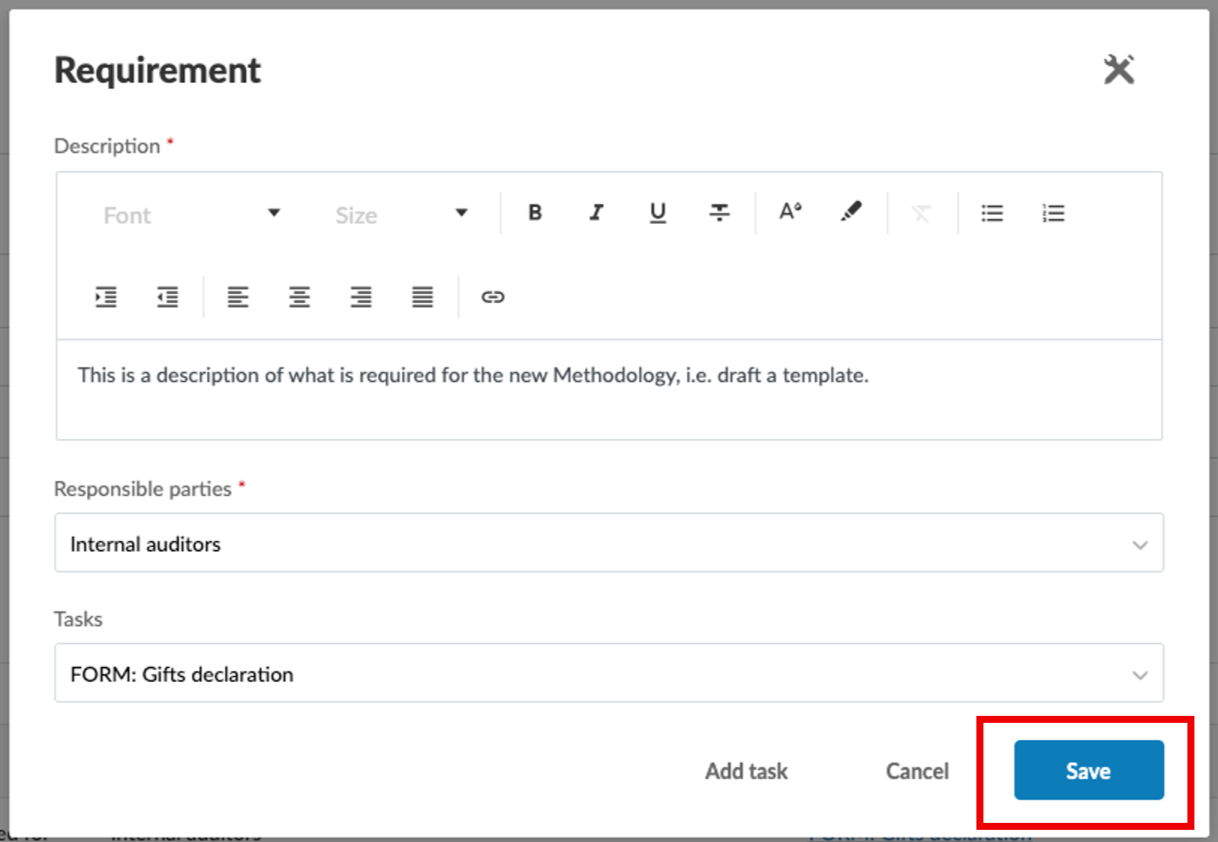
A dialog will open with the following fields:
- Description (compulsory) – Enter the step or procedure that needs to be followed.
- Responsible parties (compulsory) – Select one or more users who will be responsible for this requirement.
- Tasks (optional) –Attach or create a task related to the requirement. Tasks created here will also appear under DRAFT MANUAL | Tasks. To add a task, select the Add Task button. This allows you to create a new task without leaving the methodology screen. Once saved, the task will be linked to the requirement automatically. Adding Tasks will be covered in the article IAG How to – Draft Manual – Tasks.
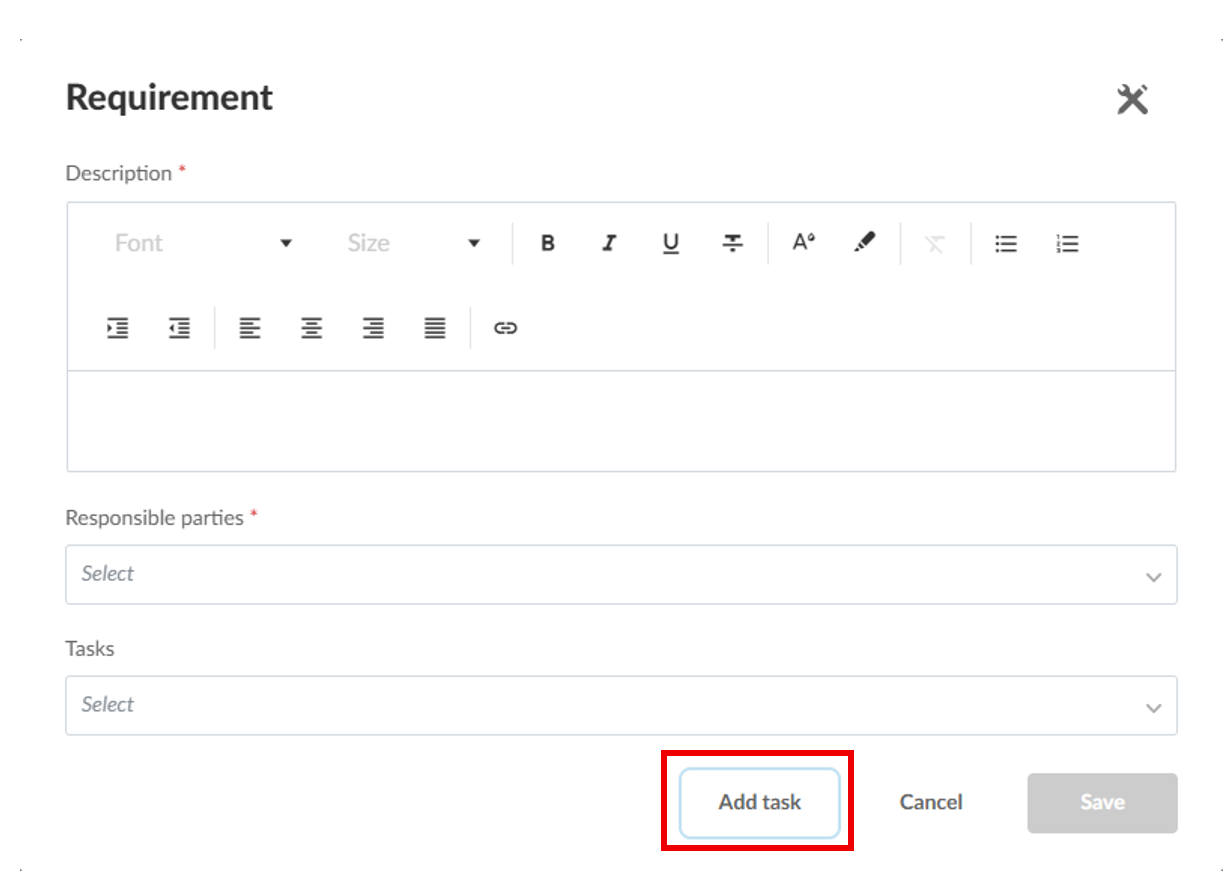
Upon completion of the compulsory fields, the Save button will turn blue. Save the Requirement by clicking on the Save button.
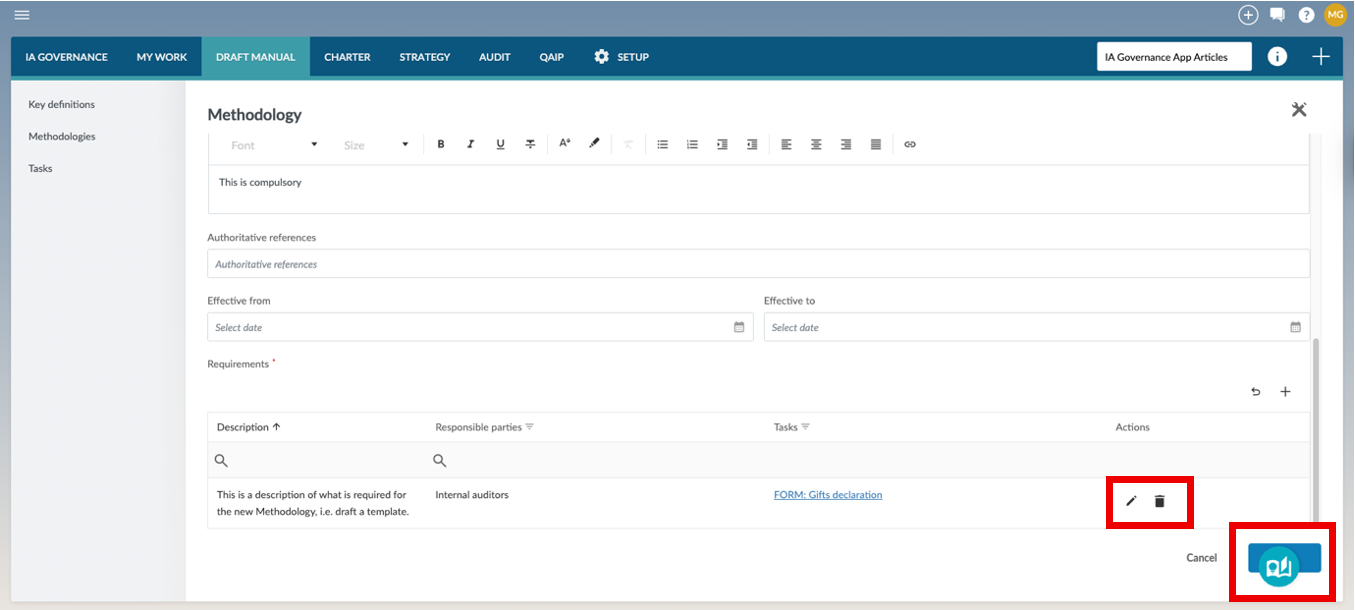
Requirements can be edited by selecting the pencil next to the requirement or deleted by selecting the trash-can button . Tasks can be opened by selecting the task directly from the methodology window.
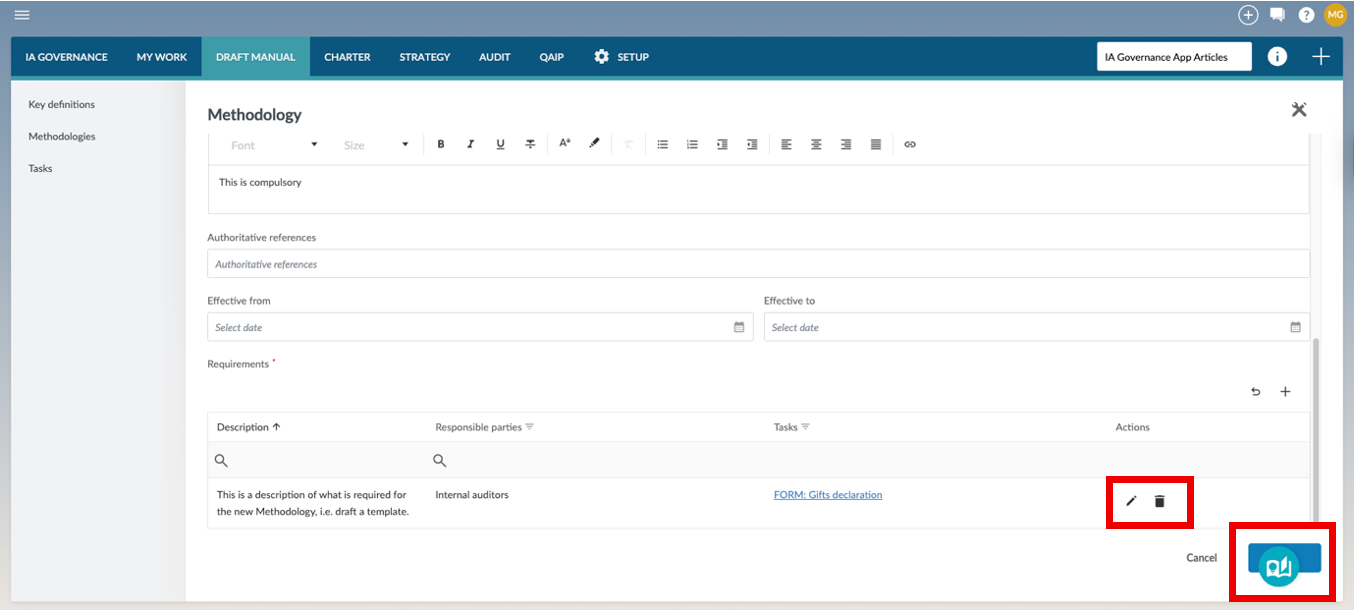
When all the required fields for a methodology have been completed, the normally greyed-out Save button will turn blue. Save the methodology by clicking the Save button.
Editing a Methodology
To edit an existing methodology, select the edit button in the Actions column. This will open the same page that opens when a new methodology is added, as above.
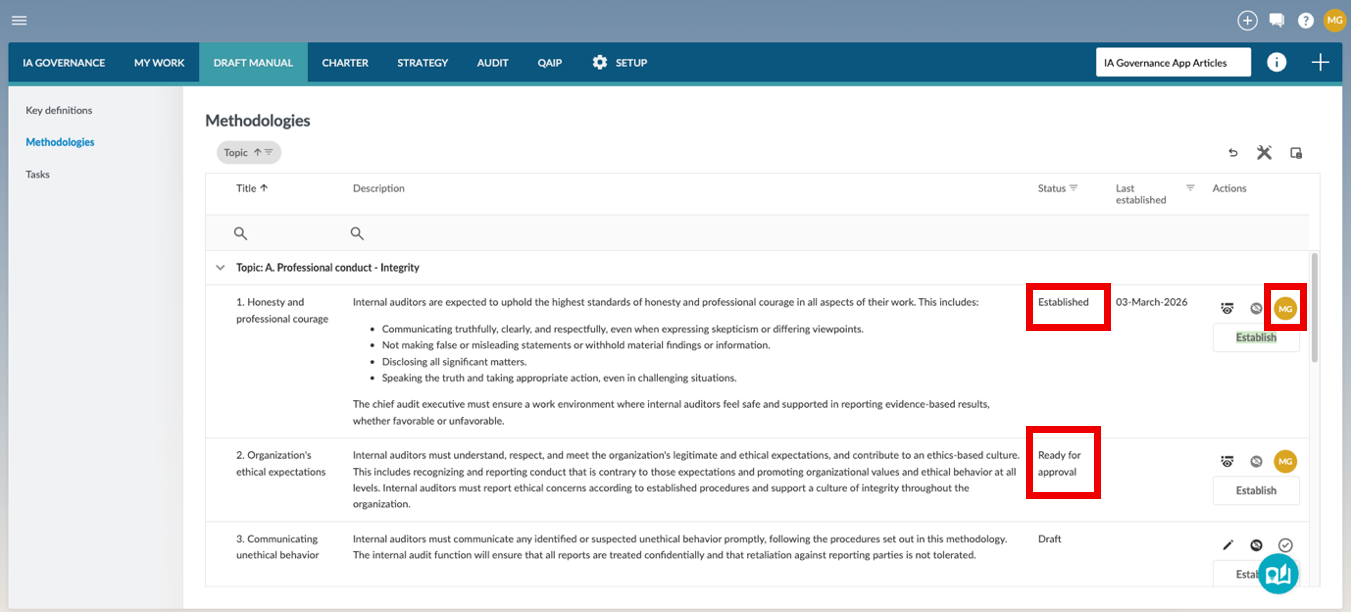
Methodologies that have been signed off for approval or have been established can only be viewed through a View button that replaces the Edit button. None of the content of a methodology that is Ready for approval, or has been Established, is editable in its current form. The Status for methodologies that are earmarked for approval indicates Ready for approval, while the Status for approved methodologies are Established. The preparer’s initials will appear on the right-hand side of the methodology. In order to edit a methodology with the preparer’s initials next to it, the user needs to select the preparer’s initials twice. On first selection, a cross will appear, which needs to be selected while visible. Ready for approval, or Established status will disappear and will be replaced by Draft. Edited policies will need to be re-established.
Deleting/Excluding a Methodology
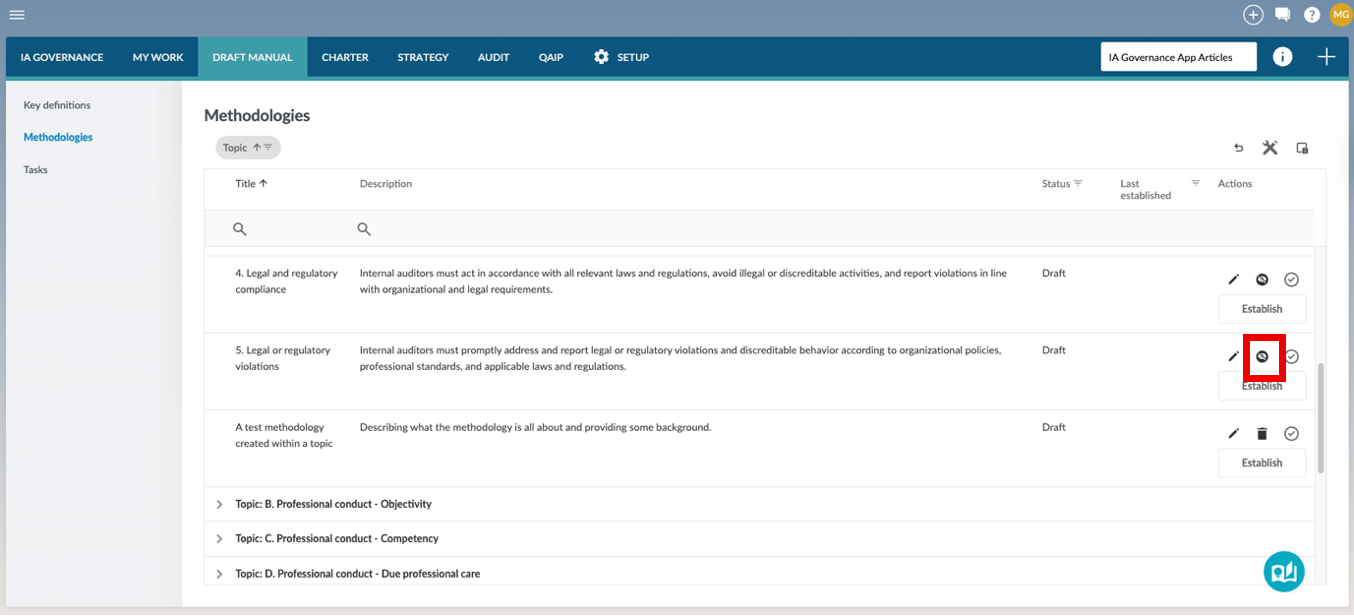
Only methodologies that have been created by users can be fully deleted, and only if the methodology is still in draft. Pre-defined methodologies that are not relevant to the internal audit function can be hidden by selecting the Exclude icon on the right-hand side of the methodology.
Establishing a Methodology
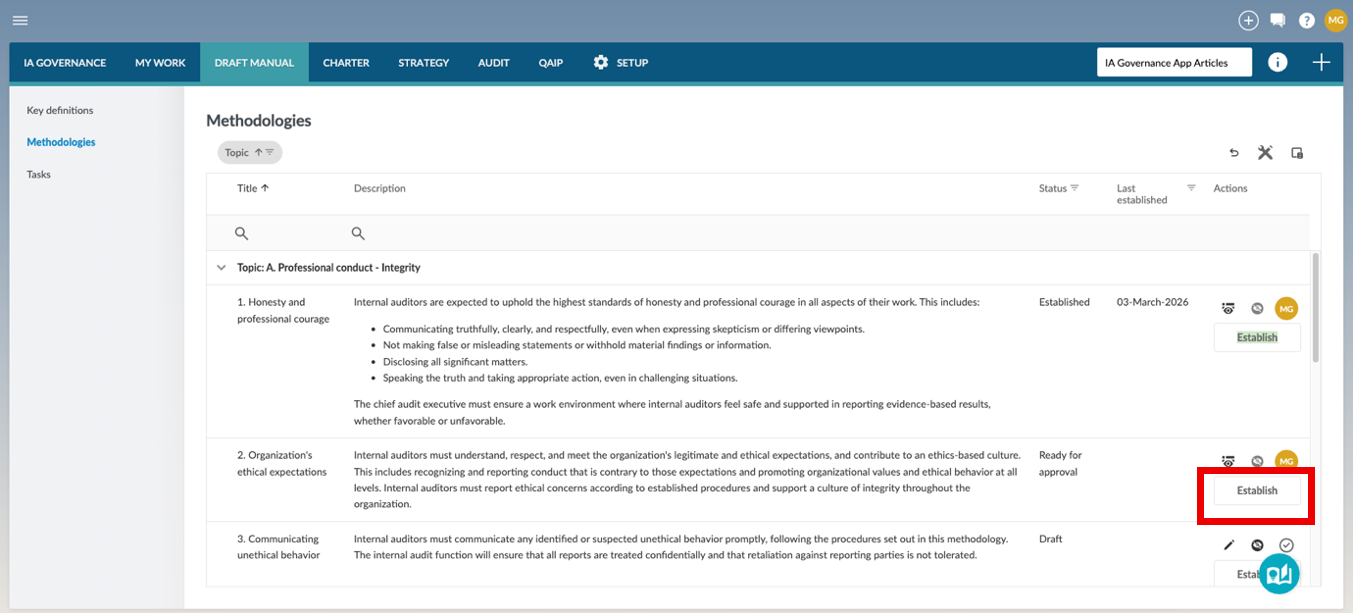
Once a methodology has been prepared, reviewed, inputs from all relevant parties have been considered, and the necessary approval has been obtained, it can be established. Establishing means the methodology becomes part of your official Internal Audit Manual and is visible as the active version for the dates specified.
To establish click Establish button in the Actions column. This will only be possible if the preparer has signed off that the methodology is Ready for approval.
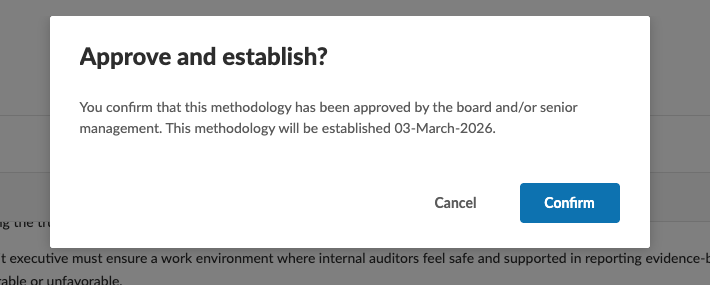
A dialog will appear requiring the user to confirm approval of the methodology and the date the methodology will be effective. Selecting confirm will establish the methodology.
When you establish a methodology:
- If you have not specified an Effective from date, it is automatically set to the day you establish.
- Any previous version’s Effective to date to, is automatically adjusted to the day before the new version’s Effective from date.
- If you set the effective date in the future, the system will confirm whether you want to replace any planned version already scheduled.
Page outcomes
Maintaining methodologies within the DRAFT MANUAL module ensures that the Internal Audit Function operates according to a formally documented and consistently applied Internal Audit Manual. This promotes standardised execution of audit activities, clear allocation of responsibilities, controlled versioning of governance documents, and alignment with the organisation’s internal audit methodology, governance framework, and applicable professional standards, while preserving an auditable history of approved and established methodologies.
Features
The following features are available on this page:
Rate this article: