How do I identify and assess risks within an engagement, link them to controls, and determine whether those controls reduce risk to an acceptable level?
Instructions:
The Risk and control matrix (RACM) is used to document and assess the relationship between objectives, risks, and controls within the activity under review. It enables auditors to evaluate the level of risk before and after controls are applied by determining inherent and residual risk. By linking risks to controls and assessing control efficiency, the RACM provides a structured foundation for a risk-based audit approach and supports the development of audit procedures and conclusions.
Objective
To ensure that all significant risks are identified, appropriately assessed, and supported by effective controls, enabling a risk-based audit approach and informed audit conclusions.
Page position
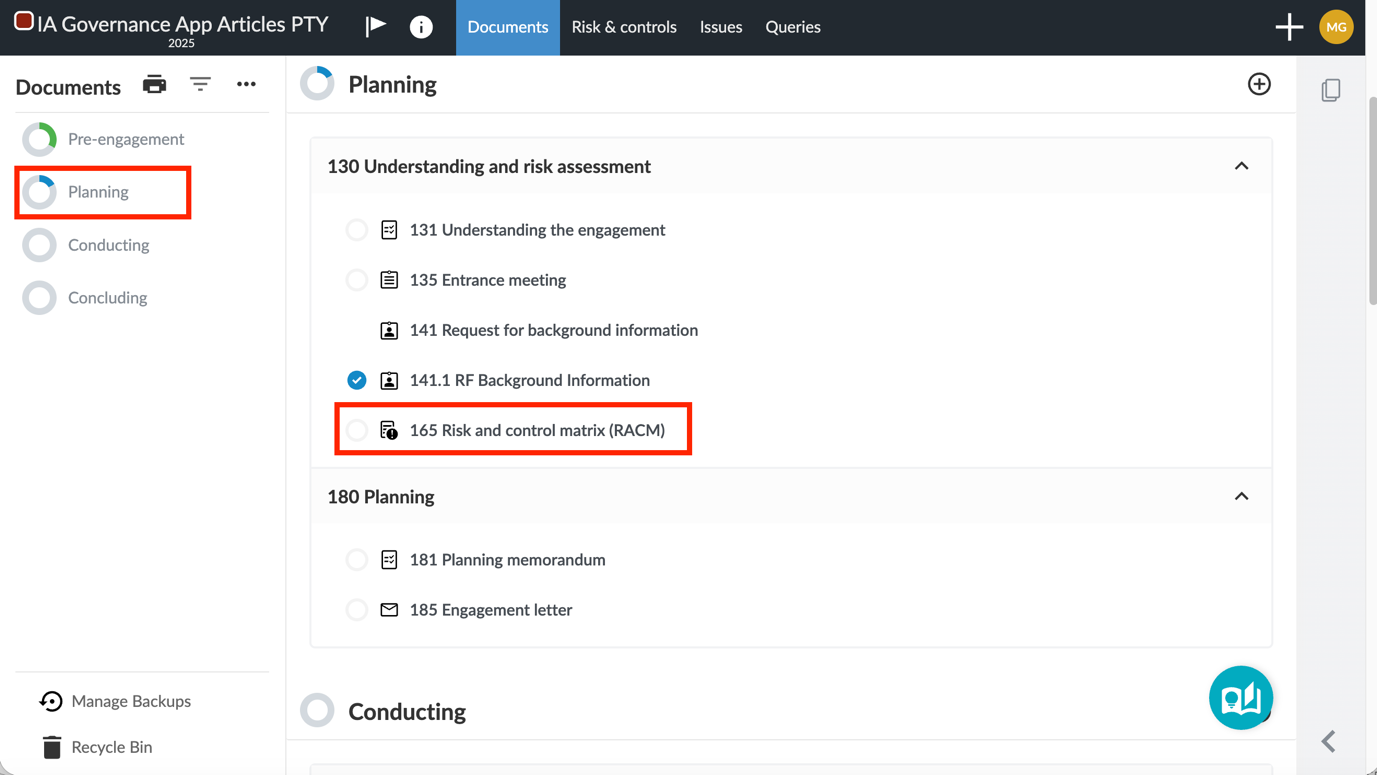
Planning | 165 Risk and control matrix can be found within 130 Understanding and risk assessment on the Planning page.
Page content
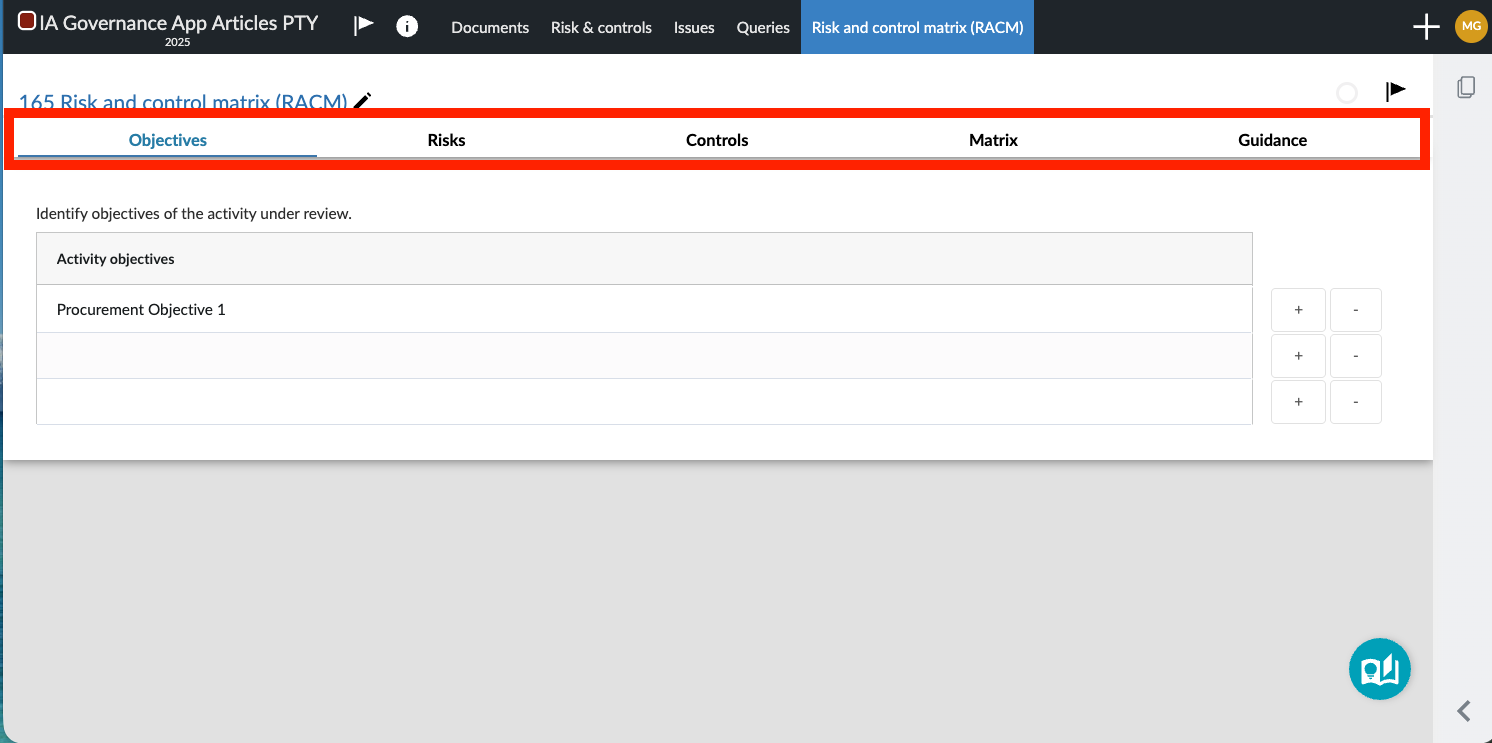
The RACM consists of five main tabs:
Objectives Tab
- Capture activity objectives.
- Each objective represents a desired outcome of the process.
- Risks will be linked to these objectives.
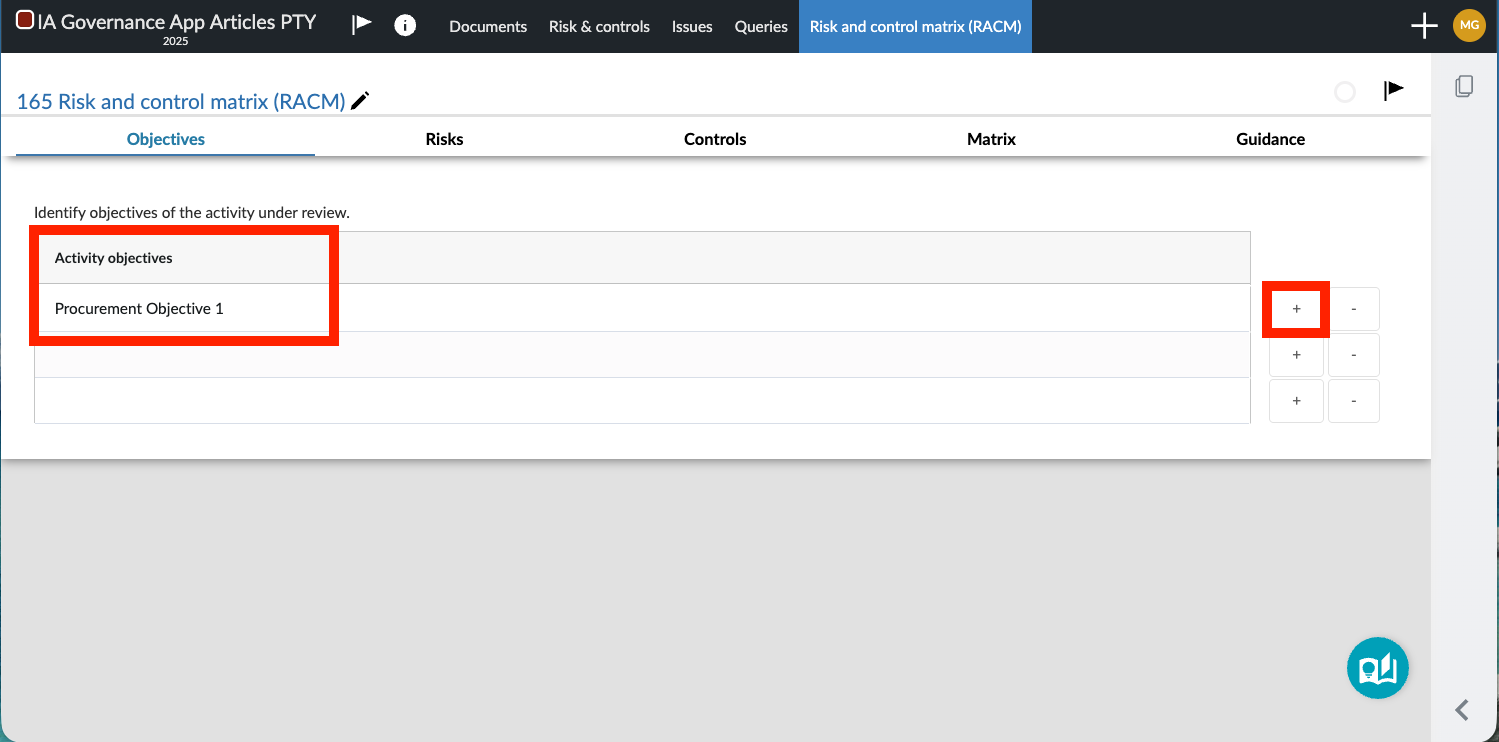
To add an objective, select the + sign, which will add a line. Simply typing the objective in the relevant line will add an objective to the list.
Risks Tab
Capture identified risks related to the achievement of the activity objectives.
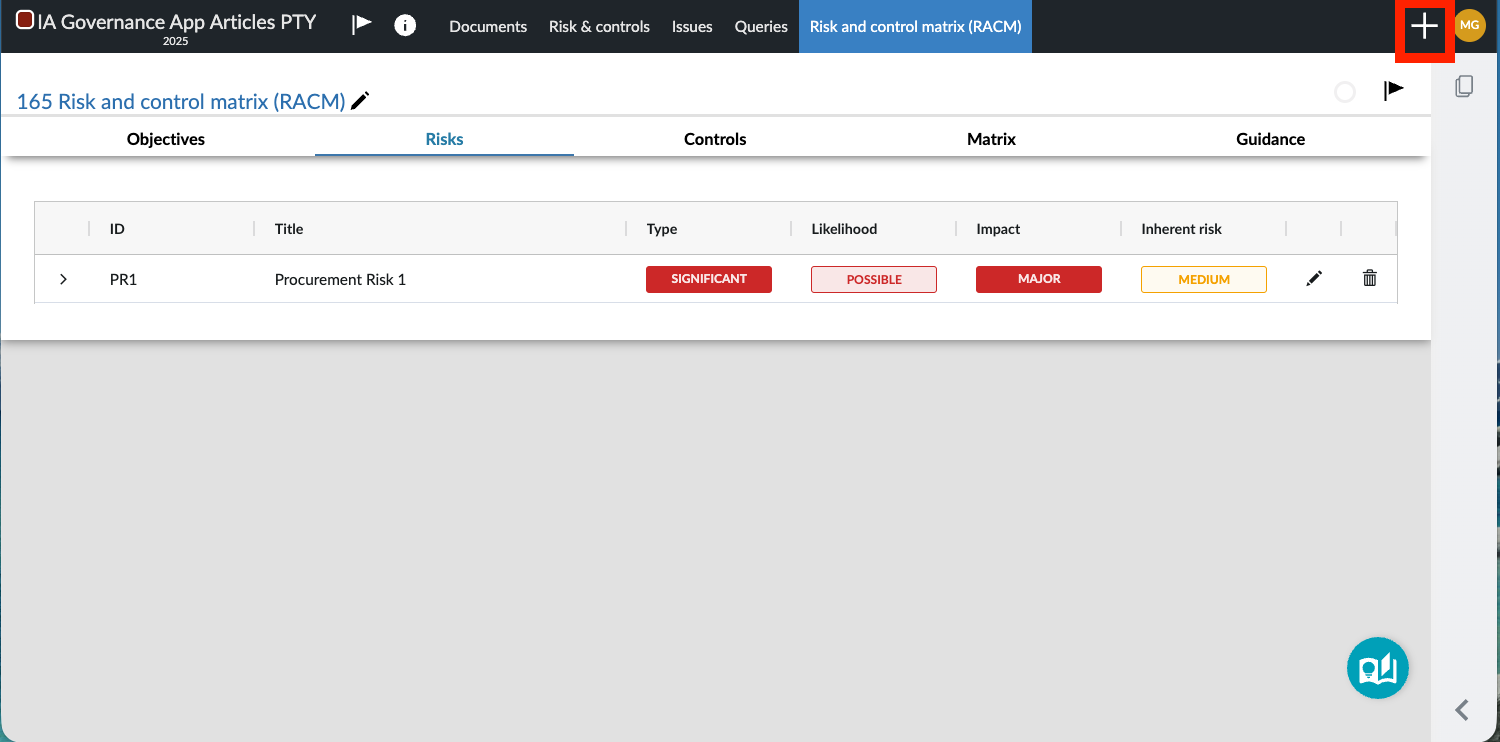
To add a risk, select the + button. A dialog will open requiring the user to choose between a Risk, Control or Findings / Recommendations. Choose Risk.
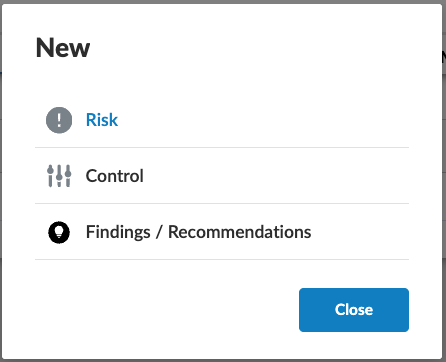
Selecting Risk will open the following screen that requires the user to complete the initial details of the risk.
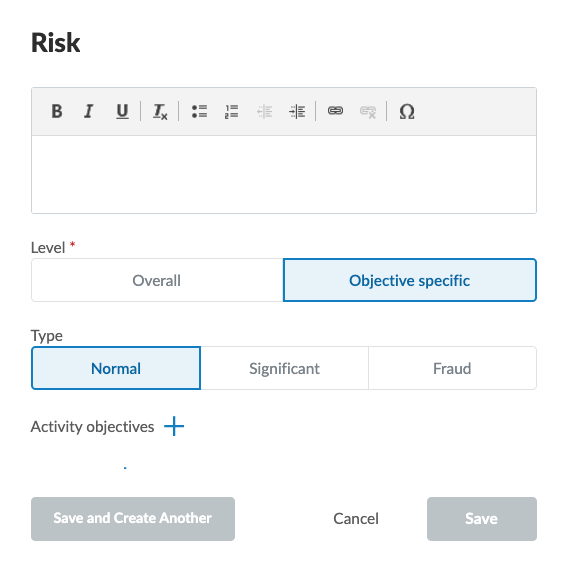
Initial fields for completion include:
- Title
- Description (cause, event, impact)
- Level (overall or objective-specific)
- Type (normal, significant, fraud)
- Activity objectives (Only if objective specific)
- References (If other areas of the engagement need to be referenced)
When all relevant fields have been completed, the Save button becomes available for selection.
Note: Newly added risks will only be visible when the page is refreshed.
Note: The risk assessment is not complete at this stage.
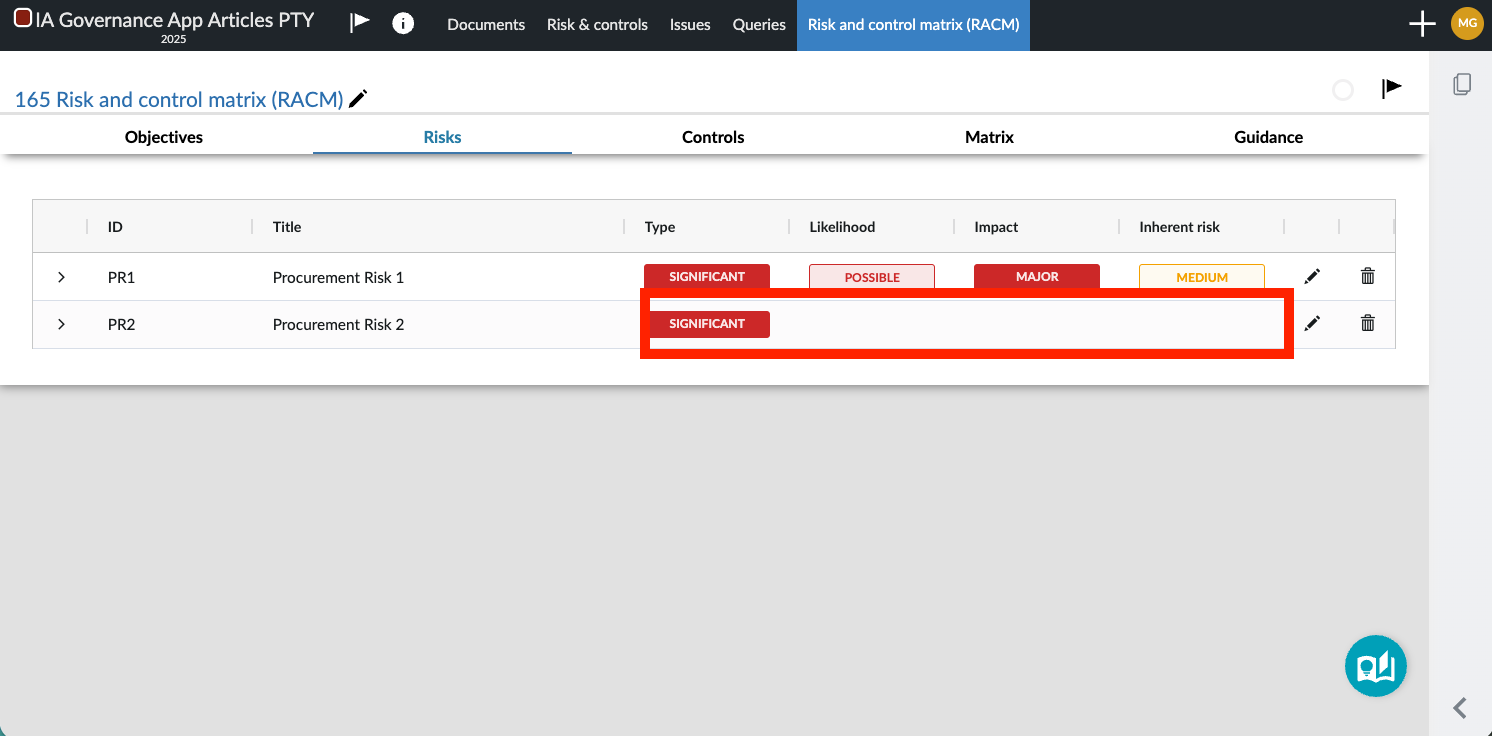
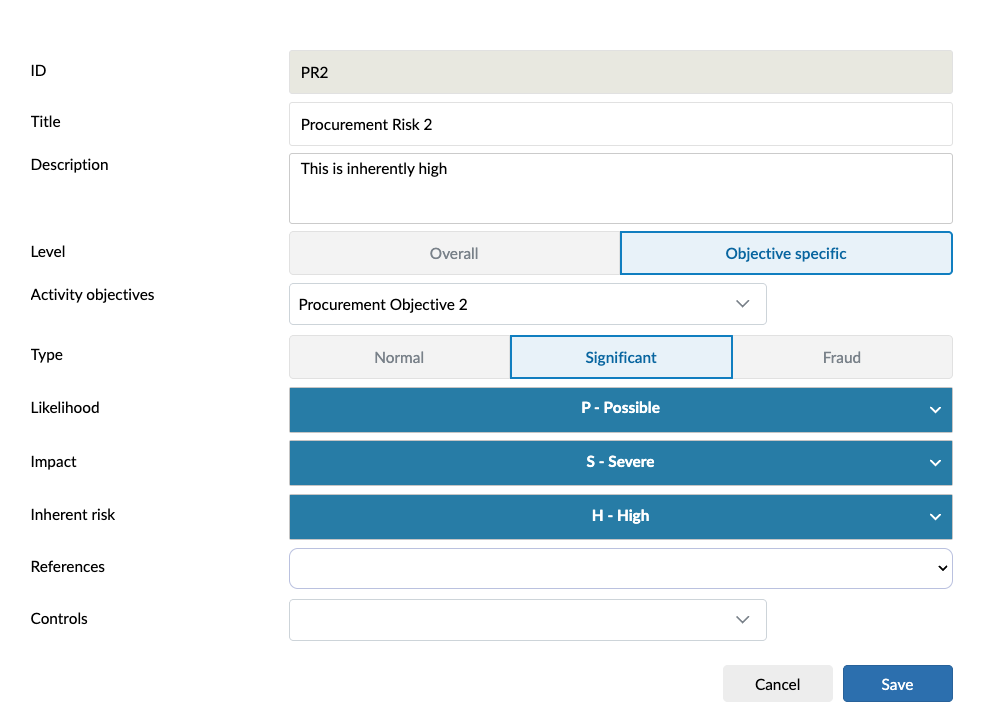
The user must select the edit button in order to complete the assessment of the specific risk, or make changes to the initial assessment. Additional fields available for completion are:
- Inherent Risk (The system calculates inherent risk automatically)
- Controls (if no controls have been identified yet, they can be created in the next step).
When all relevant fields have been completed or required amendments made, select Save.
Controls Tab
Capture controls linked to risks.
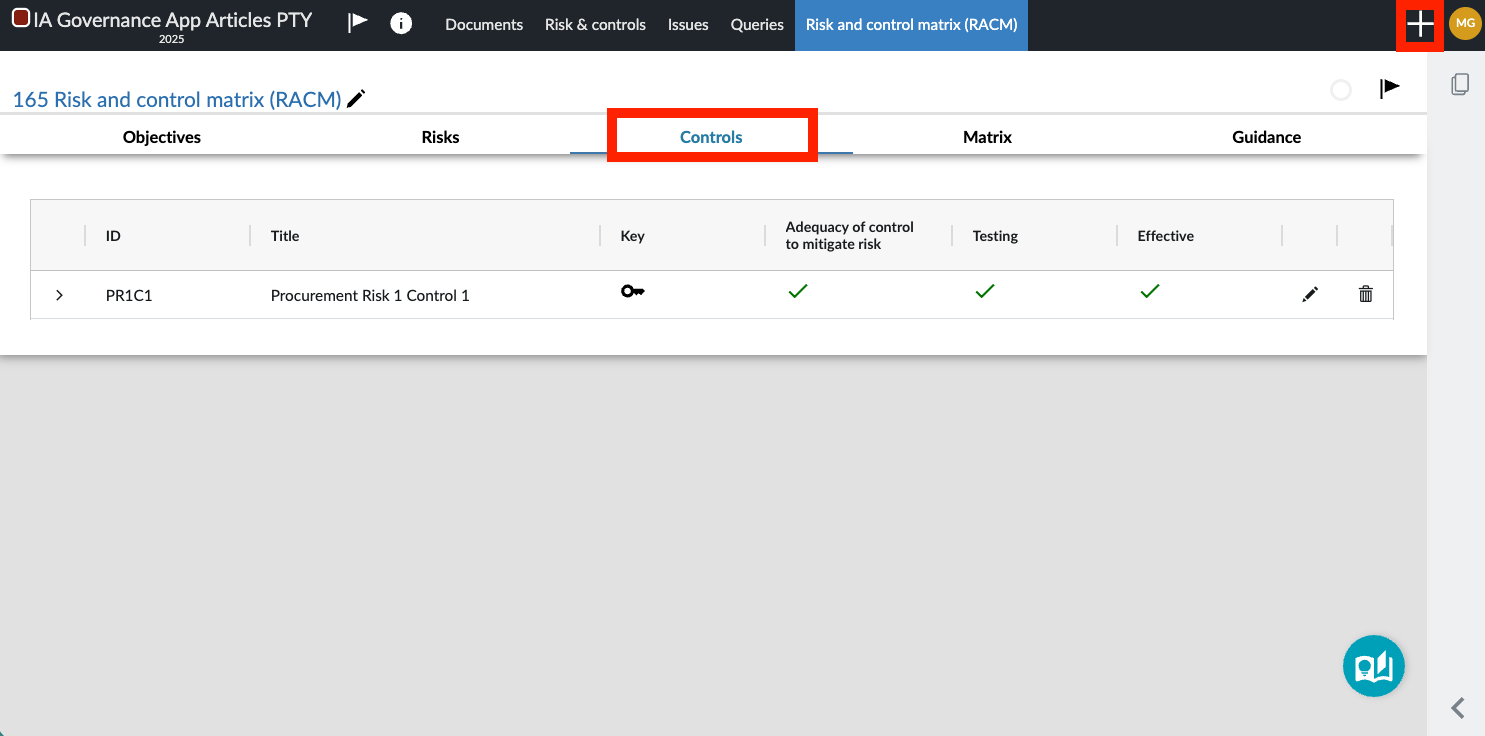
To add a CONTROL, select the + button. A dialog will open requiring the user to choose between a Risk, Control or Findings / Recommendations. Choose Control.
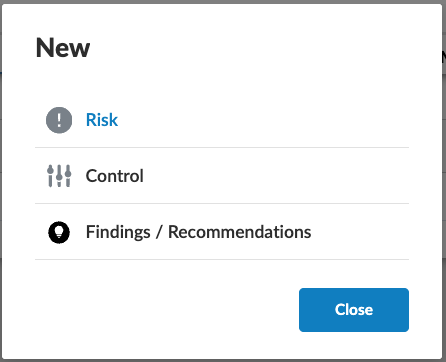
Selecting Control will open the following screen that requires the user to complete the initial details of the control.
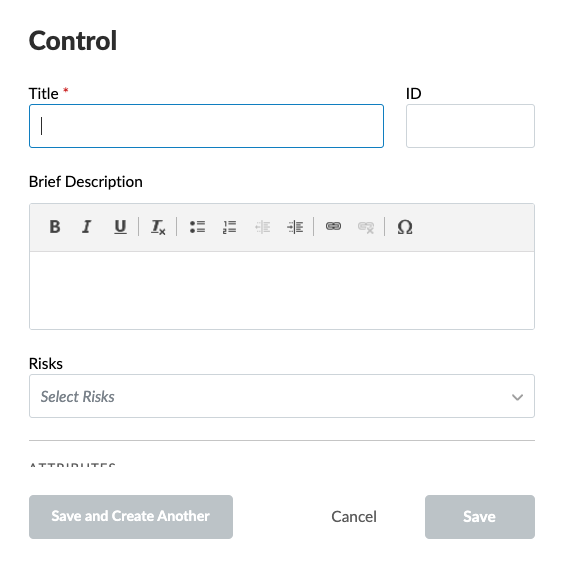
Initial fields for completion include:
- Title
- Brief Description
- Risks (Risks can be linked at a later stage)
- Frequency (How often the control works)
- Execution (manual or automated)
- Classification (e.g., preventative)
- Key control indicator (yes or no)
When all relevant fields have been completed, the Save button becomes available for selection.
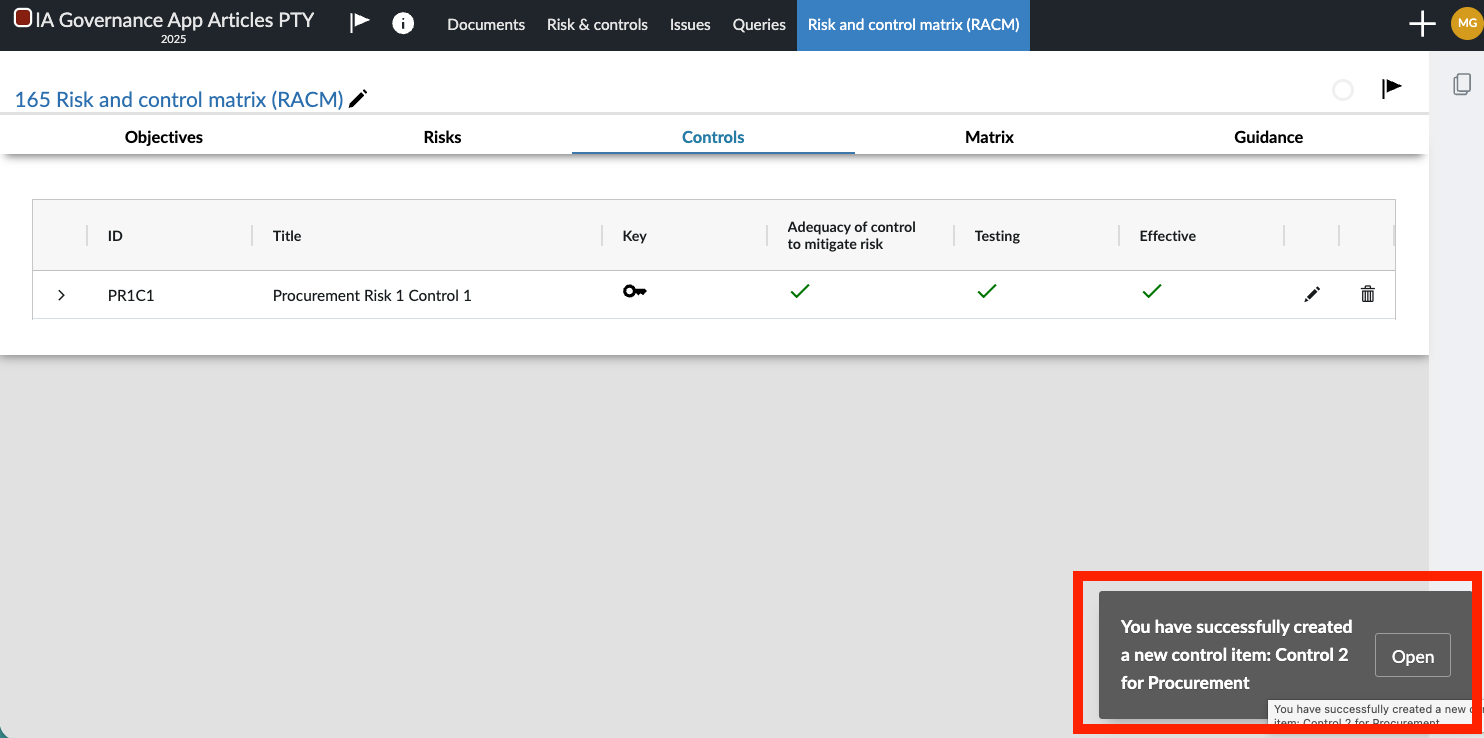
Note: The control is not complete at this stage. A prompt will appear for a short while in the bottom right-hand corner, which will open up the control for completion or further editing. If the prompt is not selected, the page will need to be refreshed for the control to appear on this page.
The user must select the edit button in order to complete the details of the control, or make changes to the initial control description and selections. Additional fields available for completion are:
- Linking a risk
- Classification (Preventative or detective)
- Adequacy of control (Satisfactory or Unsatisfactory)
- Design reference (link to another part of the working papers)
- Test this control (only available if the adequacy is satisfactory)
- Control is effective (only available if the adequacy is satisfactory)
- Evaluation reference (link to another part of the working papers)
- Notes on control testing (any additional notes)
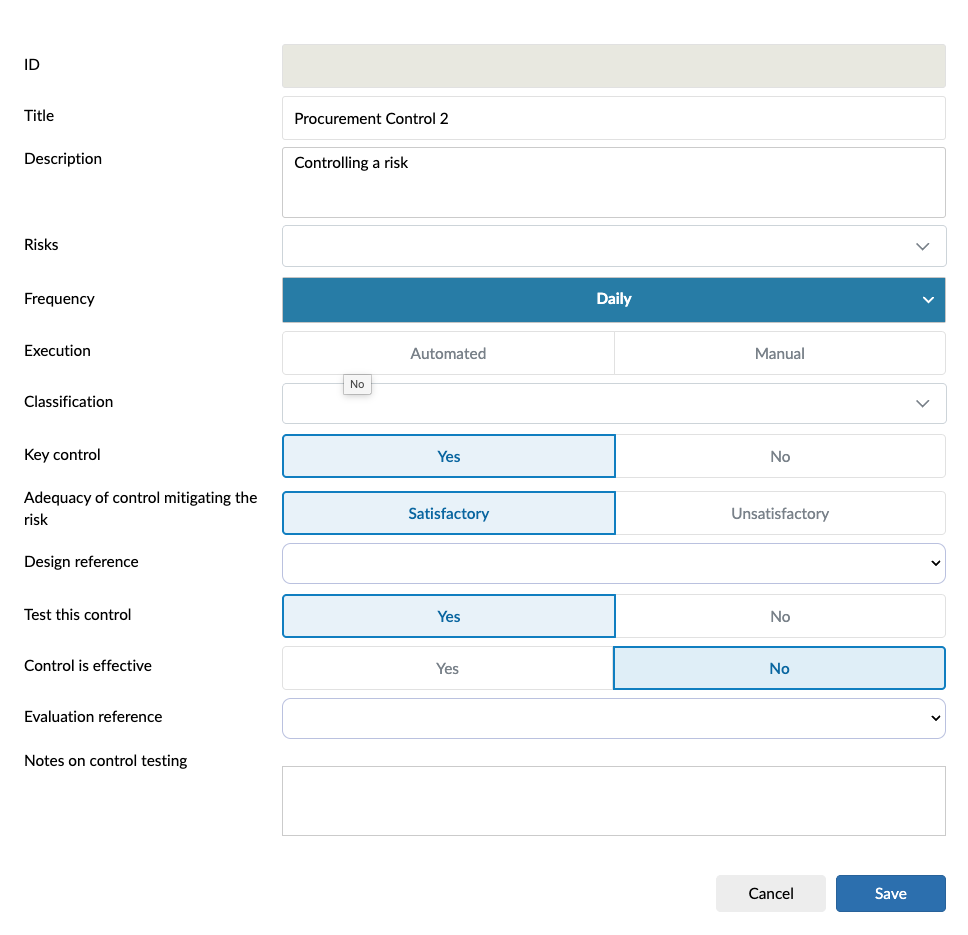
When all relevant fields have been completed or required amendments made, select Save.
Matrix Tab
Displays a consolidated view of the risks with the following fields:
- Likelihood
- Impact
- Inherent risk
- Control efficiency
- Residual risk
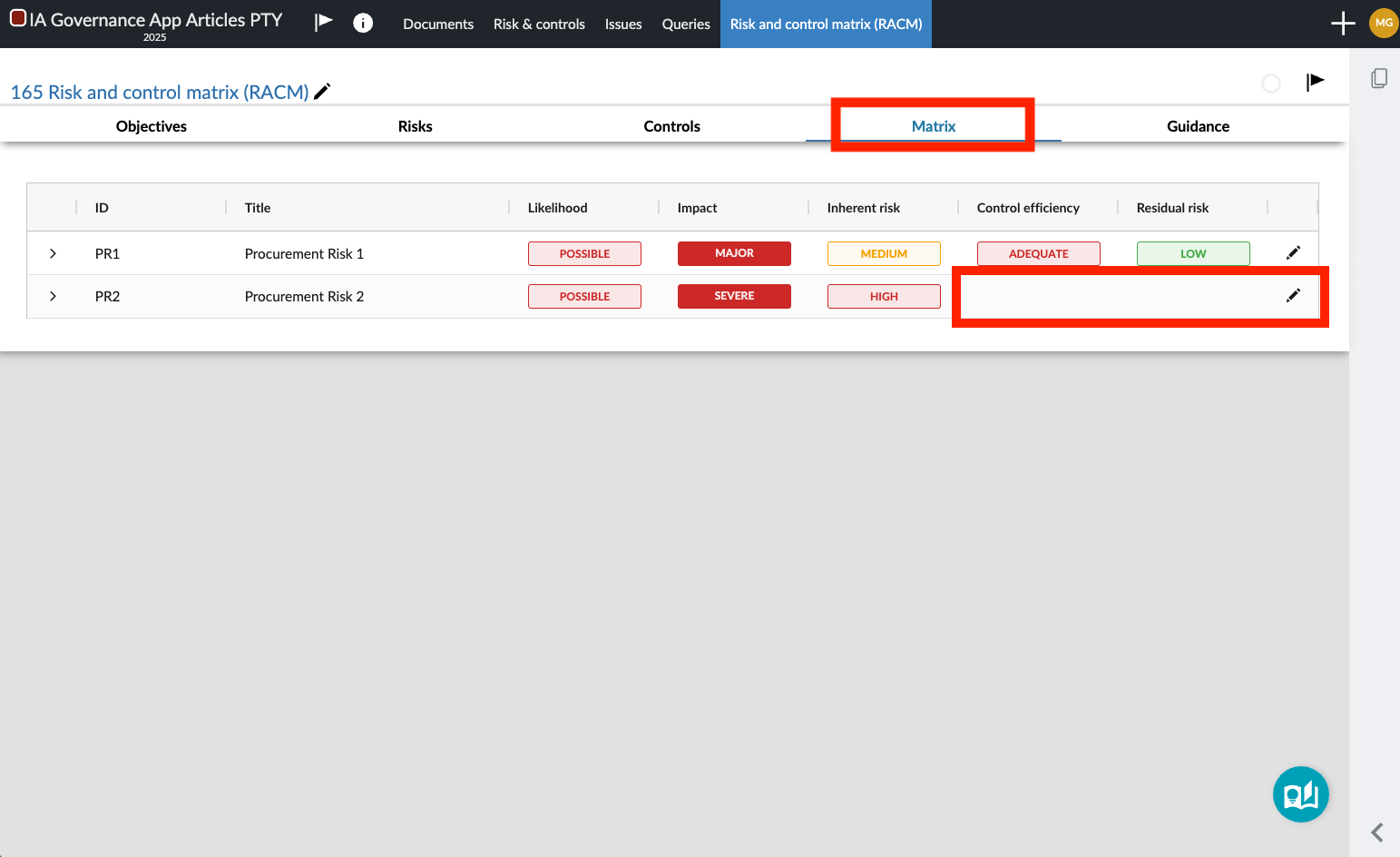
The user needs to manually configure the control effectiveness by selecting the edit button that will open up the following dialog.
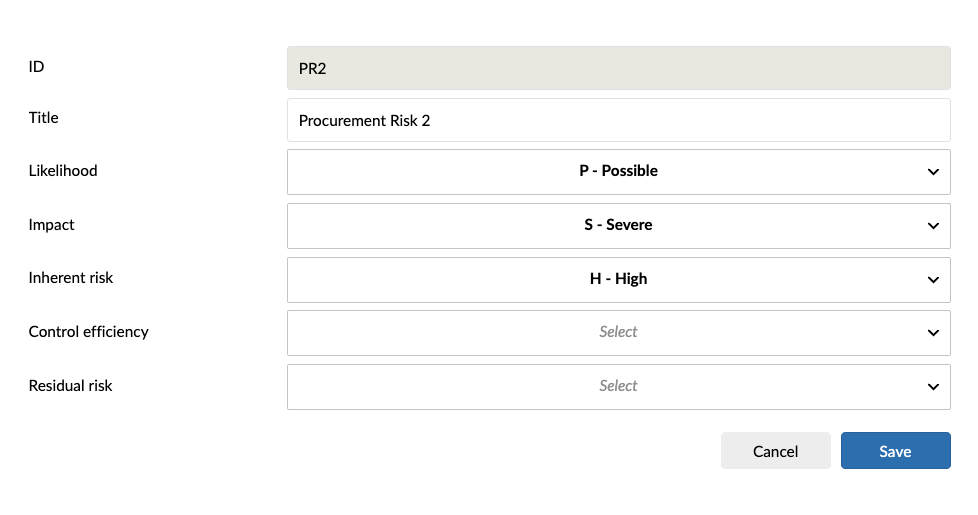
Residual risk is automatically calculated based on control efficiency.
The user must select Save for any changes to be saved to the overall Matrix.
Guidance Tab
Provides definitions and explanations of:
- Objectives
- Risks
- Controls
- Matrix
- Risk scoring methodology
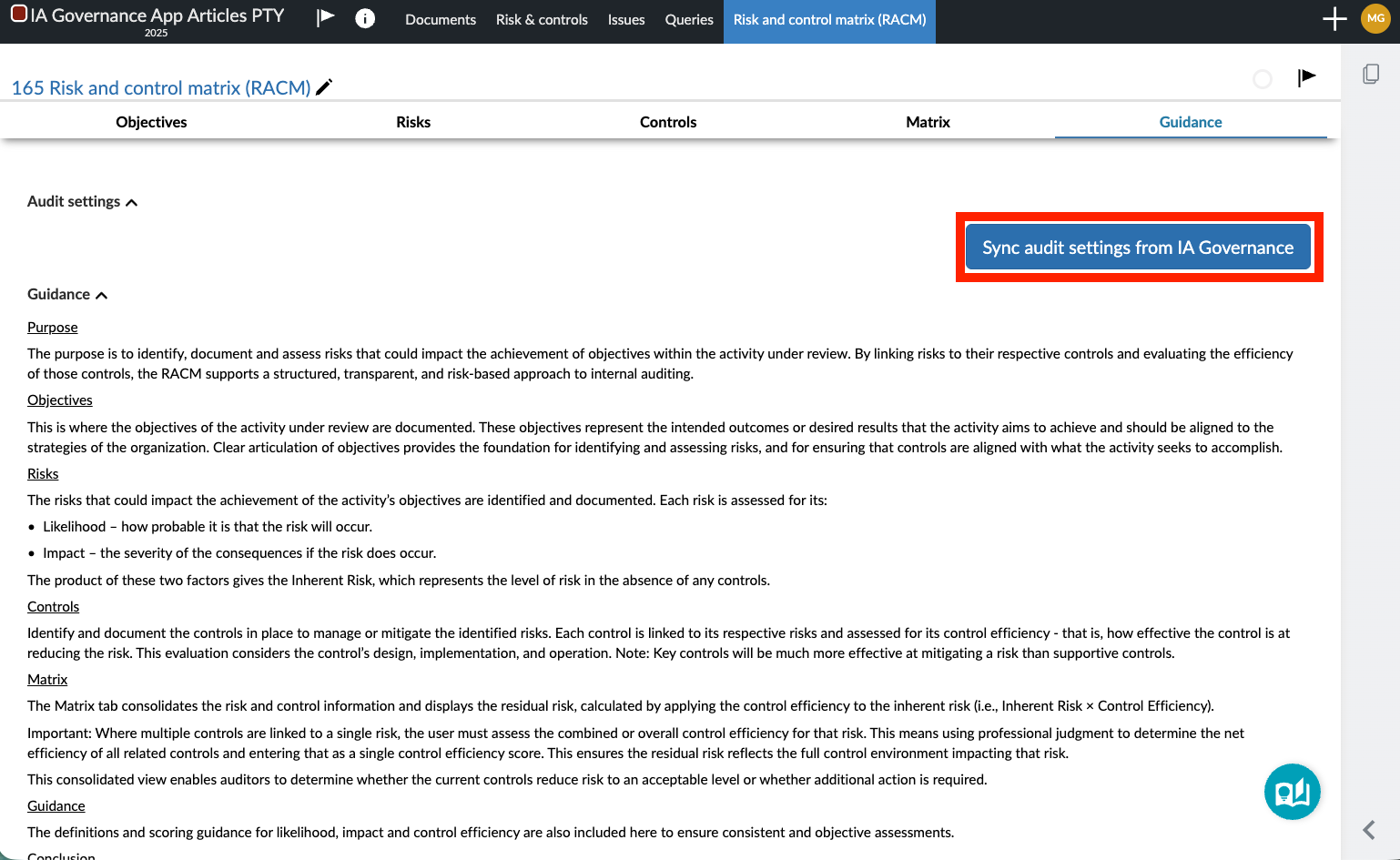
This guidance is synced to the IA Governance App.
How to Complete
Define objectives
Identify what the process is intended to achieve.
Identify risks
Capture risks that could prevent objectives from being achieved.
Ensure risks include cause, event, and impact.
Assess inherent risk
Assign likelihood and impact.
Confirm system-calculated inherent risk.
Document controls
Link controls to risks.
Ensure controls are clearly described and relevant.
Assess controls
Evaluate adequacy and effectiveness.
Identify key controls.
Determine control efficiency
Apply judgement where multiple controls exist.
Review residual risk
Confirm whether risk is reduced to an acceptable level.
Page outcomes
Using the Send Notification Letter query ensures that stakeholders formally acknowledge the engagement before it begins, while all communication, responses, and supporting documentation are centrally recorded. This strengthens audit traceability, improves communication efficiency, and ensures readiness for the next phase of the engagement.
Features
The following features are available on this page:
Rate this article: