How to get a new version from Library
Answer:
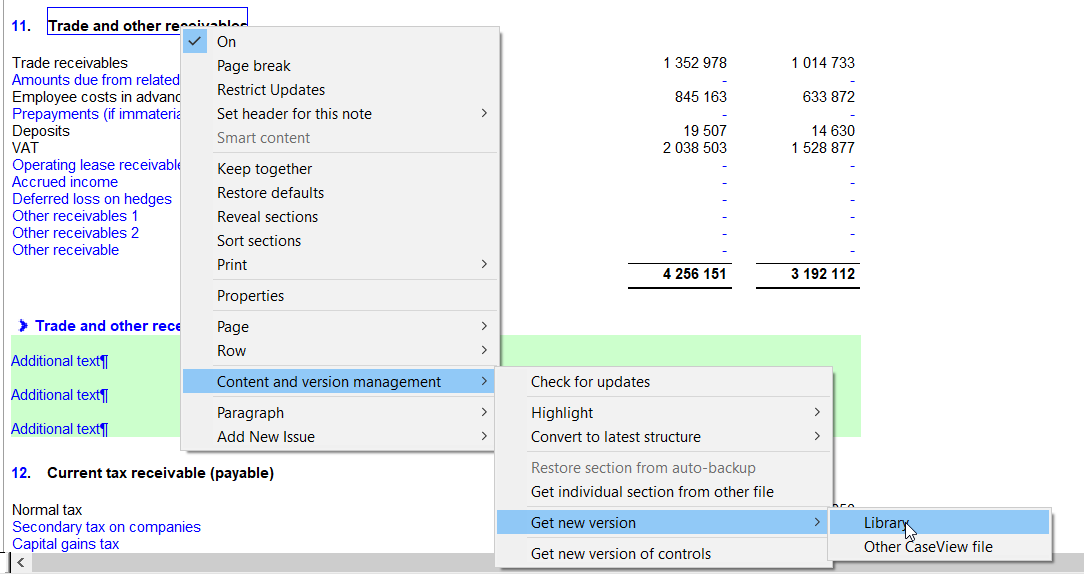
1. Right click on the blue header for the Statement |Get new version |Library
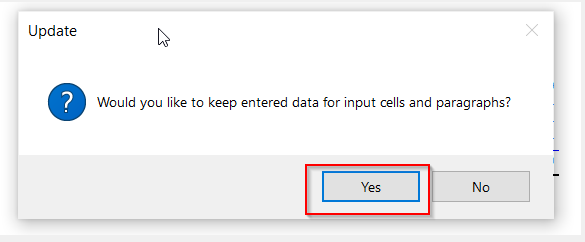
2. Select Yes to keep entered data for input cells (if there are input cells on the section)
3. On the visual merge screen, click on OK
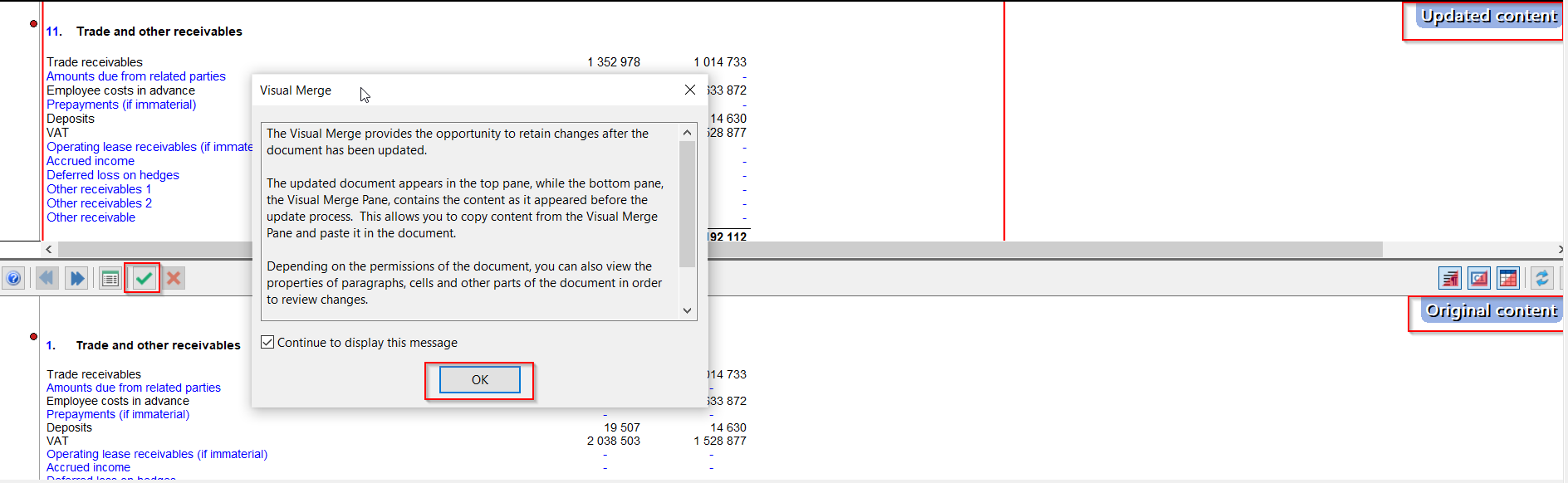
4. The screen will split it up into two, on the bottom half of the screen click on the green icon to accept and then click on yes to proceed
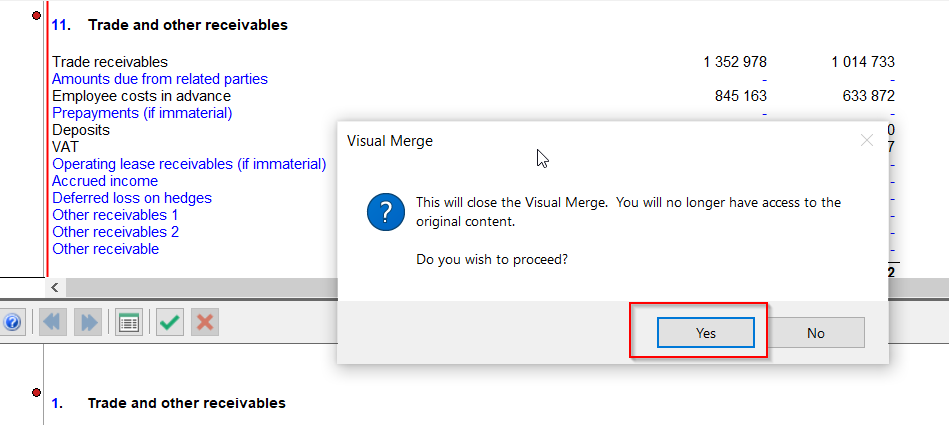
5. The note is now updated and will show “Updated content” on the top right
Rate this article:
|vote=None|
Processing...
(Popularity = 2/100, Rating = 0.0/5)
Related Articles
How to get a new version from another CaseView file
How do I search for a past confirmation? (New Version of Confirmation)
What's New | Responders: New version of Confirmation 2025/26
What does the Future Dated Confirmation Report provide? (New Version of Confirmation)
view all...
Search Results
Guide ZA-Signatories Form
Guide ZA-Liability Form
Easy Add-ons User Guide
Firm Template Guide Latest Version
Guide ZA-Asset form
view all...