How to automatic Rounding?
Instructions:
Switch on the Automatic Rounding
A difference of less than the rounding limit is most likely due to rounding differences:
Step 1 – From the Freeze Pane menu, select Document | Configuration | Rounding to switch on the Automatic Rounding and to set the rounding limit.
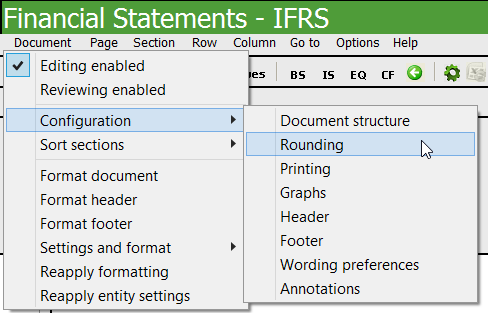
Step 2 – From the Rounding dialogue, select the following:
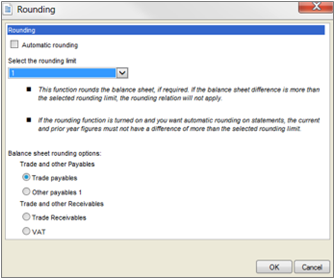
Step 3 – Select the Automatic Rounding tick box to activate the rounding.
Step 4 – Select the rounding limit to apply to the balance sheet. The rounding limit should always be higher than the actual rounding difference. If the rounding difference is higher than the rounding limit, the automatic rounding will not apply. The user will need to change the rounding limit should he/she wish to round the balance sheet.
Step 5 – Select the line item where the rounding difference should be added to. An indicator will appear above the amount in the note to indicate that the rounding difference was applied to the specific cell.

Rate this article:
|vote=None|
Processing...
(Popularity = 17/100, Rating = 0.0/5)
Related Articles
How to eliminate rounding differences and adjust rounding of figures in the financial statements
Caseware Working Papers | Rounding the financials in Caseware Working Papers
How to save automatic documents in excel and directly into the document manager
Firm Template | AFS Page - Settings and format
view all...
Search Results
What is the cause of Error "Automation server cannot create object"?
What to do when Working Papers fails to install on a Citrix/Terminal Server
How to create dump files on a SmartSync Server
Data Store | How to Export and Import users in Data Store when moving servers
Cloud App | Inserting a logo / letterhead in the Firm Template
view all...