How to use Easy Integrate
Instructions:
How to use Easy Integrate
What does Easy Integrate do?
Easy Integrate performs procedures executed from the CaseView document 250.IDEA.00 - Easy Integrate in Caseware Working Papers on the standardised data tables created by Easy Convert and insert the results tables prepared by Caseware IDEA® into the linked Caseware Working Papers file.
Where do I find Easy Integrate?
Easy Integrate can be downloaded from here: Easy Integrate.
How do I execute Easy Integrate?
Easy Integrate is executed by following the steps on document 250.IDEA.00 - Easy Integrate in Caseware Working Papers, as follows:
-
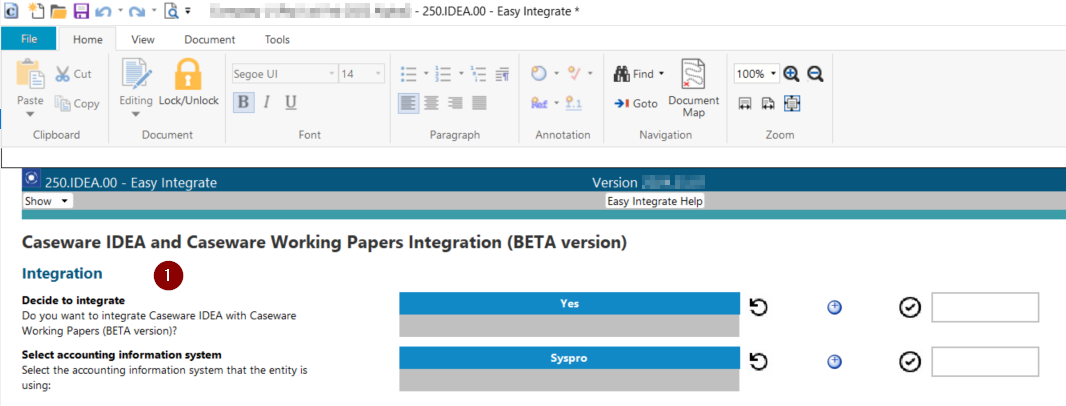
Complete the first Integration procedures on document 250.IDEA.00 - Easy Integrate to start with the integration process. If you have decided to integrate Caseware IDEA® with Caseware Working Papers and selected a supported accounting information system, Step 1 – Preparing for the integration will become available for you to continue with the process.
-
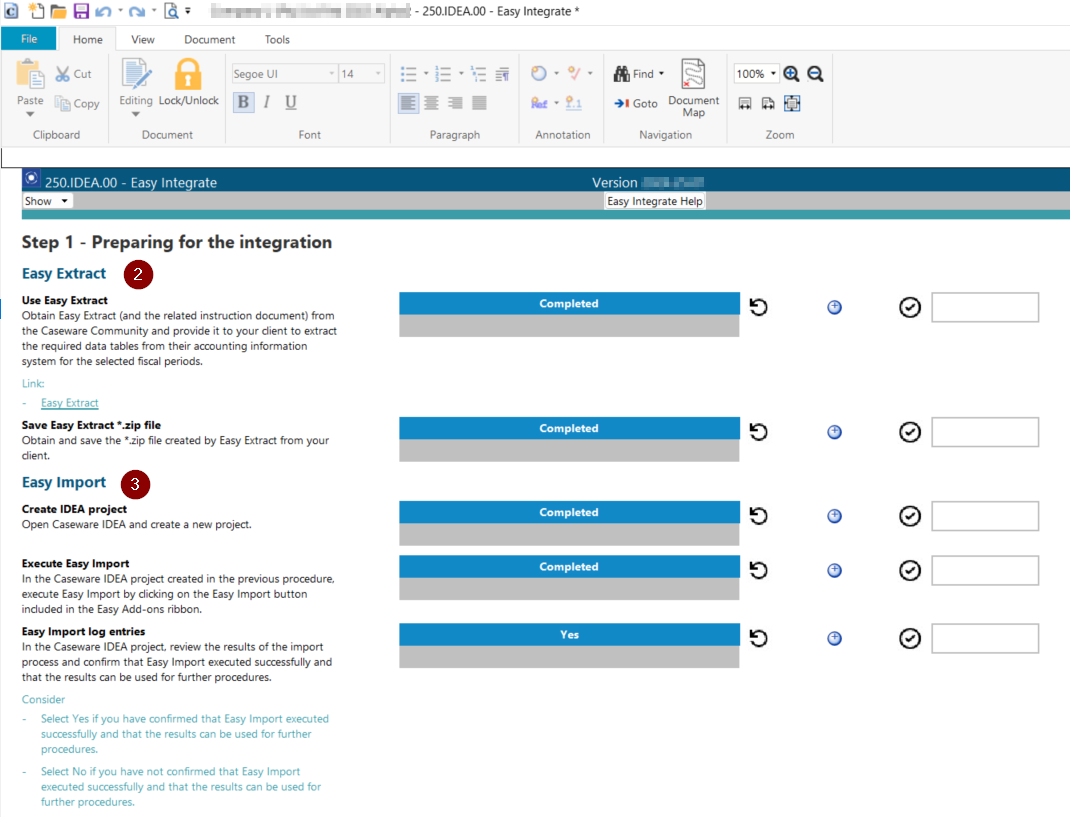
Complete the procedures relating to Easy Extract.
Please note that Easy Extract is not executed from document 250.IDEA.00 - Easy Integrate, but must be obtained from the Caseware Community and executed on the computer hosting the database of the applicable accounting information system and entity.
-
Complete the procedures relating to Easy Import.
Please note that Easy Import is not executed from document 250.IDEA.00 - Easy Integrate, but must be executed in Caseware IDEA® from the Easy Add-ons ribbon.
Easy Import will create log entries in the Process Log (IDEA® table: Log_Process) and, if errors occurred during the execution of Easy Import, in the Errors Log (IDEA® table: Log_Process_Errors) that you must review to confirm whether Easy Import executed successfully and that the results of the import process can be used for further procedures. If you cannot confirm this, then you will not be able to proceed with the integration process.
-
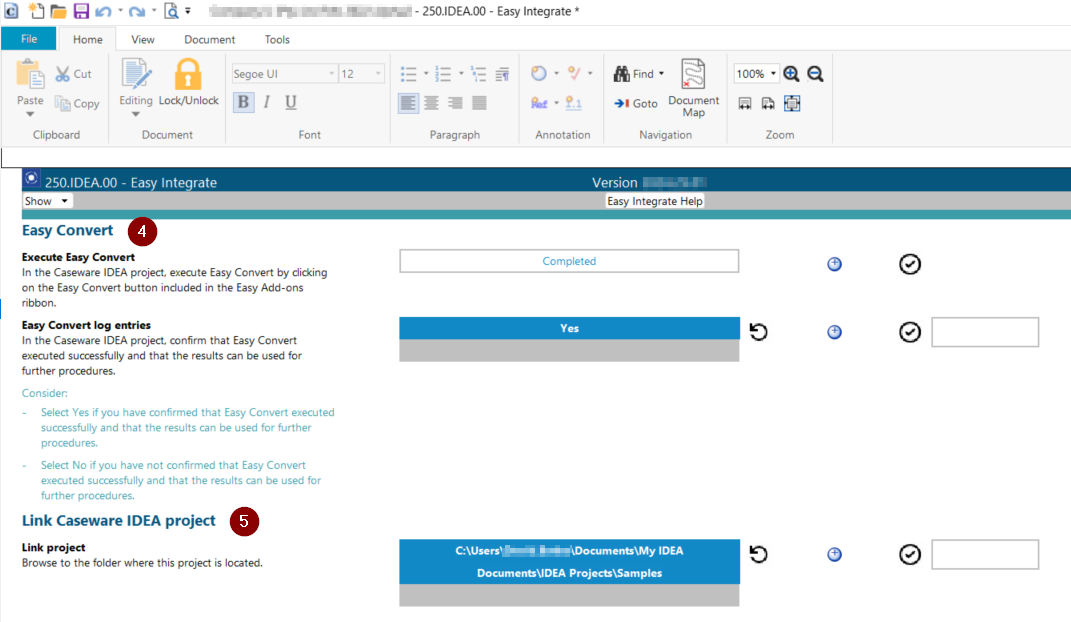
Complete the procedures relating to Easy Convert.
Please note that Easy Convert is not executed from document 250.IDEA.00 - Easy Integrate, but must be executed in Caseware IDEA® from the Easy Add-ons ribbon.
Easy Convert will create log entries in the Process Log (IDEA® table: Log_Process) and, if errors occurred during the execution of Easy Convert, in the Errors Log (IDEA® table: Log_Process_Errors) that you must review to confirm whether Easy Convert executed successfully and that the results of the import process can be used for further procedures. If you cannot confirm this, then you will not be able to proceed with the integration process.
-
Link the related IDEA® project to the Caseware Working Papers file by navigating to the folder where the project is located.
Once you have successfully completed Step 1 – Preparing for the integration, you will be able to proceed to the remaining Easy Integrate steps.
Rate this article:
|vote=None|
Processing...
(Popularity = 31/100, Rating = 0.0/5)
Related Articles
Easy Add-ons User Guide
Caseware IDEA Tutorials:Duplicate Key Exclusion
Audit International | How to integrate your financials into your Audit International engagement file
Easy Extract and Import Overview
view all...
Search Results
Can I access Confirmation.com from my mobile device?
What mobile operating systems are supported?
Can I request for a future "As of Date"?
XBRL | How to change security settings for Caseware and when iXBRL "hangs" on CIPC validation
XBRL Lite | How to create a new file when using XBRL Lite
view all...