Third party responders require client authorisation from a bank mandated client signer before releasing client information to a requesting auditor. Different client signers can be assigned to different forms in a client profile.
Instructions:
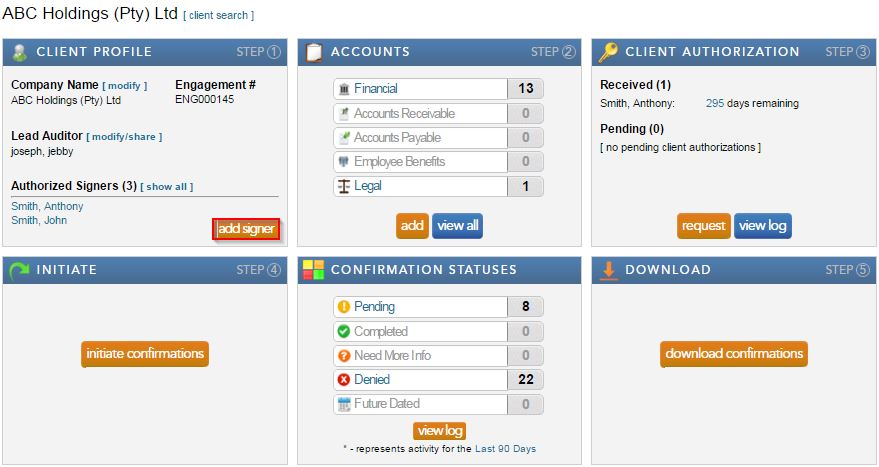
- Add a new signer by clicking “add signer” under the Client Profile block. Complete the required fields and select save.
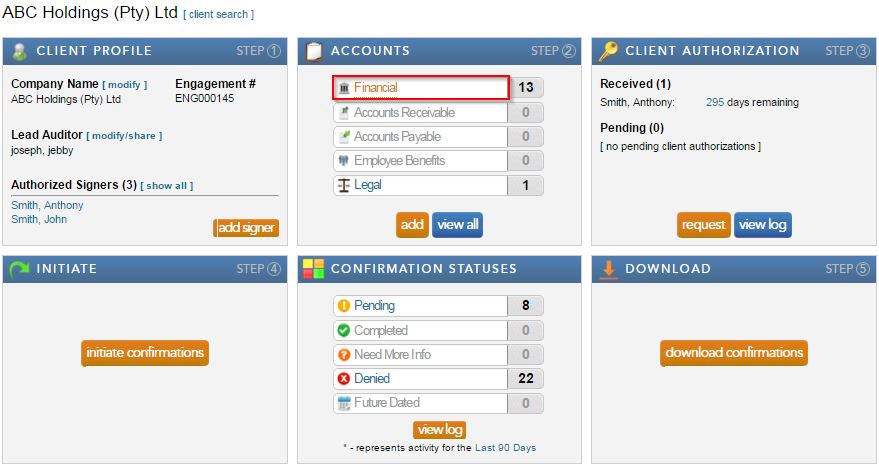
- Select “Financial” from the Accounts block.
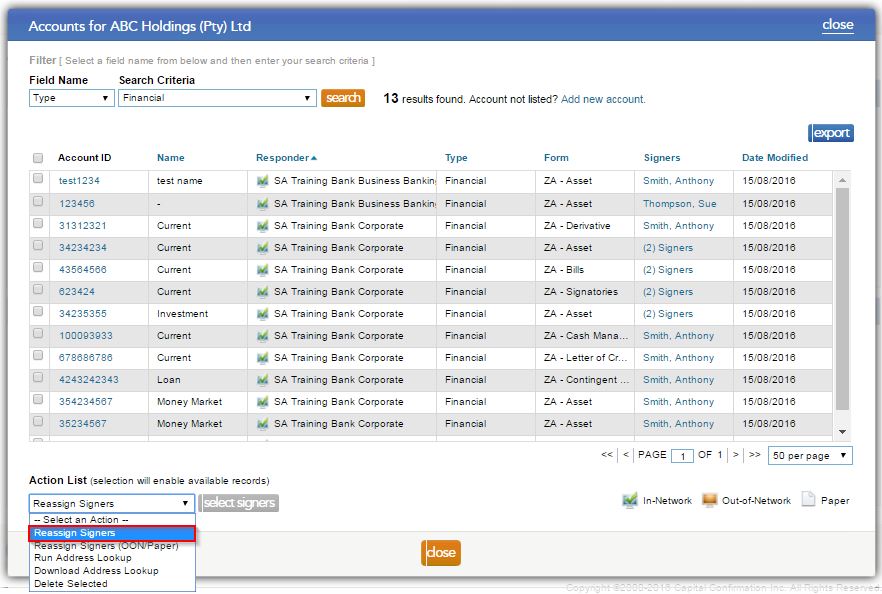
- Select “Reassign” from the drop down “Action List.”
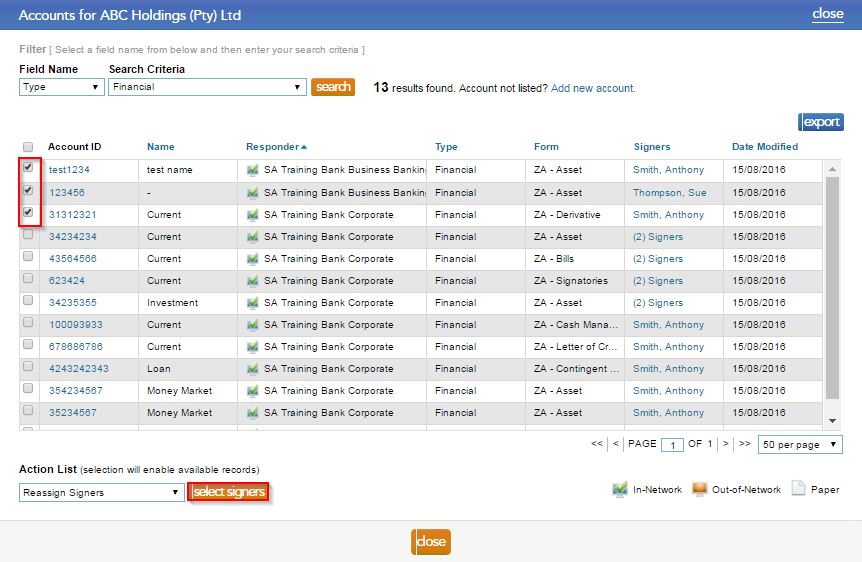
- Check the boxes to the left of the forms, that need to be reassigned, and click on the "select signer" button.
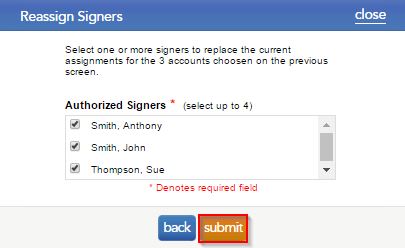
- Tick the signers that should be assigned to the form, and select "submit".
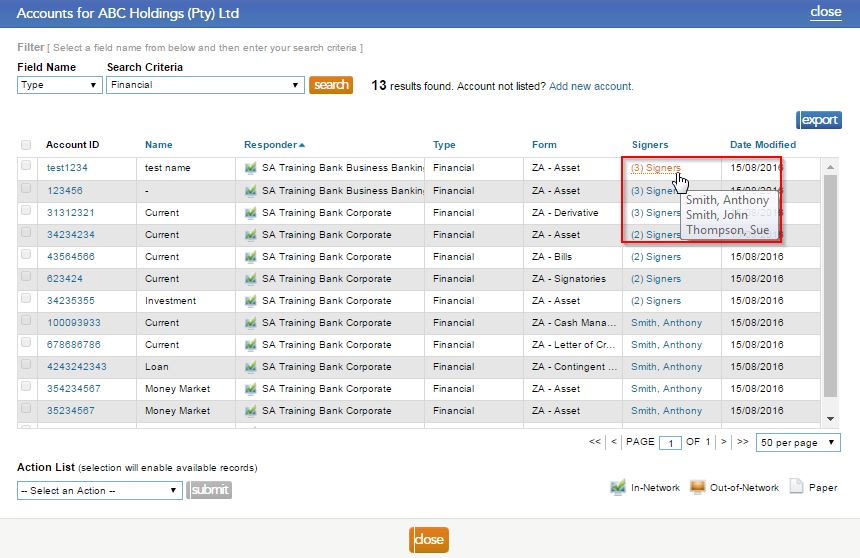
- By hovering over the signer name, users can view which signers are now attached to the form.
Note: make sure you request authorisation for the new signer(s), prior to initiating the requests.
Rate this article:
|vote=None|
Processing...
(Popularity = 0/100, Rating = 0.0/5)
Related Articles
How do I know the client signer has authorized the auditor to send requests? (New Version of Confirmation)
How do I add a new user to my institution (New Version of Confirmation)
XBRL | How to change security settings for Caseware and when iXBRL "hangs" on CIPC validation
Client Authorisation
What's New | Responders: New version of Confirmation 2025/26
view all...
Search Results
What is a User Id?
Password for Bank Users
User Profile for Bank Users Set Up
What if the Account ID requested was closed for the As of Date (New Version of Confirmation)
What do I do if I can't locate the Account ID or Client Name requested? (New Version of Confirmation)
view all...