How do I use the Excel Cash Flow Worksheet Linked to the Cash Flow Statement in the Financial Statements?
Instructions:
NB – Ensure you have the latest Caseware Connector installed. Click here on how to enable COM Add-Ins for Caseware Connector.
From the 2023.10.01 release, a pioneering feature is being piloted, offering users the option to seamlessly link the Cashflow statement to an excel version of the Cashflow worksheet, either utilizing the default version or their personalized iteration.
Users in the Cashflow statement will be able to select the below options:

-
Default Cashflow Statement - This is the original Cashflow statement included previously. Users can continue using this version like in the previous versions.
-
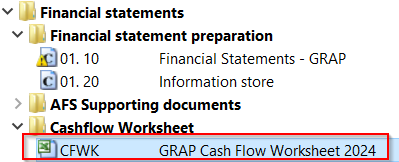
Cashflow Statement linked to Excel - On selecting this version of the Cashflow, the values in the Cashflow statement are linked to a Cashflow worksheet in the Document manager:
-
Any changes in the Cashflow worksheet needs to be saved in Excel and to update the Cashflow statement in Caseview, a “Tools | Recalculate” needs to be done.
-
To perform this function in the GRAP AFS, click on Tools and then Recalculate.
-
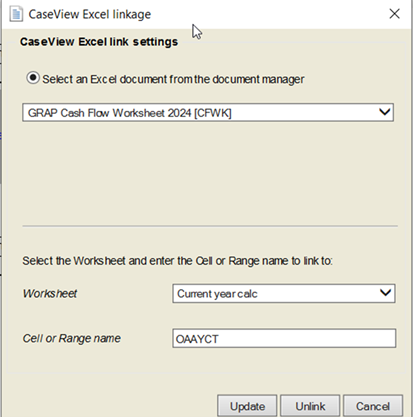
Users can “Unlink” and “Link” cells in the Cashflow statement to their own Cashflow worksheet by double click on the cell and it will launch the link dialog. Ensure the excel document is saved in the document manager of your Caseware file.
Rate this article:
|vote=None|
Processing...
(Popularity = 0/100, Rating = 0.0/5)
Related Articles
IFRS 2024.02.01 & SME 2024.01.01 | Cash flow Worksheet Hotfix
Using the latest Cash Flow Worksheet
How do I switch my Cash Flow Statement between the direct and indirect method?
Firm Template | Statement of Cash Flows
view all...
Search Results
Can I access Confirmation.com from my mobile device?
What mobile operating systems are supported?
Can I request for a future "As of Date"?
XBRL | How to change security settings for Caseware and when iXBRL "hangs" on CIPC validation
XBRL Lite | How to create a new file when using XBRL Lite
view all...