How to resolve an Error 2 – File not found error
Answer:
An 'Error: 2' error message is displayed when the selected engagement file from the Caseware Working Papers recent file list, no longer exists in the displayed location.
A suggested solution to resolve this issue is as follows:
1. Open the file browsing to the new location
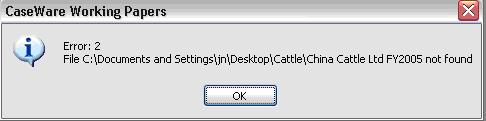
If the file location is correct and the file is still not opening, it is possible that there might be a compressed Caseware Working Papers file within the folder you are trying to open.
To determine this, evaluate the below three options to see if it resolves the Error 2:
Option 1
- Go to the Client folder in the directory where the Caseware Working Papers file was saved
- Open the Folder.
- Select View by Details
- Sort by/Arrange by Type
- Scroll down and see if there is a “compressed Caseware file” located in the folder
- If so, Cut and paste the compressed file out of the current folder into a new folder
- Re – open the original file
Option 2
- Try and open the compressed file that was cut and pasted into a new folder.
Option 3
- Close all Caseware and CaseView files.
- From Windows Explorer, navigate to where the file is saved.
- Click on View | Details.
- Locate the dbf file. Hint: Sort by file type; it will make the file easier to find.
- If the file is there it indicates that the name is not consistent with all other files in this folder. Rename the file to be consistent with the other files.
- If the file cannot be found then the file is missing.
- Browse to any other client file/master template, locate the same file (can follow steps above to find file), copy it into the client file that will not open and then rename to a consistent name
Rate this article:
|vote=None|
Processing...
(Popularity = 16/100, Rating = 0.0/5)
Related Articles
What to do when a there is an error reading file or contents are corrupted upon opening a CaseView document
Windows H2V2 – Error Executing Script Hotfix
Working Papers cannot open Caseware Cloud engagement files
Caseware Working Papers | What to do when opening a Caseware Working Papers file and you get the error code -200 or error code -70 message?
view all...
Search Results
How do I remove an inactive clerk or supervisor (New Version of Confirmation)
What's New | Responders: New version of Confirmation 2025/26
view all...