How to resolve an Error 2 – File not found error
Answer:
An 'Error: 2' error message is displayed when the selected engagement file from the Caseware Working Papers recent file list, no longer exists in the displayed location.
A suggested solution to resolve this issue is as follows:
1. Open the file browsing to the new location
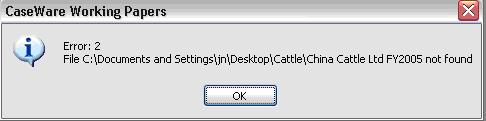
If the file location is correct and the file is still not opening, it is possible that there might be a compressed Caseware Working Papers file within the folder you are trying to open.
To determine this, evaluate the below three options to see if it resolves the Error 2:
Option 1
- Go to the Client folder in the directory where the Caseware Working Papers file was saved
- Open the Folder.
- Select View by Details
- Sort by/Arrange by Type
- Scroll down and see if there is a “compressed Caseware file” located in the folder
- If so, Cut and paste the compressed file out of the current folder into a new folder
- Re – open the original file
Option 2
- Try and open the compressed file that was cut and pasted into a new folder.
Option 3
- Close all Caseware and CaseView files.
- From Windows Explorer, navigate to where the file is saved.
- Click on View | Details.
- Locate the dbf file. Hint: Sort by file type; it will make the file easier to find.
- If the file is there it indicates that the name is not consistent with all other files in this folder. Rename the file to be consistent with the other files.
- If the file cannot be found then the file is missing.
- Browse to any other client file/master template, locate the same file (can follow steps above to find file), copy it into the client file that will not open and then rename to a consistent name
Rate this article:
|vote=None|
Processing...
(Popularity = 4/100, Rating = 0.0/5)
Related Articles
What to do when a there is an error reading file or contents are corrupted upon opening a CaseView document
Windows H2V2 – Error Executing Script Hotfix
Working Papers cannot open Caseware Cloud engagement files
Caseware Working Papers | What to do when opening a Caseware Working Papers file and you get the error code -200 or error code -70 message?
view all...
Search Results
Nedbank Business Banking - Loans and Other Liabilities Audit Confirmation Instructions
Nedbank Corporate Banking - Loans and Other Liabilities Audit Confirmation Instructions
RMB Investment and Corporate Banking South Africa Audit Confirmation Instructions
Nedbank Capital South Africa Audit Confirmation Instructions
Nedbank Commercial Banking Audit Confirmation Instructions
view all...