Caseware Working Papers fail to install on a Citrix/Terminal Server due to an Install Shield compatibility issue. This is a known issue with Windows Server.
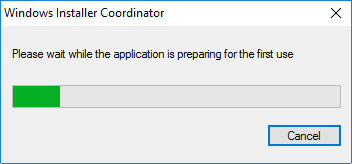
The installation does not proceed beyond the Windows Installer Coordinator dialog.
Answer:
You must either perform a silent installation of Caseware Working Papers or temporarily disable RDS Compatibility for the Citrix/Terminal Server.
To disable RDS Compatibility:
- Click the Windows Start menu and type gpedit.msc. Press Enter.
- In the Local Group Policy Editor, navigate to Computer Configuration | Administrative Templates | Windows Components | Remote Desktop Services | Remote Desktop Session Host | Application Compatibility.
- In the Application Compatibility pane, double-click Turn Off Windows Installer RDS Compatibility.
- In the Turn Off Windows Installer RDS Compatibility dialog, select Enabled | OK
RDS Compatibility is disabled. You can now install Working Papers on the Citrix/Terminal Server.
Note: After installation, you can reset RDS Compatibility if applicable.
Rate this article:
|vote=None|
Processing...
(Popularity = 2/100, Rating = 0.0/5)
Related Articles
Caseware Working Papers | Getting Started | Download install and register Caseware Working Papers
How to download install and register Caseware Working Papers software
Connector | How to install and register Caseware Connector
Caseware Working Papers | Getting Started | Download install and register Caseware Working Papers New
view all...
Search Results
ISRS Agreed-Upon | Latest release
ISRS Agreed-Upon | Latest release
ISRS Agreed-Upon | How to create an engagement file
ISRS Agreed-Upon | Basic Introduction
Cloud App l How to include text areas for firm sign off in engagement letter
view all...