Confirmation.com - Caseware Cloud | Configuring System Wide-Roles for Staff groups
FAQ

Caseware Cloud | Configuring System Wide-Roles for Staff groups

Published:  17/08/2023
 How can I set\configure System Wide-Roles for my staff Group? 

  Answer:

You can define Staff Group System Wide-Roles on the Staff Group System Wide-Roles Screen.  

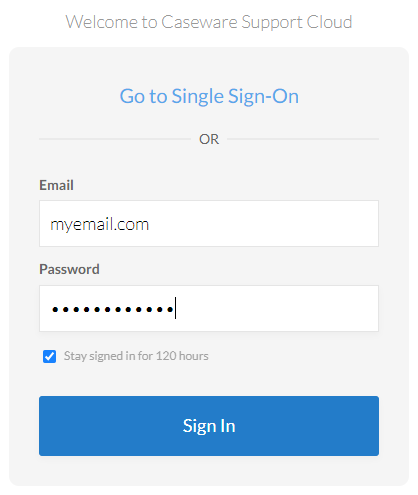
Step 1: Login to Caseware Cloud 


Step 2: Click on the Cloud Menu 


Step 3: Select Groups from the Cloud Menu 


You should be able to see all groups that you have created on the Groups Window including All Staff group. 


Step 4: Select All Staff group (1) to view the group contents. 


Step 5: Click on the edit icon (2) 


Step 6: After clicking on the edit icon, you should be able to see the Edit Screen. Therefore, click on System Wide-Roles (1) and will be able to see all available roles you can set for all staff members. 


Rate this article: 
  (Popularity = 0/100, Rating = 0.0/5)

   Related Articles

Probe Audit | Planning Risk Assessment | 11.50 Information system and control activities Caseware Working Papers | System Requirements and Prerequisites Caseware Cloud | How an Administrator can configure Single Sign-On for their firm How to activate Caseware Cloud Applications for Staff and Groups view all...


   Search Results

Caseware Working Papers | Performing a multiple Year-End-Close Caseware Working Papers | Release | 2025 | Version 2025.00.091(Release 2) Caseware Working Papers | Create an engagement file that is synced on Caseware Cloud for the next period (roll forward) Caseware Working Papers | Getting Started | Download install and register Caseware Working Papers New Caseware Working Papers | What are the risks and impact of Time Tampering for your firm? view all...


Didn't find what you were looking for?


Watch a video

Check out our helpful video guides

Contact Support

Contact our support team
Copyright © 2026 | All Rights Reserved