Confirmation.com - Caseware Cloud | Configuring System Wide-Roles for Staff groups
FAQ

Caseware Cloud | Configuring System Wide-Roles for Staff groups

Published:  17/08/2023
 How can I set\configure System Wide-Roles for my staff Group? 

  Answer:

You can define Staff Group System Wide-Roles on the Staff Group System Wide-Roles Screen.  

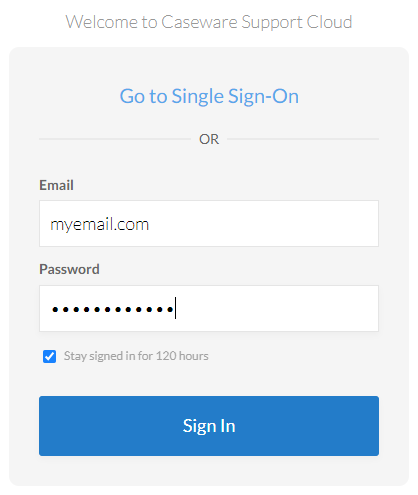
Step 1: Login to Caseware Cloud 


Step 2: Click on the Cloud Menu 


Step 3: Select Groups from the Cloud Menu 


You should be able to see all groups that you have created on the Groups Window including All Staff group. 


Step 4: Select All Staff group (1) to view the group contents. 


Step 5: Click on the edit icon (2) 


Step 6: After clicking on the edit icon, you should be able to see the Edit Screen. Therefore, click on System Wide-Roles (1) and will be able to see all available roles you can set for all staff members. 


Rate this article: 
  (Popularity = 0/100, Rating = 0.0/5)

   Related Articles

Probe Audit | Planning Risk Assessment | 11.50 Information system and control activities Caseware Working Papers | System Requirements and Prerequisites Caseware Cloud | How an Administrator can configure Single Sign-On for their firm How to activate Caseware Cloud Applications for Staff and Groups view all...


   Search Results

Privacy and Security Summary Where to find information about Caseware’s security, privacy, and compliance practices? XBRL | How to change security settings for Caseware and when iXBRL "hangs" on CIPC validation ISO 27001 Certification SOC 1 and SOC 2 Examinations view all...


Didn't find what you were looking for?


Watch a video

Check out our helpful video guides

Contact Support

Contact our support team
Copyright © 2026 | All Rights Reserved