How do I assign Staff to Entities in Caseware Cloud?
Answer:
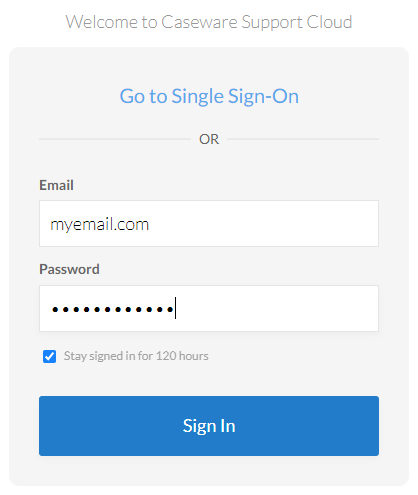
Step 1: Login to Caseware Cloud
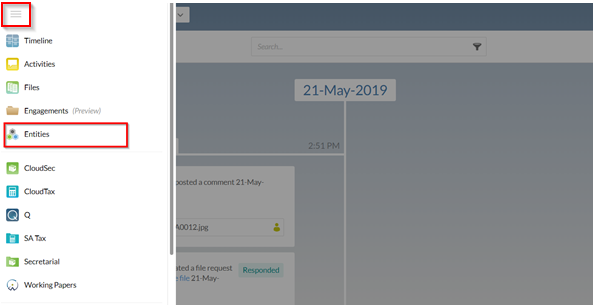
Step 2: Click the hamburger menu and click on Entities
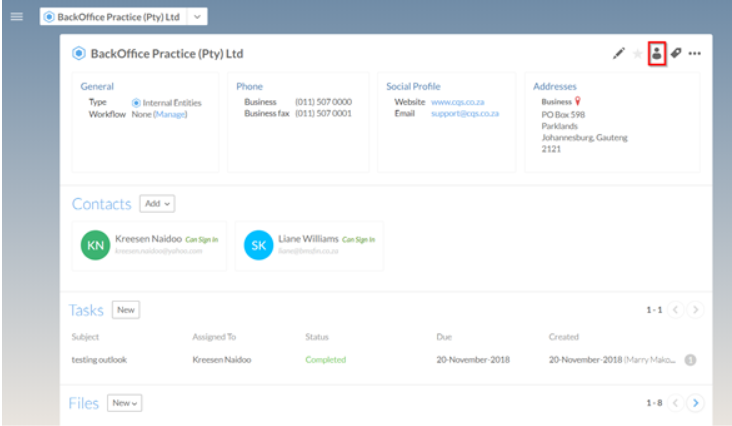
Step 3: “Entities” screen
Step 4: Click on the “Share” icon
Step 5: Select the Staff member that you would like to assign
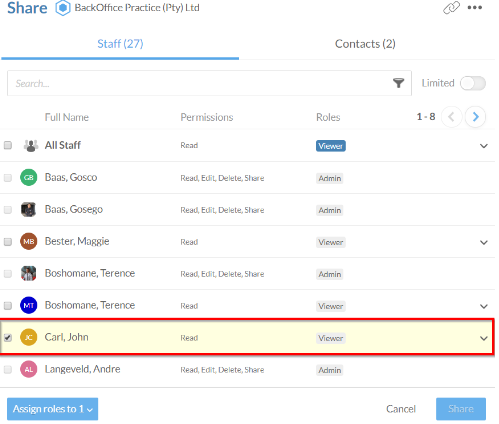
Step 6: “Sharing” screen
-
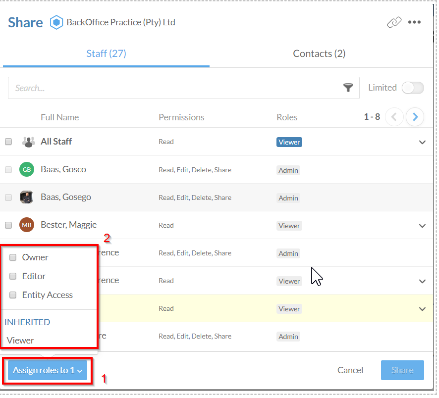
Click on “Assign roles to 1”
-
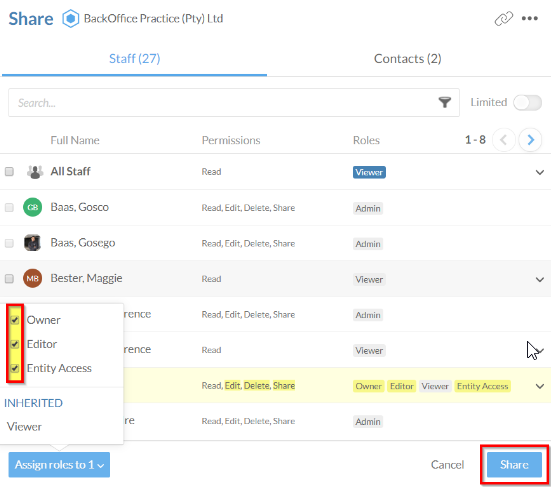
Click on the "roles" checkbox that you want to assign
Owner: May view, edit, delete and grant others roles on content where they have this role.
Editor: May view and edit content where they have this role.
Entity Access: Enables the assignment of a security role on content and grants access to the entity summary and details
Viewer: May view content where they have this role.
Step 7: Click on “Share” to ensure that the Staff member is assigned to the selected Entity
Rate this article:
|vote=None|
Processing...
(Popularity = 0/100, Rating = 0.0/5)
Related Articles
Which entities need to comply with the XBRL determination of the CIPC
Caseware Cloud | Assigning Staff to Groups
How do I get rid of the Statement of Financial Position entity warning?
Grant users and groups access to entities
view all...