How do I install the Caseware Cloud Migration Manager?
How do I set up the Caseware Cloud Migration Manager?
How do I prepare files for migration?
How do I migrate files to Caseware Cloud?
How do I check my files after migration?
Answer:
Use the Caseware Cloud Migration Manager to migrate Caseware Working Papers files to Caseware Cloud in bulk.
How do I install the Caseware Cloud Migration Manager?
To install the Caseware Cloud Migration Manager:
-
Download the latest installation file.
-
Run the installation file on your desktop machine.
When the installation is successful, the Caseware Cloud Migration Manager icon is on your machine, ready to be launched.
How do I set up the Caseware Cloud Migration Manager?
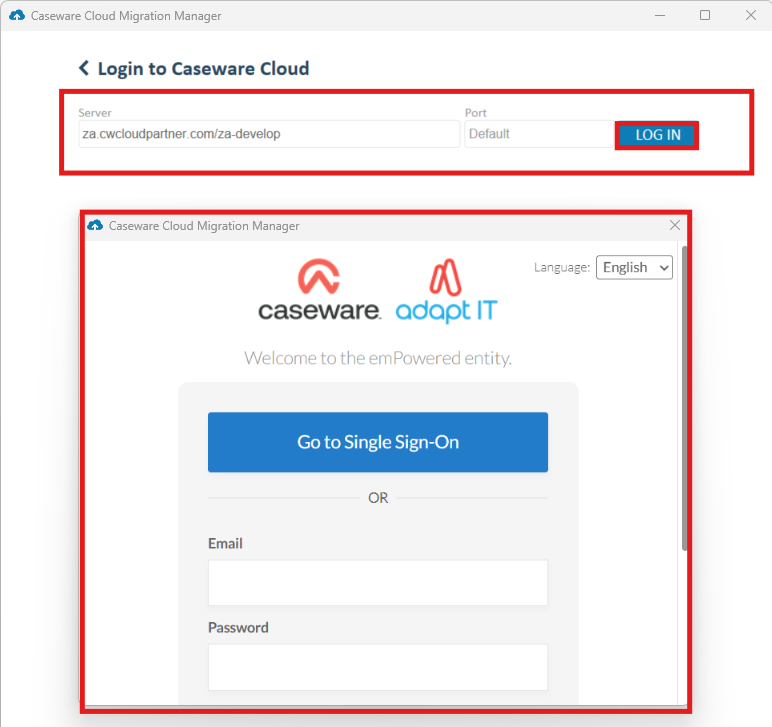
The Cloud Admin must enter the Caseware Cloud URL and then log in to that Caseware Cloud instance to start using the tool.
How do I prepare files for migration?
To prepare the files for migration:
-
Make a copy of the files you are migrating.
-
Save each copy on your local drive, in its own folder.
-
Use Caseware Tracker to compress the files. For more information, see How to compress files in bulk on Caseware Tracker.
N.B: This step is crucial. The copy used for migration is deleted after migration, so it's important to keep the original copy.
How do I migrate files to Caseware Cloud?
To migrate the files:
-
Create or import entities: if you haven't already created the Cloud entities, go to the Caseware Cloud instance and create or import the entities you want to migrate files to. For more information, see How to create and/or import Entities.
-
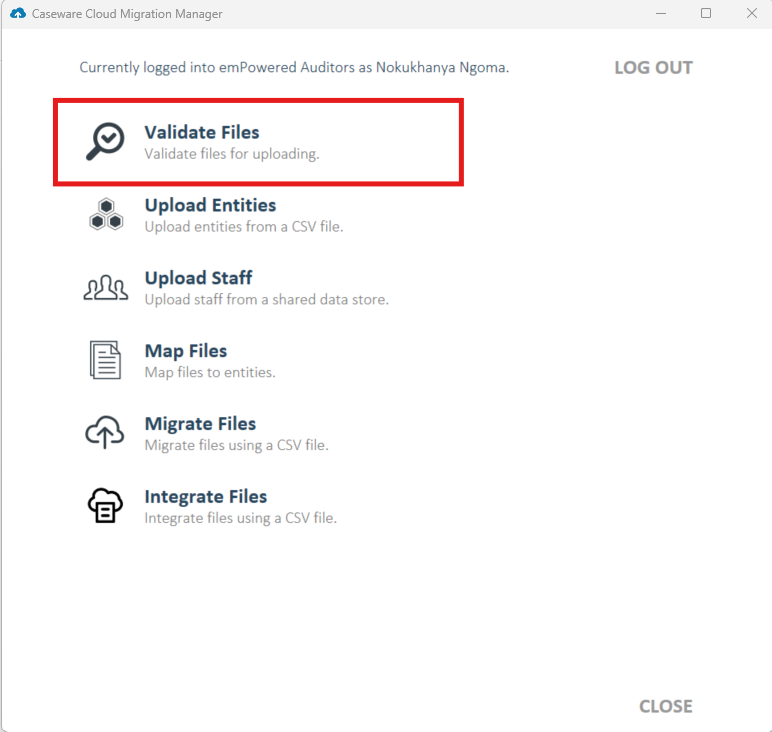
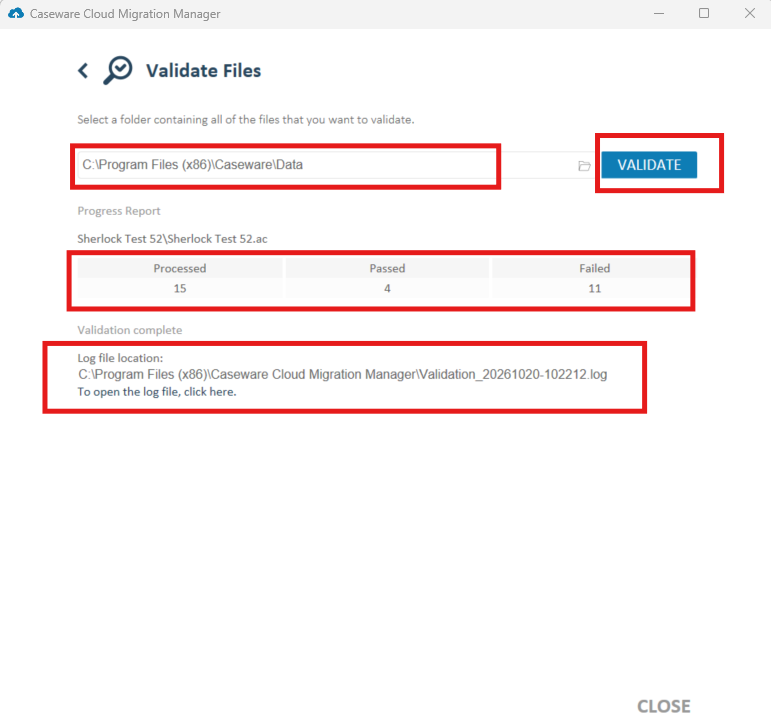
Validate files: in the Caseware Cloud Migration Manager, select Validate Files, then browse to and select the folder with all the files you want to migrate. When validation is complete, a progress report shows the files that passed under Passed and the files that failed under Failed. Select the log file to see the validation issues to fix.
-
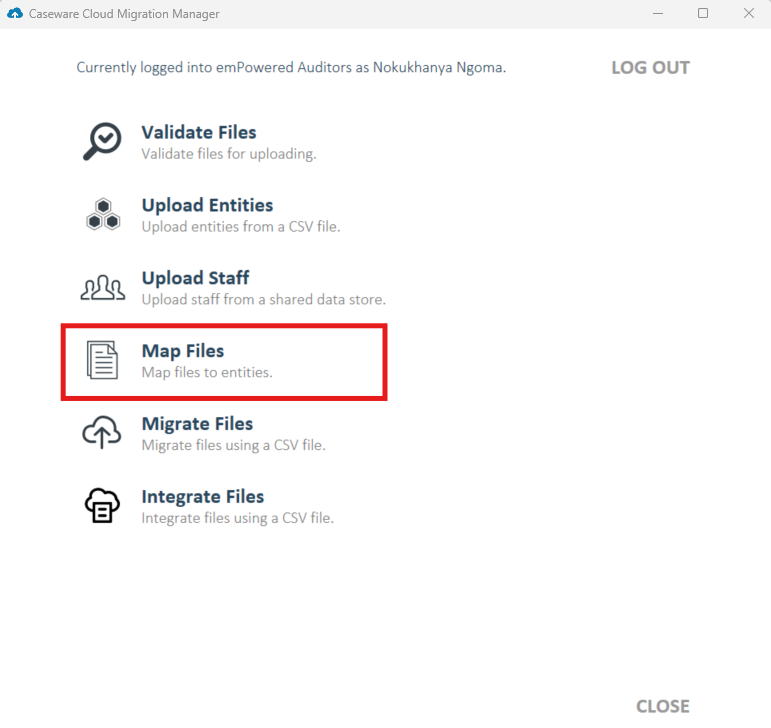
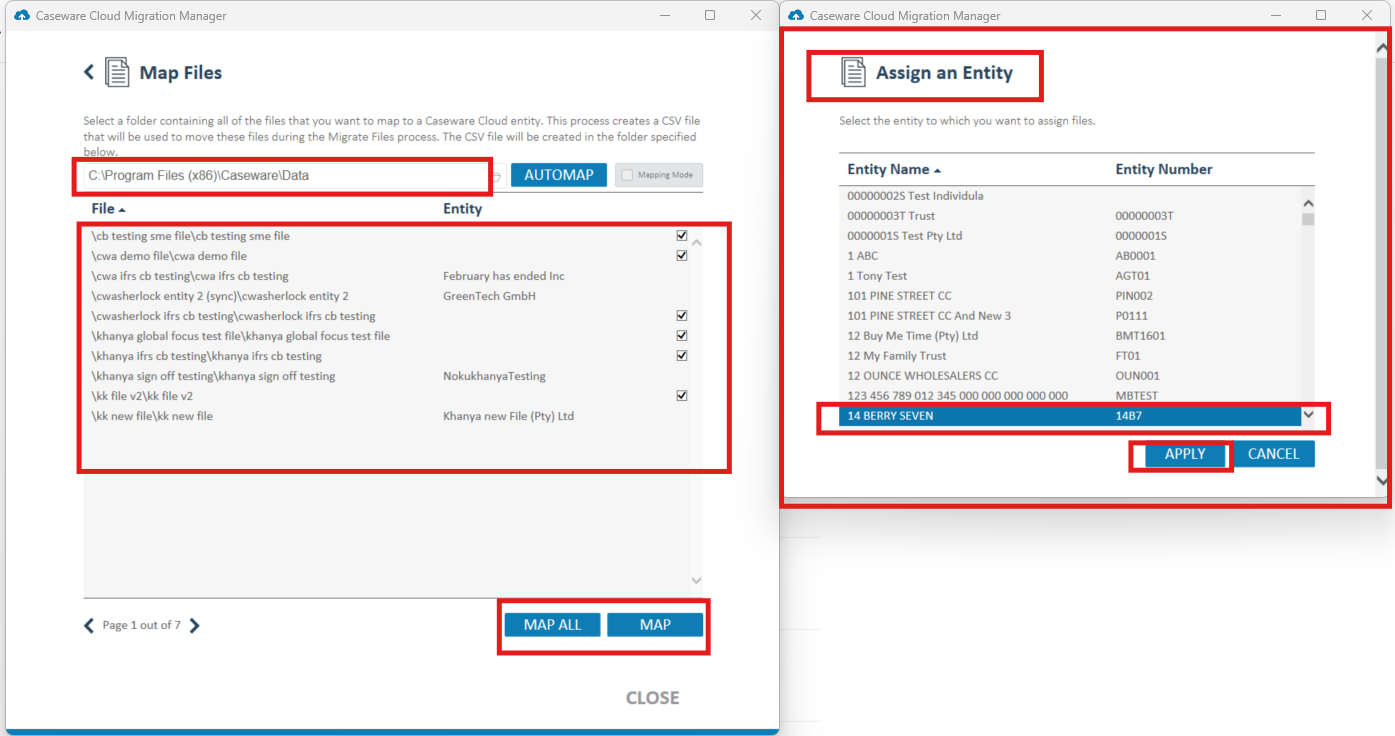
Map files: select Map Files, select the folder with the files that passed validation, select Automap and map the files to one or more entities. The Migration Manager saves a CSV file with all the mappings in the same folder as the files.
-
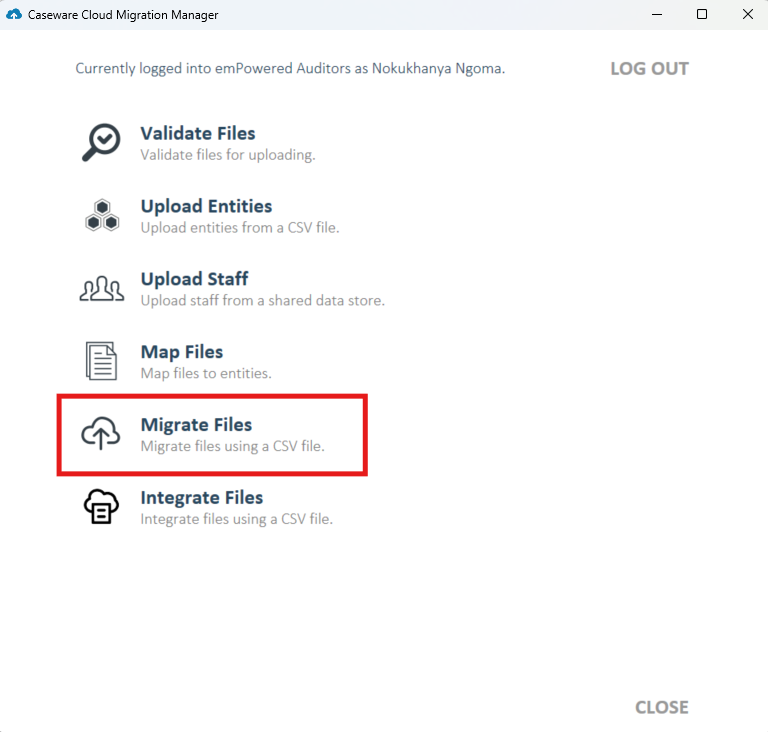
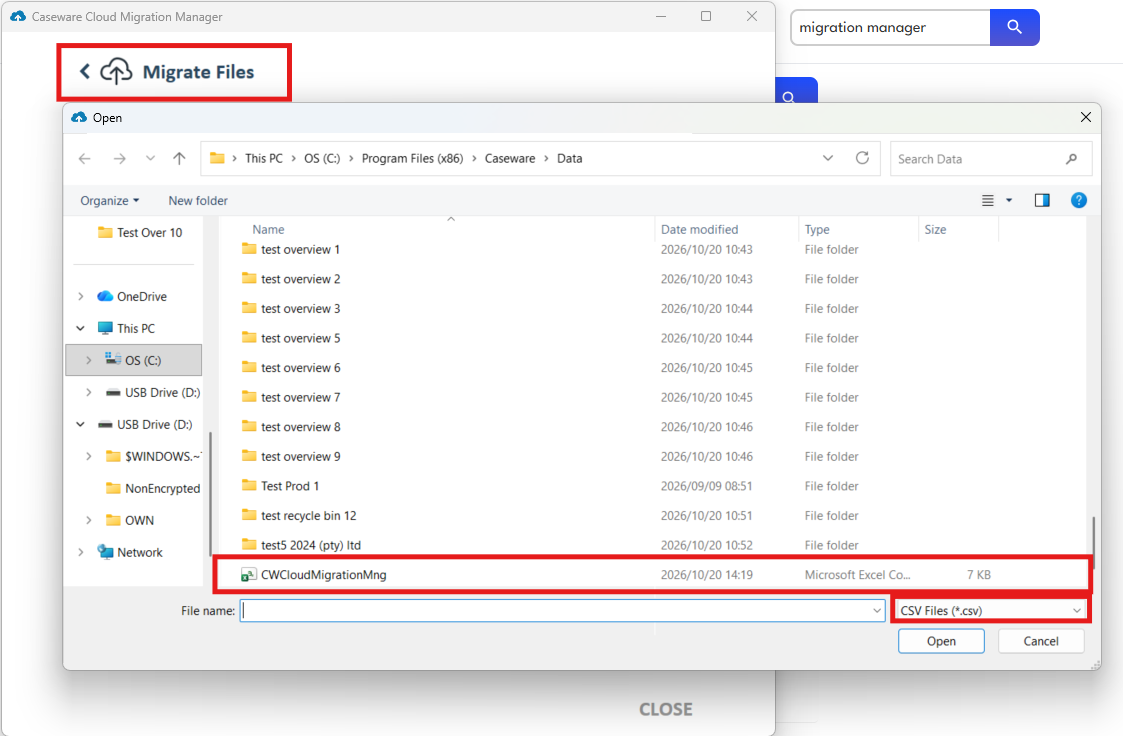
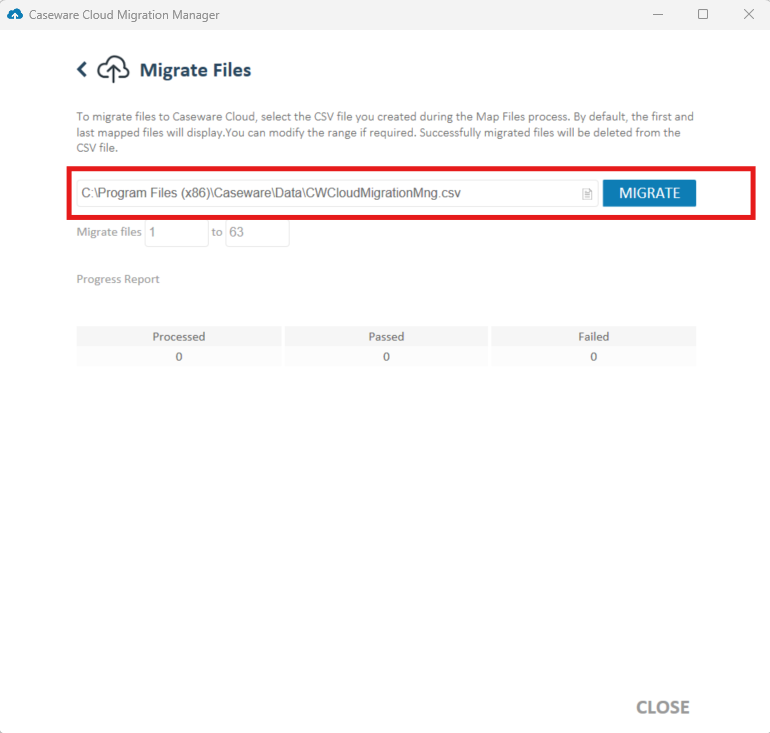
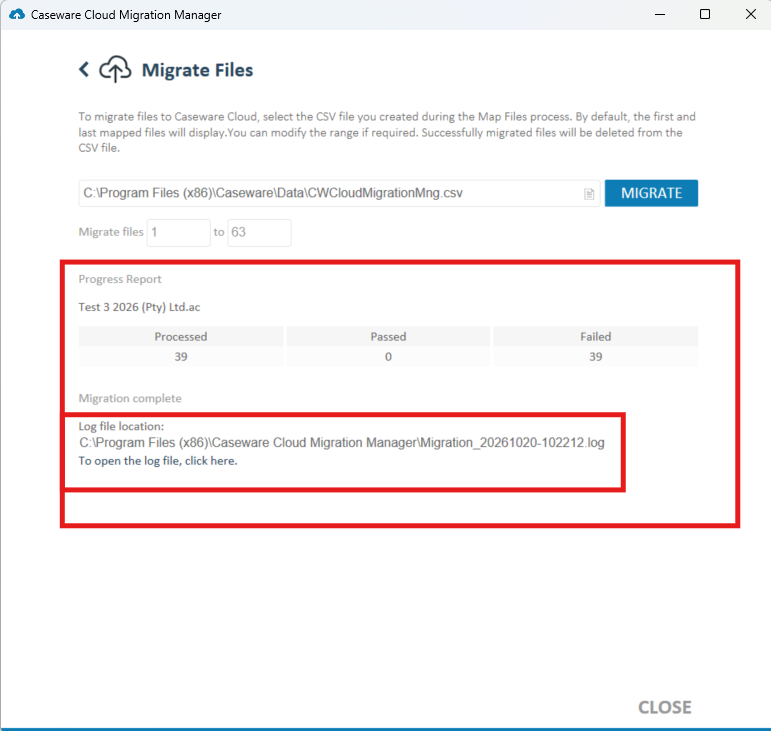
Migrate files: select Migrate Files to start migrating the files to the mapped Cloud entities. When the migration is complete, the progress report shows how many files migrated successfully and how many failed.
How do I check my files after migration?
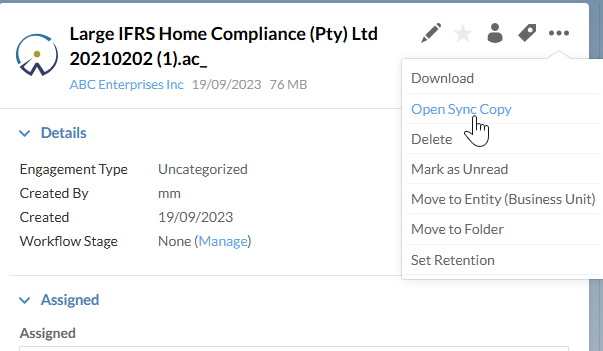
Go to the Caseware Cloud instance and check that your files have synced. Migrated files display in the Working Papers view under the selected entities. Open the synced copy to start working on the file.
Rate this article:
|vote=None|
Processing...
(Popularity = 0/100, Rating = 0.0/5)
Related Articles
Caseware Working Papers | How to integrate Caseware Working Papers with your Cloud Instance
Caseware Working Papers | Create an engagement file that is synced on Caseware Cloud for the next period (roll forward)
Working Papers cannot open Caseware Cloud engagement files
Close a Caseware Cloud account
Caseware Cloud | How to set up Azure to support Caseware Cloud Single Sign-On
view all...