How do I insert a firm logo globally?
Answer:
-
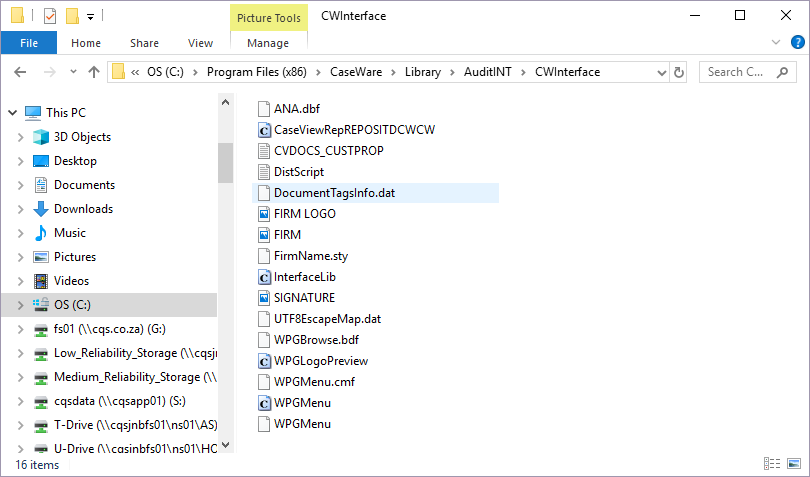
Copy the image to C:\Program Files (x86)\caseware\Library\AuditINT\CWInterface\
-
Rename the image to “FIRM LOGO”
-
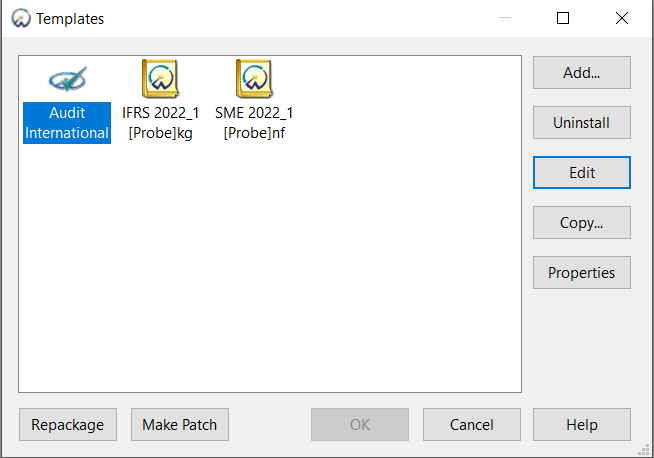
Open the template.
-
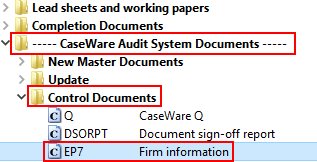
Open form EP7 Firm Information
-
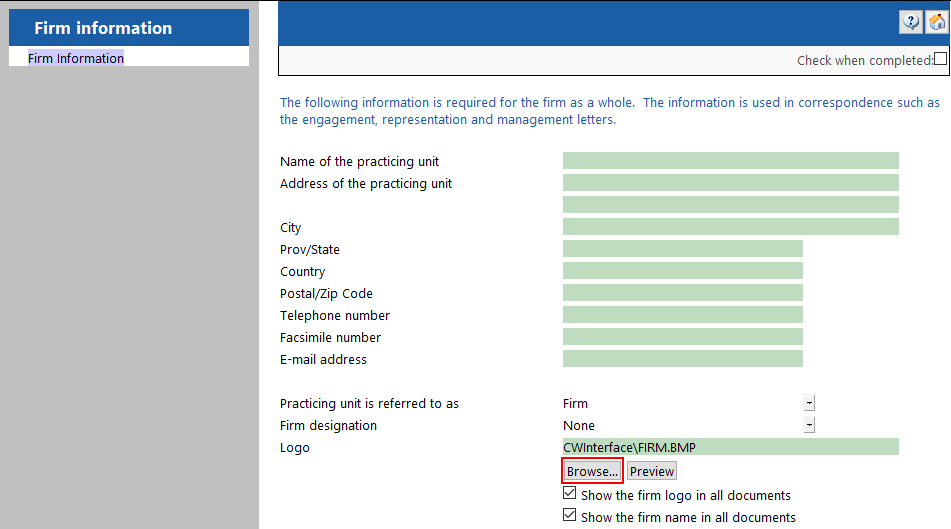
In the document, click on “Browse”.
-
Browse to the firm logo at C:\Program Files (x86)\caseware\Library\AuditINT\CWInterface\
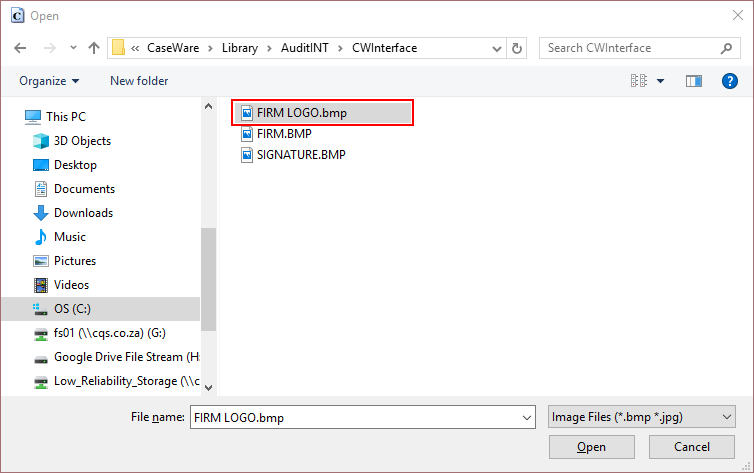
The end result is:
The logo will show on all documents.

Rate this article:
|vote=None|
Processing...
(Popularity = 0/100, Rating = 0.0/5)
Related Articles
Cloud App | Inserting a logo / letterhead in the Firm Template
Cloud App | How to manage the firm template
Cloud App | How to customise display options, formatting and settings for your firm template
Connector | Using Caseware Connector for your firm's Management Reports
view all...
Search Results
Reconfirming/Querying a Completed Confirmation
What does the Completed Confirmation Report provide?
Retrieving Completed Confirmations
Can I request more information from the Responder (Bank)?
Probe | Completing a work program
view all...