How to configure the categories of risks within the IA Governance app so that it will align with risk categories as per my organisational risk framework. Customise the risk categories, including the ratings of risk likelihood, impacts and control effectiveness that has an influence on my inherent and residual risk assessments.
Instructions:
The Risks page under the SETUP module allows users to configure the elements and aspects of the risks and the selection availabilities when defining and assessing risks throughout the IA Governance app. This setup will not only impact how risks are assessed and inform the audit plan in the AUDIT module, but also what the risk assessment selection options will be within the IA Engagements app.
Objective
The objective of SETUP | Risks is to configure the different elements of a risk as it will be displayed throughout both the IA Governance and the IA Engagements apps. This configuration allows the alignment of the risk assessment processes in the AUDIT module to be aligned to the organisational risk assessment framework and approach. The different elements of risks that can be configured in this area are Risk categories, Likelihood, Impact, Inherent Risk, Control effectiveness and Residual risk.
Page position
SETUP | Risk can be found on the sidebar within the SETUP module of the IA Governance app
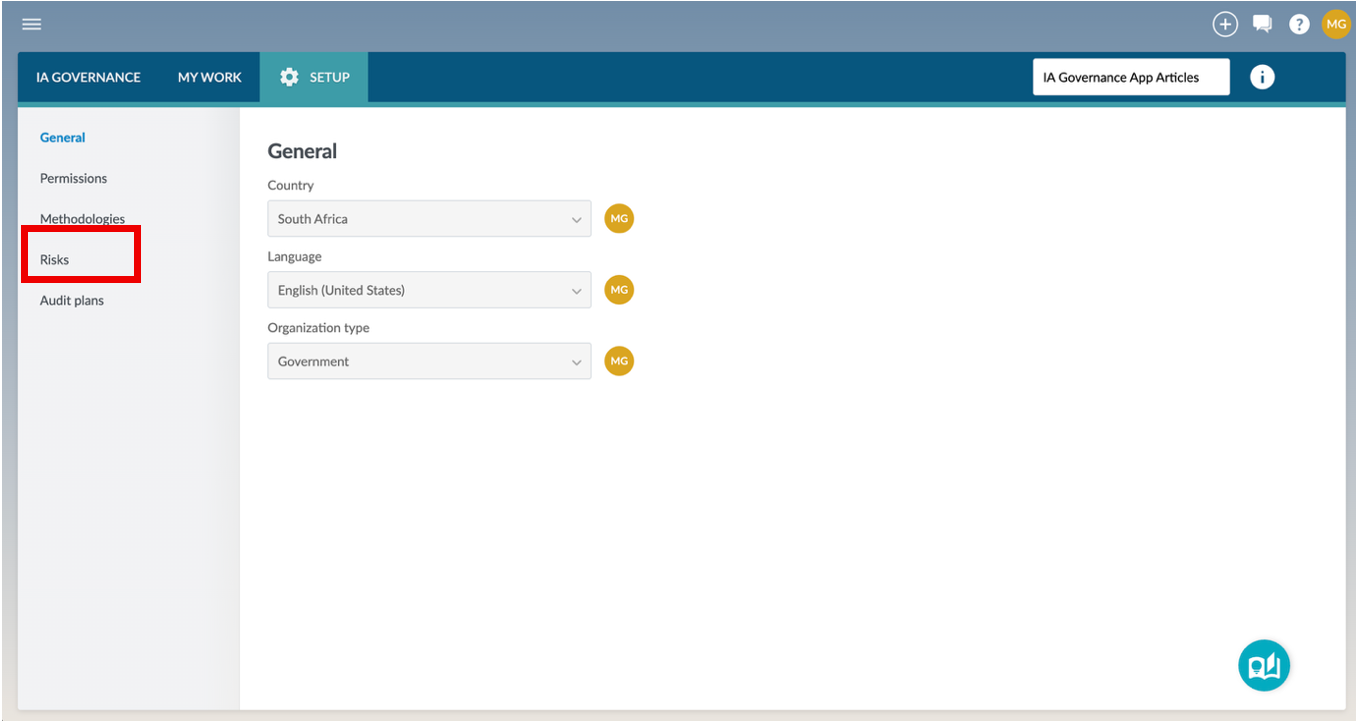
Page content
The Risk section within the SETUP module allows you to configure the various risk elements that will inform the risk assessment processes throughout the IA Governance and IA Engagements apps. The page is divided into six expandable sections — one for each of the above items. Each section lets you review default content, make edits, or add your own terms. The little arrow button on the right-hand side of the screen will quickly expand or collapse the risk element that you want to work with.
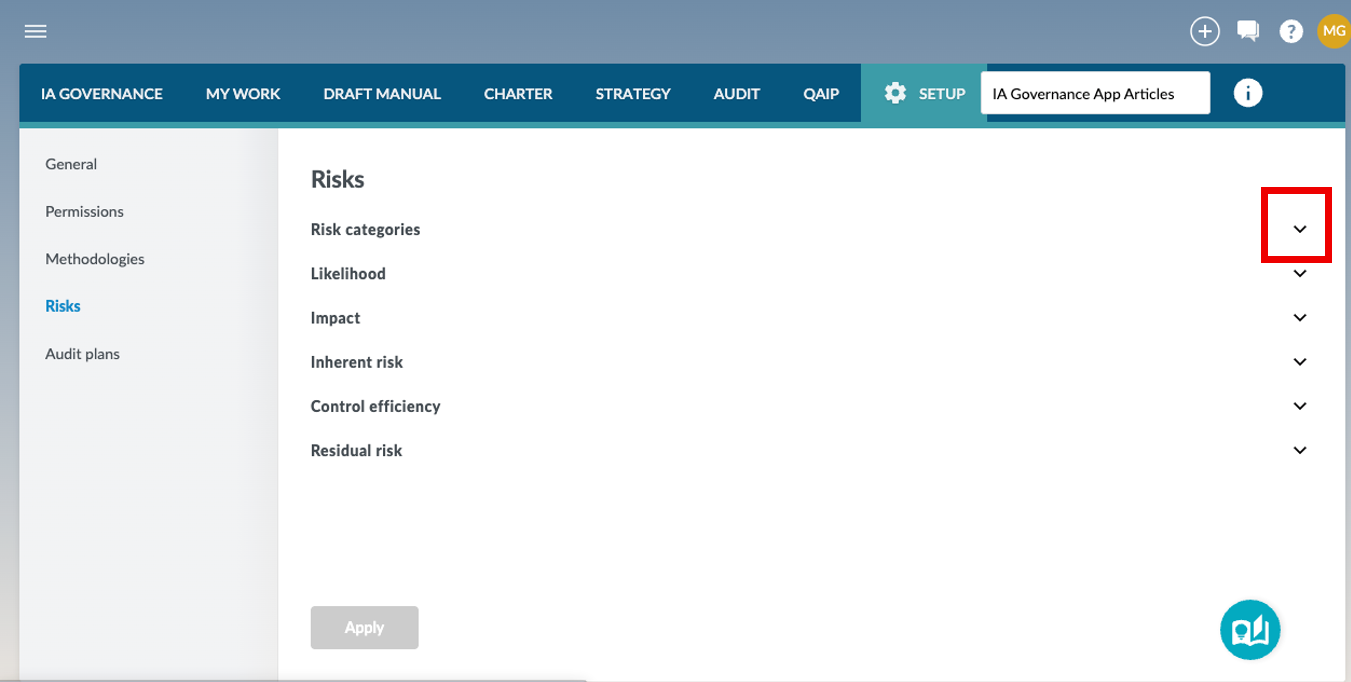
Risk categories
Risk categories are broad groupings used by an organisation to classify and organise its risks consistently (for example: strategic, financial, operational, compliance, technology, people, and reputational risks). They should be set because they create a common “risk language” across the business, help ensure all key risk areas are considered (so nothing important is missed), and make it easier to assess, report, and prioritise risks consistently at executive and board level. Configuration of the risk categories allows for new categories to be added, existing ones renamed, or archiving those that is no longer in use. Archiving keeps history intact while preventing future use.
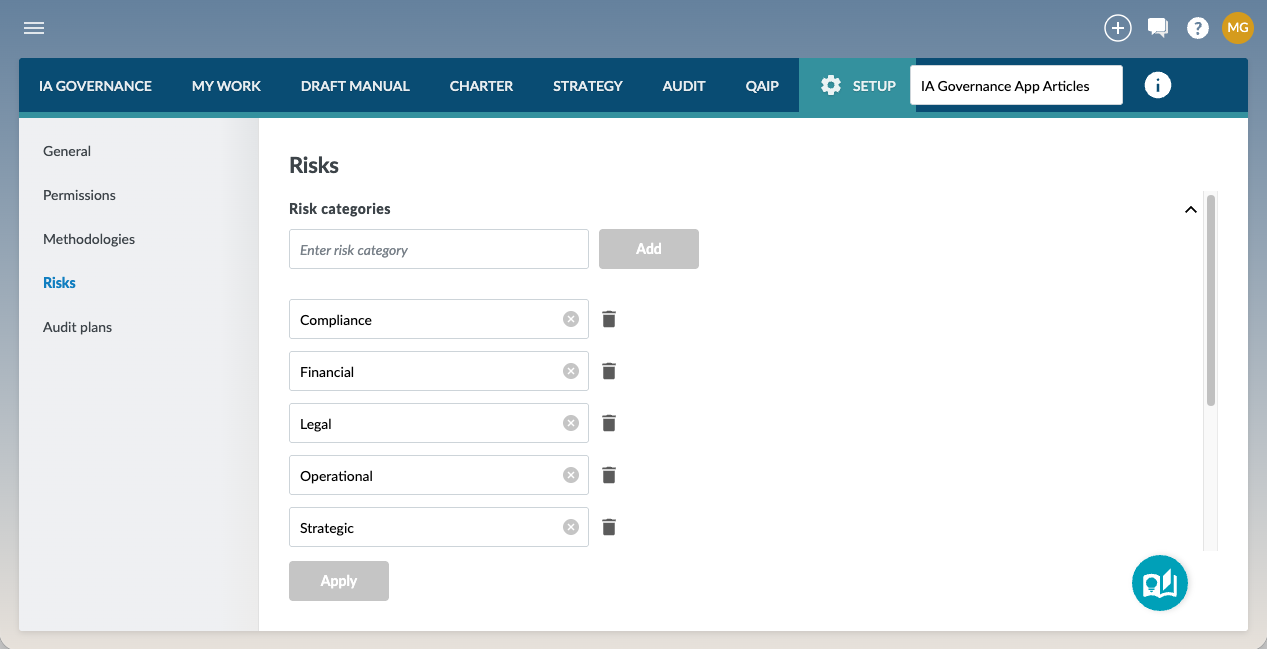
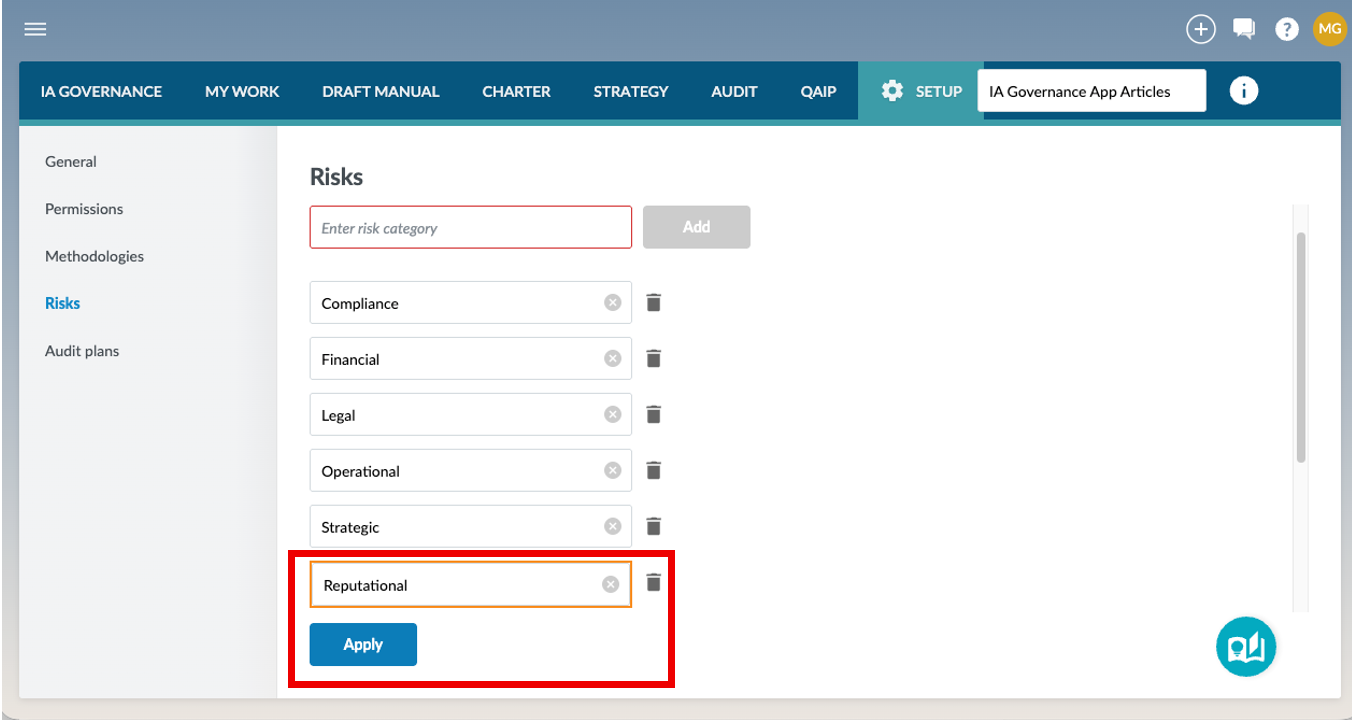
Add or amend a risk category – Type the new risk category in the blank field area or make amendments to a current one. Once the new category is typed, the Add button will turn blue and be selectable. (Greyed out blocks like the Apply at the bottom of the screen are not selectable at this stage.)
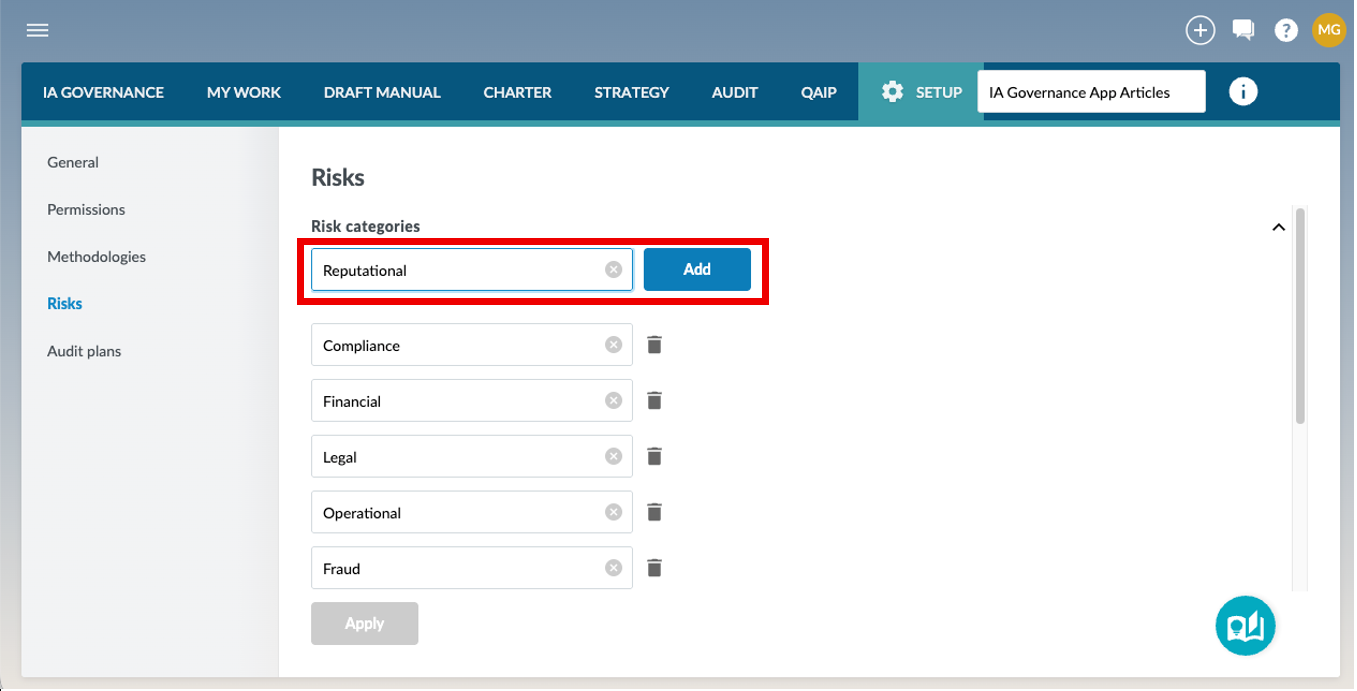
When a new risk category has been added, or an amendment was made to an existing risk category, the Apply button at the bottom of the screen will turn blue and become selectable. Note: Changes will only be saved and become effective once they are applied. Changed or added categories will be indicated by an orange outline.
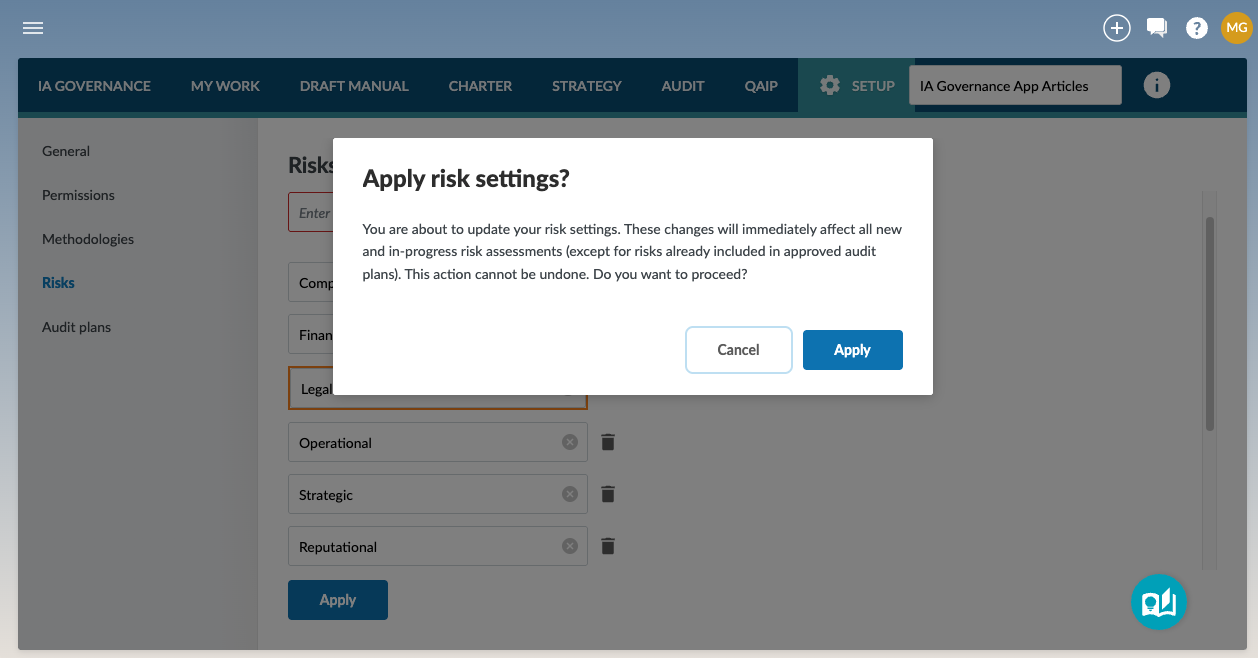
Generic for all of the elements in SETUP| Risks is that clicking the Apply button will trigger a warning screen indicating that “any changes made to risk categories will immediately affect all new and in-progress risk assessments (except for risks already included in approved audit plans). This action cannot be undone. Do you want to proceed?” Selecting the Apply button will finalise the changes process.
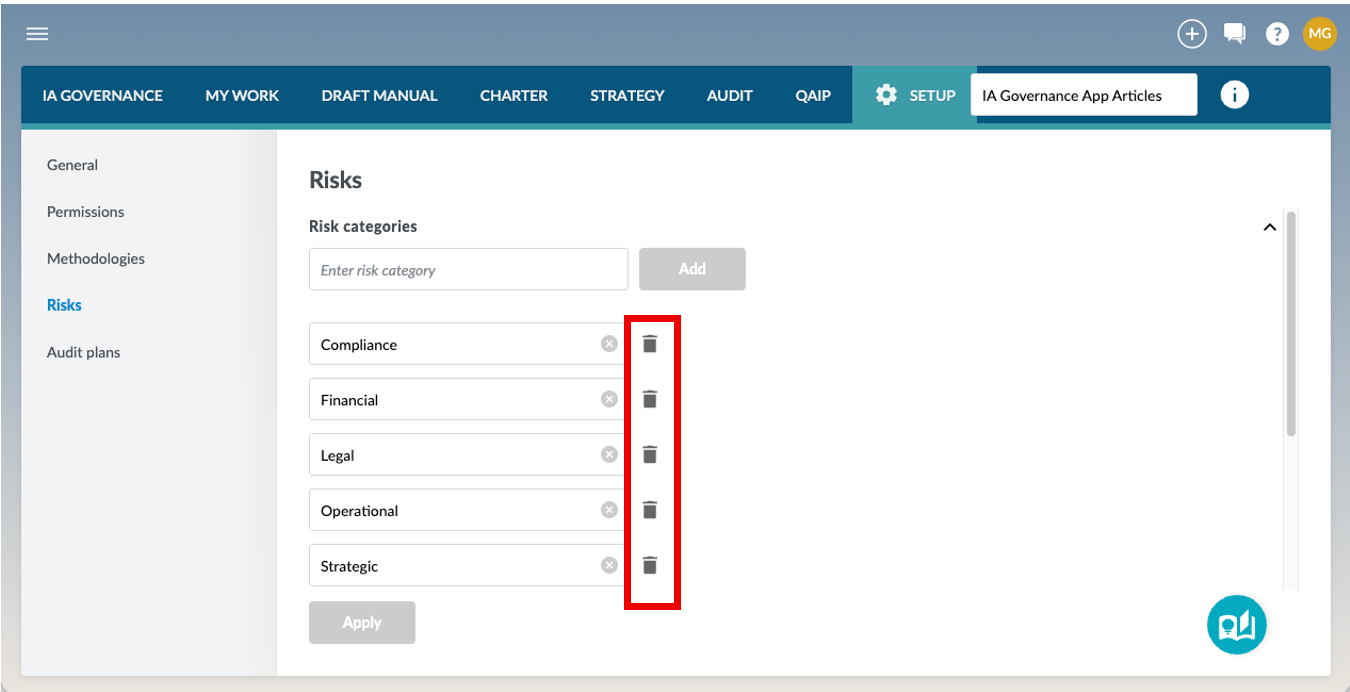
When Risk categories become obsolete, those categories can be deleted by clicking on the trash can icon next to each category line. The same Apply process as described above will need to be followed.
Likelihood, Impact and Control Effectiveness
Likelihood refers to the probability or expected frequency that a risk event may occur within a defined time period. Setting up the likelihood scale is essential because it provides a consistent and measurable way to rate risks, ensuring that risk scoring is applied uniformly across the organisation and enabling meaningful comparison, prioritisation, and reporting of risks.
Impact refers to the severity of the consequences to the organisation if a risk event occurs. Setting up the impact scale is essential because it ensures risks are evaluated consistently based on a shared understanding of what “low” to “high” impact means, allowing risks to be prioritised correctly and reported in a structured and comparable way.
Control effectiveness refers to how well existing controls are designed and operating to prevent a risk from occurring, or to detect and reduce its impact. Setting up the control effectiveness scale is essential because it allows the organisation to assess how strong or weak controls are in a consistent manner, which directly influences the overall risk rating and supports better decision-making on where improvements are needed.
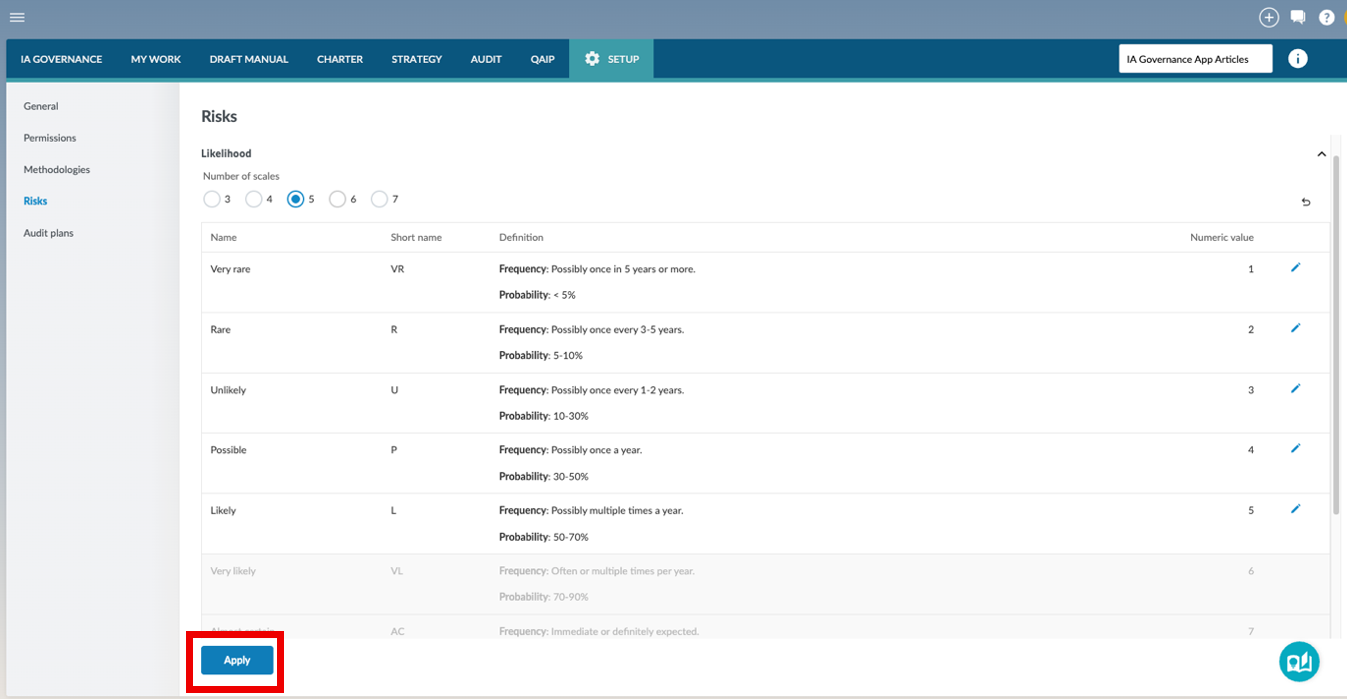
These three sections define the scales used for risk scoring. Each is made up of a set of levels (for example: Low, Medium, High) with a description and a numeric value. The default scales provide five levels, but you can choose to have between three and seven. The selection is made at the top of the relevant page by selecting the number that corresponds to the levels that will be used for your risk assessment purposes (normally aligned to your organisational risk framework).
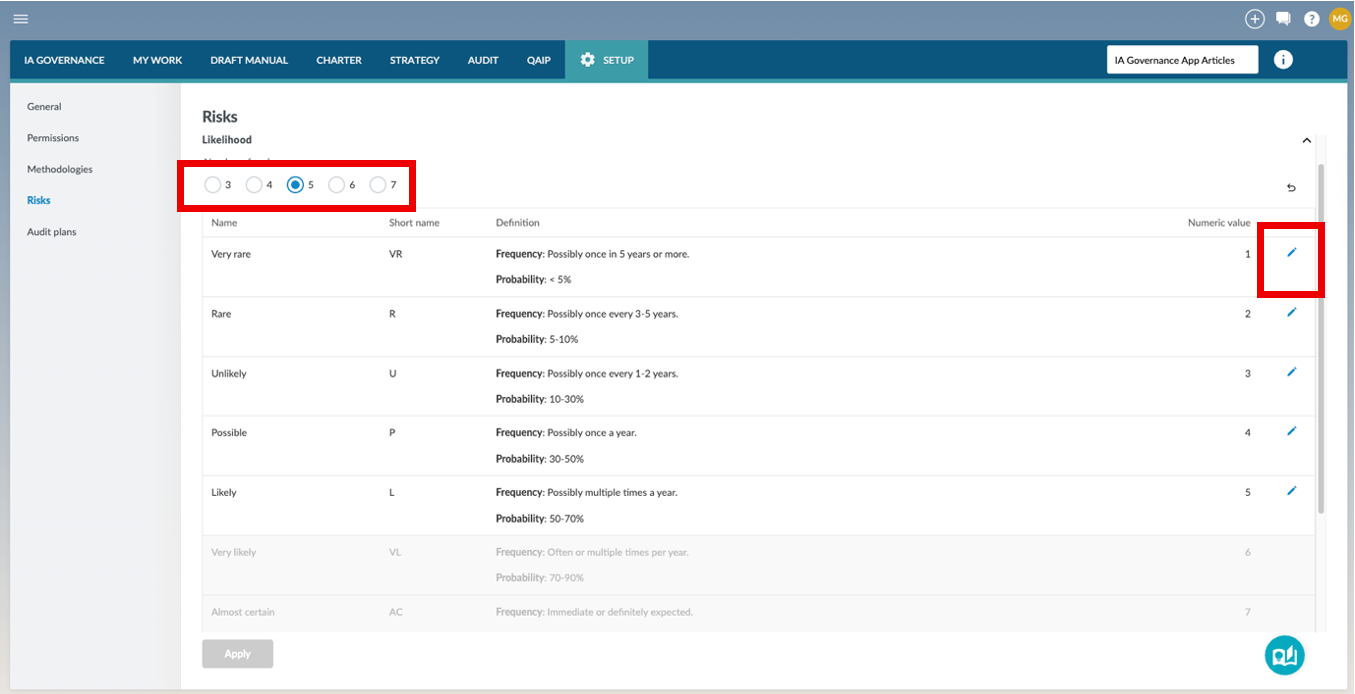
If you reduce the number of levels, the extra levels are disabled from the bottom up. They remain visible in older records but can no longer be selected for new or edited risks. Those levels that are not greyed out can be customised by selecting the pencil to the right hand side of the level. This will open up the edit mode for that specific level, allowing all fields to be customised and align to your specific requirements.
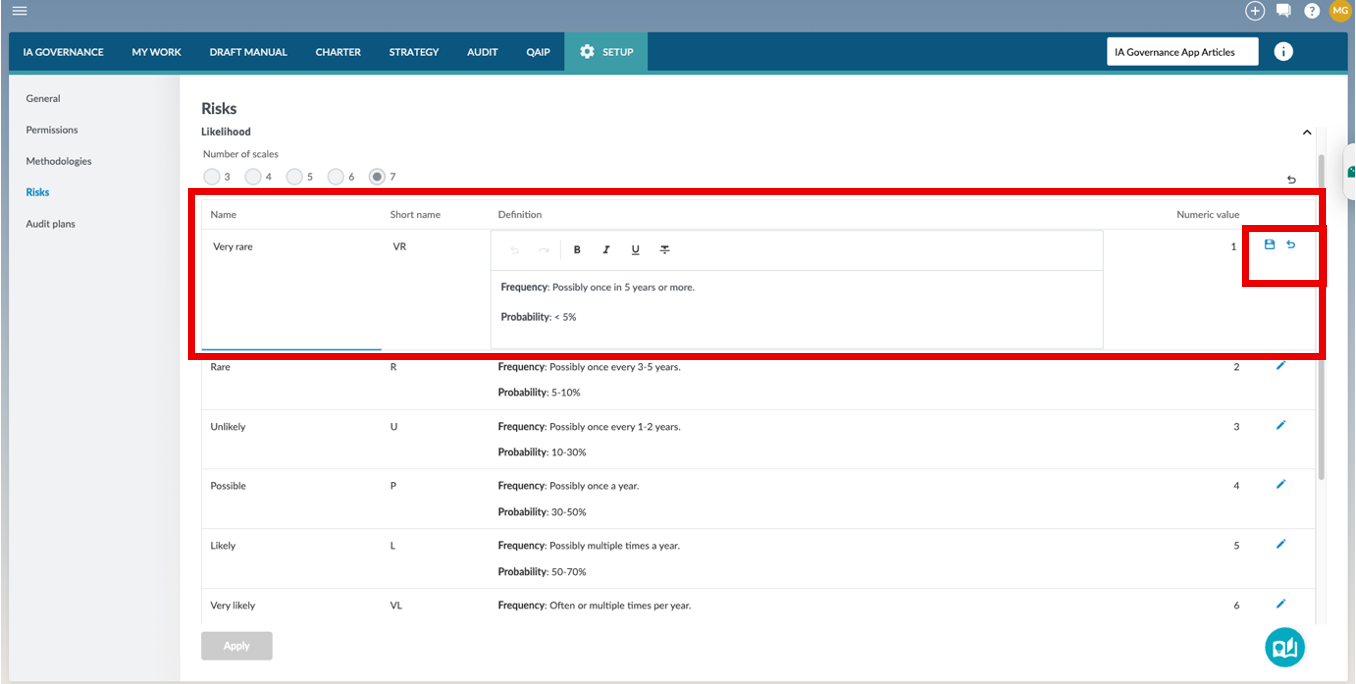
When customising the descriptions for each of the levels, they will be temporarily set by either pressing enter on your keyboard or by selecting the save icon on the right-hand side of the screen. Discarding any changes can be done by selecting the revert icon on the right-hand side of the screen.
Note: Renaming a level updates how it appears in in-progress risks, while changing the numeric values recalculates risk scores where relevant. Approved audit plans are not affected, preserving historical accuracy. Customised changes only take effect after the blue Apply button is selected. This button only becomes selectable when changes have been made. (Note: A warning screen will be displayed requiring the user to confirm the Apply selection).
Inherent risk, Residual Risk
Inherent Risk refers to the level of risk that exists naturally before any controls or mitigating actions are applied. Defining inherent risk is important because it provides a baseline view of how severe a risk would be if the organisation had no controls in place, which helps to understand the true exposure and the importance of managing the risk.
Residual Risk refers to the level of risk that remains after existing controls and mitigation measures have been applied. Defining residual risk is important because it reflects the organisation’s actual current risk exposure, supports decisions on whether additional controls are needed, and helps management determine whether the remaining risk is within the organisation’s risk appetite.
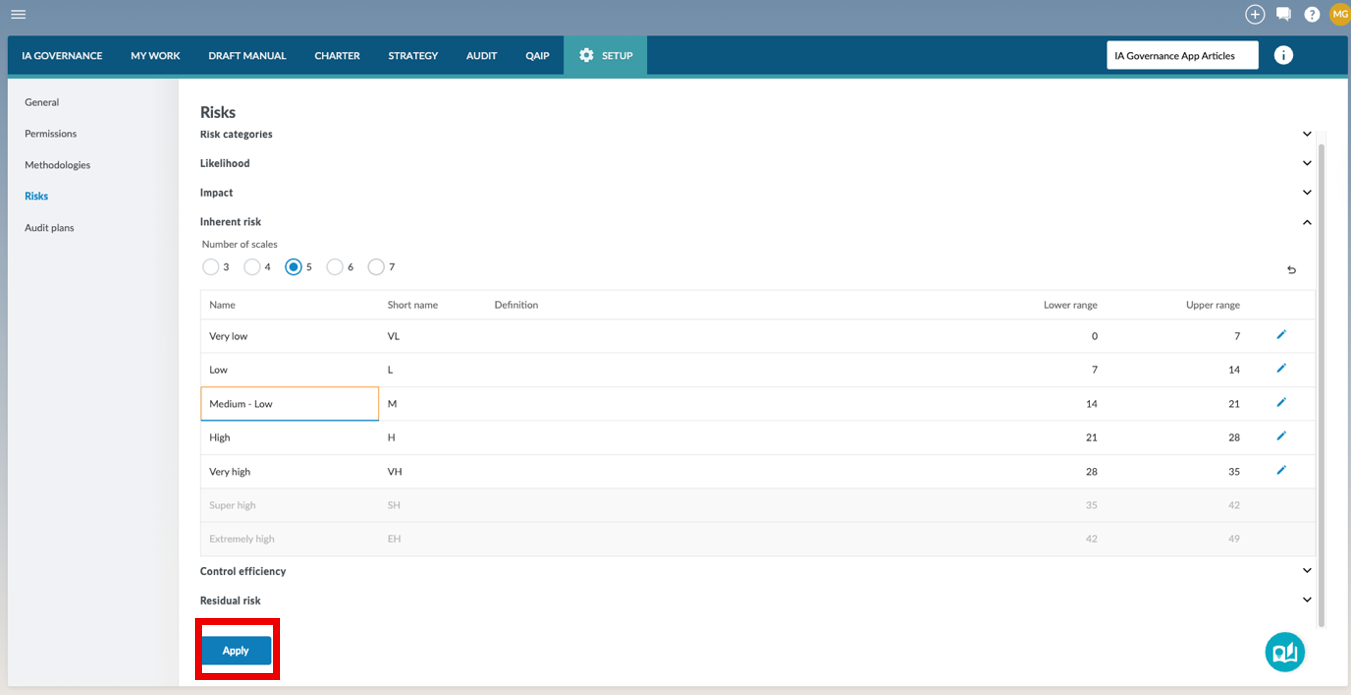
These two sections define the ranges used to group risk scores into categories such as Low, Medium, or High. Instead of a single numeric value, each level is defined by a range (for example, scores of 1–5 = Low, 6–15 = Medium, 16–25 = High). The default scales provide five levels. To change the number of levels, select between three and seven. If you lower the number of levels, the extra ranges are disabled from the bottom up. They remain visible in older risks but will not be available for future scoring.
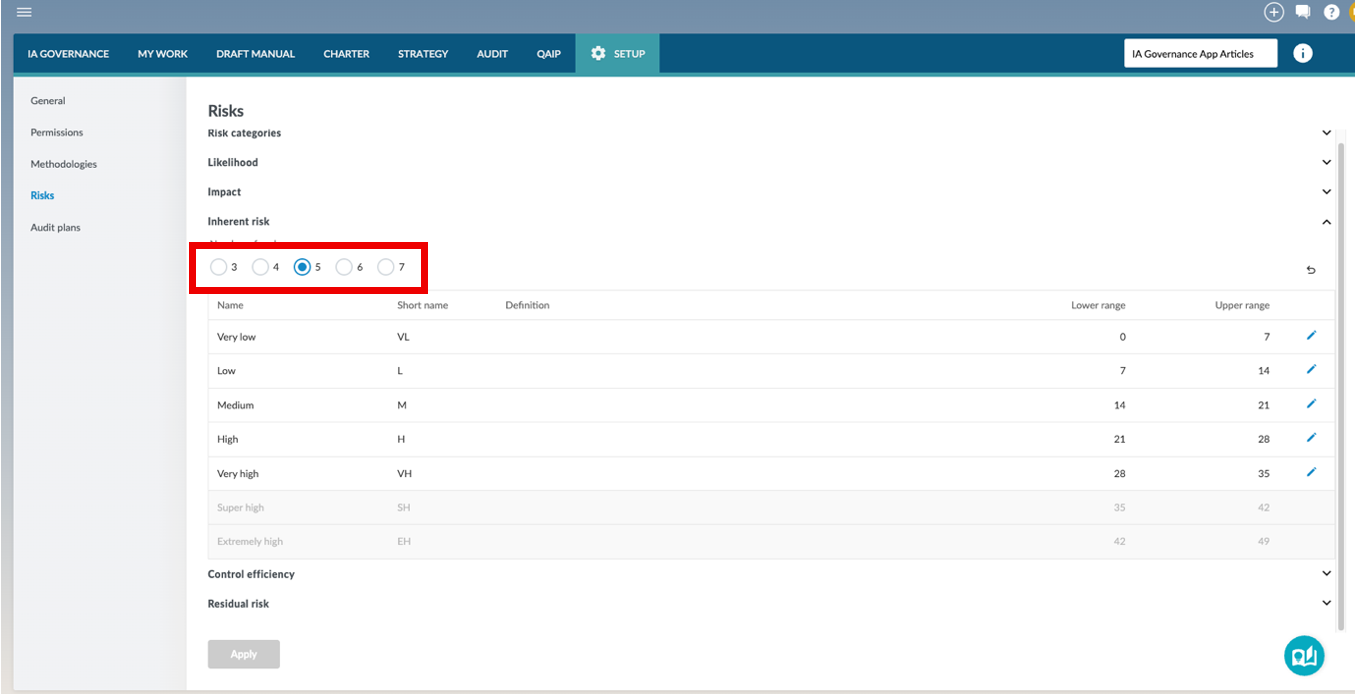
If you reduce the number of levels, the extra levels are disabled from the bottom up. They remain visible in older records but can no longer be selected for new or edited risks. Those levels that are not greyed out can be customised by selecting the pencil to the right hand side of the level. This will open up the edit mode for that specific level, allowing all fields to be customised and align to your specific requirements.
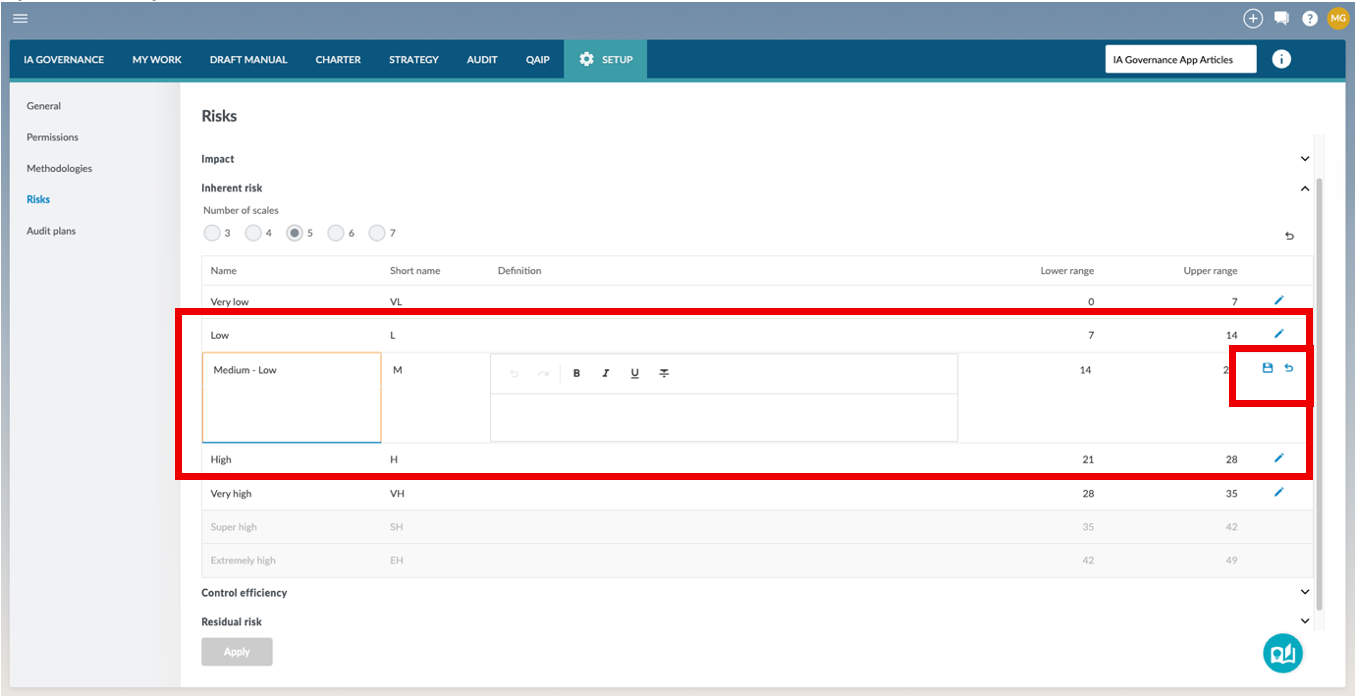
You can customise the names, abbreviations, and descriptions of these ranges to match your internal risk framework. You can also adjust the upper and lower boundaries of each range, provided they are continuous and non-overlapping. They will be temporarily set by either pressing enter on your keyboard or by selecting the save icon on the right-hand side of the screen. Discarding any changes can be done by selecting the back icon , also on the right-hand side of the screen.
As with other sections, your edits remain in draft until you select the blue Apply. Once applied, in-progress risk assessments are updated to use the new ranges, but approved audit plans keep their original values. (Note: A warning screen will be displayed requiring the user to confirm the Apply selection).
Page outcomes
Customising all the elements of the risk assessment process directs the consistent application of the risk assessment process throughout the IA Governance and the IA Engagements applications.
Features
The following features are available on this page:
Rate this article: